
1. Kupu Whakataki
This manual provides detailed instructions for the proper setup, operation, and maintenance of your Veho VMS-004 Discovery Deluxe USB Microscope. Please read this manual thoroughly before using the device to ensure optimal performance and longevity.
The Veho VMS-004 is a versatile USB microscope designed for detailed observation and digital capture of magnified images and videos. It features up to 400x magnification, a 2.0 Megapixel CMOS lens, and adjustable LED illumination, making it suitable for various applications including educational, hobbyist, and professional use.
2. Nga korero haumaru
- Kaua e wetewete: Attempting to disassemble or modify the microscope may cause damage and void the warranty.
- A ape i te ra tika: Do not expose the microscope to direct sunlight or high temperatures.
- Te hapai me te tupato: The lens and internal components are delicate. Avoid dropping or subjecting the device to strong impacts.
- Kia maroke: Ehara tenei taputapu i te parewai. A ape i te pa ki te wai, te makuku nui ranei.
- Pūtake hiko: Use only the specified USB power source.
- Tamariki: Keep out of reach of small children. Adult supervision is recommended during use.
3. Ihirangi mokete
Manatokona kei roto katoa nga mea kei roto i to kete:
- Veho VMS-004 Discovery Deluxe USB Microscope
- Flexi Alloy Stand
- Software CD (for drivers and application)
- Pukapuka Kaiwhakamahi (tenei tuhinga)
4. Hua Neke Atuview
Familiarize yourself with the main components of the Veho VMS-004 microscope.

Figure 4.1: The Veho VMS-004 Discovery Deluxe USB Microscope mounted on its flexi alloy stand.
- Microscope Body: Contains the lens, CMOS sensor, and illumination LEDs.
- Wira Arotahi: Located on the microscope body, used to adjust the focus for clear images.
- Patene Whakaahua: A button on the microscope body for capturing still images.
- LED Illumination Control: A small wheel or dial to adjust the brightness of the built-in LEDs.
- USB Taura: For connecting the microscope to your computer.
- Flexi Alloy Stand: Provides a stable base and adjustable positioning for the microscope.

Whakaahua 4.2: Whakatata view of the focus wheel and magnification markings on the microscope body.

Whakaahua 4.3: Mua view of the microscope lens, showing the integrated LED illumination ring.
5. Tatūnga
5.1 Huihuinga Tu
The flexi alloy stand provides stability and allows for precise positioning of the microscope.
- Attach the microscope holder to the flexible arm of the stand.
- Secure the microscope into the holder. Ensure it is firmly seated but not overly tightened to avoid damage.
- Whakanohoia te turanga ki runga i te mata papatahi.
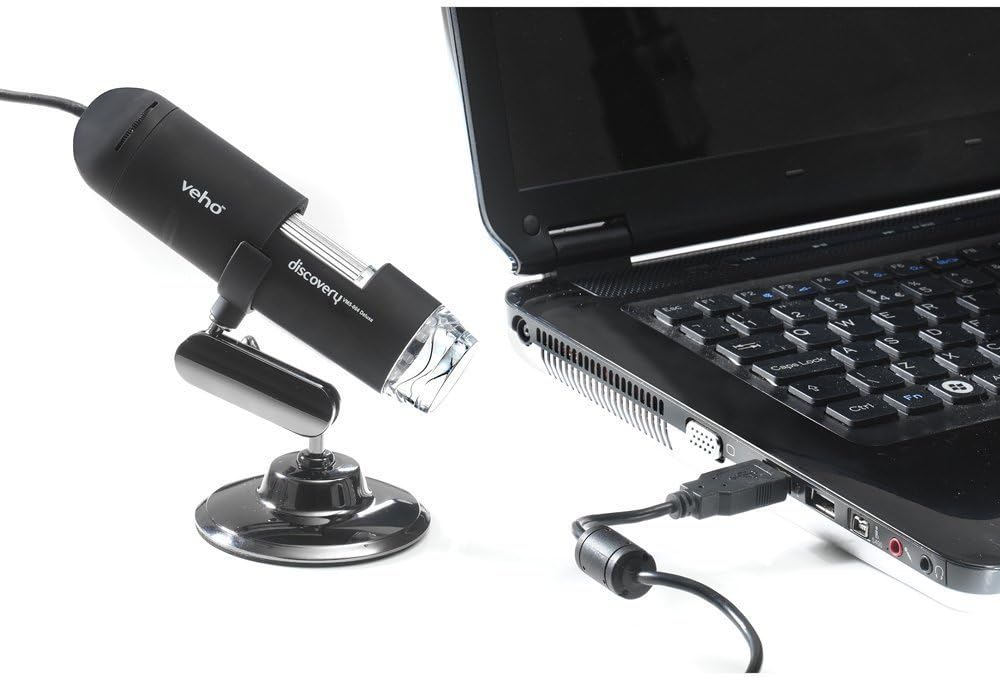
Figure 5.1: The microscope securely mounted on its flexi alloy stand.
5.2 Tāuta Pūmanawa
The Veho VMS-004 requires driver and software installation for full functionality on your computer (PC or Mac compatible).
- Insert the provided software CD into your computer's CD/DVD drive. If your computer does not have a CD drive, please visit the official Veho support website to download the necessary drivers and software.
- Follow the on-screen instructions to install the drivers and the accompanying application.
- Tīmataria anō tō rorohiko mēnā ka ākina i muri i te tāutanga.
5.3 Connecting the Microscope
Once the software is installed, connect the microscope to your computer.
- Plug the USB cable of the microscope into an available USB port on your computer.
- The computer should automatically detect the device.
- Launch the installed microscope application. You should see a live feed from the microscope's camera.

Figure 5.2: The USB microscope connected to a laptop, ready for use.
6. Nga Tohutohu Whakahaere
6.1 Te Whakatakoto i te Mea
Position the object you wish to observe directly beneath the microscope lens. Adjust the flexible stand to bring the lens close to the object.

Figure 6.1: The microscope positioned over a coin for observation.
6.2 Te Whakatikatika i te Whakarahi me te Arotahi
The microscope offers up to 400x digital magnification. To achieve a clear image:
- Adjust the distance between the microscope lens and the object using the flexible stand.
- Rotate the focus wheel on the microscope body until the image on your computer screen is sharp and clear.
- Tuhipoka: The effective magnification changes with the distance from the object and the focus setting.
6.3 LED Illumination Control
The microscope features built-in LEDs to illuminate your subject. To adjust the brightness:
- Locate the LED illumination control (a small wheel or dial) on the microscope cable or body.
- Rotate the control to increase or decrease the LED brightness as needed for optimal viewing.
6.4 Te Hopu Ataata me nga Ataata
The included software allows you to capture still images and record videos.
- Still Image: Press the snapshot button on the microscope body or click the capture button within the software interface.
- Hopu Ataata: Use the record function within the software application to start and stop video capture.
- Ka mau files are typically saved to a default folder on your computer, which can usually be configured within the software settings.
6.5 Measurement Software
The accompanying software includes measurement capabilities. Refer to the software's help documentation for detailed instructions on how to calibrate and use the measurement tools. For accurate measurements, it is recommended to use a known reference scale in your image.
7. Tiaki
- Te horoi i te Arotahi: Whakamahia he kakahu ngohengohe, kore-raro i hangaia mo nga arotahi whatu. Kaua e whakamahi i nga kai horoi me nga whakarewa.
- Te horoi i te tinana: Horoia te tinana o te karu hiko, ka waiho ki te tauera maroke, ki te tauera paku rānei.amp, kakahu ngohengohe.
- Rokiroki: When not in use, store the microscope in a clean, dry, and dust-free environment.
- Whakahōu Pūmanawa: Periodically check the Veho official website for software and driver updates to ensure compatibility and optimal performance.
8. Te Raru
| Raruraru | Take pea | Rongoā |
|---|---|---|
| Kāore he ahua i runga i te mata / Kāore i kitea te pūrere |
|
|
| Ko te atahanga he pukoro, kua kore ranei e aro |
|
|
| He pouri rawa te ahua, he kanapa rawa ranei |
|
|
| Magnification does not appear to be 400x |
|
|
9. Whakatakotoranga
| Tau tauira | VMS-004D |
| Whakanui | Up to x400 (digital) |
| Arotahi | 2.0 Megapixel CMOS |
| Whakamaramatanga | On/Off LEDs (adjustable brightness) |
| Whare | Tacton Rubber Touch |
| Tu | Flexi Alloy Stand |
| Hononga | USB |
| Hototahi | PC me te Tauhokohoko |
| Hunga Hua | 13.46 x 10.92 x 22.35 cm |
| Taumaha Tūemi | 159 g |
| Voltage | 5 Volts (USB powered) |
| Momo Puna Maama | Haogene |
| Koki Tuturu o View | 30 Waeine |
10. Raihana me te Tautoko
For warranty information, technical support, or service inquiries, please refer to the warranty card included with your product or visit the official Veho webpae. Puritia to tohu hoko mo nga kereme whakamana.
Veho Official Webpae: www.veho-world.com