
Kupu Whakataki
This manual provides essential information for the safe and efficient operation of your Brookstone iDesign Tower Stereo System. Please read this manual thoroughly before using the product and retain it for future reference.
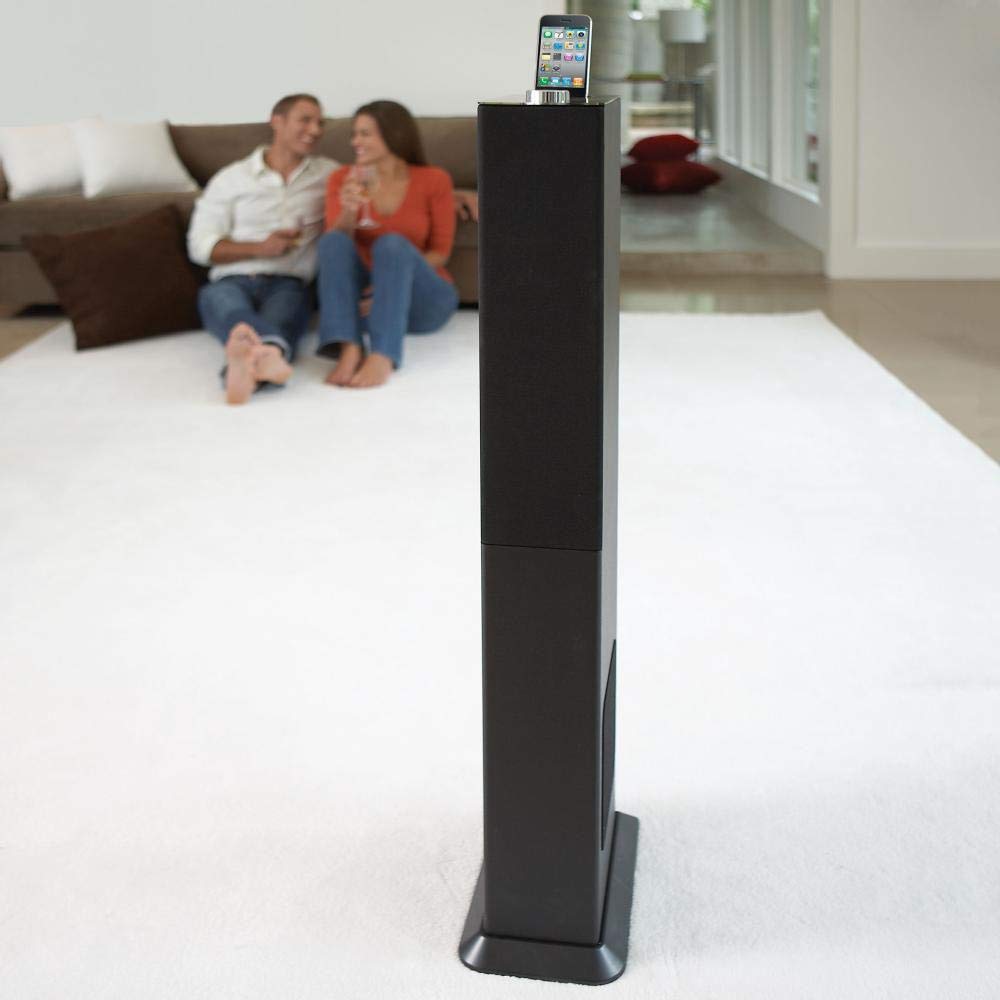
Image: The Brookstone iDesign Tower Stereo System, a tall, slender speaker unit designed for audio playback and device charging.
Nga korero haumaru
- Puna Hiko: Whakamahia anake te urutau hiko kua tohua. Kia tino tika te orotage ōrite ana ki to tuku hiko rohe.
- Whakahau: Kaua e araia nga whakatuwheratanga hau. Tāutahia kia rite ki nga tohutohu a te kaihanga.
- Te wai me te makuku: Kaua e tukuna tenei taputapu ki te ua, ki te makuku ranei. Kaua e waiho nga mea kua whakakiia ki te wai, penei i nga ipu, ki runga i te taputapu.
- wera: Kaua e whakauruhia ki te taha o nga puna wera penei i nga radiators, nga rehita wera, nga umu, me etahi atu taputapu (tae atu ki ampkaiwhakaora) e whakaputa ana i te wera.
- Te horoi: Horoia ki te kakahu maroke anake.
- Ratonga: Tirohia nga ratonga katoa ki nga kaimahi tohu tohu. E hiahiatia ana te mahi kaimahi ina kua pakaru te taputapu.
Ihirangi mokete
Tena koa tirohia nga mea katoa kei roto i te kete:
- iDesign Tower Stereo System
- Mana Mamao
- Pūurutau Hiko
- Pukapuka Kaiwhakamahi (tenei tuhinga)
- Note: iPod/iPhone devices are not included.
Ka mutu te huaview
The iDesign Tower Stereo System features a sleek design with integrated speakers and a docking station for compatible Apple devices. It includes a backlit on/volume knob and a remote control for convenient operation, delivering full, deep bass, crisp, clear highs, and warm middle tones.
Wae Matua:
- Nga Roopu Korero: Multi-angled speakers for room-filling sound.
- Docking Port: For iPod and iPhone devices (1st and 2nd generation iPod touch, iPod classic, 4th and 5th generation iPod nano, iPhone 3GS, iPhone 3G, iPhone).
- On/Volume Knob: Backlit control for power and volume adjustment.
- Tāuru Āwhina: For connecting other audio devices (cable not included).
- Whakauru Hiko: Mo te hono i te urutau hiko.
- Pūoko Mana Mamao: Ka whiwhi tohu mai i te raima mamao.
Tatūnga
1. Whakanoho
Place the iDesign Tower Stereo System on a stable, flat surface. Ensure there is adequate space around the unit for proper ventilation. Avoid placing it in direct sunlight or near heat sources.
2. Hononga Mana
- Connect the power adapter cable to the Power Input port on the back of the iDesign Tower Stereo System.
- Monohia te urutau hiko ki te putanga pakitara paerewa.
3. Device Docking (iPod/iPhone)
The system is designed for specific iPod and iPhone models:
- iPod touch (1st and 2nd generation)
- iPod matarohia
- iPod nano (4th and 5th generation)
- iPhone 3GS
- iPhone 3G
- iPhone
Carefully align your compatible iPod or iPhone device with the docking port and gently push it down until it is securely seated. The device will begin charging automatically when docked and the system is powered on.
4. Auxiliary Input (Optional)
To connect other audio devices (e.g., MP3 players, CD players) that are not compatible with the docking port, use a 3.5mm audio cable (not included) to connect the device's headphone output to the Auxiliary Input port on the iDesign Tower Stereo System.
Nga Tohutohu Whakahaere
1. Te Hiko / Whakaweto
Press the On/Volume knob to turn the system on or off. The knob will illuminate when the system is powered on.
2. Mana Rōrahi
Rotate the On/Volume knob clockwise to increase the volume and counter-clockwise to decrease it. You can also adjust the volume using the remote control.
3. Kōwhiringa Pūtake
The system automatically detects a docked iPod or iPhone. If an auxiliary device is connected, you may need to select the input source using the remote control (if available) or by cycling through inputs with a dedicated button (refer to remote control section for details).
4. Whakamahi Mana Mamao
The included remote control allows you to manage playback functions (play, pause, skip tracks) and volume for your docked iPod or iPhone from a distance. Point the remote control towards the sensor on the front of the tower system.
5. Pūrere Katoa
When a compatible iPod or iPhone is docked and the system is powered on, the device will charge automatically.
Te tiaki
Te horoi
Wipe the exterior of the system with a soft, dry cloth. Do not use liquid cleaners or aerosol sprays, as these may damage the finish or internal components. Ensure the system is unplugged before cleaning.
Rokiroki
If storing the system for an extended period, unplug it from the power outlet and store it in a cool, dry place, away from direct sunlight and extreme temperatures.
Raparongoā
| Raruraru | Take pea | Rongoā |
|---|---|---|
| Karekau he kaha | Kāore te urutau hiko i hono, kāore rānei te putanga hiko e mahi ana. | Ensure power adapter is securely connected to the system and a working wall outlet. |
| Karekau he oro mai i te taputapu tauranga | Device not properly docked; volume too low; device not playing. | Re-seat the device in the dock. Increase system volume and device volume. Ensure music is playing on the device. |
| No sound from auxiliary input | Auxiliary cable not connected; incorrect source selected; volume too low. | Ensure auxiliary cable is securely connected. Select auxiliary input. Increase system and source device volume. |
| Ko te mana mamao kaore e mahi | Batteries dead; remote not pointed at sensor; obstruction. | Replace remote control batteries. Point remote directly at the sensor. Remove any obstructions between remote and system. |
| Kaore te taputapu e utu ana | Device not compatible; system not powered on; device not properly docked. | Verify device compatibility (see Setup section). Ensure system is powered on. Re-seat the device in the dock. |
Whakatakotoranga
- Tauira: B003YB9T2C
- Waitohu: Brookstone
- Ahu mōkihi: 42.6 x 14 x 8.6 inihi
- Taumaha Tūemi: 28.3 pauna
- Wātea Tuatahi: Maehe 10, 2010
- Hototahi: iPod touch (1st/2nd gen), iPod classic, iPod nano (4th/5th gen), iPhone 3GS, iPhone 3G, iPhone.
Pūtāhui me te Tautoko
For warranty information and customer support, please refer to the documentation included with your purchase or visit the official Brookstone webpae. Puritia to tohu hoko mo nga kereme whakamana.
"Made for iPod" and "Made for iPhone" mean that an electronic accessory has been designed to connect specifically to iPod or iPhone, respectively, and has been certified by the developer to meet Apple performance standards. Apple is not responsible for the operation of this device or its compliance with safety and regulatory standards. Please note that the use of this accessory with iPod or iPhone may affect wireless performance.