
1. Kupu Whakataki
This manual provides comprehensive instructions for the installation, operation, and maintenance of the Honeywell Ademco 6150RF Keypad. The 6150RF is a wireless fixed English integrated keypad/transceiver designed to add wireless technology to compatible VISTA control panels without requiring additional wiring or sacrificing zones. It features a backlit display, soft-touch illuminated keys, and a contoured, removable door.
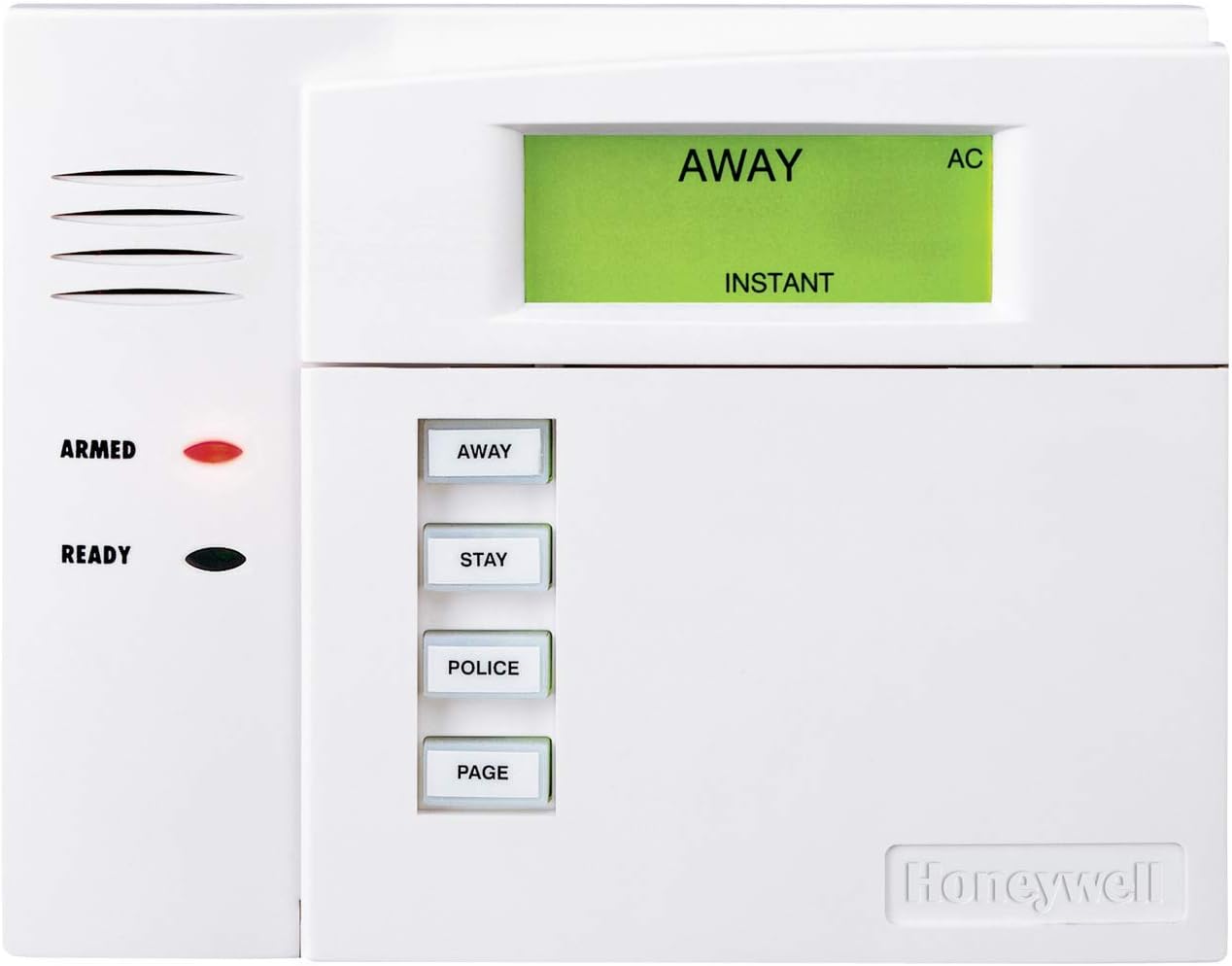
Whakaahua 1.1: Honeywell Ademco 6150RF Keypad (Door Closed)
Ko tenei whakaahua e whakaatu ana i te mua view of the Honeywell Ademco 6150RF Keypad with its protective door closed. The display clearly indicates "AWAY" and "INSTANT" modes, along with an "AC" indicator. To the left, LED indicators for "ARMED" (red) and "READY" (green) are visible. Four function keys labeled "AWAY", "STAY", "POLICE", and "PAGE" are present on the right side of the keypad.
2. Nga waahanga matua
- Integrated 16-zone wireless transceiver (5881ENM and 5800TM) and relay.
- Compatible with 5828 and 5828V wireless keypads.
- Supports up to eight four-button keys without sacrificing zones.
- Easy-to-read backlit fixed glass display with large characters and simplified descriptions.
- Four easily accessible, soft-touch illuminated function keys, programmable for various operations (fire, burglary, personal emergencies).
- Contoured, removable door conceals keys for a sleek appearance.
- On-board single relay for garage door operation.
- Customized function key labels included.

Whakaahua 2.1: Honeywell Ademco 6150RF Keypad (Door Open)
This image displays the Honeywell Ademco 6150RF Keypad with its front door open, revealing the full numeric keypad (0-9, *, #) and additional function keys. The display shows "****DISARMED**** READY TO ARM". The "ARMED" and "READY" LED indicators are also visible on the left side.

Whakaahua 2.2: 6150RF Keypad Overview
This image is a marketing sheet highlighting the 6150RF Fixed English Integrated Keypad/Transceiver. It shows two small images of the keypad, one with the door attached and one without, illustrating its design flexibility. The accompanying text describes its wireless technology integration, ease of installation, and compatibility with VISTA controls.
3. Tatūnga me te Tāuta
The 6150RF keypad is designed for straightforward installation. It integrates wireless capabilities directly, simplifying the setup process for compatible VISTA control panels.
3.1 Whakapiki
Select a suitable location for the keypad, typically near an entry/exit point. Ensure the mounting surface is flat and stable. Use appropriate screws and anchors for secure installation.

Whakaahua 3.1: Keypad Rear View and Wiring Terminals
This image shows the rear of the Honeywell Ademco 6150RF Keypad, highlighting the mounting screw holes and the wiring terminal block. The terminal block is clearly labeled for power and data connections, essential for proper installation.
3.2 Hononga Waea
Connect the keypad to the control panel using the following wiring scheme:
- Waea Pango: Papa (-)
- Waea Whero: +12 VDC (Aux. Power)
- Waea Kakariki: Data In (D1) from control panel
- Waea Kōwhai: Data Out (D0) from control panel
Ensure all connections are secure and correctly matched to the control panel terminals. Refer to your VISTA control panel's manual for specific wiring diagrams.
4. Nga Tohutohu Whakahaere
The 6150RF keypad provides intuitive control over your security system. The backlit display and illuminated keys enhance visibility, especially in low-light conditions.
4.1 Te patu i te punaha
- Ringa atu: Enter your 4-digit user code, then press the ATU key. This arms all zones and activates the exit delay.
- Noho ringa: Enter your 4-digit user code, then press the NOHO key. This arms perimeter zones but allows movement within the protected area.
- Arm Instant: Enter your 4-digit user code, then press the Inamata key (or the corresponding function key if programmed). This arms perimeter zones with no entry delay.
4.2 Te Whakakahoretanga o te Punaha
To disarm the system, enter your 4-digit user code, then press the WATE key (typically '1' on the numeric pad). The display will show "****DISARMED**** READY TO ARM".
4.3 Kī Mahi
The four dedicated function keys (AWAY, STAY, POLICE, PAGE) can be programmed for quick access to common system functions or emergency responses. Refer to your control panel's programming guide for customization options.
5. Tiaki
The Honeywell Ademco 6150RF Keypad requires minimal maintenance to ensure optimal performance.
5.1 Te horoi
To clean the keypad, gently wipe the surface with a soft, dry cloth. For stubborn marks, a slightly damp cloth with mild soap can be used, followed by a dry wipe. Avoid abrasive cleaners, solvents, or excessive moisture, as these can damage the keypad's finish or internal components.
5.2 Ngā Tirotiro Pūnaha
Regularly test your security system, including the keypad, according to the instructions in your main control panel's user manual. This ensures all components are functioning correctly.
6. Te Raru
If you encounter issues with your 6150RF keypad, refer to the following common problems and solutions:
- Kāore te papapātuhi e aro mai:
- Check power connections to the keypad and the main control panel.
- Ensure the keypad is properly wired to the control panel's data terminals.
- Verify the control panel is powered on.
- Kei te putea, kei te atarua ranei te whakaaturanga:
- Confirm power supply to the keypad.
- Adjust backlight settings if available (refer to control panel manual).
- System does not arm/disarm:
- Ensure the correct user code is entered.
- Check the system status on the display (e.g., "READY" light should be green before arming).
- Consult your main control panel's manual for system-specific error codes or messages.
For persistent issues, contact a qualified security system technician or Honeywell customer support.
7. Whakatakotoranga
| Āhuahira | Taipitopito |
|---|---|
| Tau tauira | 6150RF |
| Ahu (H x W x D) | 5.79 x 5.12 x 1.1 inihi (147 x 130 x 28 mm) |
| Taumaha Tūemi | 5.6 hekere |
| Hangarau Hononga | RF (Waeakore) |
| Whakaahuatanga Papapātuhi | Wireless, Backlit |
| Pūrere Hototahi | Alarm Control Panel (VISTA series) |
| Kaihanga | Ademco/Honeywell |
| Onāianei (Tutatari) | 80mA |
| Current (Activated) | 105mA |

Whakaahua 7.1: Whakatakotoranga Taipitopito
This image is a section from a marketing sheet providing detailed specifications for the 6150RF keypad. It lists physical dimensions, wiring requirements (Ground, +12 VDC, Data In, Data Out), and current consumption for both standby and activated states.
8. Pūtāhui me te Tautoko
Mo nga korero e pa ana ki te raihana hua, tirohia nga tuhinga kei roto i to hokonga, toro atu ranei ki te Honeywell mana website. For technical support, troubleshooting assistance beyond this manual, or service inquiries, please contact your authorized Honeywell dealer or Honeywell customer support directly.
Ka kitea e koe etahi atu korero me nga rauemi tautoko i runga i te Honeywell Store i Amazon.