
1. Hua Neke Atuview
The TP-Link TL-WA750RE is a 150Mbps Universal Wireless Range Extender designed to expand the coverage of an existing wireless network. It eliminates Wi-Fi dead zones by boosting the wireless signal to previously unreachable or hard-to-wire areas. Its compact, wall-mounted design allows for flexible deployment and easy relocation within your home or office.
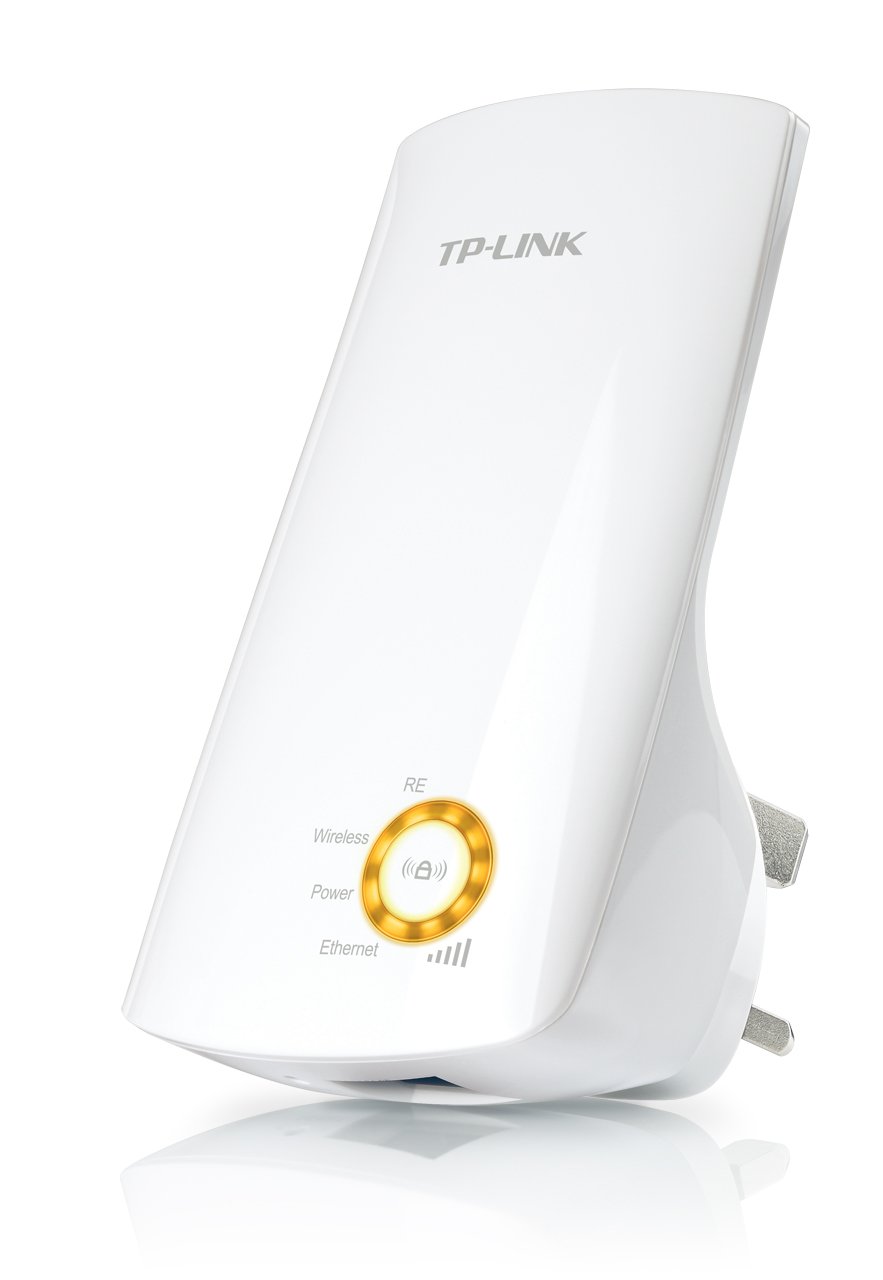
Whakaahua 1: TP-Link TL-WA750RE Universal Wireless Range Extender. This image shows the device in its retail packaging, highlighting its compact design and wall-plug form factor.
2. Nga waahanga matua
- Aratau Whakawhana Range: Boosts wireless signal to eliminate Wi-Fi dead zones and extend network coverage.
- Hoahoa Kiato: Small size and wall-mounted design for easy deployment and flexible movement.
- Pātene WPS: Allows for instant setup and secure connection with compatible routers.
- Tohu Tohu Ataata: Helps users find the optimal location for placing the range extender for best performance.
- Hototahi Ao: Works seamlessly with all 802.11n/g/b wireless devices.
3. Ihirangi mokete
Kei roto i te kete hua nga mea e whai ake nei:
- TP-Link TL-WA750RE 150Mbps Universal Wireless Range Extender
- Pukapuka Tohutohu
4. Aratohu Tatūnga
4.1. Tatūnga Tere mā te whakamahi i te Pātene WPS
- Mono Mai: Plug the TL-WA750RE into an electrical outlet near your wireless router.
- Whakahohe WPS i runga Pouara: Pēhia te pātene WPS ki tō pouara ahokore matua. Tirohia te pukapuka a to pouara mo te waahi tika me te tikanga.
- Whakahohehia te WPS ki te Extender: Within two minutes, press the WPS button on the TL-WA750RE. The Signal LED on the extender should begin to flash.
- Tatari mo te Hononga: The Signal LED will turn solid blue or green when a successful connection is established.
- Whakanuia te Whakaroa: Unplug the extender and move it to a location between your router and the Wi-Fi dead zone. Ensure the Signal LED indicates a strong connection (e.g., solid blue or green) in the new location.
4.2. Manual Setup via Web Pūtirotiro
- Mono Mai: Plug the TL-WA750RE into an electrical outlet near your computer.
- Hono atu ki te Whakaroa: Connect your computer to the extender's Wi-Fi network (e.g., "TP-LINK_Extender_XXXXXX"). No password is required initially.
- Urunga Web Atanga: Tuwhera a web pūtirotiro me te momo http://tplinkrepeater.net or the extender's default IP address (usually 192.168.0.254) into the address bar.
- Takiuru: Enter "admin" for both the username and password when prompted.
- Whaia nga Tohutohu I-Mata: Use the Quick Setup wizard to select your main Wi-Fi network and enter its password.
- Whakanuia te Whakaroa: Once configured, unplug the extender and move it to an optimal location between your router and the desired coverage area.
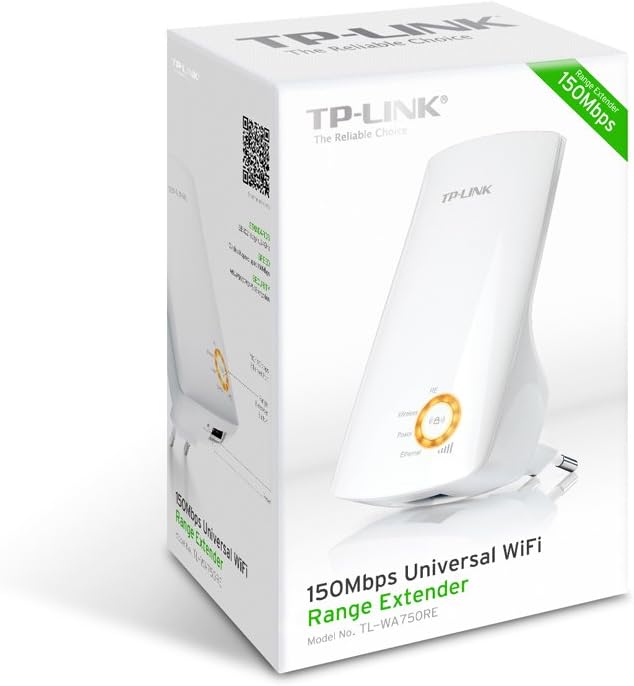
Whakaahua 2: Te taha view of the TL-WA750RE. This image illustrates the physical layout of the device, including the WPS button and Ethernet port, which are crucial for setup and operation.
5. Te Whakahaere i te Range Extender
Once the TL-WA750RE is successfully set up, it will automatically extend your existing Wi-Fi network. Devices within the extended range can connect to the network name created by the extender (e.g., "YourNetworkName_EXT").
5.1. Smart Signal Indicator
The Smart Signal Indicator LEDs on the front of the device provide real-time feedback on the signal strength received from your main router. This helps you determine the best placement for the extender:
- Mārō Kahurangi/Kakariki: Kaha tohu tino pai.
- Whero Mārō: Weak signal strength. Consider relocating the extender closer to your router.
- Weto: No connection to the main router.
5.2. Ethernet Port Usage
The TL-WA750RE includes an Ethernet port. This port can be used to connect a wired device, such as a desktop computer, gaming console, or smart TV, to your wireless network, providing a stable wired connection in the extended Wi-Fi area.
6. Tiaki
- Te horoi: Whakamahia he kakahu maeneene, maroke hei horoi i te taputapu. Kaua e whakamahi i te wai, i te horoi aerosol ranei.
- Turanga: Avoid placing the extender in direct sunlight, near heat sources, or in areas with high humidity.
- Whakahōu Firmware: Tirohia i ia wa te rangatira TP-Link webte waahi mo nga whakahoutanga firmware kia pai ai te mahi me te haumarutanga.
- Hurihanga Hiko: If the device experiences issues, try unplugging it from the power outlet for 10 seconds and then plugging it back in.
7. Te Raru
- Q1: What should I do if I cannot access the extender's web whārangi whakahaere?
- A1: Ensure your computer is connected to the extender's network. Verify that http://tplinkrepeater.net is correctly typed in the browser. If issues persist, try using the extender's IP address (e.g., 192.168.0.254) or reset the extender to factory defaults.
- Q2: My extended network has poor signal or frequent disconnections.
- A2: Check the Smart Signal Indicator on the extender. If it's red or off, the extender is too far from your main router. Relocate the extender to a position where the indicator shows a strong signal (solid blue/green). Ensure there are no major obstructions between the router and the extender.
- Q3: How do I reset the extender to factory default settings?
- A3: With the extender powered on, use a pin to press and hold the Reset button (usually a small hole) for approximately 5-10 seconds until all LEDs flash briefly. The extender will then restart with factory default settings.
8. Whakatakotoranga
| Waitohu | TP-Hono |
| Tau tauira | TL-WA750RE |
| Paerewa Ahokore | 802.11b/g/n |
| Rere Whakawhiti Raraunga | 150 Mbps |
| Auautanga | 2.4 GHz |
| Nga waahanga motuhake | Smart Signal Indicator, WPS Button |
| Momo Tuhono | RJ45 (Pūranga Ipurangi) |
| Taumaha Tūemi | 0.4 Pauna |
| Tae | Mā |
9. Pūtāhui me te Tautoko
9.1. Nga Korero Whakaputanga
This TP-Link TL-WA750RE device comes with a 2-tau pūtāhui mai i te ra o te hokonga. Tena koa pupurihia to tohu mo te hoko mo nga kereme whakamana. Ka kapi te raihana i nga hapa o nga rawa me nga mahi i raro i te whakamahinga noa.
9.2. Tautoko Hangarau
For technical assistance, troubleshooting, or further inquiries, please visit the official TP-Link support webpae tukutuku, whakapā atu rānei ki tā rātou ratonga kiritaki. Ka kitea e koe ngā rauemi tautoko taipitopito, ngā FAQ, me ngā mōhiohio whakapā atu i www.tp-link.com/support.