
1. Kupu Whakataki
Mauruuru koe mo te hokoasing the Marvo G904 6D Optical Wired Gaming Mouse. This manual provides essential information for the proper setup, operation, and maintenance of your new gaming mouse. Please read this manual thoroughly before use to ensure optimal performance and longevity of the product.
2. Hua Neke Atuview
The Marvo G904 is a high-performance 6D optical wired gaming mouse designed for precision and comfort. It features an AVago3050 sensor, adjustable DPI settings, and programmable buttons to enhance your gaming experience.

Figure 1: Marvo G904 Gaming Mouse with blue LED lighting, showcasing its ergonomic design and illuminated accents.

Figure 2: Marvo G904 Gaming Mouse displaying green LED lighting, indicating different lighting modes or DPI settings.
3. Tatūnga
Follow these steps to set up your Marvo G904 gaming mouse:
- Wewetehia te Kiore: Carefully remove the mouse and any accessories from its packaging.
- Hono ki Rorohiko: Plug the USB connector of the mouse into an available USB port on your computer. The mouse is plug-and-play for basic functionality.
- Install Driver (Optional for Advanced Features): For full functionality, including macro programming and advanced DPI settings, insert the provided CD driver into your computer's optical drive and follow the on-screen instructions to install the software. If your computer does not have an optical drive, please visit the official Marvo webpae mo te tango taraiwa.

Figure 3: Marvo G904 Gaming Mouse packaging, which includes the driver CD.
4. Nga Tohutohu Whakahaere
The Marvo G904 mouse features 6 buttons and adjustable DPI settings for versatile control.
4.1 Nga Mahi Patene
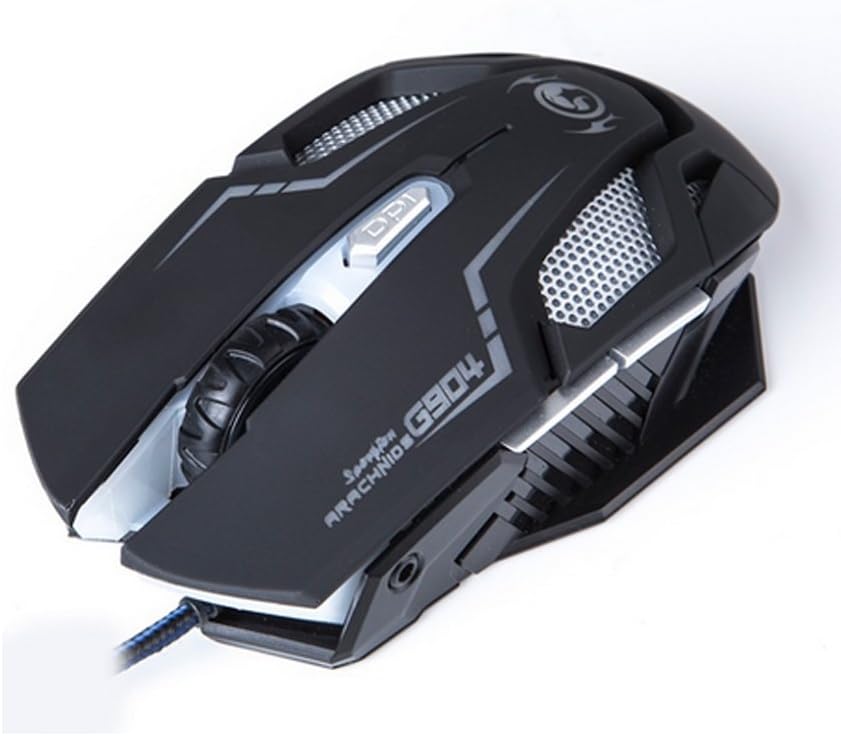
Whakaahua 4: Runga view of the Marvo G904 Gaming Mouse, highlighting the placement of its 6 buttons.
- Pātene Pātene Mauī: Paerewa mahi pāwhiri tuatahi.
- Pātene Pāwhiri Matau: Paerewa pawhiri tuarua mahi.
- Panuku Wira: Scrolls up/down. Can also be pressed for a middle click function.
- DPI Shift Button: Cycles through DPI settings (1000, 2000, 3000, 4000).
- Pātene taha (2): Typically function as 'Forward' and 'Back' in web kaitirotiro me file explorers. These can be programmed using the driver software.
4.2 Whakatikatika DPI
Pehia te DPI Shift Button (located behind the scroll wheel) to cycle through the available DPI settings: 1000, 2000, 3000, and 4000 DPI. Each DPI level may be indicated by a change in the mouse's LED lighting color or pattern, depending on the current light mode.
4.3 Macro Programming (with Light Mode)
Utilize the included CD driver software to customize button functions and create macros. The software also allows you to configure the mouse's LED lighting modes. Refer to the software's help section for detailed instructions on macro creation and light mode customization.
5. Tiaki
Mā te tiaki tika ka roa te ora me te mahi tino pai o tō kiore petipeti.
- Te horoi: Whakamahia he kakahu ngohengohe, maroke hei muru i te mata o te kiore. Mo te paru maro, paku dampen te kakahu ki te wai, ki te otinga horoi ngawari ranei. A ape i te whakamahi i nga matū kino, i nga taonga abrasive ranei.
- Tiaki pūoko: Keep the optical sensor on the bottom of the mouse clean and free from dust or debris. Use a cotton swab or compressed air if necessary.
- Whakaha Uepu: A ape i nga piko koi, te toha nui ranei i te taura USB kia kore ai e pakaru.
- Rokiroki: Ki te kore e whakamahia, penapenahia te kiore ki roto i te taiao ma, maroke kia matara atu i nga wera nui.
6. Te Raru
If you encounter issues with your Marvo G904 mouse, refer to the following common problems and solutions:
| Raruraru | Rongoā |
|---|---|
| Kaore te kiore e whakautu. |
|
| DPI settings not changing. |
|
| Kāore ngā pātene e mahi tika ana. |
|
| Mouse cursor movement is erratic or jumpy. |
|
7. Whakatakotoranga
Detailed technical specifications for the Marvo G904 Gaming Mouse:

Whakaahua 5: Raro view of the Marvo G904 Gaming Mouse, displaying model number, DPI range, and certification marks.
| Āhuahira | Taipitopito |
|---|---|
| Tauira | G904 |
| Momo Pūoko | Optical (AVago3050) |
| Tautuhinga DPI | 1000 / 2000 / 3000 / 4000 DPI |
| Patene | 6D (6 Buttons) |
| Reiti Ripoata | 1000 Hz |
| Mauroa Matua | 10 miriona pao |
| Te roa o te taura | 1.5 mita |
| Ahu (L*W*H) | 143 * 76 * 42 mm |
| Whakatauhia Voltage | 5V |
| Whakatauhia o naianei | 10 mA |
| Hototahi | PC |
| Tae | Pango |
8. Pūtāhui me te Tautoko
For warranty information and technical support, please refer to the documentation provided with your purchase or contact your retailer. You may also visit the official MARVO website for further assistance and updated driver software.