
1. Hua Neke Atuview
The Grandstream GXP1630 is a powerful Gigabit IP phone designed for small businesses. This Linux-based, 3-line IP Phone model includes 8 BLF keys and 4-way conferencing. It features a 132x64 backlit LCD screen for clear display, dual HD audio, multi-language support, integrated Power over Ethernet (PoE), and 3 XML programmable soft keys. The GXP1630 incorporates state-of-the-art security encryption technology (SRTP and TLS) and supports various automated provisioning options for easy mass deployment.
Āhuatanga matua:
- 3 SIP accounts, 3 line keys, 4-way conferencing
- 3 Ngā kī ngohengohe XML ka taea te whakarite kia aro ki ngā horopaki
- HD audio on speakerphone and handset
- Up to 1000 contacts, call history up to 200 records
- Dual-switched Gigabit ports, integrated PoE
- 8 dual-colored BLF/speed dial keys
- EHS support for Plantronics headsets
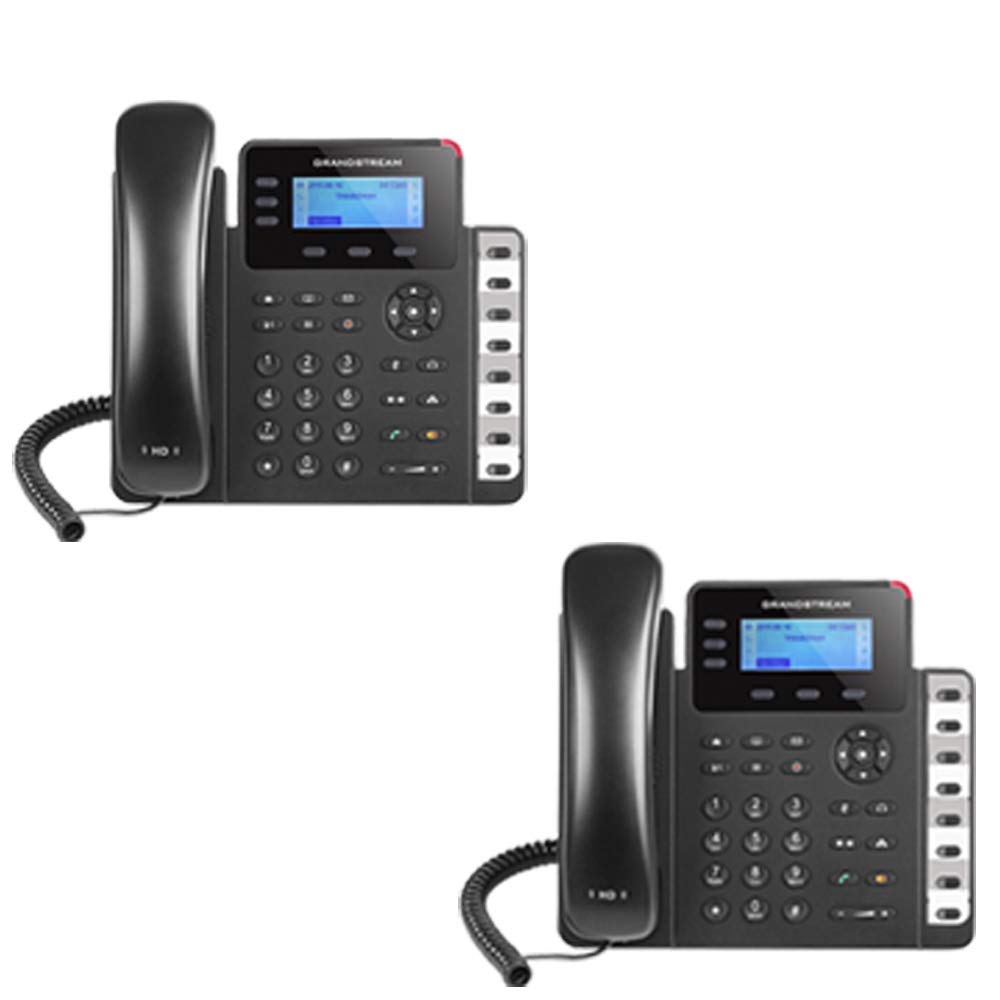
Figure 1: Grandstream GXP1630 Gigabit IP Phone
2. Tatūnga me te Tāuta
2.1 Ihirangi mokete
Me mohio kei te noho nga waahanga katoa:
- Grandstream GXP1630 IP Phone unit
- Waea pūkoro me te taura takai
- taura Itarangi
- Pūurutau hiko (mehemea karekau e whakamahi PoE)
- Tu waea
2.2 Te Hononga i te Waea
- Connect the coiled cord to the handset and the handset port on the phone base.
- Connect the Ethernet cable from your network switch (with PoE) or router to the LAN port on the phone. If not using PoE, connect the power adapter to the phone and a power outlet.
- Optionally, connect a headset to the headset port.
- Attach the phone stand to the base unit.
2.3 Initial Power-Up and Provisioning
Once connected, the phone will power on and begin the boot-up sequence. The LCD screen will display status information. The GXP1630 supports automated provisioning options, including zero-configuration with Grandstream’s UCM series IP PBXs, encrypted XML files, and TR-069, to facilitate easy mass deployment and configuration.
3. Te Whakahaere i te Waea
3.1 Using the Headset or Speaker
- To turn the speaker on or off during a call, press the Kaikōrero pātene.
- To use a connected headset, press the Puorooro pātene.
Ataata 1: Ka mutuview of using headset and speaker functions on Grandstream GXP1600 series IP phones.
3.2 Te Waea
There are three primary ways to initiate a call:
- Waea Pūkoro/Paneorooro: Hikitia te ringaringa, pehia ranei te Puorooro pātene.
- Waeaorooro: Pehia te Kaikōrero pātene.
- Kōwhiringa Kī Raina: Press an available line key.
Once you hear a dial tone (the corresponding line key will turn green), enter the phone number using the keypad. Then, press the Tukua pātene ranei te # key to place the call. To use a different SIP account, simply press a different line key before dialing.
3.3 Redialing a Number
Hei waea anō i te nama whakamutunga, me waea atu:
- Hikitia te ringaringa, pehia ranei te Kaikōrero pātene.
- Pehia te Tukua pātene ranei te Titia soft key displayed on the phone screen.
The phone will redial using the same SIP account as the previous call.
3.4 Te Whakautu Waea
When an incoming call rings:
- Waea Taumai Kotahi: Lift the handset, press the Kaikōrero pātene, pēhi rānei i te pātuhi rārangi kanapa e rite ana.
- Ngā Waea Taumai Maha (Tatari Waea): If you are on an active call and another call comes in, you will hear a call waiting tone. The new incoming call's line key will flash red. Press the flashing red line key to answer the new call. Your current call will be placed on hold. You can toggle between calls by pressing the line key corresponding to each call.
3.5 Whakamutu Waea
Hei whakamutu i te waea hohe:
- Whakairihia te ringaringa.
- Pehia te Whakamutua te Waea soft key on the phone screen.
3.6 Hold and Resume a Call
- Hei tuu i te waea hohe kia pupuri, pehia te Puritia button. The line key will typically flash.
- To resume a call that was placed on hold, press the corresponding blinking line key.
3.7 Volume Adjustment and Mute
- When the phone is idle, use the Rōrahi pātene hei whakatika i te rōrahi mowhiti.
- I te wa e piihia ana te waea, pehia te Rōrahi button to adjust the call volume for the handset, headset, or speaker.
- To mute or unmute your microphone during a call, press the Wahangu pātene.
4. Tiaki
To ensure optimal performance and longevity of your Grandstream GXP1630 IP Phone, consider the following maintenance tips:
- Te horoi: Whakamahia he kakahu ngohengohe, maroke hei horoi i te mata o te waea. Āta karohia ngā kaihoroi whakakoi, ngā whakarewa rānei.
- Whakahōu Firmware: Regularly check for and apply firmware updates provided by Grandstream. Keeping the firmware up to date can improve performance, add new features, and address security vulnerabilities.
- Nga Tikanga Taiao: Operate the phone within recommended temperature and humidity ranges to prevent damage.
5. Te Raru
If you encounter issues with your GXP1630 IP Phone, try the following basic troubleshooting steps:
- Kāore he Oro Waea/Kāore e taea te Waea Mai: Check all cable connections (Ethernet, handset, power). Ensure the phone is properly registered with your SIP server.
- Kore Mana: Verify the power adapter is securely connected to both the phone and a working power outlet, or that your network switch is providing Power over Ethernet (PoE).
- Kounga Ororongo Kino: Check network connectivity. Ensure the handset/headset cord is properly connected. Adjust the call volume using the volume buttons.
- Phone Unresponsive: As with any electronic device, occasional reboots can resolve minor issues. Disconnect the power for a few seconds and then reconnect it.
- Whakaatu Take: If the screen is blank or frozen, try rebooting the phone.
For more advanced issues, consult your IT administrator or Grandstream's official support resources.
6. Whakatakotoranga
| Āhuahira | Whakaahuatanga |
|---|---|
| Nga Kaute SIP | 3 |
| Raina Kī | 3 |
| Huihuinga | 4-ara |
| BLF/Speed Dial Keys | 8 dual-colored |
| Ororongo | HD audio on speakerphone and handset |
| Atanga Matapihi | Dual-switched Gigabit ports |
| PoE | Integrated Power over Ethernet |
| Whakaatu | 132x64 backlit LCD |
| Ahu | 8 x 12 x 6 inihi |
| Taumaha | 6 Pauna |
| Tae | Pango |
| Rauemi | Kirihou |
| Pūrere Hototahi | Grandstream IP phones, Plantronics headsets with EHS feature, devices supporting TR-069 and XML config files |
7. Pūtāhui me te Tautoko
7.1 Pūtāhui a te Kaihanga
The Grandstream GXP1630 IP Phone comes with a 1 Tau Kaihanga Rarangi. Tena koa pupurihia to tohu mo te hoko mo nga kereme whakamana.
7.2 Tautoko Hangarau
For technical assistance, product registration, or to access additional resources, please visit the official Grandstream website or contact your product vendor. Support resources often include FAQs, knowledge bases, and community forums.