
1. Kupu Whakataki
The HyperX Cloud Flight is a wireless gaming headset designed for extended use and immersive audio experiences. It features a robust 2.4GHz wireless connection, a long-lasting battery, and comfortable memory foam earcups. This manual provides essential information for setting up, operating, and maintaining your headset.
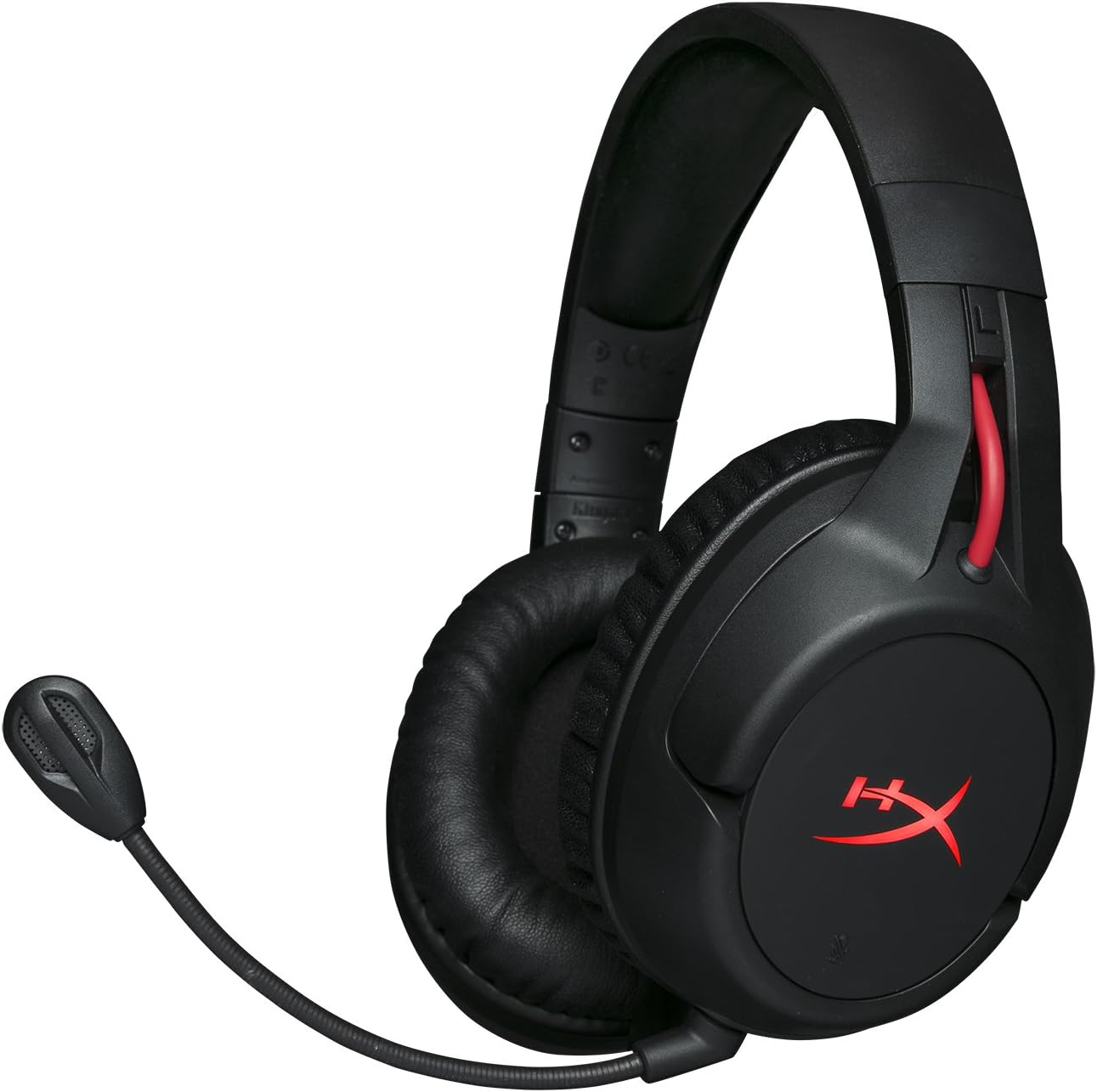
Figure 1.1: HyperX Cloud Flight Wireless Gaming Headset.
2. Ihirangi mokete
Me mohio kei roto katoa nga mea kei roto i te kete:
- HyperX Cloud Flight Headset
- Waea Haruru-Whakakorea Te Waea Whakakore
- Tauira Whakatau USB
- Ahokore Tiwihana Ahokore USB
- Pukapuka Kaiwhakamahi

Figure 2.1: Included components of the HyperX Cloud Flight headset.
3. Nga Hua o te Hua
- Gaming-Grade Wireless: Utilizes a stable 2.4GHz wireless connection for reliable audio transmission.
- Roa te Ora Pūhiko: Up to 30 hours of battery life with LED lights off, allowing for prolonged gaming sessions.
- Waitohu HyperX Whakamarie: Features comfortable memory foam earcups and a durable, adjustable steel slider for a secure and pleasant fit.
- Hototahitanga-maha: Compatible with PC, PlayStation 4, and PlayStation 5.
- Ngā Kapu Taringa Hurihuri: Ear cups rotate 90 degrees for comfortable resting around your neck and feature LED lighting effects.
- Ngā Mana Whakahaere Ā-Roto Matatau: Convenient controls for LED effects, microphone mute, power, and volume are located on the ear cups.
- Hopuoro Whakakore-Haruru Ka taea te Wetewete: Ensures clear communication and can be removed when not needed. The microphone functions only in wireless mode and is compatible with PC and PS4.
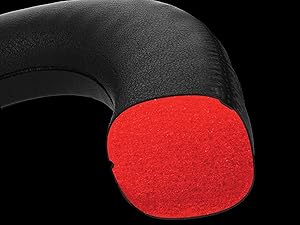
Figure 3.1: Headset designed for comfort during extended use.

Figure 3.2: Durable steel slider for adjustability and longevity.
4. Tohutohu Tatūnga
- Utuhia te Paneoro: Before first use, fully charge the headset using the provided USB charging cable. Connect the micro-USB end to the headset and the USB-A end to a powered USB port.
- Connect USB Wireless Adapter: Insert the USB wireless adapter into an available USB port on your PC, PS4, or PS5.
- Hiko i runga i te Paneoro: Press and hold the power button on the left earcup for 3-5 seconds until the LED indicator lights up. The headset will automatically pair with the USB adapter.
- Āpiti Pūorooro: Insert the detachable noise-cancelling microphone into the port on the left earcup. Ensure it clicks securely into place.
- Adjust Settings (PC/PS4/PS5):
- PC: Go to Sound Settings and select "HyperX Cloud Flight" as the default playback and recording device.
- PS4/PS5: Go to Sound/Audio Devices settings and ensure "HyperX Cloud Flight" is selected for both input and output.
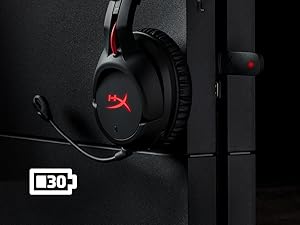
Figure 4.1: Connecting the USB adapter to a console for wireless operation.
5. Nga Tohutohu Whakahaere
- Hiko Whakaka/Weto: Press and hold the power button on the left earcup for 3-5 seconds.
- Mana Rōrahi: Use the volume wheel located on the bottom of the right earcup to adjust audio output.
- Wahangu hopuoro: Press the button on the left earcup to mute/unmute the microphone. An audible indicator will confirm the status.
- Painga LED: Briefly press the power button to cycle through LED lighting effects (Solid LED, Breathing LED, LED Off).
- Chat Mixer (PC/PS4): The headset features a chat mixer on the left earcup. The front button prioritizes game volume, while the rear button prioritizes chat volume.
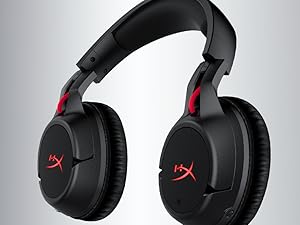
Figure 5.1: On-board controls for volume and microphone mute.
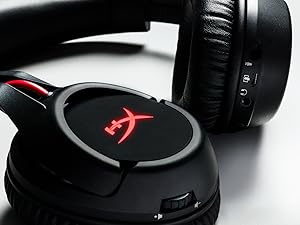
Figure 5.2: Detachable microphone for clear voice communication.
6. Te Whakataki me te Ora o te Pūhiko
The HyperX Cloud Flight headset offers impressive battery performance:
- LED Weto: Tae atu ki te 30 haora
- LED manawa: Tae atu ki te 18 haora
- LED Maama: Tae atu ki te 13 haora
Battery life is tested at 50% headset volume. Audible indicators will notify you of low battery status. Use the provided USB charging cable to recharge the headset.
Ataata 6.1: Kua Mutu te Huaview whakaatucasing features including battery life.
7. Tiaki me te Tiaki
- Penapenahia te pane whakarongo ki tētahi wāhi ma, maroke hoki ina kore e whakamahia.
- Clean earcups and headband with a soft, damp kakahu. A ape i nga matū kino.
- Do not expose the headset to extreme temperatures or direct sunlight.
- A ape i te tuku, te tuku ranei i te pane ki nga paanga kaha.
8. Te Raru
- No Audio/Microphone:
- Me mohio kei te hiko te pane me te whakakii katoa.
- Verify the USB wireless adapter is securely connected to your device.
- Check your device's sound settings to ensure "HyperX Cloud Flight" is selected as the default audio input/output.
- Confirm the microphone is properly attached and not muted.
- Poor Wireless Connection:
- Ensure the headset is within the 20-meter wireless range of the USB adapter.
- Minimize obstructions between the headset and the adapter.
- Avoid interference from other 2.4GHz devices.
- Ko te Paneoro Kare e Whakatakihia:
- Verify the USB charging cable is correctly connected to both the headset and a powered USB port.
- Whakamātauria he tauranga USB rereke, he taura utu ranei.
9. Whakatakotoranga
| Āhuahira | Taipitopito |
|---|---|
| Ingoa Tauira | Cloud Flight |
| Hangarau Hononga | Ahokore (2.4GHz) |
| Mokowoko Korekore | Tae atu ki te 20 mita |
| Pūrere Hototahi | PC, PS4, PS5 |
| Kaitaraiwa | Hihiko, 50mm me nga aukume neodymium |
| Momo Puoro | Porowhita, Whakapurihia |
| Whakautu auau | 20Hz - 20,000Hz |
| Te aukati | 32 ohm |
| Taumata Pehenga Oro | 106 dBSPL/mW at 1kHz |
| THD | <2% |
| Taumaha Puoro | 300g (315g with mic) |
| Whaitangi hopuoro | hopuoro hiko condenser |
| Tauira Polar Microphone | Te whakakoretanga |
| Whakahoki Waea Whakaoho | 100Hz - 7000Hz |
| Te Maamaoroorooro | -45dBV (0dB=1V/Pa, 1kHz) |
| Battery Life (LED off) | 30 haora |
| Battery Life (Breathing LED) | 18 haora |
| Battery Life (Solid LED) | 13 haora |
| Rauemi | Memory Foam, Premium Leatherette, Steel |
| Rahi Tūemi (LxWxH) | 7.48 x 3.43 x 7.36 inihi |
| UPC | 196188048207 |
10. Pūtāhui me te Tautoko
The HyperX Cloud Flight headset typically comes with a 2-year manufacturer's warranty. For technical support, warranty claims, or additional product information, please visit the official HyperX support webpaetukutuku, whakapā atu ranei ki ta raatau ratonga kaihoko.
Ka kitea e koe etahi atu korero me nga rauemi tautoko i te Toa HyperX i Amazon.