
Moxa NPort 5450
Pukapuka Kaiwhakamahi Tūmau Pūrere Raupapa MOXA NPort 5450
Model: NPort 5450
1. Kupu Whakataki
The MOXA NPort 5450 is a 4-port serial device server designed to connect serial devices to an Ethernet network. It supports RS-232, RS-422, and RS-485 serial interfaces, allowing for versatile integration of various industrial and commercial serial equipment into an IP-based network. This manual provides comprehensive instructions for the installation, configuration, operation, and maintenance of your NPort 5450 device server.
Key features include 10/100M auto-sensing Ethernet, built-in 15 KV ESD surge protection for all serial signals, and versatile socket operation modes such as TCP Server, TCP Client, UDP, and Real COM. Configuration can be performed via Web console, Telnet console, or a Windows utility.
2. Nga Hua o te Hua
- 10/100M auto-sensing Ethernet connectivity.
- Four serial ports, supporting RS-232, RS-422, and RS-485 standards.
- Integrated 15 KV ESD surge protection for all serial signals, enhancing reliability.
- Multiple socket operation modes: TCP Server, TCP Client, UDP, and Real COM.
- SNMP MIB-II support for network management.
- Flexible configuration options: Web console, Telnet console, and Windows utility.
3. Whakaahuatanga taputapu
The NPort 5450 features a robust design with clearly labeled ports and indicators for easy setup and monitoring.

Whakaahua 3.1: Koki mua view of the MOXA NPort 5450, showing the display, control buttons, and serial ports.

Whakaahua 3.2: Runga view of the MOXA NPort 5450, highlighting the Ready, Ethernet, and Port (P1-P4) LED indicators, along with the MENU, arrow, and SEL buttons.
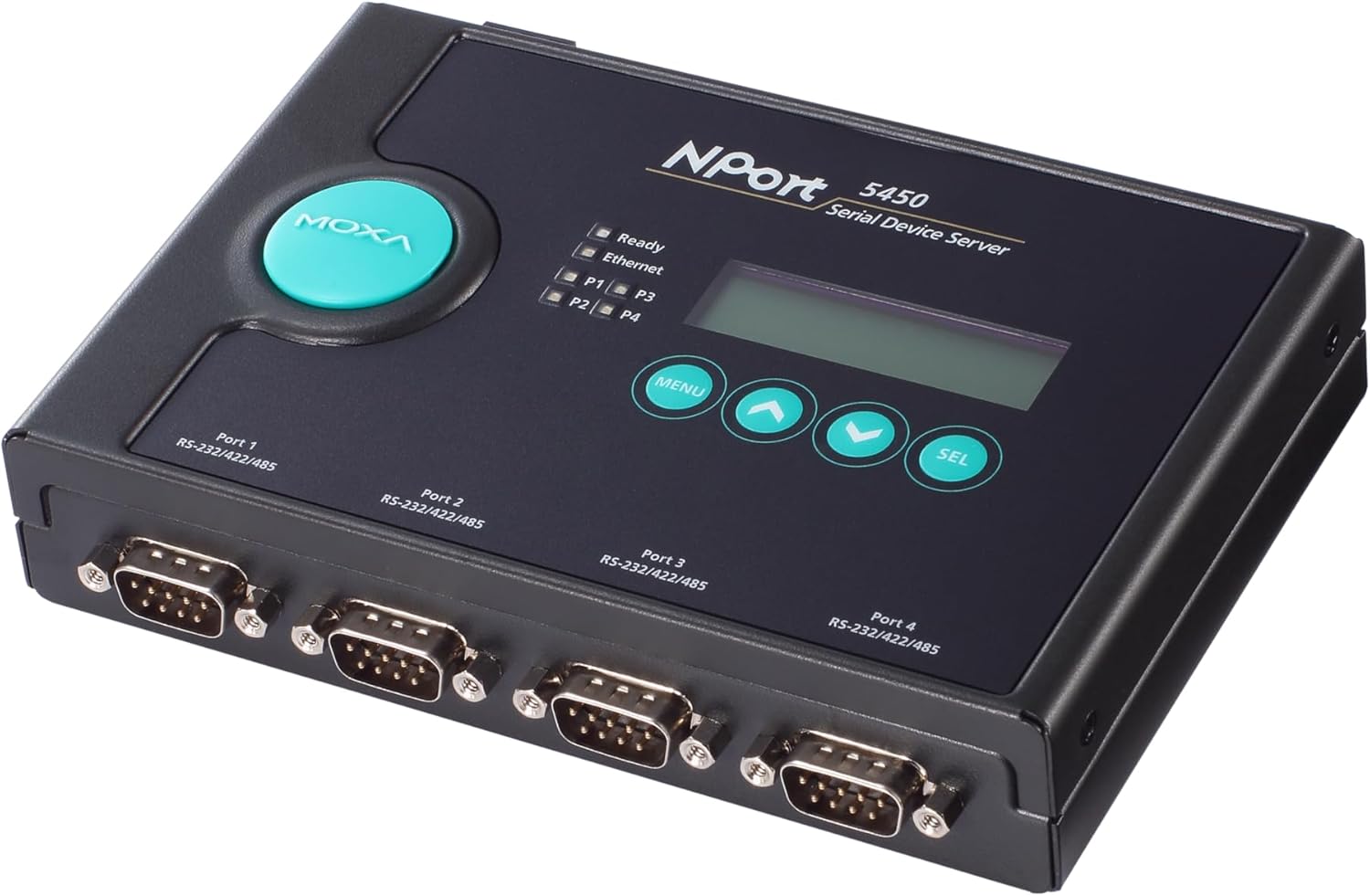
Pikitia 3.3: Koki whakamuri view of the MOXA NPort 5450, clearly showing the four DB-9 serial ports (Port 1 to Port 4) and their RS-232/422/485 compatibility.
3.1. Paewhiri Mua
- Tohu LED:
- Kua rite: Indicates device operational status.
- Itarangi: Indicates Ethernet link and activity.
- P1-P4: Indicate activity for each serial port.
- Whakaaturanga LCD: Shows device status and configuration menus.
- Control Buttons (MENU, Arrows, SEL): Used for navigating and selecting options on the LCD display.
3.2. Paewhiri Whakamuri
- Serial Ports (DB-9): Four ports (Port 1 to Port 4) supporting RS-232, RS-422, and RS-485.
- Tauranga Itarangi (RJ45): 10/100BaseT(X) auto-sensing Ethernet connection.
- Whakauru Hiko: DC power jack for connecting the included 110V adapter.
4. Tatūnga me te Tāuta
Follow these steps to set up your NPort 5450 device server.
4.1. Ihirangi mokete
Manatokohia kei roto i to kete nga mea e whai ake nei:
- MOXA NPort 5450 4-Port Device Server
- 110V Turuturutanga Hauora
- Quick Installation Guide (refer to manufacturer's website for full manual)
- Kaari Raati
Mena kua ngaro, kua pakaru rānei tētahi o ngā taonga, tena koa whakapā atu ki tō kaihoko tonu atu.
4.2. Tāutanga Pūmārō
- Whakapiki: Place the NPort 5450 on a stable, flat surface or mount it using appropriate mounting kits (sold separately) if required for your application. Ensure adequate ventilation around the device.
- Honoa te taura Itarangi: Connect a standard RJ45 Ethernet cable from your network switch or router to the Ethernet port on the rear panel of the NPort 5450.
- Honoa ngā Pūrere Raupapa: Connect your serial devices (e.g., PLCs, sensors, barcode scanners) to the DB-9 serial ports (Port 1-4) on the NPort 5450. Ensure correct pin assignments for RS-232, RS-422, or RS-485 as per your device's requirements.
- Hono Hono: Plug the 110V power adapter into the power input jack on the NPort 5450, then plug the adapter into a suitable power outlet. The device will power on automatically.
Tuhipoka: Always ensure power is disconnected before connecting or disconnecting serial cables to prevent potential damage from electrical surges.
5. Nga Tohutohu Whakahaere
The NPort 5450 offers several methods for configuration and operation.
5.1. Whirihoranga Tuatahi
For initial setup, it is recommended to use the Windows utility or the Web papatohu.
- Windows Utility: Download the latest NPort Windows utility from the Moxa official website. This utility can automatically discover NPort devices on your local network and allow for easy configuration of IP settings, serial port parameters, and operation modes.
- Web Papatohu: If the NPort 5450 has a default or known IP address, you can access its web-based configuration interface by entering the IP address into a web browser. The default IP address is typically 192.168.127.254.
- Telnet Console: For command-line based configuration, you can Telnet to the NPort's IP address. This method is generally used by advanced users.
5.2. Ngā Aratau Whakahaere Taketake
The NPort 5450 supports various operation modes to suit different application needs:
- Real COM Mode: This mode allows Windows/Linux hosts to access serial devices connected to the NPort as if they were local COM ports. This requires installing Moxa's Real COM driver on the host PC.
- Aratau Tūmau TCP: The NPort listens for incoming TCP connections from host applications. When a connection is established, data is transparently exchanged between the serial device and the TCP client.
- Aratau Kiritaki TCP: The NPort actively initiates a TCP connection to a specified host IP address and port. This is useful for connecting to centralized servers.
- UDP Mode: Data is transmitted using UDP packets, which is connectionless and suitable for applications where speed is critical and some data loss is acceptable.
Refer to the detailed NPort 5450 user manual (available on Moxa's website) for in-depth configuration of each operation mode and advanced settings.
6. Tiaki
Regular maintenance ensures the longevity and optimal performance of your NPort 5450.
- Whakahōu Firmware: Tirohia te Moxa i ia wā website for firmware updates. Firmware updates can provide new features, performance improvements, and bug fixes. Follow the instructions provided by Moxa for safe firmware upgrades.
- Te horoi: Puritia te taputapu kia ma, kia kore he puehu. Whakamahia he kakahu ngohengohe, maroke hei muru i waho. Kaua e whakamahia nga kai horoi wai, aerosol ranei.
- Nga Tikanga Taiao: Ensure the device operates within its specified temperature and humidity ranges to prevent damage. Avoid exposing the device to direct sunlight or extreme temperatures.
7. Te Raru
This section provides solutions to common issues you might encounter with your NPort 5450.
7.1. Tūnga Tohu LED
| Tohutohu | Tūnga | Whakaahuatanga / Mahi |
|---|---|---|
| Kua reri | Wehe | Device is not powered on or is faulty. Check power connection. |
| Kua reri | Mārō Kākāriki | Kei te hiko te taputapu me te mahi noa. |
| Itarangi | Wehe | No Ethernet link. Check Ethernet cable connection and network device. |
| Itarangi | Mārō Kākāriki | Kua whakapumautia te hononga Ethernet. |
| Itarangi | Kimo Kakariki | Ethernet data activity. |
| P1-P4 | Wehe | No serial data activity on the port. |
| P1-P4 | Kimo Kakariki | Serial data activity on the port. |
7.2. Nga take noa
- Cannot connect to NPort via network:
- Manatokohia te hononga taura Ethernet.
- Check network settings (IP address, subnet mask, gateway) of the NPort and your PC. Ensure they are on the same subnet or properly routed.
- Temporarily disable firewall on your PC to rule out blocking issues.
- Use the NPort Windows utility to discover the device's IP address.
- Serial device not communicating:
- Verify serial cable connection and pinout (RS-232, RS-422, RS-485).
- Check serial port settings on the NPort (baud rate, data bits, parity, stop bits, flow control) match the connected serial device.
- Ensure the NPort's operation mode (e.g., Real COM, TCP Server) is correctly configured for your application.
- Check the Px LED for activity. If no blinking, there's no data flow.
For more detailed troubleshooting, refer to the full NPort 5450 user manual on the Moxa support website or contact Moxa technical support.
8. Whakatakotoranga
| Āhuahira | Whakatakotoranga |
|---|---|
| Tau tauira | Tauranga 5450 |
| Itarangi | 10/100BaseT(X) auto-sensing |
| Tauranga Rangatū | 4 (DB-9 male) |
| Paerewa Serial | RS-232, RS-422, RS-485 |
| Parenga ESD | 15 KV for all serial signals |
| Tikanga Whirihoranga | Web console, Telnet console, Windows utility |
| Whakauru Mana | 110V AC (via included adapter) |
| Ahu mōkihi | 15 x 6.73 x 3.58 inihi |
| Taumaha Tūemi | 2.27 pauna |
| Kaihanga | Moxa Inc. |
| Te Ra Tuatahi Wātea | Hanuere 12, 2018 |
9. Tautoko me nga Korero Whakaputanga
For technical support, detailed documentation, drivers, and firmware updates, please visit the official Moxa website. You can find comprehensive user manuals, FAQs, and contact information for customer service.
Webpae: www.moxa.com
Information regarding the product warranty is typically provided with the purchase documentation or can be found on the Moxa webpae. Tena koa pupurihia to tohu mo te hoko mo nga kereme whakamana.