
VTech 80-507103
VTech Kidizoom Duo Camera 5.0
Pukapuka Tohutohu
Kupu Whakataki
The VTech Kidizoom Duo Camera 5.0 is a durable and feature-rich digital camera designed specifically for children aged 3 and up. It allows young users to capture photos and videos, apply fun effects, and even record their voices. With its dual-lens design, it makes taking selfies and group photos effortless. This manual provides detailed instructions for setting up, operating, maintaining, and troubleshooting your Kidizoom Duo Camera.
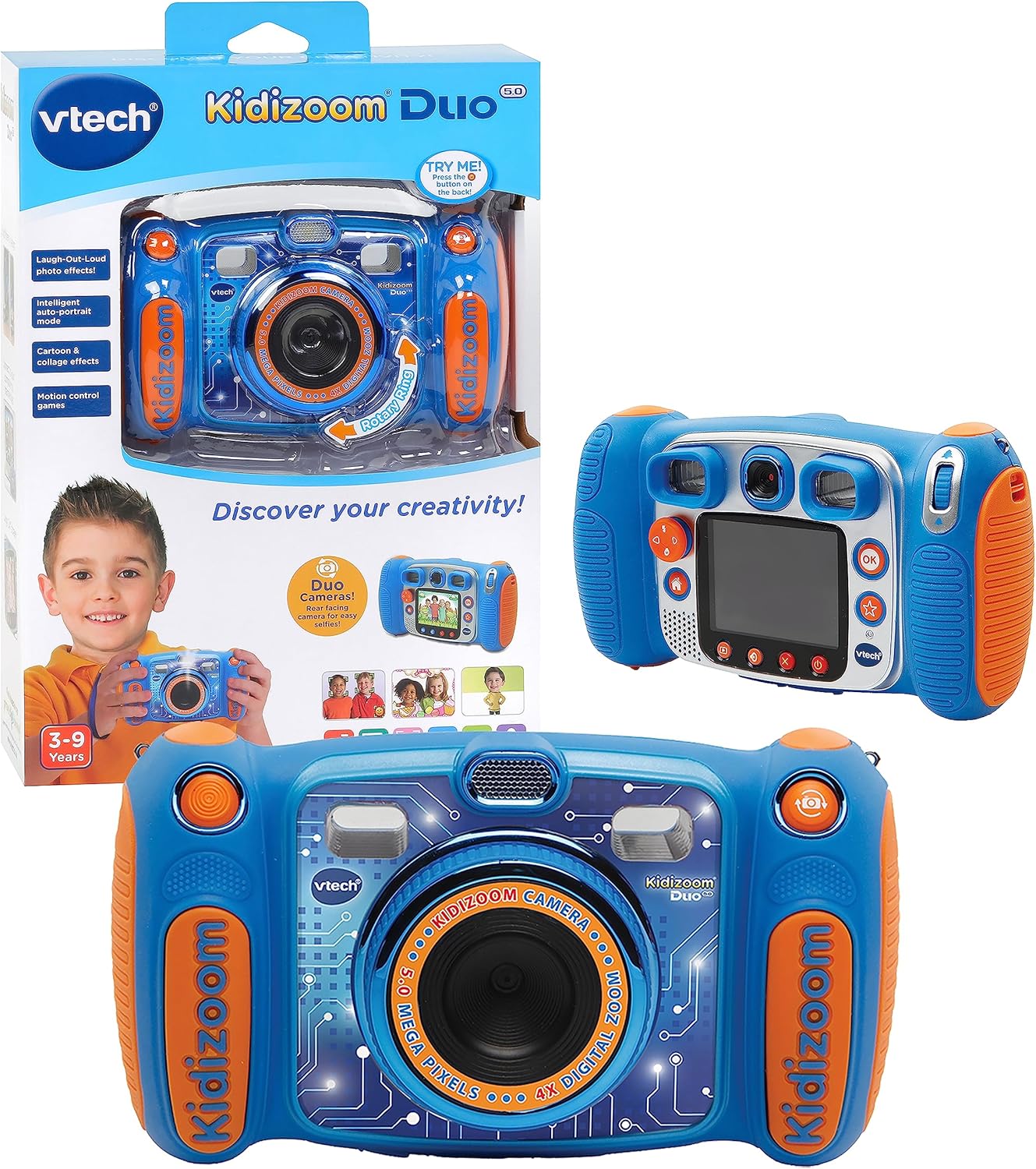
Image: The VTech Kidizoom Duo Camera 5.0, shown both in its retail packaging and as the standalone blue and orange camera unit, highlighting its design and presentation.
Āhuatanga matua:
- Arotahi Matarua: Easily switch between front and rear lenses for photos and videos.
- Kāmera 5-Megapiksel: Capture high-quality photos and videos.
- Ngā Pānga Hangahanga: Add fun effects, stamps, and frames to photos and videos.
- Kaituhi reo: Record voices and apply funny effects.
- Hoahoa Roa: Built to withstand drops and rough handling.
- 2.4-Inch Color LCD Screen: Mata nui mō te ngāwari viewte whakatere me te whakatere.
- Learning Games: Includes fun, educational games.
- Topa Mamati 4X: Zoom in on subjects for closer shots.
Tatūnga
1. Wewete pouaka me nga Ihirangi
Carefully remove all contents from the packaging. Ensure all components are present. The package should contain the VTech Kidizoom Duo Camera 5.0 and 4 AA batteries (included).
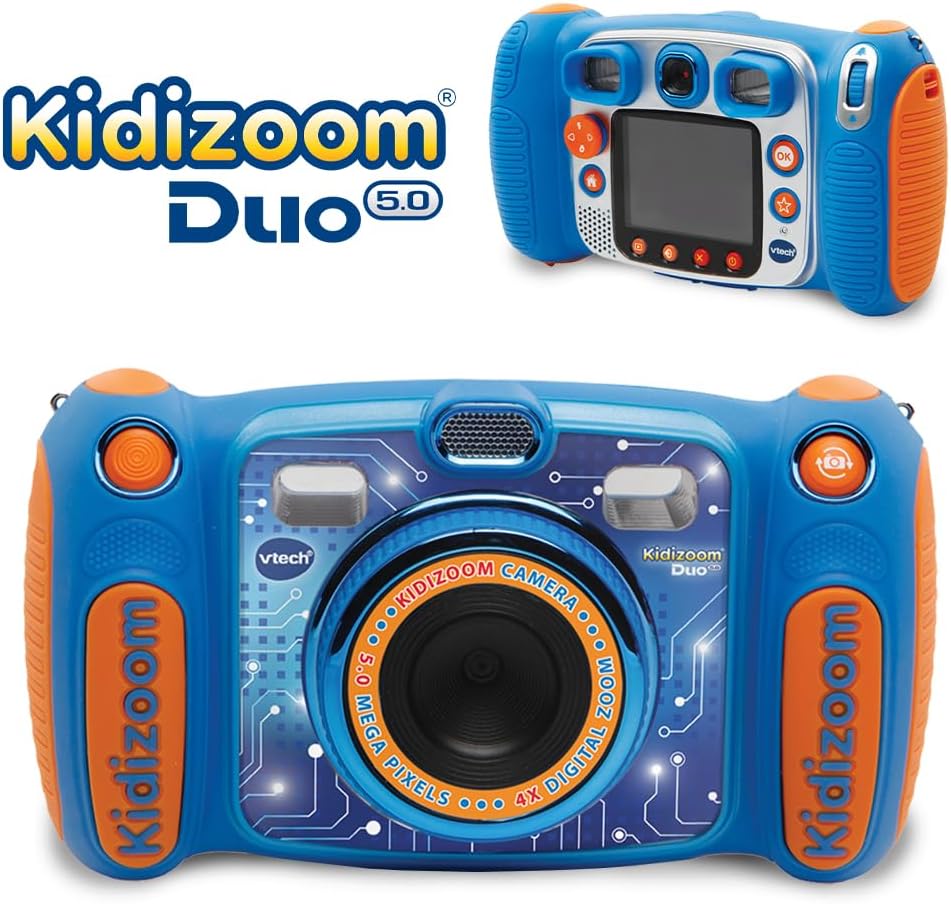
Image: The VTech Kidizoom Duo Camera 5.0 displayed within its retail packaging, ready for unboxing.
2. Tāuta Pūhiko
- Kimihia te wahanga pākahiko i runga i te kamera.
- Ma te whakamahi i te hiwiri mahunga Phillips iti, wetekina te huri i te uhi o te wahanga pākahiko.
- Tangohia te uhi.
- Whakauruhia kia 4 nga pākahiko AA hou, kia tika te polarity (+/-) e tohuhia ana ki roto i te waahanga.
- Whakakapihia te taupoki ka whakakakahu i te kopekau.
Tuhipoka: For optimal performance and to save on replacement costs, rechargeable AA batteries are recommended.
3. Inserting a Memory Card (Optional)
The Kidizoom Duo Camera has internal memory, but for extended storage of photos and videos, a microSD card (not included) can be inserted. Locate the microSD card slot, typically near the battery compartment, and gently insert the card until it clicks into place.
Te whakahaere i te kamera
1. Te Hiko / Whakaweto
Press and hold the Power button (usually marked with a circle and a line) to turn the camera on or off. The 2.4-inch color LCD screen will illuminate.

Image: A detailed rear view of the VTech Kidizoom Duo Camera 5.0, highlighting its LCD screen and the various control buttons for navigation and operation.
2. Te whakatere i ngā Tahua
Use the directional pad (D-pad) and the OK button to navigate through the camera's menus and select options displayed on the LCD screen.
3. Tango Whakaahua
- Switching Lenses: The Kidizoom Duo features two lenses. Use the dedicated lens switch button (often a rotating ring or a button near the lens) to toggle between the front-facing lens and the rear-facing lens. This is ideal for selfies or taking photos of others.
- Te Whakaahua i tō Whakaahua: Titiro ma te viewfinder or use the LCD screen to compose your picture.
- Capturing the Photo: Press the Shutter button (usually a large, prominent button) to take a picture.

Whakaahua: He tata view of the VTech Kidizoom Duo Camera 5.0, illustrating the large 2.4-inch color LCD screen, the 5-megapixel lens with 4X digital zoom, and the mechanism for switching between the two lenses.
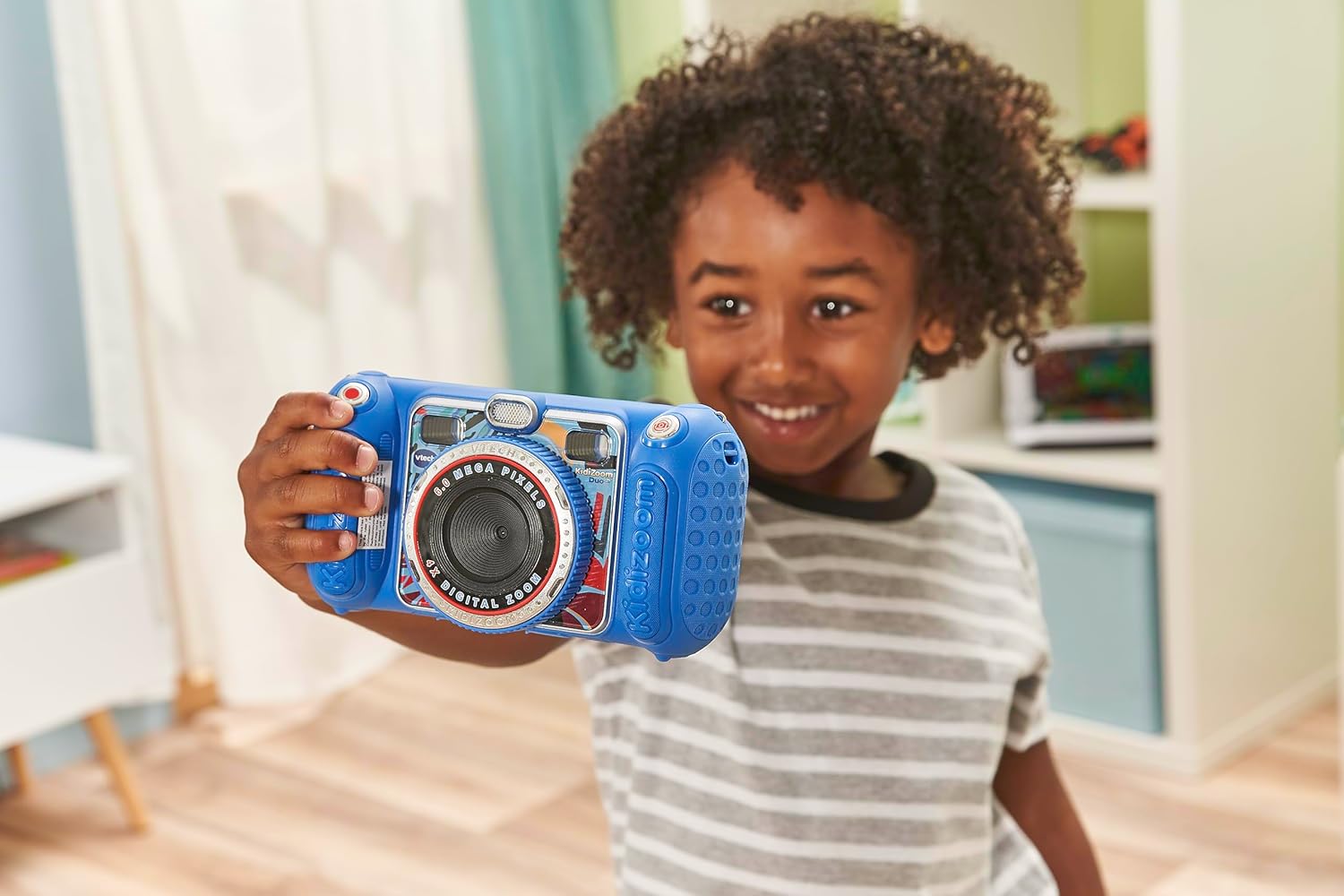
Image: A child holding the VTech Kidizoom Duo Camera 5.0, demonstrating its use for taking a selfie with the front-facing lens.
4. Hopu Ataata
Select the video recording mode from the main menu. Press the Record button to start and stop recording. The camera will capture both video and audio.
5. Applying Effects and Editing
The camera offers various built-in effects, stamps, and frames to personalize your photos and videos. Access these features through the editing menu. You can also use the auto-portrait feature for automatic photo capture.

Whakaahua: He whakaaturanga toirau casing various fun effects, stamps, and frames that can be added to photos using the VTech Kidizoom Duo Camera 5.0, demonstrating creative possibilities.
6. Te Tuhi reo
Navigate to the voice recorder function to record your voice. You can then apply funny effects to the recorded audio.
7. Taakaro
The Kidizoom Duo Camera includes several pre-loaded learning games. Select the Games icon from the main menu to access and play them.
Te tiaki
1. Te horoi i te kamera
- Whakamahia he kakahu ngohengohe, maroke hei horoi i te tinana o te kamera.
- For the screen and lenses, use a microfiber cloth specifically designed for electronics. Do not use abrasive cleaners or solvents.
- A ape i te makuku ki roto i nga kohao.
2. Tiaki Pūhiko
- Tangohia ngā pākahiko mēnā kāore te kāmera e whakamahia mō te wā roa hei ārai i te turuturu.
- Whakamahia tonutia ngā pākahiko hou, kounga teitei.
- Mena kei te whakamahi koe i ngā pākahiko ka taea te whakahou, me whakarite kia tino utua i mua i te whakamahinga.
3. Rokiroki
Store the camera in a cool, dry place away from direct sunlight and extreme temperatures. Consider using a protective case to prevent scratches and damage.
Raparongoā
| Raruraru | Take pea | Rongoā |
|---|---|---|
| Karekau te kamera e ka ana. | He iti, he hē ranei te whakaurunga o nga pākahiko. | Replace with fresh batteries or ensure correct polarity. |
| Pictures/Videos are blurry. | Lens is dirty; insufficient lighting; subject too close/far. | Clean the lens; ensure adequate lighting; adjust distance to subject. |
| Cannot save more photos/videos. | Internal memory is full; no microSD card inserted or card is full. | Mukua tawhito files; insert a microSD card; transfer files ki te rorohiko. |
| Ka whakatio te kamera, ka kore ranei e aro. | Hapa o te rorohiko. | Remove and reinsert batteries to perform a hard reset. |
Whakatakotoranga
| Āhuahira | Taipitopito |
|---|---|
| Hunga Hua | 1.57 x 4.49 x 3.35 inihi |
| Taumaha Tūemi | 7.1 hekere |
| Tauira Tuemi | 80-507103 |
| E taunakitia ana e te Kaihanga Tau | 3 tau ki runga ake |
| Pūhiko | 4 nga pākahiko AA e hiahiatia ana (kei roto) |
| Te Ra Whakaputa | Oketopa 31, 2019 |
| Kaihanga | Vtech Electronics |
| Hangarau Pūoko Whakaahua | MOS |
| Tautokohia File Whakahōputu | JPEG, RAW |
| Whakapumau Atahanga | Mamati |
| Topa Optical | 4X |
Pūtāhui me te Tautoko
VTech products are manufactured to high standards and are designed to provide a fun and enriching experience. For information regarding warranty coverage, please refer to the warranty card included with your product or visit the official VTech webpae.
For technical support, frequently asked questions, or to purchase accessories, please visit the VTech support section on their official website or contact their customer service department. Keep your model number (80-507103) handy when contacting support.
Rauemi ipurangi:
- VTech Official Webpae: www.kiteroha.com
- Product Support Page: (Check VTech web(pae mō te whārangi tautoko hua motuhake)
Ask a question about this manual
Ask about setup, troubleshooting, compatibility, parts, safety, or missing instructions. Manuals+ will review the question and use this page’s manual context to help answer it.