
1. Kupu Whakataki
This manual provides instructions for the setup, operation, and maintenance of the Avaya 1616 IP Telephone (Model 700450190). The Avaya 1616 is designed for users who require a robust and feature-rich communication device, supporting 16 line appearances and a high-quality speakerphone. This guide will help you maximize the functionality of your IP telephone.
2. Tatūnga
Follow these steps to properly set up your Avaya 1616 IP Telephone.
2.1 Te Wetewete me te Tautuhi Waa
Carefully remove all components from the packaging. Ensure all parts are present before proceeding with the setup.
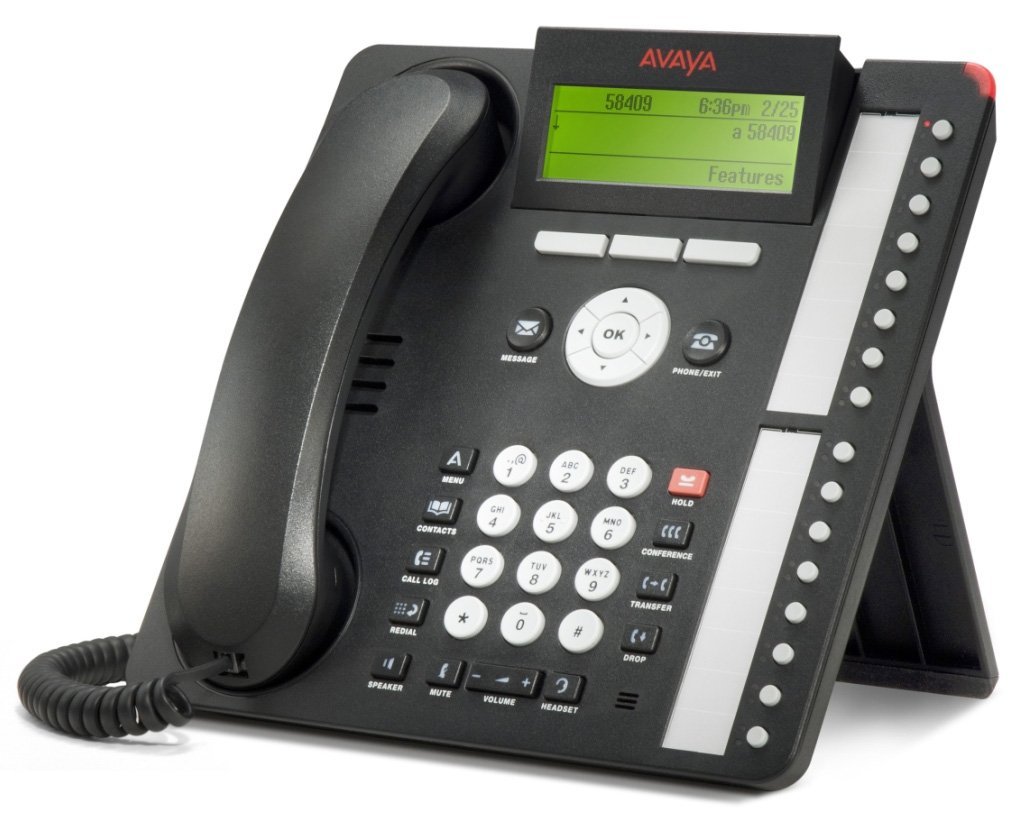
Whakaahua 1: Avaya 1616 IP Telephone components. This image displays the main telephone unit, the handset, the coiled handset cord, an Ethernet cable, and the desk stand. The main unit features a display screen, a numeric keypad, and various function buttons. The desk stand is designed to elevate the phone for easier viewte mahi me te mahi.
- Telephone Base Unit: The main body of the phone with keypad, display, and function buttons.
- Totoro: The receiver for voice communication.
- Waea Pukoro: Coiled cord connecting the handset to the base unit.
- Tauira Itarangi: Mo te hononga whatunga.
- Turanga Papa: For positioning the phone on a desk.
- Power Adapter (Sold Separately): A 5V local power supply may be required if Power over Ethernet (PoE) is not available.
2.2 Hononga Tinana
- Tāpirihia te Tūnga Tēpu: Securely attach the desk stand to the bottom of the telephone base unit.
- Honoa te Pukoro: Plug one end of the coiled handset cord into the handset and the other end into the designated handset port on the side or back of the telephone base unit.
- Hono atu ki te Whatunga: Insert one end of the Ethernet cable into the "LAN" port on the back of the telephone and the other end into a network switch or router. The phone supports dual Ethernet ports for connection of the phone and a collocated PC with VLAN separation.
- Hono Hono:
- Te mana ki runga Itarangi (PoE): If your network switch supports 802.3af PoE, the phone will receive power through the Ethernet cable. No separate power adapter is needed.
- Local Power Supply: If PoE is not available, connect a 5V local power supply (sold separately) to the power port on the back of the telephone and then to an electrical outlet.
Once connected, the phone will power on and begin its boot sequence. This may take a few moments.
3. Nga Tohutohu Whakahaere
This section covers the basic operation of your Avaya 1616 IP Telephone.
3.1 Nga waahanga matua
- 16 Line Appearances/Feature Keys: Programmable buttons with dual LEDs for line status and feature access.
- High-Quality 2-Way Speakerphone: Mo te whakawhitiwhiti ringa-kore.
- ID Kaiwaea: Displays incoming caller information.
- Mahi Raina-maha: Supports multiple active lines.
- Te Waea Waea Huihuinga: Basic conferencing features.
3.2 Ngā Mahi Waea Taketake
- Te Waea:
- Hikina te ringaringa ka pehi ranei i te paatene Tukuoro.
- Waeahia te tau e hiahiatia ana ma te papapātuhi.
- Press the "Call" or "Dial" softkey, or wait for automatic dialing.
- Whakautu i te Karanga:
- Lift the handset, or press the Speaker button, or press the flashing line appearance button.
- Whakamutua te Waea:
- Replace the handset, or press the Speaker button again if using speakerphone, or press the "End Call" softkey.
- Placing a Call on Hold:
- During an active call, press the "Hold" button. The line appearance LED will flash.
- To retrieve the call, press the flashing line appearance button.
- Whakawhiti Waea:
- During an active call, press the "Transfer" button. The current call is put on hold.
- Dial the number of the party to whom you wish to transfer the call.
- Wait for the party to answer (consulted transfer) or press "Transfer" again to complete the transfer (blind transfer).
- Initiating a Conference Call:
- During an active call, press the "Conference" button. The current call is put on hold.
- Waeahia te nama o te hunga tuatoru.
- Once the third party answers, press the "Conference" button again to join all parties.
4. Tiaki
Proper maintenance ensures the longevity and optimal performance of your Avaya 1616 IP Telephone.
4.1 Te horoi
- Whakamahia he ngohengohe, paku damp cloth to clean the exterior surfaces of the phone.
- Avoid using abrasive cleaners, solvents, or strong chemicals, as these can damage the finish and electronic components.
- Do not spray cleaning liquids directly onto the phone. Apply to the cloth first.
- Ensure the phone is disconnected from power before cleaning.
4.2 Tiakitanga Whanui
- Puritia te waea kia matara atu i te wera nui, i te rā tika, me te makuku.
- A ape i te tuku i te waea, te tuku ranei ki nga paanga kaha.
- Ensure cables are not pinched or strained.
5. Te Raru
This section provides solutions to common issues you might encounter with your Avaya 1616 IP Telephone.
| Raruraru | Take pea | Rongoā |
|---|---|---|
| Karekau te waea i te hiko. | Kāore he pūtake hiko, he hononga hē rānei. |
|
| Kaore he reo waea. | Network connectivity issue or service problem. |
|
| Kaore e taea te waea, te whiwhi waea ranei. | Network configuration, service issue, or phone registration problem. |
|
| He kino te kounga ororongo. | Network congestion, faulty cable, or handset issue. |
|
If the problem persists after attempting these solutions, please contact your IT department or Avaya support for further assistance.
6. Whakatakotoranga
Key technical specifications for the Avaya 1616 IP Telephone (700450190).
| Āhuahira | Taipitopito |
|---|---|
| Tau tauira | 700450190 |
| Line Appearances | 16 with dual LEDs |
| Waeaorooro | High-quality 2-way |
| Kōwhiringa Whakapuru | Desk or wall mountable (with optional adapter) |
| Tauranga Itarangi | Dual (for phone and collocated PC w/VLAN separation) |
| Puna Mana | 802.3af Power over Ethernet (PoE) or optional 5V local power supply |
| Momo Waea | Papatuhi Kotahi |
| Momo Pūnaha Whakautu | Mamati |
| Pūrere Hototahi | Computers, Telephone Networks, VoIP Services |
| Te Waea Waea Huihuinga | Taketake |
| Mahi Raina-maha | Mahi Raina-maha |
| ID Kaiwaea | Ae |
| Tae | Pango |
| Hunga Hua | 9.8 x 7.9 x 2.8 inihi (tata) |
| Ahu mōkihi | 16.8 x 10 x 3.3 inihi |
| Taumaha | 2.9 Pauna (Taimaha Puke) |
7. Nga Korero Whakaputanga
This Avaya 1616 IP Telephone (700450190) is typically offered with a 90-ra iti pūtāhui. This warranty covers defects in materials and workmanship under normal use. For specific terms and conditions, please refer to the warranty documentation provided at the time of purchase or contact your vendor.
Note: As a renewed product, warranty terms may vary from new products. Always confirm warranty details with your supplier.
8. Tautoko
For technical assistance, further troubleshooting, or inquiries regarding your Avaya 1616 IP Telephone, please contact your system administrator or the vendor from whom you purchased the device. Avaya's official support channels can also provide resources and documentation for their products.
For general information about Avaya products, you may visit the official Avaya webpae.


