
360 S6
360 Robot Vacuum and Mop Cleaner User Manual
Tauira: S6
Kupu Whakataki
Thank you for choosing the 360 Robot Vacuum and Mop Cleaner. This intelligent cleaning device is designed to provide efficient and thorough cleaning for your home, featuring advanced laser navigation, powerful suction, and smart app control. This manual will guide you through the setup, operation, and maintenance of your new robot vacuum to ensure optimal performance and longevity.

The 360 Robot Vacuum and Mop Cleaner, Model S6, shown with its companion mobile application interface.
Nga korero haumaru
- Me ata panui nga tohutohu katoa i mua i te whakamahi i te taputapu.
- Kaua e tukua ngā tamariki ki te whakahaere i te mīhini horoi horoi karetao. Aroturukihia ngā tamariki me ngā mōkai i te wā e whakahaerehia ana te karetao.
- Ensure the charging dock is placed on a flat surface against a wall, with clear space around it.
- Kaua e whakamahi i te karetao korehau i roto i nga taiao maku, i nga wai tata ranei.
- Tango i nga taura kua wetekina, i nga mea iti, i nga mea pakarukaru ranei i te papa i mua i te horoi kia kore ai e uru mai, kia pakaru ranei.
- Do not use the robot vacuum to pick up large debris, sharp objects, or burning/smoking materials.
- Only use the original charger and battery provided by the manufacturer.
- Me mahi te tiaki i ia wā e ai ki te whakaahuatanga o tēnei pukapuka hei whakarite kia haumaru, kia whai hua hoki te mahi.
Ihirangi mokete
Manatokohia kei te noho nga waahanga katoa i roto i te kete:
- 360 Robot Vacuum and Mop Cleaner (S6)
- Tauranga Whakatau
- Pūurutau Hiko
- Tane Wai
- Waahi Mop
- Paraihe Taha (2 takirua)
- Utauta horoi
- Pukapuka Kaiwhakamahi
- Pūhiko (kua whakauruhia i mua)
- Tātari (kua tāuta-mua)
Ka mutu te huaview
Familiarize yourself with the main components of your 360 Robot Vacuum and Mop Cleaner.

Ka mutuview of the robot vacuum's intelligent features including anti-collision, anti-drop sensors, long-lasting battery, LDS laser navigation, and SLAM algorithm for mapping.
Runga View:
- Pūoko Whakatere Taiaho LDS: For accurate mapping and navigation.
- Patene Hiko/Ma: Press to start/pause cleaning, long press to turn on/off.
- Recharge Button: Pēhia hei whakahoki i te karetao ki te tauranga utu.
- Dustbin Compartment: Kei raro i te uhi o runga.
Raro View:
- Paraihe Matua: Mo nga whariki horoi hohonu me nga papa pakeke.
- Paraihe Taha: To sweep debris from edges and corners.
- Wira taraiwa: Mō te nekehanga puta noa i ngā mata rerekē.
- Omni-directional Wheel: For steering.
- Kei te utu Hoapā: To connect with the charging dock.
- Pūoko Cliff: To prevent falling down stairs.
- Pūoko Pakitara: To sweep along walls and corners effectively.
Tatūnga
1. Te Whakautu i te Pūwero Robot
- Place the charging dock on a hard, level surface against a wall. Ensure there is at least 0.5 meters (1.6 feet) of clear space on both sides and 1.5 meters (4.9 feet) in front of the dock.
- Connect the power adapter to the charging dock and plug the other end into a power outlet.
- Place the robot vacuum onto the charging dock, ensuring the charging contacts align. The robot will announce that it is charging. For first use, fully charge the robot before operation.
2. Connecting to the 360 Robot App
- Download the "360 Robot" app from the App Store (iOS) or Google Play Store (Android).
- Whakatuwheratia te taupānga me te hanga i tetahi kaute, takiuru ranei.
- Follow the in-app instructions to add your device. This typically involves selecting your robot model, connecting to its Wi-Fi hotspot, and then connecting the robot to your home Wi-Fi network (2.4GHz only).
- Once connected, you can control the robot, view cleaning maps, set schedules, and access advanced features through the app.
Te whakahaere
Te Timata i te Huringa Whakapai
- Mā te Pātene Robot: Press the Power/Clean button on the robot once to start a cleaning cycle. Press again to pause.
- Mā te Taupānga: Open the 360 Robot app and tap the "Clean" button. You can also select specific cleaning modes (e.g., Spot cleaning, Proximity cleaning) or set schedules.
- Via Voice Command (Alexa): If integrated with Alexa, you can use voice commands like "Alexa, ask 360 Robot to start cleaning."
Aratau horoi

The robot vacuum is capable of both sweeping (vacuuming) and mopping, utilizing its main brush, side brushes, and mop cloth.
- Whakapai Aunoa: The robot intelligently maps your home and cleans systematically. It identifies carpet and automatically switches to Max Mode with 1800Pa suction power for deep cleaning.
- Whakapai Maama: Ka tohutohu i te karetao kia horoi kaha i tētahi wāhi iti kua tohua.
- Proximity Cleaning: Cleans a designated area around the robot.
- Aratau Mopi: Attach the water tank with a damp mop cloth. The robot will mop hard floors. Note: The mopping function is designed for light mopping and not for heavy stains.
Āhuatanga Taupānga Arā Atu Anō
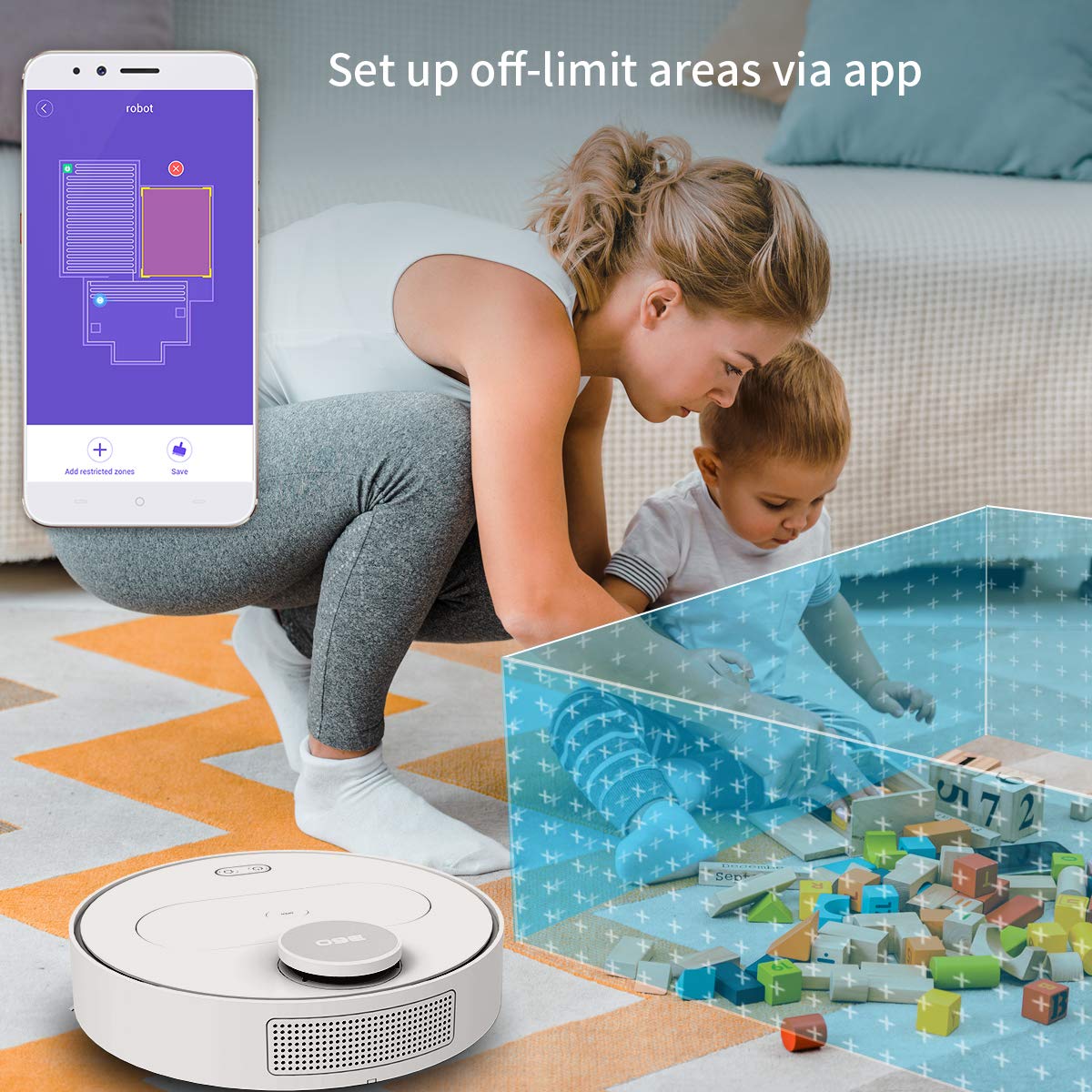
The 360 Robot app allows users to define and set up off-limit areas on the cleaning map, preventing the robot from entering specific zones.
- Multi-map Management: Save and manage multiple floor plans for different levels of your home.
- Off-limit Area: Draw virtual boundaries or no-go zones on the map to prevent the robot from entering specific areas.
- Whakahōtaka: Whakatakotoria he wā motuhake kia tīmata aunoa ai te karetao ki te horoi.
- Mana Mamao: Manually control the robot's movement using the app.
- Whakapai Riu: Monitor the robot's real-time cleaning path and progress on the map.
- Taumata Momo: Adjust suction power (Quiet, Normal, Powerful, Max) according to your cleaning needs.
Automatic Recharge and Breakpoint Resume
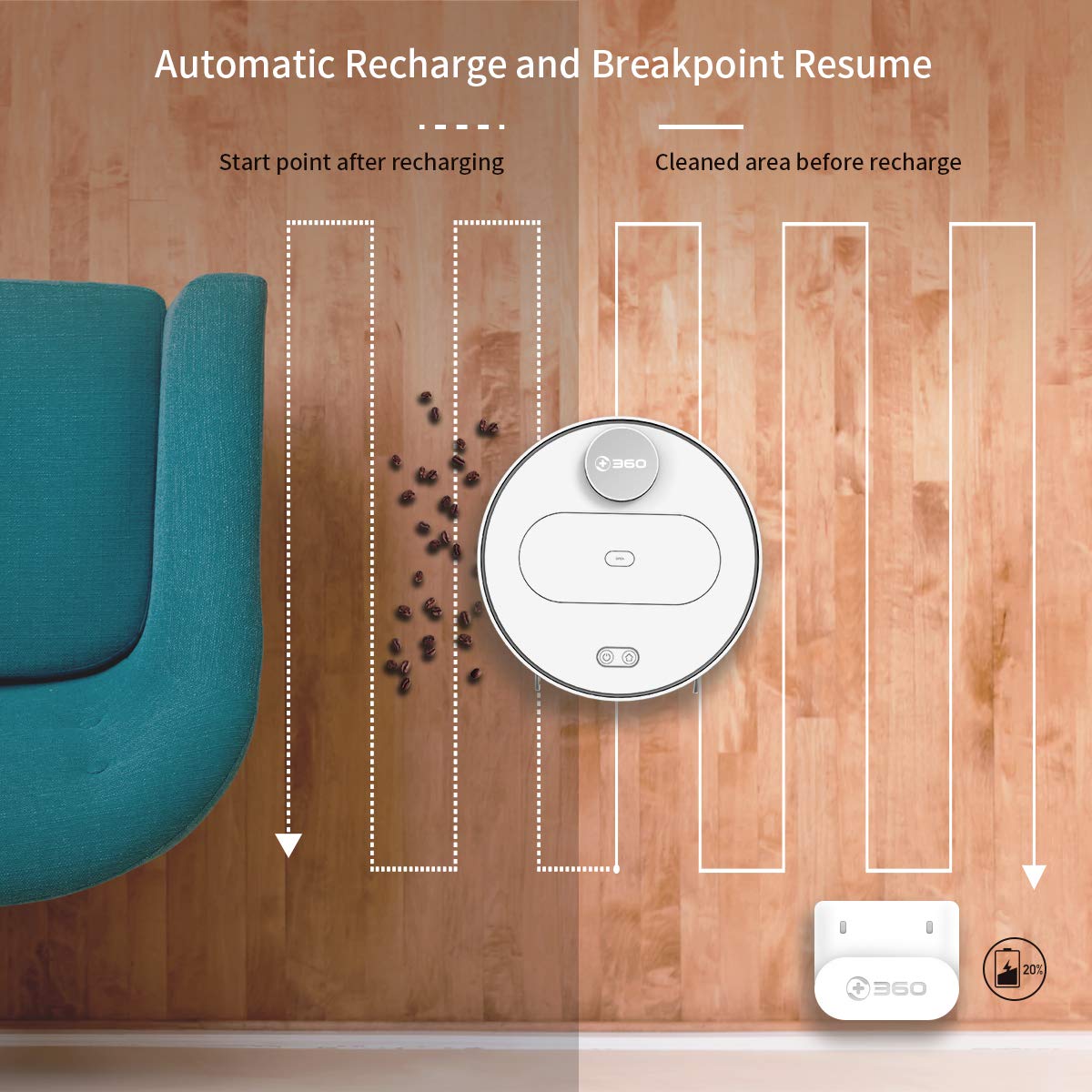
The robot automatically returns to its charging dock when the battery is low and resumes cleaning from the last uncleaned spot after recharging.
When the battery level is low during a cleaning cycle, the robot will automatically return to its charging dock. Once fully recharged, it will resume cleaning from where it left off, ensuring complete coverage of your home.
Te tiaki
Regular maintenance is crucial for optimal performance and longevity of your robot vacuum.
1. Te Putua i te Puehu
- Whakatuwheratia te uhi o runga o te karetao ka tango i te putea.
- Whakatuwheratia te taupoki o te ipu para ka ringihia ngā mea o roto ki roto i tētahi ipu para.
- E taunaki ana kia whakawāteatia te ipu puehu i muri i ia huringa horoinga.
2. Te horoi i te Tātari

The 360 Robot Vacuum features a washable HEPA filter, which helps maintain high filtration efficiency and contributes to cleaner indoor air.
- Tangohia te tātari i te ipu puehu.
- Tap the filter gently to remove loose dirt.
- Rinse the filter under running water. Ensure it is completely dry before reinserting it into the dustbin. Do not use a brush or other tools to clean the filter, as this may damage it.
- It is recommended to clean the filter weekly and replace it every 3-6 months, depending on usage.
3. Ngā Paraihe Horoi
- Paraihe Matua: Remove the main brush cover and then the main brush. Use the provided cleaning tool to remove hair and debris tangled around the brush. Reinstall the brush and cover. Clean weekly.
- Paraihe Taha: Check side brushes for tangled hair or debris. If necessary, remove them (they can be pulled off) and clean. Reinstall, ensuring they click into place. Replace if worn or damaged. Clean monthly.
4. Whakapai i nga Pūoko me te Whakataki Hoapā
- Wipe the cliff sensors (on the bottom of the robot), wall sensor (on the side), and charging contacts (on the robot and charging dock) with a clean, dry cloth. This ensures proper navigation and charging. Clean monthly.
5. Water Tank and Mop Cloth Maintenance
- After mopping, remove the water tank and empty any remaining water.
- Remove the mop cloth and wash it thoroughly. Allow it to air dry completely before reattaching or storing.
- Do not leave water in the tank when the robot is not in use for extended periods.
Raparongoā
| Raruraru | Take pea | Rongoā |
|---|---|---|
| Kaore te karetao e huri. | Kua iti, kua pau ranei te pākahiko. | Place the robot on the charging dock and ensure it is charging. |
| Kaore e taea e karetao te hono ki Wi-Fi. | Incorrect Wi-Fi password; 5GHz network; robot too far from router. | Ensure correct 2.4GHz Wi-Fi password. Move robot closer to router. Restart robot and router. |
| Ka mau te karetao i nga wa maha. | Obstacles on the floor; narrow spaces. | Clear obstacles. Use the app to set off-limit areas for problematic zones. |
| He kino te mahi horoi. | Ki tonu te ipu paru; tātari kua purua; nga paraihe kua kurupae. | Whakakorea te ipu para. Horoia, whakakapia rānei te tātari. Horoia ngā paraihe matua me ngā paraihe taha. |
| Karekau te karetao e hoki ki te tauranga utu. | Charging dock obstructed; charging contacts dirty. | Ensure clear space around the dock. Clean charging contacts on both robot and dock. |
Whakatakotoranga
| Āhuahira | Taipitopito |
|---|---|
| Waitohu | 360 |
| Ingoa Tauira | S6 |
| Nga waahanga motuhake | Anti-Collision, Anti-Fall, Washable Filter |
| Tae | Tae maha |
| Momo Tātari | kakahu |
| Ora Pūhiko | 110 meneti |
| Puna Mana | Pūhiko Powered |
| Tikanga Mana | Taupānga |
| Pūrere Hototahi | Alexa |
| Taumaha Tūemi | 3 kg 490 g |
| Rahi Tūemi (LxWxH) | 35 x 35 x 10 Henemita |
Pūtāhui me te Tautoko
For warranty information and technical support, please refer to the warranty card included in your product packaging or visit the official 360 SmartAI website. You can also contact customer service through the 360 Robot app for assistance.
Mo etahi atu rauemi me nga FAQ, tirohia te Toa 360 i runga i a Amazon.
Ask a question about this manual
Ask about setup, troubleshooting, compatibility, parts, safety, or missing instructions. Manuals+ will review the question and use this page’s manual context to help answer it.