
Kupu Whakataki
Thank you for choosing the MARVO KG925G Mechanical Gaming Keyboard. This manual provides essential information for setting up, operating, maintaining, and troubleshooting your new keyboard. Please read this manual carefully before use to ensure optimal performance and longevity of your device.
Ihirangi mokete
Manatokona kei roto katoa nga mea kei roto i te kete:
- MARVO KG925G Mechanical Gaming Keyboard
- Pukapuka Kaiwhakamahi (tenei tuhinga)
Tatūnga
Nga Whakaritenga Pūnaha
- Pūnaha Mahi: Windows 8 i muri mai ranei
- Tauranga USB 2.0 e waatea ana
Te hono i te papapātuhi
- Kimihia te tauranga USB 2.0 e wātea ana i runga i tō rorohiko.
- Plug the USB connector of the MARVO KG925G keyboard into the USB port.
- Ko te punaha whakahaere ka kitea aunoa me te whakauru i nga taraiwa e tika ana. He wa poto pea tenei tukanga.
- Once the drivers are installed, the keyboard's backlighting will illuminate, indicating it is ready for use.
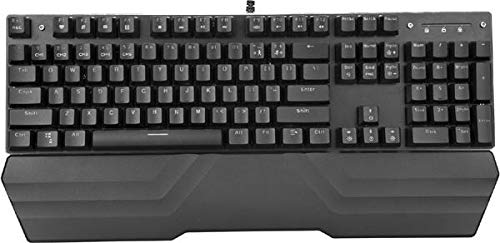
Image: The MARVO KG925G Mechanical Gaming Keyboard with its USB cable connected, ready for use. The keyboard features a wrist rest and illuminated keys.
Nga Tohutohu Whakahaere
Nga Mahi Papapātuhi Taketake
The MARVO KG925G functions as a standard QWERTY keyboard for typing and general computer use.
Kaupapa Motuhake
The keyboard includes dedicated multimedia functions, typically accessed via the Fn key combined with the F-keys (F1-F12). Refer to the keycap legends for specific functions such as volume control, media playback, and launching applications.
- Fn + F1-F12: Access various multimedia and system functions.
Mana Whakamuri
The MARVO KG925G features customizable backlighting. Specific key combinations are used to change lighting modes, brightness, and speed. Consult the keyboard's keycap legends or the manufacturer's website for detailed instructions on advanced lighting customization.
- Aratau Rama: Typically cycled using a dedicated key or Fn + a specific key (e.g., Scroll Lock, Pause Break, or a dedicated lighting key).
- Whakaritenga Tirohanga: Often controlled by Fn + Up/Down arrow keys.
Te Tiaki me te Tiaki
Mā te tiaki tika ka roa te ora me te mahi a tō papapātuhi.
- Te horoi: Use a soft, dry cloth to wipe the keyboard surface. For deeper cleaning, use a can of compressed air to remove dust and debris from between the keycaps. Avoid using harsh chemicals or abrasive materials.
- Maringi: In case of liquid spills, immediately unplug the keyboard from your computer. Turn it upside down to drain any liquid and allow it to dry completely for at least 24-48 hours before reconnecting. Do not attempt to use the keyboard while it is wet.
- Rokiroki: Whakaorangia te papapātuhi ki te waahi hauhautanga, maroke atu i te ra tika me te wera nui.
Raparongoā
If you encounter issues with your MARVO KG925G keyboard, refer to the following common solutions:
| Raruraru | Rongoa pea |
|---|---|
| Kāore te papapātuhi e whakautu mai. |
|
| Backlighting is not working. |
|
| Kāore ngā kī e rēhita tika ana. |
|
Whakatakotoranga
- Tauira: KG925G
- Waitohu: MARVO
- Hononga: USB 2.0
- Momo papapātuhi: Papapātuhi Taha Ahumahi
- Āhuatanga: Illumination, Wrist Rest, Multimedia Keys
- OS Hototahi: Windows 8 me runga ake
- Ahu: Tata ki te 47.5 x 18.7 x 8.4 cm (18.7 x 7.4 x 3.3 inihi)
Pūtāhui me te Tautoko
Mō ngā mōhiohio pūtāhui me te tautoko hangarau, tirohia te kāri pūtāhui kei roto i tō hua, tirohia rānei te paetukutuku MARVO mana. webpae. Puritia to tohu hoko mo nga kereme whakamana.