
Kupu Whakataki
The HyperX Alloy Core RGB Gaming Keyboard is designed to provide a responsive and durable typing experience with dynamic RGB lighting. This manual provides detailed instructions for setting up, operating, and maintaining your keyboard, ensuring optimal performance.

Image: The HyperX Alloy Core RGB Gaming Keyboard, showcasintōna tahora me tōna hoahoa katoa.
Ngā āhuatanga
- Rarama RGB Hihiko: Features a distinctive light bar and dynamic RGB lighting effects with multiple customizable patterns.
- Hanga Roa: Built with a reinforced plastic frame for enhanced durability and stability.
- Quiet and Responsive Keys: Equipped with soft-touch membrane keys that offer a quiet typing experience and anti-ghosting functionality for accurate input.
- Hoahoa Aki-Rangi: Tested to withstand up to 120ml of liquid spills, providing protection against accidental damage.
- Ngā Mana Whakapāpāho Motuhake: Convenient buttons for audio playback, volume adjustment, and mute functions.
- Pātene Uru Tere: Dedicated buttons for adjusting brightness, changing lighting modes, and activating game mode.
- Aratau Maukati Papapātuhi: Prevents accidental key presses during intense gaming sessions.
- Hototahi: Supports Windows 7, 8, 8.1, and 10.
- Ahu: Approximately 443.20mm (width) x 175.31mm (depth) x 35.68mm (height).
Tatūnga
- Wewetehia te Papapātuhi: Kia ata tangohia te papapātuhi mai i tana tākai.
- Hono ki Rorohiko: Plug the USB-A connector of the keyboard cable into an available USB port on your computer. The keyboard is a plug-and-play device and typically does not require additional drivers for basic functionality.
- Whakatikatika i ngā Waewae Papapātuhi: For ergonomic comfort, you can extend the adjustable feet located on the underside of the keyboard to tilt it to your preferred angle.
Video: This video demonstrates the physical handling of the keyboard, including adjusting the feet for optimal typing angle, and showcases the initial RGB lighting effects upon connection.

Image: A hand connecting the USB-A cable of the keyboard to a computer's USB port.
Nga Tohutohu Whakahaere
Mana Rama RGB
The HyperX Alloy Core RGB keyboard features dynamic RGB lighting. Use the dedicated quick access buttons located above the function keys to customize your lighting experience.
- Whakaritenga Tirohanga: Press the sun icon button to cycle through different brightness levels.
- Tīpakonga Aratau Rama: Press the color palette icon button to switch between various lighting effects (e.g., Color Cycle, Spectrum Wave, Breathing, Solid, 5 Zones, Aurora).
- Effect Speed: Use the FN key + Up/Down arrow keys to increase or decrease the speed of lighting effects.
- Solid Color Selection: Use the FN key + Left/Right arrow keys to switch between solid colors.
- 5-Zone Customization: For 5-zone lighting, press the FN key + F1-F5 keys multiple times to customize the color of each zone.
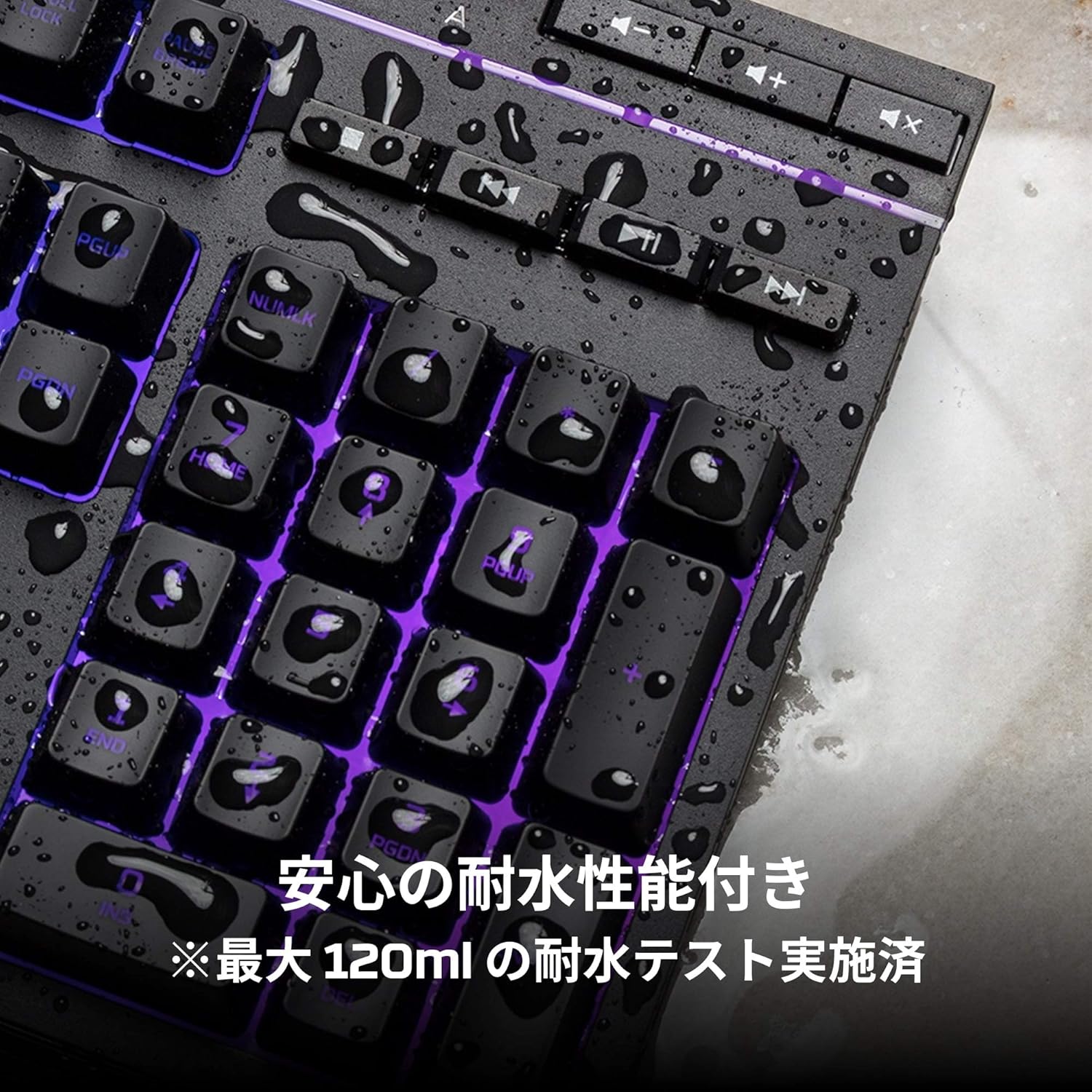
Image: Visual representation of various RGB lighting patterns and key combinations for controlling them.
Mana Media
Dedicated media control buttons are located on the top right of the keyboard for easy access to audio functions.
- Rōrahi Whakarunga/Whakararo: Whakaritea te rōrahi pūnaha.
- Wahangu: Wahangu, wetewetehia te ororongo.
- Purei/Tatari: Whakahaerehia te purei pāpāho.
- Riu o mua/panuku: Skip to the previous or next media track.

Image: Close-up of the dedicated media control buttons on the top right of the keyboard.
Game Mode and Keyboard Lock
- Aratau Kēmu: Press the game controller icon button to activate Game Mode, which disables the Windows key to prevent accidental interruptions during gameplay.
- Maukati Papapātuhi: Press FN + F12 to enable keyboard lock mode, which temporarily disables all key inputs.
Te tiaki
Hei whakarite i te roa me te pai o te mahi o to papapātuhi HyperX Alloy Core RGB, whai i enei aratohu tiaki:
- Te horoi: Regularly clean the keyboard with a soft, dry cloth. For stubborn dirt, a slightly damp Ka taea te whakamahi i te kakahu, me te whakarite kia kore he wai e uru ki roto i nga huringa matua.
- Ātete Ringi: While the keyboard is spill-resistant (up to 120ml), it is not waterproof. In case of a spill, immediately disconnect the keyboard from your computer, wipe off any liquid, and allow it to air dry completely before reconnecting.
- Aukati i nga Tikanga Tino: Do not expose the keyboard to extreme temperatures, humidity, or direct sunlight.

Image: The keyboard with water droplets on its surface, illustrating its spill-resistant feature.
Raparongoā
If you encounter issues with your HyperX Alloy Core RGB keyboard, refer to the following common solutions:
- Papapātuhi Kaore i te whakautu:
- Me mohio kei te hono pai te taura USB ki te papapātuhi me te rorohiko.
- Ngana ki te hono i te papapātuhi ki tetahi tauranga USB rereke i runga i to rorohiko.
- Tīmataria anō tō rorohiko.
- Check if Keyboard Lock Mode (FN + F12) is active.
- Rarama RGB Kaore e Mahi:
- Ensure the brightness is not set to the lowest level using the brightness adjustment button.
- Cycle through different lighting modes using the lighting mode selection button.
- Verify that the keyboard is properly connected and receiving power.
- Kāore ngā kī e rēhita tika ana:
- Horoi a tawhio noa nga taviri kua pa ki te tango i nga otaota.
- Ensure your operating system is compatible (Windows 7/8/8.1/10).
- Nga Take Aratau Keemu:
- Ensure Game Mode is properly activated by pressing the game controller icon button. The indicator light should be on.
If the issue persists after trying these steps, please contact HyperX customer support for further assistance.
Whakatakotoranga
| Āhuahira | Taipitopito |
|---|---|
| Waitohu | HyperX |
| Tau tauira | HX-KB5ME2-JP |
| Hononga | USB-A |
| Momo Papapātuhi | Papapātuhi petipeti Membrane |
| Tae Maama Whakamuri | RGB |
| Nga waahanga motuhake | Backlit, Spill-Resistant |
| Ahu (L x W x H) | 44.32 x 17.53 x 3.57 cm |
| Taumaha | 1.1 kg |
| OS hototahi | Windows 7/8/8.1/10 |
Pūtāhui me te Tautoko
The HyperX Alloy Core RGB Gaming Keyboard comes with a 2-tau pūtāhui mai i te ra o te hokonga. Tena koa pupurihia to tohu mo te hoko mo nga kereme whakamana.
For technical support, warranty inquiries, or additional information, please visit the official HyperX support webpaetukutuku, whakapā atu ranei ki ta raatau tari ratonga kaihoko.
HyperX mana Webpae: www.hyperx.com