1. Kupu Whakataki
This manual provides detailed instructions for the installation, operation, and maintenance of your Everycom EC801B 80mm Thermal Printer. Please read this manual thoroughly before using the printer to ensure proper function and longevity of the device. The EC801B is a high-speed thermal receipt printer equipped with an auto-cutter and versatile connectivity options including USB and LAN.
2. Nga korero haumaru
- DO NOT DISASSEMBLE THE PRINTER PERSONALLY. For any service-related queries, please contact Everycom support.
- The printer should be installed on a flat and solid surface to avoid vibration or impact damage.
- Ensure the power supply matches the printer's requirements to prevent electrical damage.
- Keep the printer away from water, dust, and direct sunlight.
3. Ihirangi mokete
Tirohia koa ko nga mea katoa kei raro nei kei roto i to kete:
- 1 x Everycom EC801B Thermal Receipt Printer
- 1 x Pūurutau Hiko
- 1 x Cable Raraunga USB
- 1 x Paper Roll (Sample)
- 1 x Pukapuka Kaiwhakamahi
- 1 x Kawe Peita

Image: Contents of the Everycom EC801B printer package, including the printer unit, power adapter, USB cable, sample paper roll, user manual, and driver CD.
4. Hua Neke Atuview
Familiarize yourself with the various parts of your Everycom EC801B thermal printer.
4.1 Mua me Runga View

Whakaahua: Mua view of the Everycom EC801B thermal printer, showing the paper output slot and control panel.

Whakaahua: Runga view of the Everycom EC801B thermal printer, highlighting the control panel with POWER, ERROR, PAPER indicators, and the FEED button.
4.2 Paewhiri Mana
- Tohu POWER: Ka tiaho ina whakakāhia te pūreretā.
- Tohu HAPA: Flashes or illuminates to indicate an error (e.g., paper out, cover open).
- Tohu PEPA: Illuminates when paper is present, flashes when paper is low.
- Pātene Whangai: Press to advance paper. Hold to print a self-test page.
4.3 Rear Panel (Connectivity Ports)

Whakaahua: Rear view of the Everycom EC801B thermal printer, showing the power port, cash drawer port, Ethernet (LAN) port, and USB port.
- Tauranga POWER: Ka hono ki te urutau hiko.
- CASH Drawer Port: Connects to a compatible cash drawer.
- LAN (Ethernet) Port: Connects to a network for network printing.
- Tauranga USB: Ka hono atu ki te rorohiko mā te taura USB.
5. Tatūnga
5.1 Te Whakanoho a tinana
Place the printer on a stable, flat surface. Ensure there is adequate space around the printer for ventilation and easy access to ports and paper loading.
5.2 Hononga taura
- Hononga Hiko: Connect the power adapter to the printer's POWER port and then plug the adapter into a power outlet.
- Hononga Raraunga (Kōwhiria tētahi):
- USB: Connect the USB data cable from the printer's USB port to an available USB port on your computer.
- LAN: Honoa he taura Ethernet mai i te tauranga LAN o te pūreretā ki tō pouara whatunga, ki tō pana rānei.
- Cash Drawer (Optional): If using a cash drawer, connect its cable to the printer's CASH Drawer port.
5.3 Te Uta Pepa
- Open the printer cover by pushing the cover open lever (if present) or lifting the top cover.
- Insert the 80mm thermal paper roll into the compartment, ensuring the paper feeds from the bottom and the leading edge extends out of the printer.
- Close the printer cover firmly until it clicks into place. Ensure there is no slack in the paper.

Whakaahua: Runga view of the Everycom EC801B printer with the cover open, revealing the paper roll compartment.
5.4 Tāuta Atekōkiri
For the printer to communicate with your computer, drivers must be installed.
- Whakauruhia te CD Atekōkiri kua whakaratohia ki te puku CD-ROM o tō rorohiko.
- Follow the on-screen instructions to install the printer drivers. If your computer does not have a CD drive, drivers can typically be downloaded from the Everycom official webpae.
- After installation, configure the printer settings through your operating system's printer management tools.
6. Nga Tohutohu Whakahaere
6.1 Kei te Hiko / Weto
To power on the printer, ensure the power adapter is connected and press the power switch located on the side or rear of the printer. The POWER indicator light will illuminate. To power off, press the power switch again.
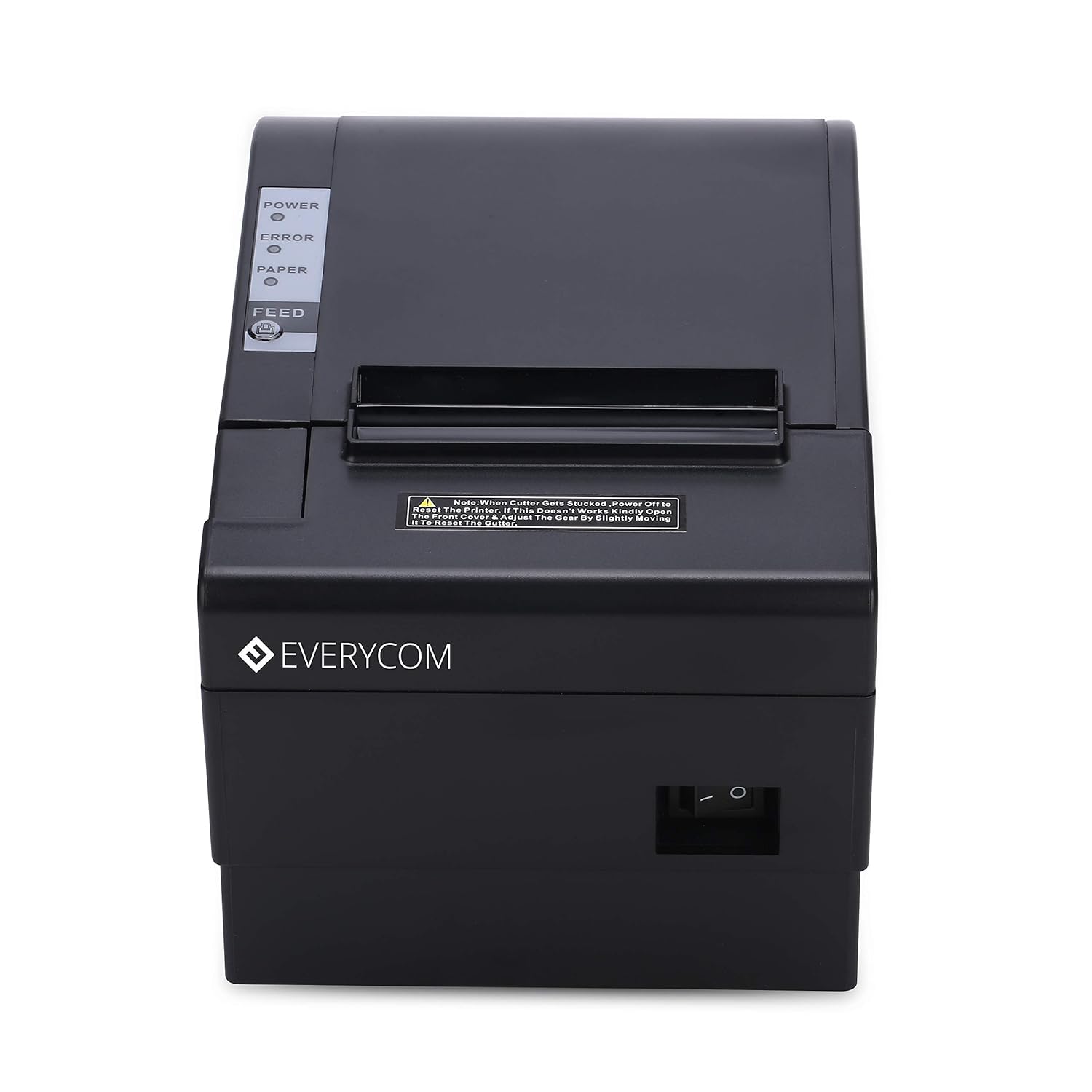
Whakaahua: Mua view of the Everycom EC801B printer, showing the location of the power switch on the side.
6.2 Printing a Self-Test Page
A self-test page can confirm basic printer functionality and print quality without requiring a computer connection.
- Ensure the printer is powered off and paper is loaded.
- Patohia me te pupuri i te Whangai pātene.
- I te wa e mau ana te Whangai button, turn on the printer.
- Tukua te Whangai button once the printer starts printing. A self-test page will print, showing printer information and a sampte tā.

Image: Everycom EC801B printer actively printing a self-test receipt with a QR code and text.
6.3 Te Mahi Tā Taketake
Once drivers are installed and the printer is connected, you can print from any application that supports printing. Select the Everycom EC801B from your list of available printers and initiate the print command.
6.4 Auto Cutter Function
The EC801B features an automatic cutter that will cut the receipt paper after each print job, or as configured in your printer settings/software.
7. Tiaki
7.1 Te horoi i te Pūreretā
Mā te horoi auau ka mau tonu te kounga o te tānga, ka roa ake hoki te roa o te ora o te pūreretā.
- Pane Tā: Kia ngawari te whakamahi i te miro miro dampened with isopropyl alcohol to gently wipe the thermal print head. Allow it to dry completely before use.
- Ara Pepa: Use a soft, dry cloth to remove any paper dust or debris from the paper path.
- Waho: Horoia te waho ki te ngohengohe, damp kakahu. Kaua e whakamahi i nga matū kino me nga horoi horoi.
7.2 Whakakapinga Rōra Pepa
When the PAPER indicator flashes or printing becomes faint, it's time to replace the paper roll. Follow the steps in Section 5.3 to load a new 80mm thermal paper roll.
8. Te Raru
If you encounter issues with your printer, refer to the following common problems and solutions:
| Raruraru | Take pea | Rongoā |
|---|---|---|
| Kāore te pūreretā e whakakā | No power, faulty adapter | Check power cable connection, ensure outlet is working, try another adapter if available. |
| No printing / Blank output | Paper loaded incorrectly, no paper, print head issue, driver issue | Reload paper correctly (thermal side facing print head), replace paper roll, clean print head, reinstall drivers. |
| ERROR indicator on/flashing | Paper out, cover open, print head overheat | Check paper, close cover firmly, allow printer to cool down. |
| He iti te kounga o te tuhi | Dirty print head, low quality paper, old paper roll | Clean print head, use high-quality thermal paper, replace old paper. |
| Kāore te rorohiko e mōhio ki te pūreretā | Driver not installed, incorrect cable, port issue | Install/reinstall drivers, check USB/LAN cable connection, try a different port. |
If the problem persists after attempting these solutions, please contact Everycom customer support.
9. Whakatakotoranga
Key technical specifications for the Everycom EC801B Thermal Printer:
| Āhuahira | Taipitopito |
|---|---|
| Tauira | EC801B |
| Hangarau Tā | Te Raina Ngaaariki |
| Tere Tā | 220 mm/hekona |
| Whanui Pepa | 80mm |
| Hononga | USB, LAN (Ethernet) |
| Tapahi Aunoa | Ae |
| Putanga Pūreretā | Monochrome |
| Ahu (LxWxH) | 18.6 x 14.5 x 13.3 cm |
| Taumaha Tūemi | 1.2 kg |
| Kaihanga | Everycom Electronics (Made in India) |
10. Pūtāhui me te Tautoko
The Everycom EC801B Thermal Printer comes with a 1-Tau Pūtāhui mai i te rā i hokona ai. Ka hipokina e tēnei pūtāhui ngā hapa hanga me ngā hapa i raro i ngā tikanga whakamahinga noa.
For technical assistance, troubleshooting, or warranty claims, please contact Everycom Customer Support:
- Tau-Waea: 1800 121 4480
- Ngā Hāora Mahi a te Tautoko Kaihoko: Mane - Rāhoroi, 10:00 AM - 6:30 PM (Haunga ngā Hararei Tūmatanui)

Image: Everycom customer service contact details, including the toll-free number and working hours.