
BESDER BES-MH03
BESDER Home Security IP Camera User Manual
Model: BES-MH03
1. Kupu Whakataki
Thank you for choosing the BESDER Home Security IP Camera. This wireless smart WiFi camera is designed to provide reliable surveillance, audio recording, and baby monitoring capabilities with high-definition video. This manual will guide you through the setup, operation, and maintenance of your new device to ensure optimal performance and security.
2. Nga korero haumaru
- Ensure the camera is powered by the correct voltage (DC 5V) as specified.
- Do not expose the camera to water or moisture. It is designed for indoor use only.
- Kaua e waiho te kāmera ki te taha o te rā tika, ki ngā pūtake wera rānei.
- Do not attempt to disassemble or repair the camera yourself. Contact qualified personnel for service.
- Kaua e taea e nga tamariki te kamera me ona taonga.
- Use only the provided power adapter and cable to prevent damage.
3. Ihirangi mokete
Tena koa tirohia te kete kia mohio kei te noho katoa nga taonga me te pai:
- BESDER Home Security IP Camera
- USB Itini taura
- Pūurutau Hiko (DC 5V)
- Nga Tiu Whakapiri me nga Mono Taiepa
- Pukapuka Kaiwhakamahi (tenei tuhinga)

Image showing the BESDER IP Camera along with its accessories: a USB power cable, a power adapter, and a packet of mounting screws.
4. Hua Neke Atuview
Familiarize yourself with the main components of your BESDER IP Camera:
- Arotahi kāmera: Ka hopu ataata footage.
- Nga LED Infrared: Mō te tirohanga pō.
- hopuoro: Mo te whakauru ororongo.
- Kaikōrero: Mo te whakawhitiwhiti korero oro-rua.
- Mokamoka Kaari SD: Mo te rokiroki ataata o te rohe (tautoko ki te 64GB).
- Power Interface (DC 5V): Ka hono ki te urutau hiko.
- Patene Tautuhi Anō: Whakamahia hei whakahoki i ngā tautuhinga wheketere.

Diagram illustrating the side view of the BESDER IP Camera, highlighting the SD Card slot, Power interface (DC 5V), and Reset button.
5. Tatūnga
5.1. Kei te Hiko Nei
- Connect the USB power cable to the camera's power interface.
- Monohia te urutau hiko ki te putanga hiko paerewa.
- The camera will power on, and its indicator light will begin to flash, indicating it's ready for setup.
5.2. App Installation (iCSee)
The BESDER IP Camera uses the iCSee application for remote monitoring and control.
- Download the iCSee app from your mobile device's app store (App Store for iOS or Google Play Store for Android).
Tikiake mo iOS | Tikiake mo te Android - Rēhitahia he pūkete hōu, takiuru mai ranei mena kua whai koe i tetahi.
5.3. Hononga Wi-Fi
Follow these steps to connect your camera to your home Wi-Fi network:
- Open the iCSee app and tap the "+" icon to add a new device.
- Select "Add My Device" or "Add Camera".
- Choose the "Wi-Fi Camera" option.
- Follow the on-screen prompts to enter your Wi-Fi network name (SSID) and password. Ensure your phone is connected to a 2.4GHz Wi-Fi network, as the camera may not support 5GHz.
- The app will generate a QR code. Position your phone's screen in front of the camera lens (approx. 15-20 cm away) until you hear a confirmation sound from the camera.
- Once connected, the camera's indicator light will turn solid blue. You can now name your camera and start monitoring.
5.4. Whakapiki
Ka taea te whakanoho i te kāmera ki runga i tētahi mata papatahi, ka taea rānei te whakamau ki te pakitara, ki te tuanui rānei.
- Kōwhiria he wāhi tika, he mārama hoki view ā, kei roto i te awhe Wi-Fi.
- If mounting, use the provided mounting screws and wall plugs to secure the camera base.
- Adjust the camera's angle as needed within the app after mounting.
6. Mahi
6.1. Ora View
Access real-time video feed from your camera through the iCSee app.
- Open the iCSee app and select your camera from the device list.
- The live video feed will appear. You can pan and tilt the camera remotely using the controls in the app.

Screenshot of a multi-camera monitoring interface, likely from the iCSee application, displaying live feeds from multiple cameras and recording controls.
6.2. Te tuhi me te Rokiroki
The camera supports local storage via a MicroSD card.
- Insert a MicroSD card (up to 64GB, Class 10 recommended) into the SD card slot.
- In the iCSee app settings, navigate to "Storage Settings" to format the SD card and configure recording modes (e.g., continuous, motion-triggered).
- Kua tuhia te footagka taea e viewed and downloaded directly from the app.
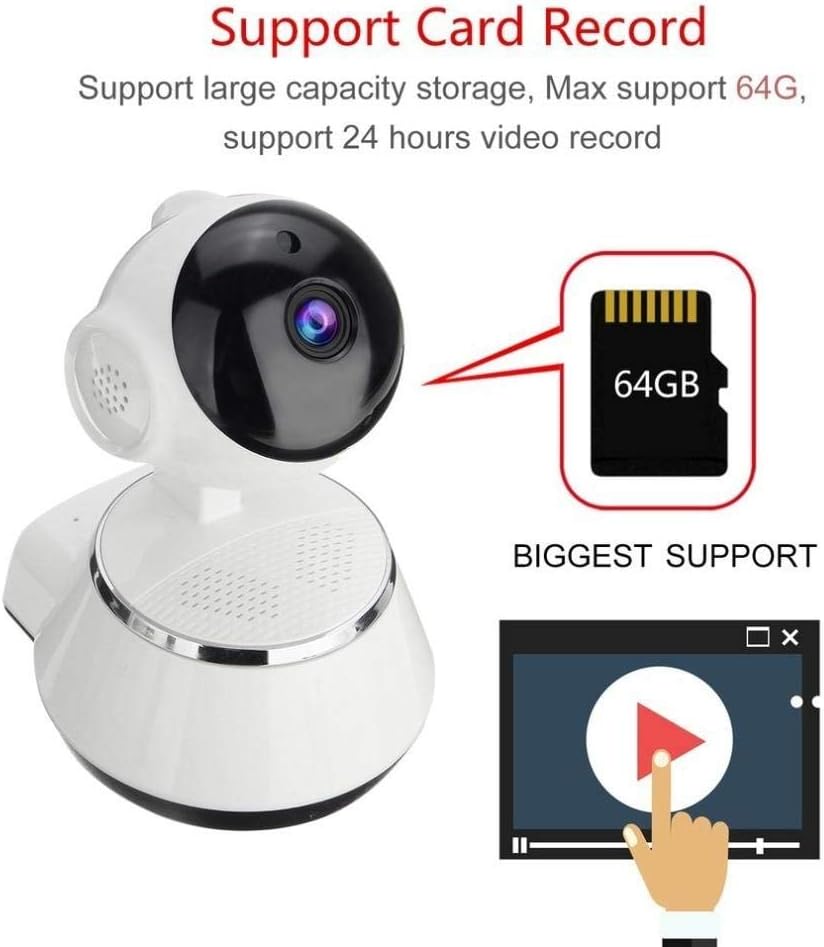
Image demonstrating the camera's support for large capacity storage, specifically showing a 64GB MicroSD card, indicating support for 24-hour video recording.
6.3. Te Motini
Receive alerts when motion is detected in the camera's field of view.
- Enable "Motion Detection" in the camera settings within the iCSee app.
- Adjust sensitivity levels and set up notification preferences (e.g., push notifications, email alerts).
6.4. Matakitenga po
Ka huri aunoa te kamera ki te tirohanga o te po i roto i nga ahuatanga iti-marama.
- Infrared LEDs provide clear black-and-white video up to 10 meters in complete darkness.
- No manual intervention is required for night vision activation.

Comparison image displayed on a smartphone screen, showing the difference between daytime and nighttime monitoring views, highlighting the infrared night vision capability.
6.5. Rua-Way Ororongo
Communicate through the camera using the built-in microphone and speaker.
- I te wa e ora ana view, tap the microphone icon in the iCSee app to speak through the camera.
- Patohia te ata korero ki te whakarongo ki nga ororongo mai i te taiao o te kamera.
6.6. Uru Mamao
Monitor your property from anywhere with an internet connection.
- As long as your camera is connected to Wi-Fi and your phone has internet access, you can view live feeds and manage settings remotely via the iCSee app.
7. Tiaki
- Te horoi: Whakamahia he kakahu ngohengohe, maroke hei horoi i te karāhe me te tinana o te kāmera. Kaua e whakamahi i ngā wai horoi, i ngā waipara rānei.
- Whakahōu Firmware: Regularly check for firmware updates through the iCSee app to ensure your camera has the latest features and security patches.
- Whakaha Kaari SD: Periodically back up important recordings and format the SD card to maintain optimal performance.
- Rokiroki: Ki te kore e whakamahia mō te wā roa, rongoatia te kāmera ki te wāhi hauhautanga, maroke, kia matara atu i te rā tika.
8. Te Raru
| Raruraru | Te Take Taea / Rongoa |
|---|---|
| Karekau te kamera i te hiko | Ensure the power adapter is securely connected to both the camera and the power outlet. Try a different outlet. |
| Kaore e taea te hono ki Wi-Fi | Check if your Wi-Fi network is 2.4GHz. Ensure the Wi-Fi password is correct. Move the camera closer to the router. Reset the camera and try again. |
| Ora view is blurry or dark | Clean the camera lens. Check lighting conditions. Ensure night vision is functioning correctly in low light. |
| Ko te kaari SD kaore i te tuhi | Ensure the SD card is inserted correctly and formatted in the app. Check if the card is full or corrupted. Try a different SD card. |
| Kaore he ororongo, he ngoikore ranei te kounga ororongo | Check microphone and speaker settings in the app. Ensure there are no obstructions blocking the microphone or speaker. |
| Ka momotuhia te kamera | Weak Wi-Fi signal. Move the camera closer to the router or consider a Wi-Fi extender. Reduce network congestion. |
9. Whakatakotoranga
| Āhuahira | Taipitopito |
|---|---|
| Tau tauira | BES-MH03 |
| Hangarau Hononga | Ahokore (Wi-Fi) |
| Whakamahi Manakohia | Baby Monitoring, Home Security |
| Nga waahanga motuhake | Motion Sensor, Night Vision (Infrared distance 10m) |
| Tauwehe Puka | Dome |
| Wattage | 3 watts |
| Tautoko Rokiroki | Kāri MicroSD (Mōrahi 64GB) |
| Ororongo | Two-way audio (Audio Record) |
10. Pūtāhui me te Tautoko
BESDER products are manufactured to high-quality standards. For warranty information, please refer to the terms and conditions provided at the point of purchase or contact your retailer. For technical support or further assistance, please refer to the support section within the iCSee application or visit the official BESDER webpae (ki te waatea).
Ask a question about this manual
Ask about setup, troubleshooting, compatibility, parts, safety, or missing instructions. Manuals+ will review the question and use this page’s manual context to help answer it.