
Kupu Whakataki
The JOVISION JVS-FLWIFI Floodlight Bulb WiFi Camera is an integrated security solution combining a bright 900 lumens floodlight with a 1080P Full HD Wi-Fi security camera. Designed for outdoor use, this system offers wireless connectivity, remote access, and night vision capabilities, providing comprehensive surveillance for your property. It features internal 16GB storage, eliminating the need for recurring cloud storage fees.
This product is protected by a patent approved by the United States Patent Office.
Ka mutu te huaview

Whakaahua 1: The JVS-FLWIFI Floodlight Bulb WiFi Camera, showcasing its integrated camera and LED floodlight ring. This unit combines illumination with surveillance capabilities.

Whakaahua 2: He example of the JVS-FLWIFI Floodlight Camera installed on an outdoor ceiling fixture. The adjustable head allows for optimal camera positioning.
Tatūnga me te Tāuta
The JVS-FLWIFI Floodlight Camera is designed for simple installation. Follow these steps to set up your device:
- Tikiake i te Taupānga Pūkoro: Download the free mobile application compatible with your device. Refer to the product packaging or manufacturer's website for the correct app name.
- Install the Floodlight: Twist the floodlight bulb into any standard E26 light socket. Ensure the socket is powered off before installation.
- Power On and Connect to Camera's Wi-Fi: Turn on the power to the light socket. The camera will power on. On your mobile device, go to your Wi-Fi settings and connect to the camera's temporary Wi-Fi network.
- Whirihora Tautuhinga Whatunga: Open the mobile application and follow the on-screen prompts to connect the camera to your home Wi-Fi network. This will enable remote access and control.
No wires to run and no holes to drill are typically required for installation into an existing E26 socket. The camera features a 360° adjustable rotating head for optimal angle adjustment.
Nga Tohutohu Whakahaere
Te Mahi Rama Waipuke
- The 900 lumens floodlight can be controlled via your normal light switch or through the mobile application.
- Aratau Hiko: The device supports three power modes:
- Aratau Ra: Camera operates in color. Floodlight typically off unless manually activated.
- Night/IR Mode: Camera uses infrared (IR) for black and white night vision. Floodlight off.
- Night/Color Mode: Floodlight LED's are turned on at night, allowing the camera to stream/record in full color.
Taumahinga Camera
- Rere Ataata Ora: Access brilliant 1080P HD quality live video remotely from your phone, mobile device, or PC.
- Recorded Video Access: Recorded videos are stored on the internal 16GB storage and can be accessed remotely.
- Kitenga Nekehanga: The camera sends mobile alerts when motion is detected within its field of view.
- Matakitenga po: The camera provides clear surveillance 24/7. During the day, it records in true color. At night, it switches to black/white IR night vision, or full color if the floodlight is activated.

Whakaahua 3: A daytime view captured by the JVS-FLWIFI camera, demonstrating clear image quality in natural light conditions.

Whakaahua 4: A nighttime view captured by the JVS-FLWIFI camera with the floodlight activated, illustrating full-color visibility in low-light environments.
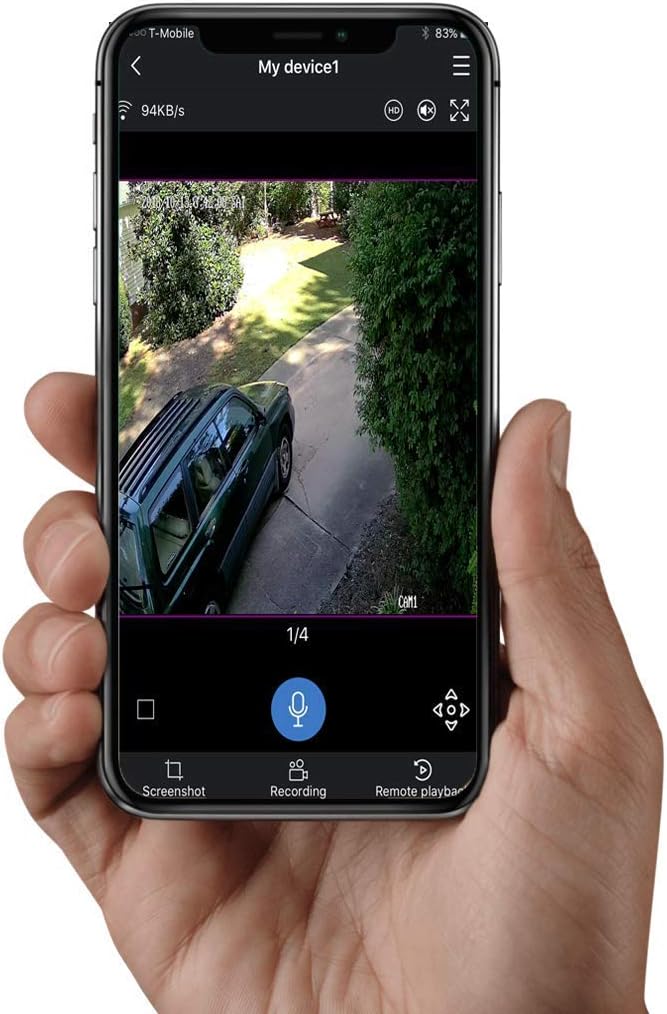
Whakaahua 5: The mobile application interface displaying live video feed from the JVS-FLWIFI camera, with options for screenshot, recording, and remote playback.
Te tiaki
- Te horoi: Periodically wipe the camera lens and floodlight surface with a soft, damp he kakahu hei tango i te puehu me ngā paru. Āta karohia ngā kaihoroi whakakoi.
- Whakahōu Firmware: Check the mobile application regularly for firmware updates to ensure optimal performance and security.
- Pūmautanga Whatunga: Ensure your Wi-Fi network is stable and strong in the area where the camera is installed for consistent performance.
Raparongoā
- Kārekau te Kāmera e hono ana ki te Wi-Fi:
- Me whakarite kei roto te kamera i te awhe o to pouara Wi-Fi.
- Manatokohia kua whakauruhia e koe te kupuhipa Wi-Fi tika.
- Tīmataria anō tō pouara Wi-Fi me te kāmera.
- Kounga Ataata Kino:
- Tirohia to tere hononga ipurangi.
- Horoia te arotahi kamera.
- Ensure adequate lighting, especially at night.
- Ko nga Matohi Motini Kaore i Whiwhi:
- Verify motion detection settings are enabled in the app.
- Check app notification settings on your mobile device.
- Me whakarite he hononga ipurangi pumau te kamera.
- Floodlight Not Turning On:
- Check the light switch controlling the socket.
- Verify floodlight settings in the mobile application.
- Me whakarite kia tika te wiri o te umanga ki te turanga.
Whakatakotoranga
| Āhuahira | Taipitopito |
|---|---|
| Tau tauira | JVS-FLWIFI-2PACK |
| Whakataunga Hopu Ataata | 1080p |
| Hangarau Hononga | Ahokore (Wi-Fi) |
| Rokiroki Roto | 16GB |
| Tirohanga Rama | 900 Lumens |
| Momo Puna Maama | LED |
| Matakitenga Po | IR Night Vision, Full Color Night Vision (with floodlight) |
| Pūoko Motini | Yes (Mobile Alerts) |
| Mahinga o roto/waho | Waho |
| Taumata Atete Wai | Parewai (IP66) |
| Momo Whakaeke | Wall Mount (E26 Socket) |
| Whakamahi Hiko | 3 watts |
| Pūrere Hototahi | Desktop, Smartphone (Android) |
| Taumaha Tūemi | 1 pauna |
| Ahu mōkihi | 8 x 8 x 6 inihi |
| UPC | 744702988173 |
Pūtāhui me te Tautoko
JOVISION provides free lifetime technical support for the JVS-FLWIFI Floodlight Bulb WiFi Camera. Support is available via talk, text, or email, with nearly 24/7 availability from United States-based technical support.
For assistance, please refer to the contact information provided with your product packaging or visit the official JOVISION webpae.