
1. Kupu Whakataki me Nekeview
The ESX INFOTAINMENT VN1015-MA-DAB-4G is an advanced Android-based naviceiver designed for vehicle integration, offering a comprehensive multimedia and navigation experience. This unit features a 10.1-inch anti-glare multi-angle touchscreen, Android operating system, 4G/LTE connectivity, DAB+ digital radio, and Google Maps navigation. It supports Bluetooth hands-free calling and audio streaming, USB and MicroSD media playback, and includes inputs for rearview cameras and auxiliary devices.
Ko nga ahuatanga matua ko:
- 10.1-inch high-resolution, anti-glare multi-angle touchscreen.
- Android Operating System for versatile app usage.
- Integrated 4G/LTE dongle for mobile internet (requires optional SIM card).
- DAB+ digital radio reception with station logos and AM/FM radio with RDS.
- Google Maps navigation (online and offline capabilities).
- Bluetooth hands-free system with audio streaming.
- Multiple connectivity options: 2x USB ports, 1x MicroSD slot, 1x camera input, 2x video outputs, 1x AUX/video input, 1x AUX/audio input.
- Support for steering wheel controls (optional adapter may be required).
2. Tatūnga me te Tāuta
Proper installation is crucial for the optimal performance of your ESX VN1015-MA-DAB-4G naviceiver. It is highly recommended that installation be performed by a qualified professional to ensure correct wiring and vehicle compatibility.
2.1. Te Tautuhi Wae
Familiarize yourself with the various ports and connections on the rear of the unit before installation.
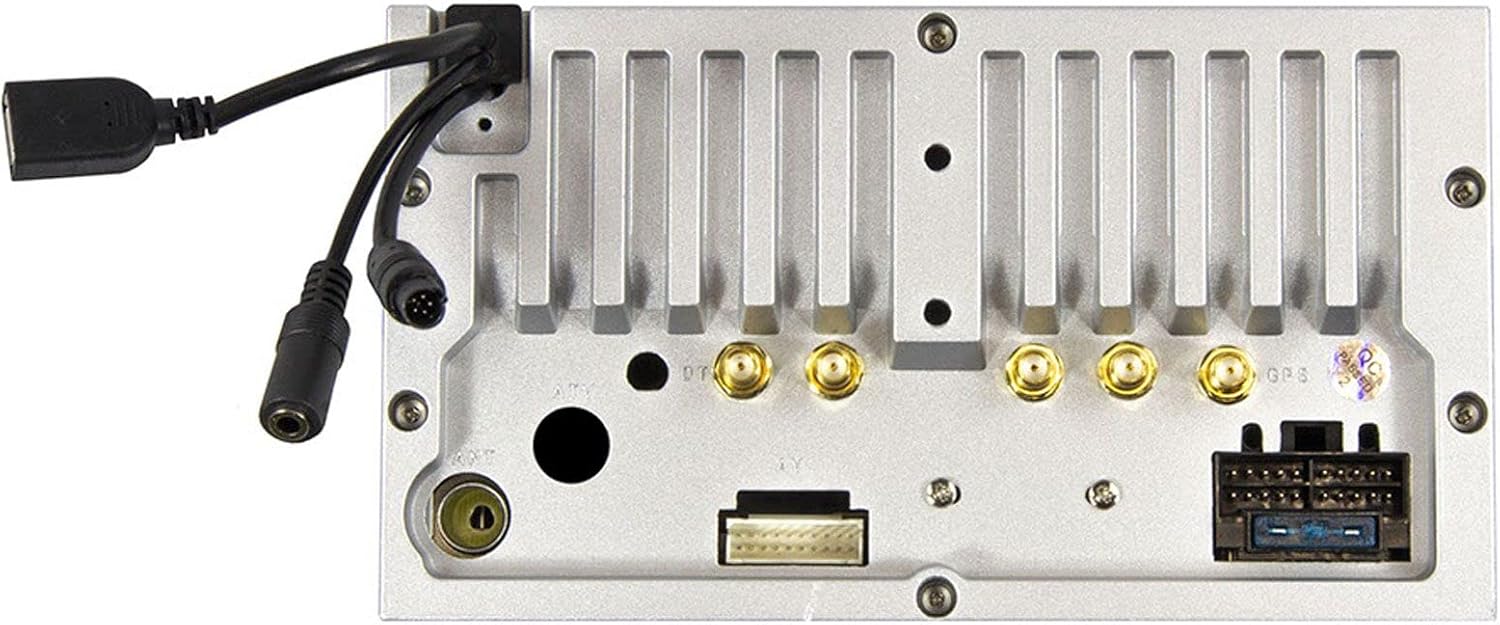
Whakaahua 2.1: Whakamuri view of the ESX VN1015-MA-DAB-4G unit, illustrating the power harness, antenna inputs, USB ports, and auxiliary connections.
2.2. Hononga Waea
- Tuku Hiko: Connect the main power harness to your vehicle's electrical system, ensuring correct positive, negative, and accessory (ACC) connections.
- Putanga Tukuoro: Connect your vehicle's speakers to the corresponding outputs on the naviceiver.
- Hononga Antenna: Connect the FM/AM antenna. For DAB+ digital radio, connect the included DAB+ antenna to the designated port.
- GPS Atene: Honoa te pūihi GPS ka whakamau ki tētahi wāhi mārama view o te rangi mo te whiwhi tohu tino pai.
- Tauranga USB: Connect external USB devices for media playback or smartphone connectivity.
- hopuoro: Connect the external microphone (VNA-MIC-AND, optional) for improved hands-free call quality.
- Whakamuriview Kāmera: Honoa he muriview camera to the dedicated camera input. Ensure the reverse trigger wire is correctly connected for automatic display switching.
- Putanga Ataata: Utilize the two video outputs for connecting external monitors.
- Nga Whakauru AUX: Connect external audio/video sources to the AUX/video and AUX/audio inputs.
- 4G/LTE Dongle: If using mobile internet via 4G/LTE, insert a compatible SIM card into the optional 4G/LTE dongle and connect it to a USB port.
- Mana urungi: If your vehicle supports steering wheel controls, an optional adapter may be required to integrate this functionality.
2.3. Hinga-Whakatika Tuatahi
After all connections are secure, turn on your vehicle's ignition. The naviceiver should power on. Follow any on-screen prompts for initial setup, such as language selection and time zone.
3. Nga Tohutohu Whakahaere
This section details the primary functions and operations of your ESX VN1015-MA-DAB-4G naviceiver.
3.1. Ngā Mana Whakahaere Taketake me te Atanga
The unit features a responsive touchscreen and physical buttons for common functions.

Whakaahua 3.1: The main screen showing the radio interface with frequency display and control buttons.
- Pātene Hiko: Press and hold to turn the unit on/off. A short press may mute audio or put the unit into standby.
- Mana Rōrahi: Whakatikatikahia te taumata putanga oro.
- Pātene Kāinga: Ka hoki ki te mata matua o te Android.
- Pātene Whakamuri: Navigates back one step in menus or applications.
- Pātene Kāmera: Direct access to the camera input display (e.g., rearview kāmera).
3.2. Android Operating System
The naviceiver runs on an Android operating system, allowing access to various applications and customization options.
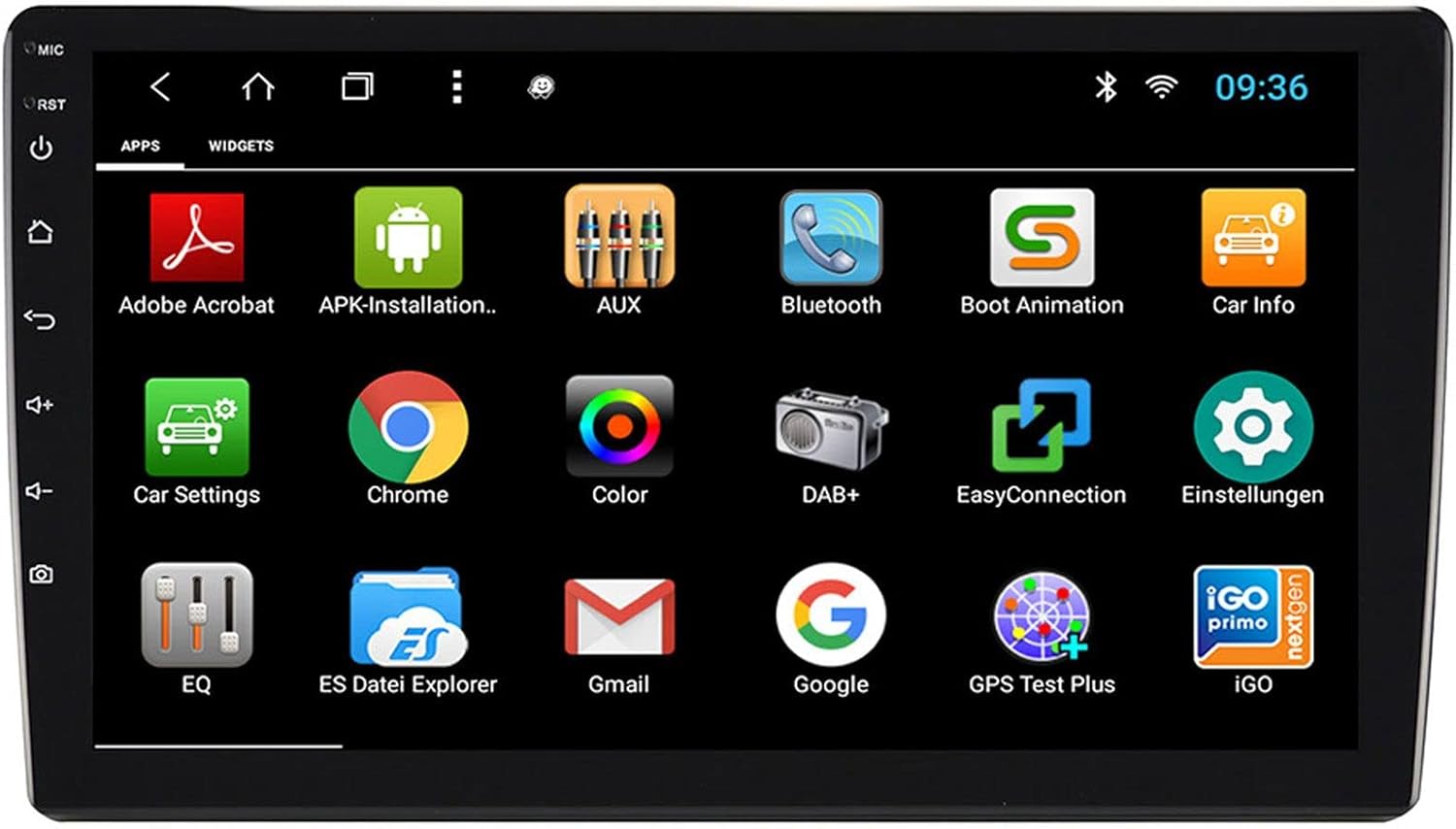
Whakaahua 3.2: The applications screen, displaying various pre-installed and user-installed Android apps.
- Kaiwhakarewa Taupānga: Access all installed applications from the app drawer.
- Ngā widget: Customize your home screen with widgets for quick access to information or functions.
- Tautuhinga: Adjust system settings, network connections, display, audio, and more.
- Hononga Ipurangi: Connect to the internet via a WiFi hotspot (from a compatible smartphone) or by inserting a SIM card into the 4G/LTE dongle.
3.3. Radio Functions (AM/FM/DAB+)
The unit supports both analog and digital radio broadcasts.
- Tīpakonga Band: Switch between AM, FM, and DAB+ bands.
- Whakatika: Manually tune or use the auto-scan function to find available stations.
- Tatūkē: Tiakina ō teihana tino pai mō te urunga tere.
- RDS (FM): Radio Data System displays station information (e.g., station name, song title).
- Ngā Āhuatanga o te DAB+: Enjoy higher quality digital audio and view station logos where available.
3.4. Hononga Nihokikorangi
Pair your smartphone for hands-free communication and audio streaming.
- Takirua: Enable Bluetooth on your smartphone and search for the naviceiver. Select the unit and confirm the pairing code.
- Waea-a-ringa: Make and receive calls directly from the naviceiver screen.
- Rere Ororongo: Play music from your smartphone wirelessly through the naviceiver.
3.5. Navigation (Google Maps)
Utilize Google Maps for turn-by-turn navigation.

Whakaahua 3.3: The navigation interface showing a map with a selected destination.
- Whakatere Ipurangi: Requires an active internet connection (WiFi hotspot or 4G/LTE).
- Mahere Tuimotu: Download maps for specific regions to use navigation without an internet connection.
- Whakaurunga Ūnga: Enter addresses or points of interest using the touchscreen keyboard.
3.6. Whakahoki Media
Whakatangihia te oro me te ataata files mai i nga momo puna.
- USB: Connect USB drives containing media files.
- MicroSD: Insert a MicroSD card into the dedicated slot for media or navigation data.
- Ngā Hōputu Tautoko: The unit supports a wide range of audio and video formats. Refer to the system settings for a complete list.
3.7. Tāuru Kāmera
The naviceiver automatically displays the rearview camera feed when the vehicle is in reverse, or manually via the camera button.

Whakaahua 3.4: Whakamuriview camera display with dynamic parking guidelines.
- Whakahohenga Aunoa: When connected correctly, the rearview camera image appears automatically when shifting into reverse.
- Nga Aratohu Waka: Adjustable parking lines assist with maneuvering.
4. Tiaki
Regular maintenance ensures the longevity and optimal performance of your naviceiver.
- Whakapai Mata: Whakamahia he kakahu ngohengohe, kore karekau hei muru ata i te mata pa. Mo nga kohukohu pakeke, paku dampen te kakahu ki te wai, ki te horoi mata-haumaru ranei. A ape i nga matū kino, i nga taonga abrasive ranei.
- Whakahōu Pūmanawa: Periodically check for available software updates through the system settings or the manufacturer's website. Updates can improve performance, add features, and fix bugs.
- Tiaki Whānui: Kaua e tukua te waeine ki ngā pāmahana tino wera, ki te rā tika mō ngā wā roa, ki te makuku nui rānei. Kia mau tonu ngā hononga katoa.
5. Te Raru
This section addresses common issues you might encounter with your ESX VN1015-MA-DAB-4G naviceiver.
| Raruraru | Take pea | Rongoā |
|---|---|---|
| Karekau te waeine i te hiko. | Kāore he pūtake hiko; Kua pā te fuse; He hē te waea. | Check vehicle's fuse box and the unit's power connections. Ensure ACC wire is receiving power. |
| Karekau he tangi. | Volume too low; Mute activated; Incorrect speaker wiring; Audio source issue. | Increase volume. Check if mute is active. Verify speaker connections. Try a different audio source. |
| GPS signal loss or inaccurate navigation. | GPS antenna obstructed or disconnected; Outdated maps. | Me whakarite kia marama te antenna GPS view of the sky and is securely connected. Update maps if necessary. |
| Nga take hononga Nihokikorangi. | Device not in pairing mode; Interference; Unit not discoverable. | Ensure both devices are in pairing mode. Restart both devices. Check Bluetooth settings on the naviceiver. |
| Karekau e aro te mata pa. | System freeze; Software error. | Perform a soft reset (refer to the unit's specific reset procedure, often a small reset button). If persistent, a factory reset might be needed (data loss may occur). |
| DAB+ radio not receiving stations. | DAB+ antenna not connected or faulty; Poor signal area. | Check DAB+ antenna connection. Ensure the antenna is correctly installed. Try rescanning for stations in a different location. |
If you encounter issues not listed here or if the suggested solutions do not resolve the problem, please contact ESX customer support or your authorized dealer.
6. Whakatakotoranga
Below are the technical specifications for the ESX VN1015-MA-DAB-4G Naviceiver:
| Āhuahira | Taipitopito |
|---|---|
| Waitohu | ESX |
| Tauira | VN1015-MA-DAB-4G |
| Rahi Mata | 10.1 inihi (25.6 cm) |
| Momo Whakaatu | High-resolution, anti-glare multi-angle touchscreen |
| Pūnaha Mahi | Android |
| RAM | 4 GB |
| Mahara Kohiko | 64 GB |
| Hononga | Bluetooth, USB, 4G/LTE (via dongle), WiFi (via hotspot) |
| Radio Tuner | AM/FM with RDS, DAB+ Digital Radio |
| Whakaterenga | Google Maps (online/offline) |
| Nga whakaurunga | 1x Camera Input, 1x AUX/Video Input, 1x AUX/Audio Input, 2x USB Ports, 1x MicroSD Slot |
| Nga Putanga | 2x Video Outputs, Pre-amplified outputs (Front/Rear/Subwoofer) |
| Tikanga Mana | Mata pa |
| Pūrere Hototahi | Waea atamai |
7. Pūtāhui me te Tautoko
Your ESX VN1015-MA-DAB-4G naviceiver comes with a Certificate of Authenticity. For specific warranty terms and conditions, please refer to the documentation provided with your purchase or contact your authorized ESX dealer.
For technical support, troubleshooting assistance beyond this manual, or inquiries regarding parts and service, please contact your point of purchase or visit the official ESX webpae mo nga korero whakapiri ratonga kiritaki.