Akai Professional MPK Mini MK3 User Manual
Comprehensive guide for setup, operation, and maintenance of your MPK Mini MK3 MIDI Keyboard Controller.
1. Kupu Whakataki
The Akai Professional MPK Mini MK3 is a compact 25-key USB MIDI keyboard controller designed for music production. It features velocity-sensitive keys, backlit drum pads, assignable knobs, and a 4-way thumbstick for dynamic control. This manual provides essential information to help you set up, operate, and maintain your device.
The MPK Mini MK3 is compatible with various Digital Audio Workstations (DAWs) and includes a comprehensive software package to get you started with music creation.
2. He aha kei roto i te Pouaka
- MPK Mini MK3 Unit
- Tauira USB
- Kaari Tikiake Pūmanawa
- Pukapuka Kaiwhakamahi (tenei tuhinga)
- Te Haumaru me te Whakaputanga pukapuka
3. Tatūnga
Setting up your MPK Mini MK3 is a straightforward process. Follow these steps to connect your controller and install the necessary software.
3.1 Hononga Miihini
Connect the MPK Mini MK3 to your computer using the supplied USB cable. The device is USB-powered, so no external power adapter is required. Ensure a stable USB connection for optimal performance.
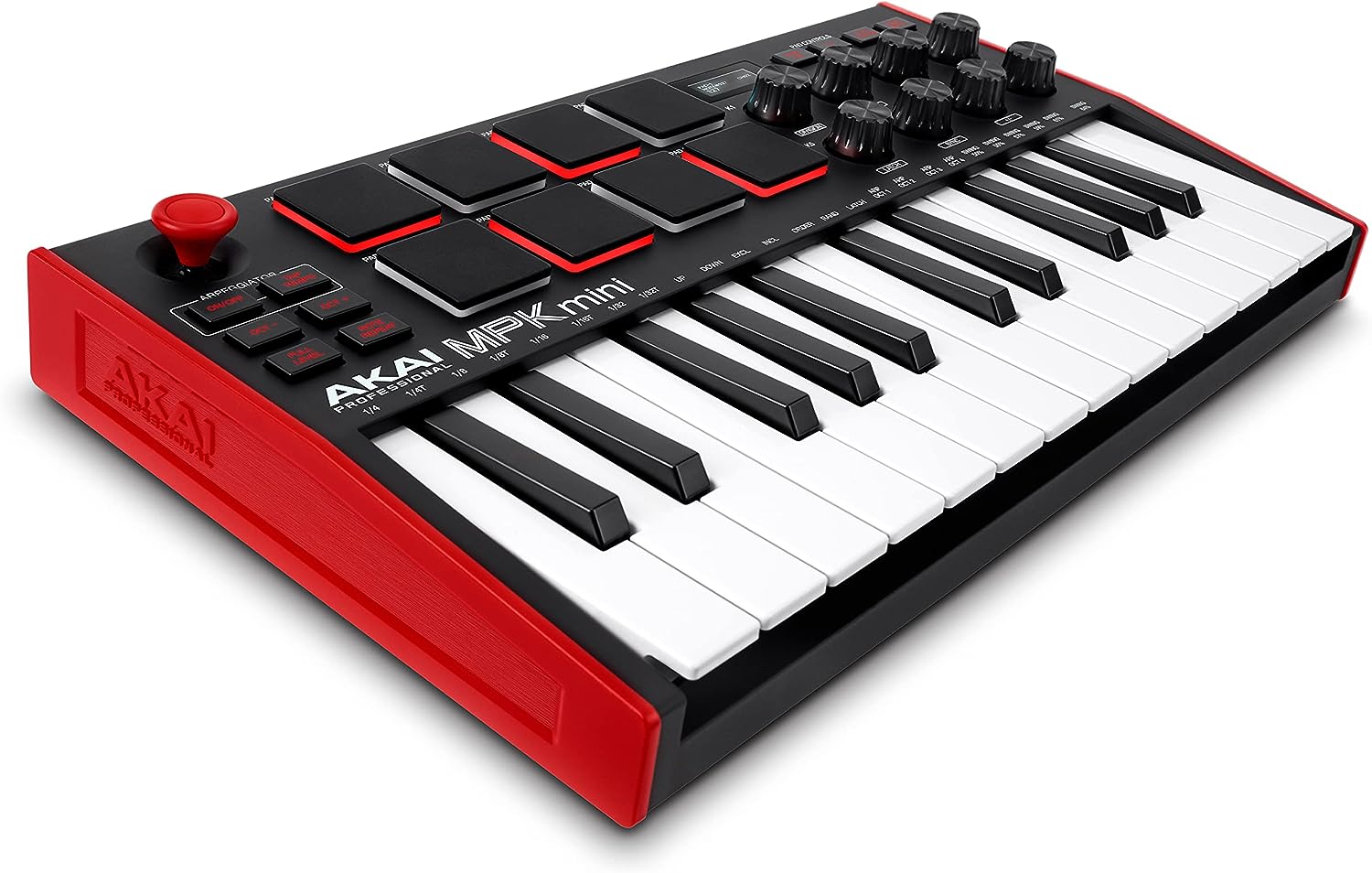
Image: The Akai Professional MPK Mini MK3, a compact MIDI keyboard controller with 25 keys, 8 drum pads, and various knobs, shown from an angled top-down perspective.
3.2 Tāuta Pūmanawa
The MPK Mini MK3 requires software installation for full functionality. Upon registration on the Akai Professional website, you will gain access to the included software bundle.
- Patu MPC: A powerful Digital Audio Workstation (DAW) optimized for beat-making and music production.
- Taputapu Mariko: Includes 3 virtual instruments (Hype, Essential Keyboards, Electric) and 2GB of sound content.
- Native Kontrol Standard (NKS) Integration: Provides seamless browsing and control of Native Instruments presets and sound libraries.
Follow the instructions on the software download card to register your product and download the software. It is recommended to install all components for the best experience.

Image: A visual guide illustrating the three simple steps to start making music: Plug In, Install, and Play, featuring the MPK Mini MK3.
3.3 Tāuta Atekōkiri
For Windows and Mac OS, ensure that the necessary drivers are installed. These are typically included with the software bundle. Refer to the official Akai Professional website for the latest driver updates if needed.
4. Operating the MPK Mini MK3
The MPK Mini MK3 offers a range of controls for versatile music production.
4.1 Keys and Pads
- 25 Velocity-Sensitive Mini Keys: These keys respond to how hard you play, allowing for expressive performances.
- 8 Backlit MPC-Style Drum Pads: Velocity-sensitive pads ideal for programming drums, triggering samples, and controlling virtual instruments. They feature Note Repeat and Full Level functions for enhanced control.

Whakaahua: He taipitopito view of the MPK Mini MK3's 25 mini keys and 8 backlit MPC-style drum pads, highlighting their layout and design.
4.2 Knobs and Joystick
- 8 Assignable 360-Degree Knobs: These endless rotary knobs can be assigned to control various parameters in your DAW or virtual instruments, such as mixing levels, synth parameters, and effects.
- 4-Way Thumbstick: Provides dynamic control over pitch and modulation, offering an intuitive way to add expression to your music.

Image: A close-up shot of the MPK Mini MK3's assignable knobs and the 4-way thumbstick, showing their ergonomic placement for easy access.
4.3 Arpeggiator and OLED Display
- Built-in Arpeggiator: Features adjustable resolution, range, and modes, allowing for creative melodic patterns.
- Whakaatu OLED: A small but informative OLED screen provides visual feedback for parameters, settings, and navigation.

Image: The MPK Mini MK3 highlighting its OLED display for visual feedback and the sustain pedal input for expressive playing.
4.4 Sustain Pedal Input
The MPK Mini MK3 includes a sustain pedal input, allowing you to connect an external sustain pedal for more expressive piano-style playing.
5. Tiaki
To ensure the longevity and optimal performance of your Akai Professional MPK Mini MK3, follow these maintenance guidelines:
- Te horoi: Use a soft, dry cloth to clean the surface of the controller. Avoid using abrasive cleaners, solvents, or waxes, as these can damage the finish.
- Rokiroki: When not in use, store the MPK Mini MK3 in a cool, dry place away from direct sunlight, extreme temperatures, and excessive humidity.
- Te whakahaere: Handle the device with care. Avoid dropping it or subjecting it to strong impacts, which can damage internal components.
- Hononga: Always disconnect the USB cable by pulling the plug, not the cable itself, to prevent damage to the port or cable.
- Whakahōu Pūmanawa: Regularly check the Akai Professional website for firmware and software updates. Keeping your software up-to-date can improve performance and add new features.
6. Te Raru
This section addresses common issues you might encounter with your MPK Mini MK3.
6.1 Kaore he Putanga oro
- Taki Hononga: Ensure the USB cable is securely connected to both the MPK Mini MK3 and your computer.
- Whirihoranga Pūmanawa: Verify that your Digital Audio Workstation (DAW) or music software is correctly configured to recognize the MPK Mini MK3 as a MIDI input device. Check MIDI settings within your software.
- Putanga Ororongo: Confirm that your computer's audio output (speakers or headphones) is properly connected and selected as the output device in your DAW. The MPK Mini MK3 does not have built-in speakers.
- Virtual Instrument Loaded: Ensure that a virtual instrument or sound is loaded and active within your DAW for the MIDI signals to trigger sound.
6.2 Pads or Keys Not Responding
- Velocity Sensitivity: The keys and pads are velocity-sensitive. Ensure you are pressing them with enough force. Sensitivity settings can often be adjusted in the MPK Mini MK3 editor software.
- Channel MIDI: Verify that the MIDI channel of the MPK Mini MK3 matches the MIDI input channel of the track or instrument in your DAW.
- Whakahoutanga Firmware: Check if a firmware update is available for your MPK Mini MK3 on the Akai Professional website. Outdated firmware can sometimes cause unexpected behavior.
6.3 Software Installation Issues
- Hononga Ipurangi: A stable internet connection is required for software download and activation.
- Ārai huaketo/Pātūahi ahi: Temporarily disable your antivirus or firewall during installation, as they can sometimes interfere with the process.
- Whakaritenga Pūnaha: Ensure your computer meets the minimum system requirements for the included software (MPC Beats, virtual instruments).
6.4 Mapping and Control Issues
- Controller Editor: Use the Akai Professional MPK Mini MK3 Editor software to customize mappings for knobs, pads, and the joystick. This allows you to tailor the controller to your specific workflow and DAW.
- DAW MIDI Learn: Most DAWs have a "MIDI Learn" function that allows you to easily assign controls from your MPK Mini MK3 to parameters within the software. Consult your DAW's manual for specific instructions.
7. Whakatakotoranga
| Āhuahira | Taipitopito |
|---|---|
| Ingoa Tauira | MPK MINI MK3 |
| Taumaha Tūemi | 2 pauna |
| Hunga Hua | 7.1 x 12.5 x 1.9 inihi |
| Te maha o nga Kī Papapātuhi | 25 |
| Hangarau Hononga | USB |
| Atanga Pūmārō | USB |
| Pūmanawa Tautoko | Any Digital Audio Workstation compatible with Windows / Mac OS |
| Momo Rawa | Kirihou |
| Ingoa Tae | Paerewa |
| Whenua Taketake | Philippines |
8. Ataata Hua Whaimana
Karekau he ataata a nga kaihoko mana e waatea ana mo tenei hua i tenei wa.
9. Pūtāhui me te Tautoko
For warranty information and technical support, please refer to the Safety and Warranty Manual included in your product box. You can also visit the official Akai Professional website for detailed support resources, FAQs, and contact information.
Aratohu Kaiwhakamahi Whaimana (PDF): Tikiake PDF Aratohu Kaiwhakamahi
Akai Professional Store: Visit Akai Professional Store on Amazon