
1. Kupu Whakataki
This user manual provides detailed instructions for the installation, setup, operation, and maintenance of your Ctronics Outdoor Security Camera Model 285C. Please read this manual thoroughly before using the product to ensure proper functionality and safety. Keep this manual for future reference.
2. Ihirangi mokete
Verify that all items listed below are included in your package. If any items are missing or damaged, please contact Ctronics customer support.
- Ctronics Outdoor Security Camera (Model 285C)
- Pūurutau Hiko (DC 12V)
- Whakaeke Miro Hoko
- Kete parewai mo te Waea Whatunga (mehemea e tika ana)
- Aratohu Timata Tere
3. Hua Neke Atuview
Familiarize yourself with the components of your Ctronics security camera.
Whakaahua 3.1: Mua view of the Ctronics Outdoor Security Camera Model 285C, showing the lens, IR LEDs, and housing.
- Arotahi: Ka hopu ataata footage.
- Ngā rama rama whero (IR): Whakaratohia he rama hei tirohanga pō.
- hopuoro: Hopukia te oro mō te whakawhitiwhiti kōrero me te tuhi oro.
- Kaikōrero: Ka whakaputa oro mō te whakawhitiwhiti kōrero rua.
- Antennas: Mō te hononga Wi-Fi.
- Mokamoka Kaari SD: For local storage of recorded video (Micro SD card not included).
- Patene Tautuhi Anō: Whakamahia hei whakahoki i ngā tautuhinga wheketere.
- Tauranga Hiko: Connects to the DC 12V power adapter.
4. Tāutanga
Proper installation ensures optimal performance and durability of your camera.
4.1 Te Tauwhi Maunga
- Choose a location with a strong Wi-Fi signal.
- Ensure the camera has a clear, unobstructed view o te waahi e hiahia ana koe ki te aroturuki.
- Position the camera within reach of a power outlet.
- The camera is IP66 waterproof, suitable for outdoor use in various weather conditions.
4.2 Nga Huringa Whakapiki
- Use the provided mounting template (if available) to mark drill holes on the wall or ceiling.
- Tuhia nga rua me te whakauru i nga punga pakitara.
- Whakaorangia te turanga kamera ma te whakamahi i nga wiri kua whakaratohia.
- Adjust the camera angle as needed after power-up and setup.
Whakaahua 4.1: The Ctronics camera mounted outdoors, illustrating its 355° pan and 90° tilt capabilities.
5. Tatūnga
Follow these steps to connect your camera to your network and mobile device.
5.1 Tikiake Taupānga me te Rehitatanga Pūkete
- Download the official Ctronics app from the App Store (iOS) or Google Play Store (Android).
- Install the app and create a new user account, following the on-screen instructions.
5.2 Adding the Camera
- Power on the camera by connecting the power adapter. Wait for the camera to complete its self-test (usually indicated by a rotating motion and an audible prompt).
- Open the Ctronics app, tap the "+" icon to add a new device.
- Select your camera model or scan the QR code located on the camera or its packaging.
- Follow the app's instructions to connect the camera to your Wi-Fi network. Ensure your mobile device is connected to the same 2.4GHz Wi-Fi network during setup.
- Once connected, set a secure password for your camera.

Whakaahua 5.1: The Ctronics camera can be accessed via mobile app (iOS/Android) and PC client for remote monitoring.
6. Nga Tohutohu Whakahaere
Learn how to use the various features of your Ctronics security camera.
6.1 Ora View me nga Mana Whakahaere
- Open the Ctronics app and select your camera to view te kai ora.
- Use the on-screen joystick or swipe gestures to control the camera's pan (355°) and tilt (90°) movements.
- Utilize the pinch-to-zoom gesture for 5X optical zoom to view taipitopito.
Ataata 6.1: Demonstration of the Ctronics PTZ Camera's 5X Optical Zoom and movement capabilities. This video illustrates the camera's ability to pan, tilt, and zoom to cover a wide area.
6.2 Matakite Po
The camera features both infrared (IR) night vision and color night vision. It automatically switches between modes based on ambient light conditions.
- Te tirohanga matakite a te po: Ka whakarato i ngā whakaahua pango-mā-mā mārama i te pōuri kerekere.
- Tirohanga Po Tae: Activates when sufficient ambient light is available or when the camera's spotlights are triggered, providing full-color images at night.

Whakaahua 6.2: The Ctronics camera providing 30M color night vision, enhancing visibility in low-light conditions.
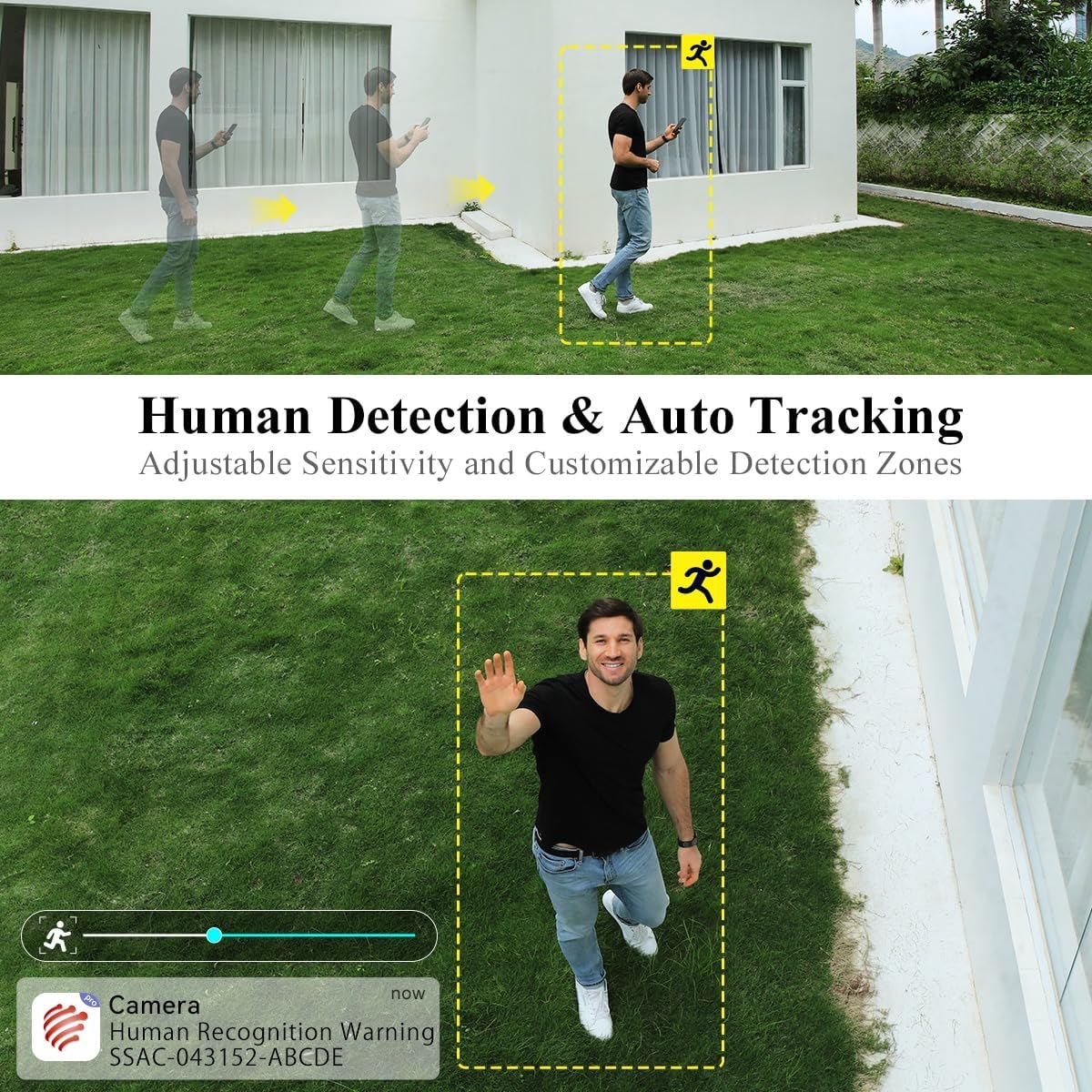
6.3 Human Detection and Auto Tracking
The camera can intelligently detect human shapes and track their movement within its field of view.
- Enable Human Detection in the app settings to receive alerts specifically for human presence.
- Activate Auto Tracking to have the camera automatically follow detected human movement.
- Adjust sensitivity and define custom detection zones to minimize false alarms.

Whakaahua 6.3: Illustration of the camera's human detection and auto-tracking features, highlighting adjustable sensitivity and customizable detection zones.
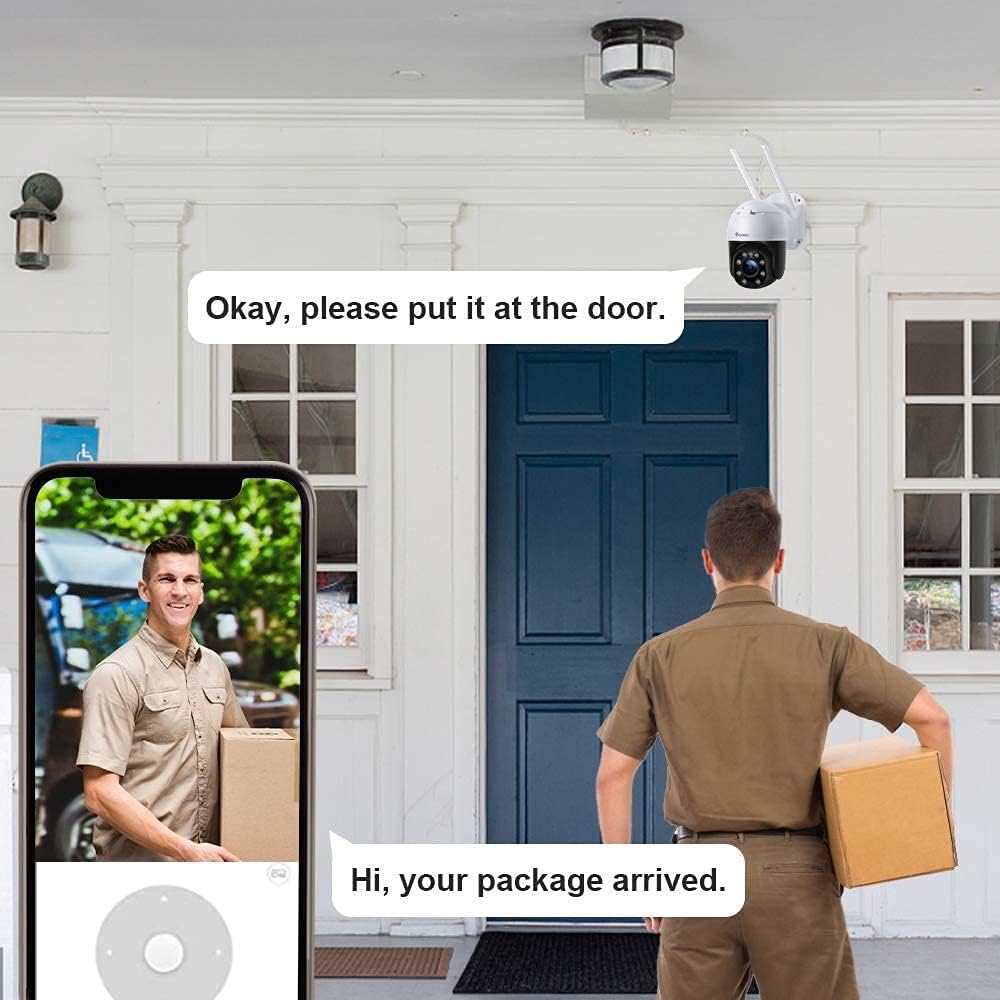
6.4 Ororongo Waa-rua
Use the two-way audio feature to communicate with individuals near the camera.
- Patohia te tohu hopuoro i roto i te ora view atanga hei kōrero mā te kaikorero o te kāmera.
- The camera's built-in microphone captures audio from the monitored area.
6.5 Te Rekoata me te Purei
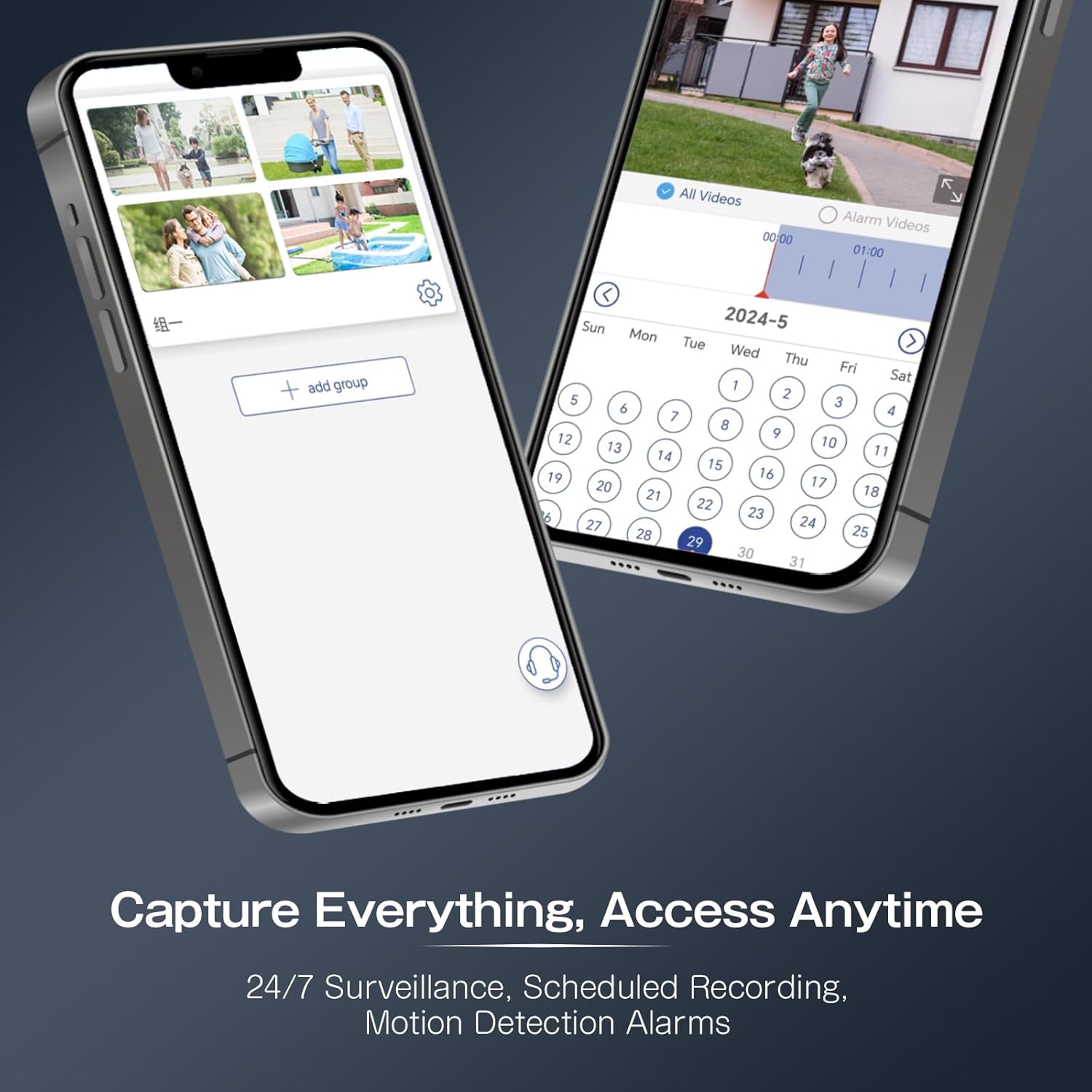
The camera supports continuous recording, scheduled recording, and motion-triggered recording to a Micro SD card (not included).
- Insert a Micro SD card (up to 64GB recommended) into the designated slot.
- Configure recording settings (continuous, scheduled, event-triggered) within the app.
- Uru rekoata footage via the app's playback function, using the timeline to navigate.
Whakaahua 6.4: The Ctronics app interface for managing recordings and accessing playback, including scheduled recording and motion detection alarms.
7. Tiaki
Ko te tiaki i nga wa katoa ka awhina i te wa roa me te mahi tino pai o to kamera.
- Te horoi: Mā te ata horoia te arotahi me te whare o te kāmera ki te wai ngohengohe,amp kakahu. A ape i nga kai horoi abrasive.
- Whakahōu Firmware: Periodically check the Ctronics app for available firmware updates to ensure your camera has the latest features and security enhancements.
- Tirotiro Hononga: Regularly verify the camera's Wi-Fi connection and power supply.
8. Te Raru
Mena ka raru koe, tirohia nga raru me nga otinga e whai ake nei.
| Raruraru | Take pea | Rongoā |
|---|---|---|
| Karekau te kamera i te hiko | Karekau he hiko; urutau hapa. | Check power connection; try a different outlet or adapter. |
| Kaore e taea te hono ki Wi-Fi | Kupuhipa Wi-Fi hē; tawhiti rawa te kāmera i te pouara; whatunga Wi-Fi 5GHz. | Verify password; move camera closer to router; ensure 2.4GHz Wi-Fi is used. |
| Te kounga whakaahua kounga | Dirty lens; low network bandwidth. | Clean the lens; ensure stable internet connection. |
| Kāore te kitenga nekehanga e whakaoho | Incorrect sensitivity settings; detection zone not configured. | Adjust sensitivity in app; set up detection zones. |
| Camera unresponsive | Hapa rorohiko rangitahi. | Perform a factory reset by pressing and holding the reset button for 5-10 seconds. |
9. Whakatakotoranga
Key technical specifications for the Ctronics Outdoor Security Camera Model 285C.
| Tauira | 285C |
| Whakatau Ataata | 1080P Ki tonu HD |
| Awhe Pan/Tilt | Pane 355°, Hunga 90° |
| Topa | 5X Topa Optical |
| Matakitenga Po | Tirohanga Pō Tae, Tirohanga Pō Pūwhero |
| Ororongo | Ororongo Waa-rua |
| Te Rapu Tangata | Supported, with Auto Tracking |
| Rokiroki | Kāri Micro SD (tae atu ki te 64GB, kāore i roto) |
| Hononga | Wi-Fi (2.4GHz) |
| Tuku Hiko | DC 12V / 12W |
| Whakatauranga parewai | IP66 |
| Rauemi | Te whakarewa |
| OS hototahi | iOS, Android |
10. Pūtāhui me te Tautoko
Ctronics products come with a standard warranty. For detailed warranty information, product support, or technical assistance, please visit the official Ctronics website or contact their customer service directly. Contact information can typically be found on the product packaging or the Ctronics webpae.