
BESDER ZX-X2-W/200W
BESDER Smart Home Security FULL HD 1080P IP WiFi Camera User Manual
Model: ZX-X2-W/200W
Kupu Whakataki
Thank you for choosing the BESDER Smart Home Security Camera. This manual provides detailed instructions for setting up, operating, and maintaining your camera. Please read this manual carefully before use to ensure proper functionality and safety.
This camera offers Full HD 1080P resolution, Pan/Tilt functionality, Two-Way Audio, and IR Night Vision for comprehensive home surveillance. It supports both wired and WiFi connections, mobile monitoring via iOS and Android apps, and cloud services.
Ihirangi mokete
Tirohia ngā mea kei roto i te kete i te wā e whakatuwheratia ana. Mena kua ngaro, kua pakaru rānei ētahi taonga, whakapā atu ki te ratonga kiritaki.
- 1 x BESDER IP Camera 1080P
- 1 x Pukapuka Kaiwhakamahi
- 1 x DC 5V Tuku Hiko
- 1 x Taupoki Iti
- Nga Tiu Whakapiri me nga Mono Taiepa
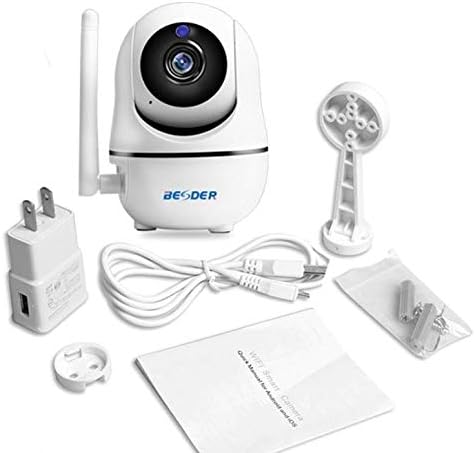
Whakaahua 1: Package contents of the BESDER Smart Home Security Camera, showing the camera unit, power adapter, USB cable, mounting bracket, screws, and the user manual.
Ka mutu te huaview
Familiarize yourself with the various components of your BESDER Smart Home Security Camera.
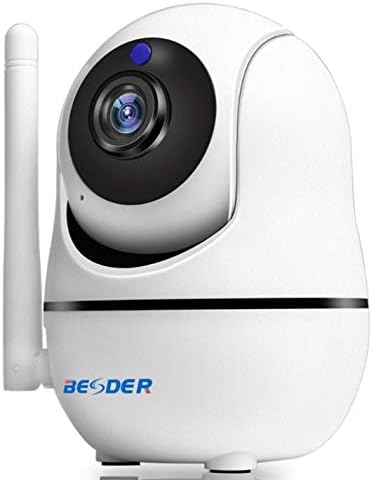
Whakaahua 2: Mua view of the BESDER Smart Home Security Camera, highlighting the camera lens, infrared LEDs for night vision, and the status indicator light.

Whakaahua 3: Whakamuri view of the BESDER Smart Home Security Camera, detailing the memory card slot (for microSD up to 128GB), reset button, built-in speaker, DC 5V power input, and the Ethernet network port for wired connection.
Wae matua:
- Arotahi kāmera: Ka hopu ataata footage.
- IR LED: Provide infrared illumination for night vision.
- Maama Tohu Tūnga: Indicates camera status (e.g., power on, network connection).
- hopuoro: For audio input and two-way audio communication.
- Kaikōrero: For audio output and two-way audio communication.
- Mokamoka Kaari Pumahara: Supports microSD cards up to 128GB for local storage.
- Patene Tautuhi Anō: Whakamahia hei whakahoki i ngā tautuhinga wheketere.
- DC 5V Whakauru Mana: Ka hono ki te urutau hiko kua whakaratohia.
- Tauranga Whatunga (RJ45): For wired Ethernet connection.
Tatūnga
1. Kei te Hiko Nei
- Connect the DC 5V power adapter to the camera's power input port.
- Monohia te urutau hiko ki te putanga pakitara.
- The camera will power on, and the status indicator light will illuminate. Wait for the camera to complete its self-test (it may pan and tilt).
2. Network Connection (Wired or Wireless)
The camera supports both wired (Ethernet) and wireless (Wi-Fi) connections.
Hononga Waea:
- Connect one end of an Ethernet cable (not included) to the camera's network port.
- Honoa te pito o te taura Ethernet ki to pouara, whakawhiti whatunga ranei.
- Ka hono aunoa te kamera ki te whatunga.
Wireless (Wi-Fi) Connection:
- Download the recommended mobile application (e.g., XMEYE or iCsee) from your device's app store (iOS or Android).
- Rēhita he pūkete ka takiuru.
- Follow the in-app instructions to add your camera. This typically involves scanning a QR code on the camera or using a Wi-Fi configuration method (e.g., AP mode, SmartLink).
- Ensure your mobile device is connected to the 2.4GHz Wi-Fi network you intend to connect the camera to.
- Enter your Wi-Fi password when prompted by the app.
- The camera will attempt to connect to your Wi-Fi network. Once connected, the status indicator light will change (refer to app or camera manual for specific light indications).
3. Tāutanga Kāri MicroSD (Whiringa)
- Ensure the camera is powered off before inserting or removing the microSD card.
- Locate the microSD card slot (refer to Figure 3).
- Tāpirihia mārire te kāri microSD ki roto i te mokowā me ngā hononga koura e anga ana ki raro kia pāwhiri rā anō ki tōna tūranga.
- Power on the camera. You may need to format the SD card via the mobile app settings for optimal performance.
Nga Tohutohu Whakahaere
1. Mobile Monitoring (iOS/Android)
- Open the XMEYE or iCsee app on your smartphone.
- Select your camera from the device list to view te kai ora.
- Use the on-screen controls to pan (horizontal rotation) and tilt (vertical rotation) the camera lens.
- Access playback of recorded footage stored on the microSD card or cloud service.
2. Rua-Way Ororongo
- Ahakoa viewIna tīmata koe i te whakaaturanga ora i roto i te taupānga, patohia te ata o te hopuoro hei kōrero mā te kaikorero o te kāmera.
- Patohia te ata korero hei whakarongo ki te ororongo mai i te hopuoro o te kamera.
3. Tirohanga Pō IR
- Ka huri aunoa te kaamera ki te aratau tirohanga po IR i nga ahuatanga iti-marama.
- The IR LEDs will illuminate, providing clear black and white video up to 15 meters.
4. Te Kite Nekehanga me ngā Whakaoho
- Whakahohehia te kitenga nekehanga i roto i nga tautuhinga taupānga.
- Configure sensitivity levels and detection zones as needed.
- When motion is detected, the camera can send push notifications to your phone and/or record footage.
5. Ratonga Kapua
- The camera supports cloud storage services (subscription may be required).
- Refer to the mobile app for details on activating and managing cloud storage.
Te tiaki
- Te horoi: Whakamahia he kakahu ngohengohe, maroke hei horoi i te karāhe me te tinana o te kāmera. Kaua e whakamahi i ngā wai horoi, i ngā waipara rānei.
- Whakahōu Firmware: Regularly check for firmware updates via the mobile app to ensure optimal performance and security.
- Turanga: Ensure the camera is placed in a location where it is protected from direct water exposure and extreme temperatures.
- Whakaha Kaari SD: Periodically check the status of your microSD card. If it becomes full, older recordings may be overwritten, or recording may stop.
Raparongoā
| Raruraru | Take pea | Rongoā |
|---|---|---|
| Kaamera tuimotu/Kare e taea te hono ki Wi-Fi | Incorrect Wi-Fi password; Camera too far from router; Router issues; 5GHz Wi-Fi network. |
|
| Kāore he whakaahua/Mata pango | Power issue; Network issue; Lens obstruction. |
|
| Ko te ororongo rua-ara kaore e mahi | Microphone/speaker disabled in app; Volume too low; Network latency. |
|
| Kāore te kitenga nekehanga e whakaoho | Motion detection disabled; Sensitivity too low; Incorrect detection zone. |
|
| Ko te kaari SD kaore i te tuhi | SD card full/corrupted; Incorrect format; SD card not inserted properly. |
|
Whakatakotoranga
| Āhuahira | Taipitopito |
|---|---|
| Ingoa Tauira | BESDER Smart Home Security |
| Tohutoro Kaihanga | ZX-X2-W/200W |
| Whakatau Ataata | Full HD 1080P (1920x1080) |
| Pūoko | 1/2.8'' F22 CMOS sensor (for 1080P) |
| Kōpeketanga Ataata | H.264, supports dual stream, 0.1 – 6 Mpbs |
| Arotahi | 3.6 mm G7 (default) |
| IR Po Matakite Tawhiti | Max 15 meters (6 IR LEDs) |
| Hononga | Wi-Fi (2.4GHz), Itarangi Waea |
| Rokiroki | MicroSD card up to 128GB (not included), Cloud Service |
| Ororongo | Ororongo rua-ara (hopuoro me te tukuoro) |
| Aroturuki Tutei | iOS, Android (APP: XMEYE or iCsee) |
| Tuku Hiko | DC 5V 2A |
| Te Mahana Mahi | -5 to 60°C (23 - 140°F) |
| Ahu | 6.39 x 4.33 x 3.11 cm (whakatata te rahi o te kete) |
Pūtāhui me te Tautoko
For warranty information and technical support, please refer to the contact details provided with your purchase or visit the official BESDER webpae. Puritia to riiki hoko hei tohu mo te hoko.
Kaihanga: Tuhinga o mua
Ask a question about this manual
Ask about setup, troubleshooting, compatibility, parts, safety, or missing instructions. Manuals+ will review the question and use this page’s manual context to help answer it.