
Kupu Whakataki
This manual provides detailed instructions for the setup, operation, maintenance, and troubleshooting of your VTECH VS112-2 DECT 6.0 Bluetooth 2 Handset Cordless Phone. Please read this manual thoroughly to ensure proper use and to take full advantage o nga ahuatanga katoa.

Image: The VTECH VS112-2 cordless phone system, showing two handsets and the base unit with an integrated answering machine.
Tatūnga
1. Te Wetewete me te Whakanoho Tuatahi
- Kia ata tangohia nga waahanga katoa mai i te kete.
- Place the base unit near a standard electrical outlet and a telephone wall jack.
- Ensure the location is away from heat sources, direct sunlight, and other electrical devices that may cause interference.
2. Te hono i te Waeine turanga
- Plug the small end of the power adapter into the power jack on the back of the base unit.
- Monohia te pito nui o te urutau hiko ki te putanga hiko i te pakitara.
- Monohia tetahi pito o te taura waea ki te hononga TEL LINE kei muri o te waeine turanga.
- Monohia tetahi pito o te taura waea ki roto i te hononga waea i te pakitara.
3. Tāuta Pūhiko me te Whakatau
- Each handset requires 2 product-specific batteries (included).
- Whakatuwheratia te uhi o te wahanga pākahiko kei muri o ia ringaringa.
- Insert the batteries, observing the correct polarity (+ and - markings).
- Whakakapia te uhi o te wahanga pākahiko.
- Place each handset in its respective charger cradle. The CHARGE light on the handset will illuminate, indicating proper charging.
- Tukua ngā waea pūkoro kia utu mō te iti rawa 16 hāora i mua i te whakamahinga tuatahi.
4. Connect to Cell Pairing
The Connect to Cell feature allows you to make and receive cellular calls using your cordless handsets. You can pair up to two cell phones or one cell phone and one Bluetooth headset.
- Ensure your cell phone's Bluetooth is enabled and discoverable.
- On the VTECH handset, navigate to the Bluetooth menu.
- Select 'Pair New Device' and follow the on-screen prompts to search for and connect to your cell phone.
- Whakaūhia te waehere takirua i runga i nga taputapu e rua mena ka akiakihia.

Image: This image demonstrates the 'Connect to Cell' functionality, showing how the cordless phone integrates with mobile devices for call management.
5. Digital Answering System Setup
The system includes a digital answering machine with a voice guide to assist with setup.
- Access the Answering System menu on the handset or base unit.
- Follow the voice guide prompts to set the outgoing announcement, number of rings, and message alert tone.
- The system can record up to 22 minutes of messages, announcements, and memos.
Nga Tohutohu Whakahaere
1. Hanga me te Whiwhi Waea
- Hei waea: Perehi KĀINGA / PUTA for a landline call or Pūtau for a cellular call, then dial the number.
- Hei whakautu waea: Press any dialing key (0-9, #, *) or KĀINGA / PUTA or Pūtau ka tangi te waea.
- Hei whakamutu waea: Perehi WHAKATOA/Whakakore tuu ranei te ringaringa ki roto i te rihi.
2. Mahi a te Kaikōrero
The handset features a full-duplex speakerphone, allowing both parties to speak and be heard simultaneously for natural conversations.
- I te wa e piihia ana, paatohia te KORERO pātene hei whakahohe i te waea kōrero.
- Perehi KORERO kia hoki anō ki te taringa.
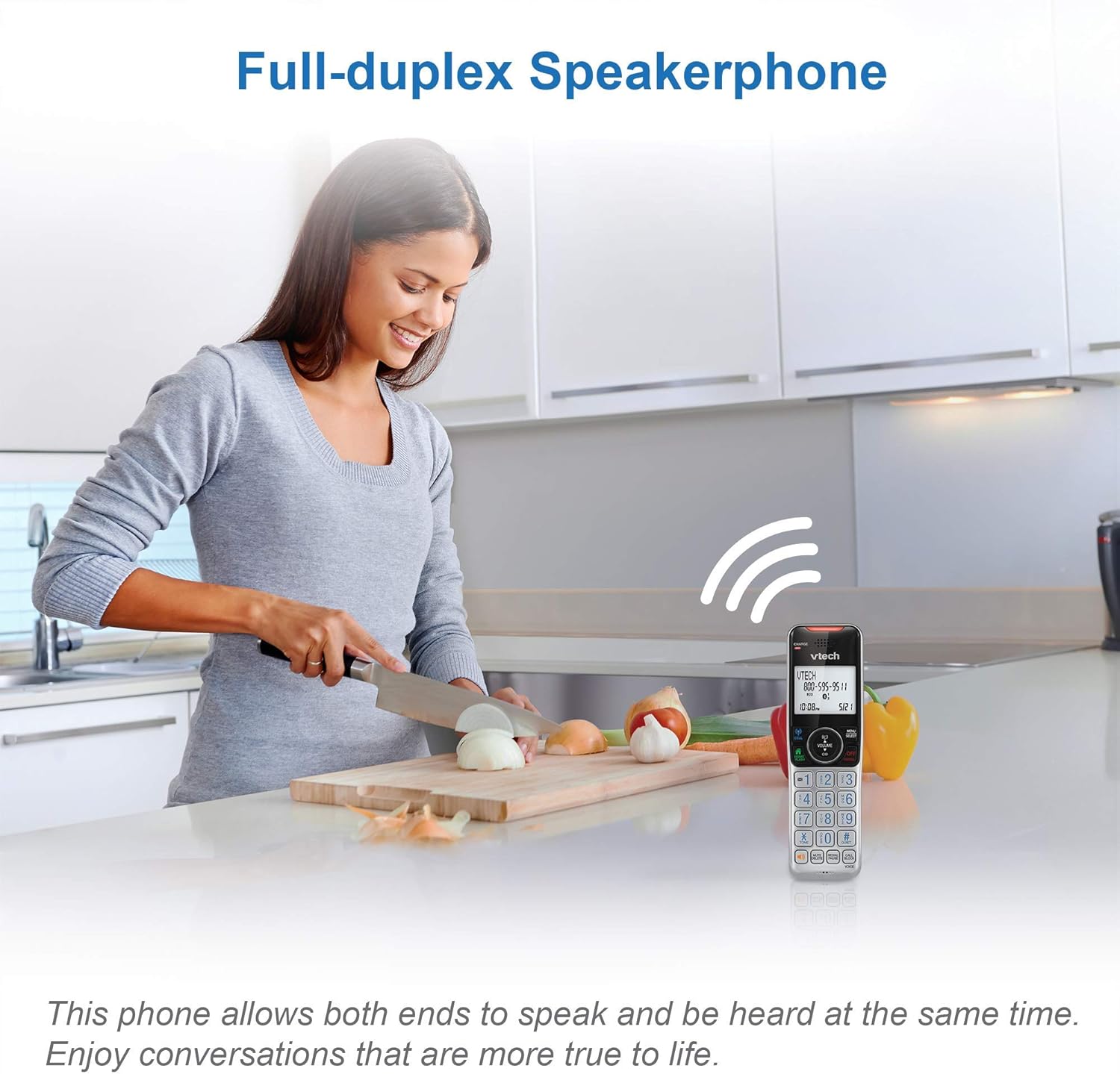
Image: This image illustrates the full-duplex speakerphone in use, showing a user engaged in a hands-free conversation.
3. Kaipure Waea Maamaa
This feature helps filter unwanted calls, including robocalls. It can block up to 1,000 numbers.
- To block a number during a call: Perehi KAUPAPA PORI.
- To block a number from Caller ID history: Navigate to the Caller ID log, select the number, and press KAUPAPA PORI.
- Robocall screening: Set the system to ask callers to press the pound key.
- Unknown caller screening: Set the system to ask callers to record their names and press the pound key. The phone will announce the caller's name, allowing you to choose to answer, block, or send to voicemail.

Image: This graphic represents the Smart Call Blocker feature, designed to prevent unwanted calls from ringing through.

Image: This image illustrates the capacity of the smart call block directory, capable of storing up to 1,000 names and numbers.
4. Digital Answering System Operation
The answering system records incoming messages when you are unavailable.
- Playing messages: Perehi TAKARO/TATA on the base unit or access the Answering System menu on the handset.
- Recording a memo: Access the Answering System menu and select 'Record Memo'.
- The LED message counter on the base unit displays the number of new messages.

Image: This image highlights the digital answering system, showing the message counter and a visual representation of a recorded message.
5. Tautuhinga Kaikaranga me te Tatari Waea
The phone stores up to 50 name and number caller ID records.
- When a call comes in, the caller's name and number will display on the handset screen (requires subscription to caller ID service).
- If you have call waiting service, a tone will indicate an incoming second call. Press Kohiko ki te huri i waenga waea.

Image: This close-up shows the phone's screen displaying caller ID details, indicating an incoming call.
6. Mahi Intercom
Whakamahia te āhuatanga intercom hei whakawhitiwhiti kōrero i waenga i ngā waea pūkoro.
- Perehi INT on one handset.
- The other handset will ring. Press any key to answer the intercom call.
7. Siri or Google Now Access
When connected to a cell phone via Bluetooth, you can access your smartphone's voice assistant.
- Patohia me te pupuri i te Pūtau button on the handset to activate Siri or Google Now.
- Speak your command into the handset.
8. Visual Ringer and Display
The handset features a visual ringer and a large, backlit display for enhanced usability.
- A light on top of the handset flashes during an incoming call, providing a visual alert, especially useful in noisy environments or for those with hearing impairments.
- The 2-inch high-contrast, white backlit display and enlarged, lighted keypad ensure easy readability and dialing in various lighting conditions.
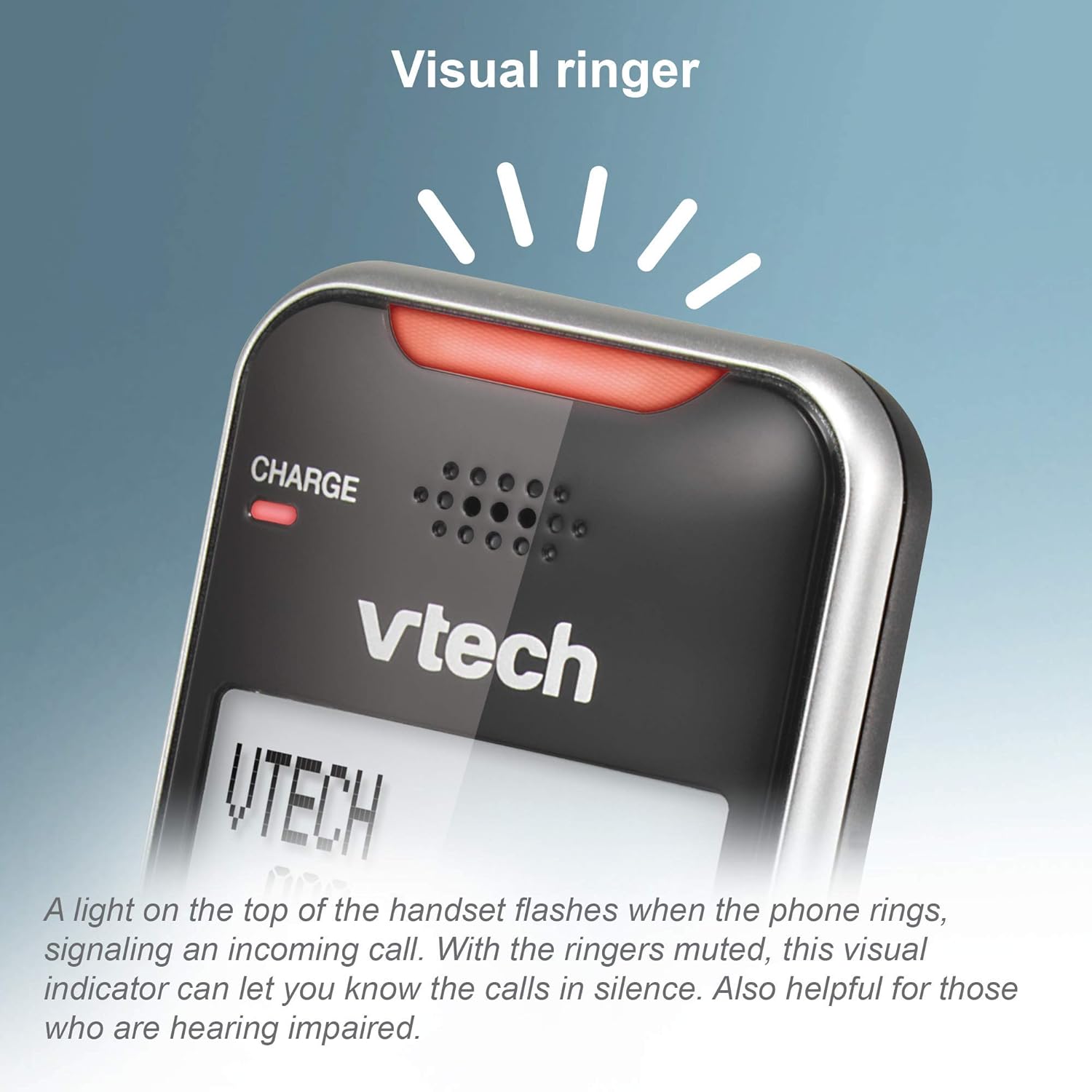
Image: This close-up shows the visual ringer, a light on the handset that flashes to signal an incoming call.

Image: This image highlights the large buttons and the 2-inch white backlit display of the handset, designed for improved visibility and ease of use.
Te tiaki
1. Te horoi i te waea
- Horoia te waea me te waeine turanga ki te wai ngohengohe, paku mākūkū.amp kakahu.
- Do not use cleaning sprays or liquid cleaners, as they may damage the finish or electrical components.
- Ensure the phone is unplugged from the power source before cleaning.
2. Tiaki Pūhiko
- To maintain optimal battery performance, keep the handsets in their chargers when not in use.
- If the phone will be unused for an extended period, remove the batteries to prevent leakage.
- Replace batteries when they no longer hold a charge effectively.
Raparongoā
If you experience issues with your phone, try the following troubleshooting steps:
Kore Waea
- Ensure the base unit's power adapter is securely plugged into a working electrical outlet.
- Me manatoko kei te hono tika te taura waea ki te waeine turanga me te hononga pakitara.
- Check if other phones on the same line have a dial tone. If not, the issue may be with your telephone service.
Handset Not Charging
- Ensure the handset is correctly seated in the charger cradle. The CHARGE light should illuminate.
- Clean the charging contacts on both the handset and the charger with a dry cloth.
- Verify the charger's power adapter is plugged into a working outlet.
Poor Call Quality or Static
- Nekehia te ringaringa kia tata atu ki te waeine turanga.
- Avoid placing the base unit near large metal objects, other cordless phones, Wi-Fi routers, or microwave ovens.
- If using Connect to Cell, ensure your cell phone is within range of the base unit.
Call Blocking Not Working
- Ensure you have correctly added the numbers to the call block list.
- Verify that the Smart Call Blocker feature is enabled in the phone's settings.
- Note that some call blocking features may require a subscription to caller ID service from your telephone provider.
Answering System Issues
- Me whakarite kua whakakāhia te pūnaha whakautu waea.
- Check the memory capacity; if full, delete old messages.
- Verify the number of rings setting.
Whakatakotoranga
| Waitohu | VTech |
| Tauira | VS112-2 |
| Momo Waea | Ahokore |
| Hangarau | DECT 6.0, Bluetooth |
| Te maha o nga Pukoro | 2 |
| Momo Pūnaha Whakautu | Mamati |
| Te Whakahoki i te Waa Hopu Pūnaha | Tae atu ki te 22 meneti |
| Tohu Kaiwaea | Ae |
| Smart Call Blocker Capacity | Tae atu ki te 1,000 te maha |
| Whakaatu | 2-inch, high-contrast, white backlit |
| Puna Mana | Hiko Hiko |
| Pūhiko | 2 Hua Nga pākahiko motuhake e hiahiatia ana (kei roto) |
| Hunga Hua | 5.95 x 3.33 x 7.36 inihi |
| Taumaha Tūemi | 1.82 pauna |
Pūtāhui me te Tautoko
Whakahouhia a Amazon
This product is offered as an Amazon Renewed item. Amazon Renewed products are professionally inspected and tested to work and look like new. If you are not satisfied with your purchase, renewed products are eligible for replacement or refund under the Amazon Renewed Guarantee.
Tautoko Kaihanga
For further assistance, technical support, or detailed warranty information beyond the Amazon Renewed Guarantee, please refer to the official VTech website or contact VTech customer service directly. Contact information can typically be found on the manufacturer's webte waahi kei roto ranei i te kohinga hua taketake.