
VTech VS112-47
VTech VS112-47 DECT 6.0 Cordless Phone System
Pukapuka Tohutohu Kaiwhakamahi
Kupu Whakataki
This manual provides comprehensive instructions for the VTech VS112-47 DECT 6.0 Bluetooth 4 Handset Cordless Phone System. This system is designed for home use, offering features such as an answering machine, call blocking, caller ID, intercom, and the ability to connect to cell phones. Please read this manual thoroughly to ensure proper setup and operation of your new phone system.

Image: The VTech VS112-47 cordless phone system, showing the main base unit with one handset and three additional charging cradles with handsets. The system is silver and white.
Tatūnga
1. Te Wetewete me te Tirotiro Tuatahi
Kia ata tangohia nga waahanga katoa mai i te kete. Me whakarite kei te noho katoa nga mea kei raro nei:
- Waeine turanga matua
- Cordless handsets (4 included)
- Handset charging cradles (3 included for additional handsets)
- Uru hiko mo te wae turanga
- Te taura waea
- Rechargeable batteries (4 included, one for each handset)
2. Tāuta Pūhiko
Each handset requires one rechargeable battery. Locate the battery compartment cover on the back of each handset. Slide the cover off, connect the battery connector firmly into the jack inside the compartment, and then place the battery into the compartment. Replace the battery compartment cover.
3. Hononga Waeine turanga
Connect the small end of the power adapter to the power jack on the back of the main base unit. Plug the large end of the power adapter into a standard electrical outlet. Connect one end of the telephone line cord to the TEL LINE jack on the back of the base unit and the other end to a telephone wall jack.
4. Te Whakautu Waea Pūkoro Tuatahi
Place each handset into its respective charging cradle or the main base unit. The CHARGE indicator light on the handset will illuminate, indicating proper charging. Allow the handsets to charge for at least 16 hours before initial use to ensure optimal battery performance.
5. Connect to Cell Setup
This system allows you to pair up to two cell phones via Bluetooth. To pair a cell phone:
- I runga i te waeine turanga, pehia me te pupuri i te Pūtau button until the Bluetooth indicator light flashes.
- On your cell phone, enable Bluetooth and search for available devices. Select the VTech phone system when it appears.
- Follow the prompts on both the phone system and your cell phone to complete the pairing process. A confirmation tone will sound when pairing is successful.
You can connect two cell phones simultaneously or one cell phone and one Bluetooth headset for use with landline calls.

Image: This image demonstrates the "Connect to Cell" feature, showing two smartphones wirelessly linked to the VTech base unit, allowing users to make and receive cellular calls through the cordless handsets.
Nga Tohutohu Whakahaere
1. Hanga me te Whiwhi Waea
- Hei waea: Pick up a handset, press KĀINGA / PUTA for a landline call or Pūtau for a cellular call, then dial the number.
- Hei whakautu waea: When the phone rings, press any dialing key (0-9, #, *) or KĀINGA / PUTA or Pūtau.
- Hei whakamutu waea: Place the handset back in the cradle or press WHAKATOA/Whakakore.
2. Pūnaha Whakautu Mamati
The base unit includes a digital answering machine with up to 22 minutes of recording time for incoming messages, outgoing announcements, and memos. A built-in voice guide assists with setup.
- Playing messages: Perehi TAKARO/TATA i runga i te waeine turanga.
- Deleting messages: I te wa o te purei karere, pehia MUMU i runga i te waeine turanga.
- Recording an announcement: Follow the voice guide prompts after accessing the answering system menu.

Image: This image highlights the digital answering system on the VTech base unit, showing the message counter and controls. It illustrates how the system captures calls when you are unavailable.
3. Kaipure Waea Maamaa
This system allows you to block nuisance callers and robocalls. You can permanently blacklist up to 1,000 numbers.
- Te aukati i tētahi nama i te wā e waea ana: Perehi KAUPAPA PORI i runga i te ringaringa.
- Blocking a number from Caller ID history: Access the Caller ID log, select the number, and follow the prompts to block it.
- Screening robocalls: Set the system to ask callers to press the pound key.
- Screening unknown callers: Set the system to ask callers to record their names and press the pound key. The phone will announce the caller's name, allowing you to choose to block, answer, or forward the call.

Image: This image illustrates the Smart Call Blocker feature, showing a handset on its base with a visual representation of a blocked call, emphasizing the ability to prevent unwanted calls from ringing through.
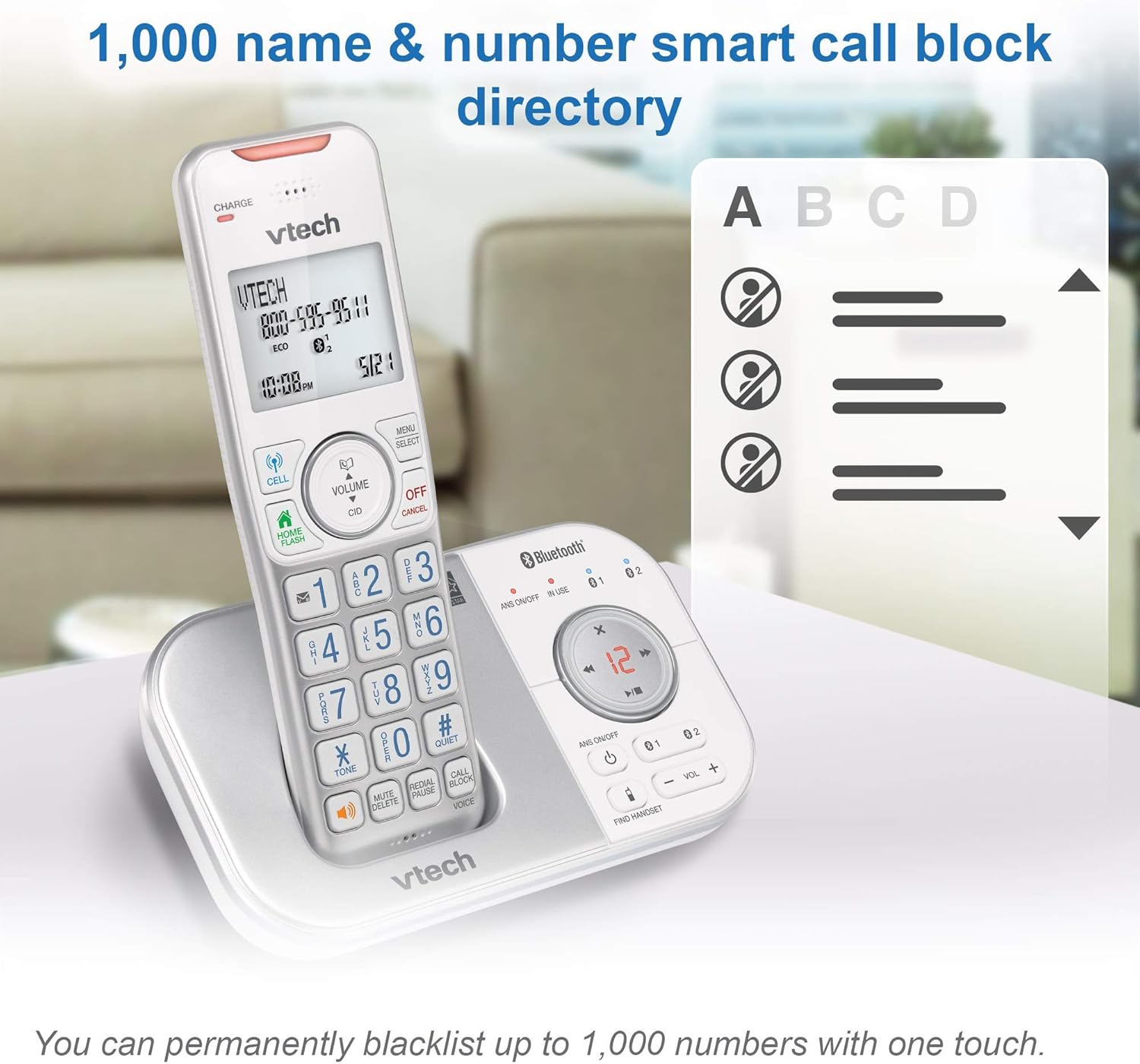
Image: This image shows the capacity of the smart call block directory, indicating that up to 1,000 names and numbers can be permanently blacklisted with a single touch.
4. Tautuhinga Kaikaranga me te Tatari Waea
The phone displays the caller's name and number (if available) before you answer. It stores up to 50 name and number caller ID history entries.

Image: This image provides a close-up view of the VTech handset's screen, displaying caller ID information, highlighting the 50 name and number caller ID history feature.
5. Waeawhiti
You can use the intercom feature to communicate between handsets within your home. To initiate an intercom call, press INT (Intercom) on a handset and select the desired handset number.
6. Whakaritenga Rōrahi
Whakatikatikahia te oro whakarongo i te wā e waea ana mā te whakamahi i te ROTO ngā pātene kei te taha o te waea pūkoro, te VOL +/- ngā pātene i runga i te waeine turanga.

Image: This image points out the volume control buttons located on both the handset and the base unit, illustrating how users can easily adjust the incoming call's volume.
7. Waea korero
Each handset features a built-in full-duplex speakerphone, allowing both parties to speak and be heard simultaneously for more natural conversations. To activate the speakerphone during a call, press the KORERO pātene.
8. Visual Ringer and Display
The handset includes a lighted visual ringer on top that flashes during an incoming call, useful in noisy environments or for those with hearing impairment. The large 2-inch screen and backlit keypad enhance readability and ease of dialing in low-light conditions.

Image: This image focuses on the visual ringer located at the top of the handset, showing it illuminated to signal an incoming call, which is beneficial for users in loud settings or with hearing difficulties.

Image: This image showcases the large buttons and 2-inch white backlit display of the VTech handset, emphasizing its readability and ease of use, especially in low-light conditions.
Te tiaki
1. Cleaning the Phone System
Wipe the phone system surfaces with a soft, damp cloth. Do not use cleaning sprays or liquid cleaners, as they may damage the finish or electrical components. Ensure the phone is unplugged from the power source before cleaning.
2. Tiaki Pūhiko
To prolong battery life, avoid overcharging by removing handsets from the charger once fully charged if not in use for extended periods. If the phone will not be used for a long time, remove the batteries from the handsets.
Raparongoā
| Raruraru | Rongoā |
|---|---|
| Karekau he oro waea | Ensure the base unit's power adapter and telephone line cord are securely plugged in. Check if the telephone line is active. |
| Handset displays "Out of range" or "No power" | Move closer to the base unit. Ensure the handset battery is charged and properly installed. Place the handset on the charger for 16 hours. |
| Kounga oro ngoikore, he pūmau rānei | Relocate the base unit away from other electrical appliances (TVs, microwaves, computers). Check for interference from other wireless devices. |
| Kāore te mīhini whakautu e tuhi | Ensure the answering system is turned ON. Check if the memory is full; delete old messages. |
| Cannot block calls | Ensure your phone service includes Caller ID. Verify the Smart Call Blocker feature is enabled and configured correctly. |
Tautuhi Pūnaha
If you experience persistent issues, try resetting the system:
- Unplug the power adapter from the base unit.
- Remove the batteries from all handsets.
- Taria mo te 10 hēkona.
- Plug the power adapter back into the base unit.
- Reinsert the batteries into the handsets.
- Place the handsets on their chargers.
Whakatakotoranga
- Tauira: VS112-47
- Waitohu: VTech
- Momo Waea: Korekore DECT 6.0
- Handsets Included: 4
- Tae: Hiriwa, Ma
- Product Dimensions (Base Unit): 5.95 x 3.33 x 7.36 inihi
- Taumaha Tūemi: 3.05 pauna (pūnaha katoa)
- Pūhiko: 4 Product Specific rechargeable batteries (included)
- Puna Hiko: Hiko Hiko
- Momo Pūnaha Whakautu: Mamati
- Te Raunga Rekoata: meneti 22
- Tautuhi Kaiwaea: Ae
- Waea Aukati Aukati: Tae atu ki te 1,000 te maha
- Hītori Waea Waea: 50 name and number entries
- Whakaatu: Large 2-inch backlit screen
Pūtāhui me te Tautoko
Nga korero Whakaputanga
This product is a renewed item. As such, it is eligible for replacement or refund under the Whakahouhia a Amazon if you are not satisfied with your purchase. Please refer to the Amazon Renewed Guarantee terms for specific details regarding coverage and duration.
Tautoko Kiritaki
For technical assistance, troubleshooting, or warranty claims related to this renewed product, please contact Amazon Customer Service or refer to the VTech support resources available online. When contacting support, please have your product model number (VS112-47) and purchase details ready.
Ask a question about this manual
Ask about setup, troubleshooting, compatibility, parts, safety, or missing instructions. Manuals+ will review the question and use this page’s manual context to help answer it.