
LucidSound LS15X
LucidSound LS15X Ahokore Gaming Headset Manual Kaiwhakamahi
Model: LS15X | Brand: LucidSound
Kupu Whakataki
The LucidSound LS15X Wireless Gaming Headset is officially licensed for use on Xbox, offering an immersive audio experience for gamers. Designed for comfort and performance, this headset features intuitive on-earcup controls, low-latency wireless connectivity, and a versatile dual-mic system. Enjoy crystal-clear communication and rich audio across Xbox One, Xbox Series X|S, Nintendo Switch, PC, and mobile devices.
He aha kei roto i te Pouaka
- Paneoro Ahokore
- Mic Boom Tango
- Moroiti-USB Uira Whakatau
- Whakawhiti Ahokore USB
- Aratohu Timata Tere
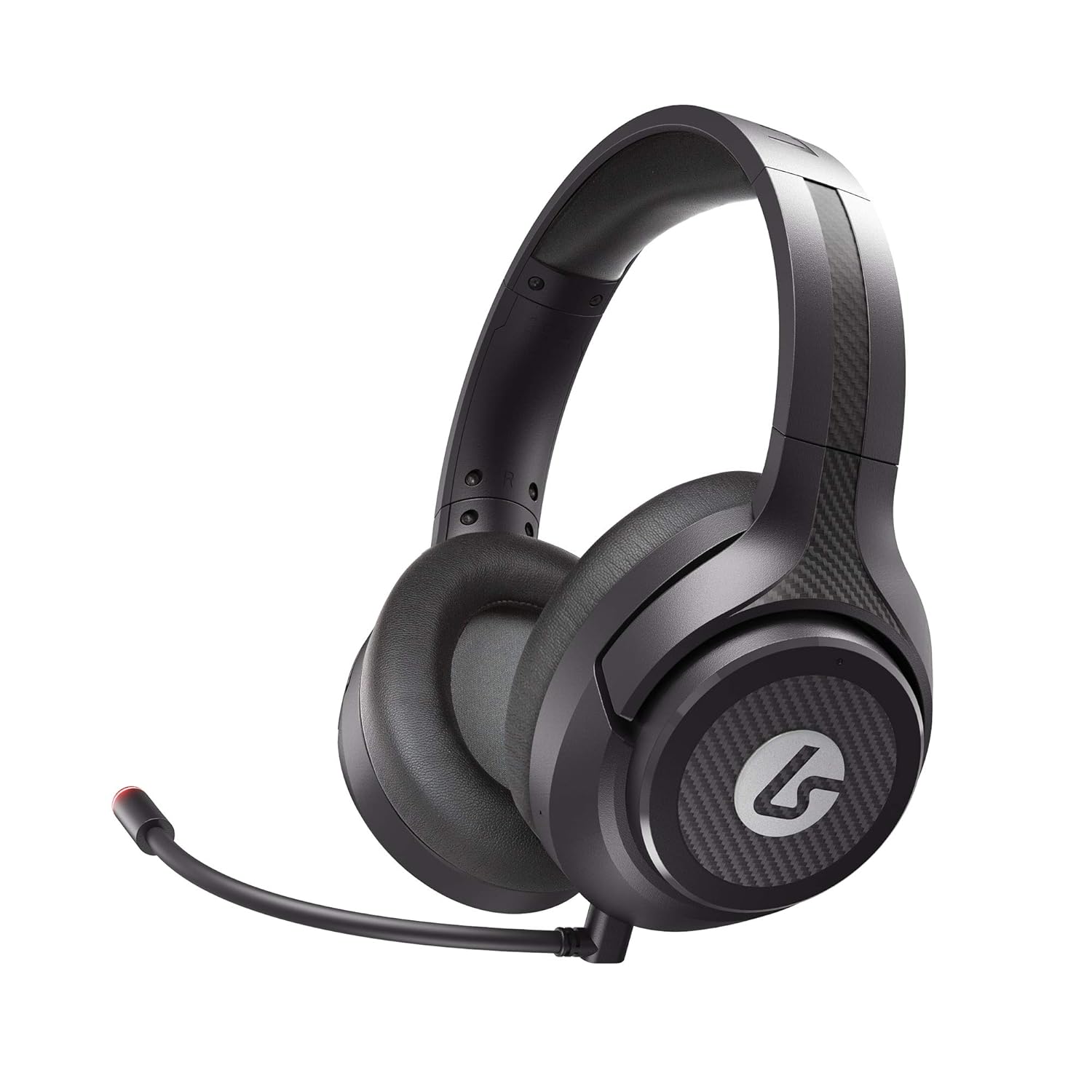
Image: LucidSound LS15X Wireless Gaming Headset, showing the main product.
Nga waahanga hua
- Quick Access Audio Controls: Easily adjust headset volume, game/chat balance, mic mute, game audio mute, and mic monitoring via on-earcup controls.
- Hononga Ahokore Tuturu: Low latency, interference-free wireless provides a strong connection even in crowded Wi-Fi environments. Quick and easy to set up.
- I hangaia mo te whakamarie: Ultra-lightweight frame and memory foam earpads allow for hours of comfortable gaming.
- Ororongo Premium: Custom-tuned 50mm drivers and 3 EQ modes (Signature, Bass Boost, Neutral) enhance positional awareness. Supports spatial sound with Windows Sonic.
- Dual-Mic System: Features a flexible boom mic with an LED mute indicator for precision chat. Detach the boom mic to activate the built-in backup mic.
- Aroturuki Mic: Hear your own voice in the headset to manage your output. Can be disabled by holding the button on the right earcup for 3 seconds.
- Pūhiko Rechargeable: Provides up to 15 hours of use on a single charge. Check battery level by holding the button on the left earcup for 3 seconds.
Aratohu Tatūnga
1. Utu Tuatahi
Before first use, fully charge your LS15X headset using the provided Micro-USB charging cable. Connect the cable to the headset's charging port and a USB power source. The LED indicator will show charging status.
2. Te hono atu ki te Xbox
- Insert the USB Wireless Transmitter into an available USB port on your Xbox console.
- Power on the headset by holding the power button on the left earcup.
- The headset will automatically pair with the transmitter. A solid LED on both the headset and transmitter indicates a successful connection.
3. Connecting to PC/Nintendo Switch/Mobile
For PC, Nintendo Switch (docked mode), or other compatible devices, insert the USB Wireless Transmitter into an available USB port. The headset will connect automatically. For mobile devices, the headset can be used via a 3.5mm audio cable (not included) if wireless is not preferred or supported.
Video: Official LucidSound LS15X Surround Sound overview, demonstrating key features and setup.
Nga Tohutohu Whakahaere
Mana Headset
- Puka taringa maui:
- Rotate the outer ring to adjust headset volume.
- Pēhia te pātene pokapū ki mute game audio.
- Hold the center button for 3 seconds to check taumata pākahiko.
- Puka taringa Matau:
- Rotate the outer ring to adjust game/chat balance.
- Pēhia te pātene pokapū ki hopuoro wahangu. The boom mic LED will illuminate red when muted.
- Hold the center button for 3 seconds to toggle mic monitoring on/off.
- Aratau EQ: The headset features 3 EQ modes. Press the dedicated EQ button (location varies slightly by model, typically near the power button) to cycle through Signature, Bass Boost, and Neutral modes.

Image: LucidSound LS15X Headset with the removable boom microphone attached.

Image: Close-up of the LucidSound LS15X earcup, highlighting the intuitive control layout.
Te tiaki
- Te horoi: Whakamahia he kakahu ngohengohe, maroke hei horoi i te pane whakarongo. Kaua e whakamahi i ngā matū kino, i ngā rauemi whakakoi rānei.
- Rokiroki: Whakaorangia te pane ki te waahi makariri, maroke atu i te ra tika me te wera nui.
- Tiaki Pūhiko: Hei whakaroa i te ora o te pākahiko, karohia te tuku katoa i te pākahiko. Me utu te pane i nga wa katoa, ahakoa kaore i te whakamahia mo nga wa roa.
Raparongoā
Kore Ororongo / Momotu
- Me mohio kei te hiko te pane me te whakakii katoa.
- Verify the USB Wireless Transmitter is securely plugged into the console/PC.
- Re-pair the headset by powering both off and on again.
- Check console/PC audio settings to ensure the headset is selected as the output device.
Nga take hopuoro
- Ensure the boom mic is securely attached.
- Check if the microphone is muted (red LED on boom mic indicates mute). Press the mic mute button on the right earcup to unmute.
- Verify mic monitoring is enabled if you wish to hear your own voice.
- Check console/PC audio settings for microphone input levels.
Whakatakotoranga
| Āhuahira | Taipitopito |
|---|---|
| Tau tauira | LS15X |
| Hangarau Hononga | Ahokore (Wi-Fi) |
| Pooro Jack | 3.5 mm Jack |
| Rauemi | Puka Maharahara |
| Taumaha Tūemi | 12.5 hekere (0.78 Pauna) |
| Hunga Hua | 3.94 x 7.87 x 7.87 inihi |
| Pūhiko | 1 pākahiko Lithium Polymer (kei roto) |
| Kaihanga | PowerA |
Pūtāhui me te Tautoko
For warranty information and technical support, please refer to the official LucidSound webpaetukutuku, whakapā atu ranei ki ta raatau ratonga kaihoko. Puritia to tohu hoko mo etahi kereme whakamana.
Ask a question about this manual
Ask about setup, troubleshooting, compatibility, parts, safety, or missing instructions. Manuals+ will review the question and use this page’s manual context to help answer it.