
1. Kupu Whakataki
Mauruuru koe mo te hokoasing the ONIKUMA K1 RGB Gaming Headset. This manual provides detailed instructions for setup, operation, maintenance, and troubleshooting to ensure optimal performance and longevity of your headset. Please read this manual carefully before use and retain it for future reference.
2. Hua Neke Atuview
The ONIKUMA K1 is a wired gaming headset designed for multi-platform compatibility, featuring vibrant RGB lighting, 7.1 surround sound, and a noise-cancelling microphone. It is built for comfort during extended gaming sessions.
Āhuatanga matua:
- 7.1 Te Oro Karapoti: Provides immersive audio for an enhanced gaming experience.
- Haruru-Whakakore hopuoro: Ensures clear communication by reducing background noise.
- Rarama RGB: Dynamic lighting effects for an aesthetic appeal.
- Hototahitanga-maha: Works with PC, PlayStation (PS3, PS4), Mobile devices, and Xbox (Xbox One requires an adapter, not included).
- Hoahoa whakamarie: Features soft protein earpads, an adjustable headband, and cozy head cushions.
- Mana Raina: Easy access to volume adjustment and microphone mute.
Waehanga:
The headset includes the main unit with integrated microphone and a wired connection featuring a 3.5mm audio jack and a USB connector for RGB lighting.

Figure 1: Headset with in-line volume and microphone mute control, USB connector for RGB lighting, and 3.5mm audio jack.

Figure 2: Flexible microphone with 160-degree adjustment and 360-degree voice pick-up for clear communication.

Figure 3: Soft protein earpads, adjustable headband, and cozy head cushions designed for supreme comfort.
3. Tohutohu Tatūnga
Follow these steps to connect your ONIKUMA K1 headset to your device.
Hototahitanga-maha:
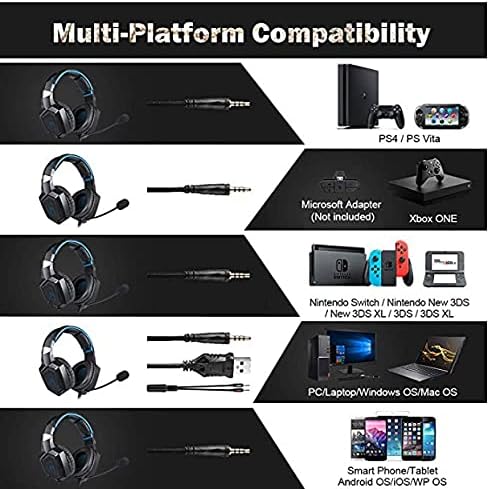
Whakaahua 4: Kua mutu te hototahitangaview for PC, PlayStation, Xbox, Nintendo Switch, and mobile devices.
- For PC/Laptop (Windows OS/Mac OS):
Connect the 3.5mm audio jack to your computer's audio output/input port. Connect the USB cable to a USB port for RGB lighting. Ensure your sound settings are configured to use the headset. - For PlayStation (PS4/PS Vita/PS3):
Connect the 3.5mm audio jack to the controller or console's audio port. For PS4, go to Settings > Devices > Audio Devices > Output to Headphones > All Audio. Connect the USB for RGB lighting if a USB port is available. - For Xbox ONE:
An additional Microsoft Adapter (not included) is required for older Xbox One controllers. Connect the 3.5mm audio jack to the adapter, then connect the adapter to your controller. Newer Xbox One controllers have a built-in 3.5mm jack. Connect the USB for RGB lighting if a USB port is available on the console. - For Nintendo Switch/New 3DS XL/3DS/3DS XL:
Connect the 3.5mm audio jack directly to the console's audio port. - For Smart Phone/Tablet (Android OS/iOS/WP OS):
Connect the 3.5mm audio jack directly to your mobile device's headphone jack.
4. Nga Tohutohu Whakahaere
Once connected, you can begin using your headset. Here are the basic operating functions:
- Mana Rōrahi: Use the in-line volume roller to adjust the audio output level. Roll up to increase volume, roll down to decrease.
- Wahangu hopuoro: Use the in-line switch to mute or unmute the microphone. Slide the switch to the 'OFF' position to mute and 'ON' to unmute.
- Te Whakatikatika i te Hopuoro: The microphone is flexible. Adjust its position closer to your mouth for optimal voice pickup or away when not in use.
- Rarama RGB: The RGB lighting is powered via the USB connection. Once the USB is plugged in, the lighting will activate automatically. There are no user-adjustable controls for the RGB lighting patterns on the headset itself.
- Whakataunga Paneoro: Adjust the headband to ensure a comfortable and secure fit over your ears. The earpads should fully cover your ears for optimal sound isolation and comfort.
5. Tiaki
Mā te tiaki tika ka roa ake te ora o tō pane whakarongo.
- Te horoi: Whakamahia he kakahu ngohengohe, maroke hei horoi i te pane. Kaua e whakamahi i nga kai horoi wai, i nga taonga abrasive ranei.
- Rokiroki: Whakaorangia te pane ki te waahi makariri, maroke atu i te ra tika me te wera nui.
- Tiaki taura: Avoid sharp bends or excessive pulling on the cables to prevent damage. The cable is designed to be tangle-free.
- Aukati i te makuku: The headset is not water-resistant. Keep it away from liquids.
6. Te Raru
Mena ka pā mai he raruraru ki tō pane whakarongo, tirohia ngā otinga noa e whai ake nei:
| Raruraru | Rongoa pea |
|---|---|
| Kaore he tangi, he iti ranei te rahinga |
|
| Kaore e mahi ana te hopuoro |
|
| Ko te rama RGB kaore e mahi |
|
| Sound quality issues (e.g., no 7.1 surround sound) |
|
7. Whakatakotoranga
| Āhuahira | Taipitopito |
|---|---|
| Ingoa Tauira | K1-B-Black RGB |
| Hangarau Hononga | Waea |
| Tiki Waeoro | 3.5 mm Jack |
| Te tairongo | 104 dB |
| Whakautu auau | Not specified (Original data: 3045 Unknown Rate) |
| Mana Haruru | Whakakore Haruru Hohe |
| Waea Puka Puka | Runga-taringa |
| Te Whakanoho Taringa | Runga-taringa |
| Tae | Pango |
| Ingoa Waitohu | ONIKUMA |
| Hunga Hua | 22.5 x 19.5 x 10.5 cm |
| Taumaha Tūemi | 394 karamu |
| Āhuahira taura | Tangata-kore |
| Momo Mana | Mana Rōrahi |
| Pūrere Hototahi | Papa-maha |
| Nga Whakamahinga Manakohia | Gaming, Making Calls |
| Whakamahinga Hua Tauwhāiti | Pūoro Pūoro |
| Rauemi | Plastic, Polycarbonate Leather (PC) |
| Whakaahuatanga Awhe Age | Pakeke |
| Taumata Atete Wai | Ehara i te wai ātete |
8. Pūtāhui me te Tautoko
Mo nga korero whakamana, tautoko hangarau ranei, tirohia nga tuhinga kei roto i to hokonga me waea atu ranei ki te kaihoko. Puritia to tohu hoko mo etahi kereme whakamana.