
1. Kupu Whakataki
This manual provides detailed instructions for the safe and effective operation of your Teslong Rigid Rifle Borescope Model TSNTG500H. This device is designed for inspecting the interior of rifle barrels, aiding in cleaning regimen evaluation and firearm problem diagnosis. Please read this manual thoroughly before use and retain it for future reference.

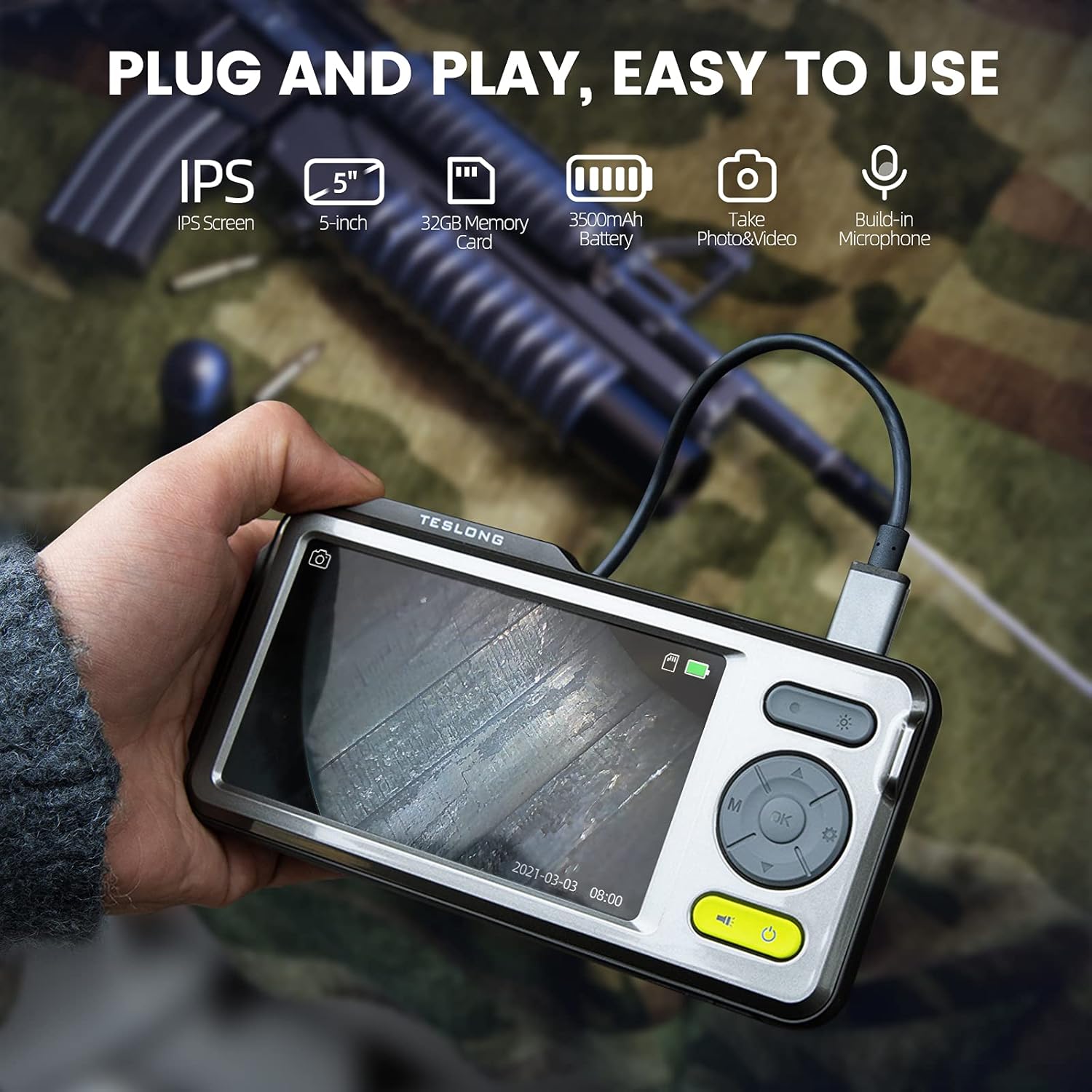
Image: The Teslong Rigid Rifle Borescope in use, showing the monitor displaying the bore's interior.
2. Ihirangi mokete
Manatokohia kei roto i to kete nga mea katoa kua whakarārangihia i raro nei:
- Teslong NTG500H Rifle Borescope with 5-inch IPS Screen
- Rigid Camera Probe (26-inch long, 0.2-inch diameter)
- Aviation to USB-C Cable
- Aviation to USB-A Cable
- USB-A to USB-C Cable (for charging and data transfer)
- Tuuru Monitor
- Set of 5 Side-View Mirrors (5mm, 6mm, 7mm, 8.5mm, 10mm)
- Kāri Micro SD 32GB (kua tāutahia i mua)
- Pukapuka Kaiwhakamahi (tenei tuhinga)
Whakaahua: Ka mutuview of the Teslong Borescope components and accessories.
3. Hua Neke Atuview
3.1. Ngā Āhuatanga o te Aroturuki
The 5-inch HD color IPS LCD screen provides a clear view of the inspection area. It features intuitive controls for operation.
- Pātene Hiko: Ka whakakā/whakaweto i te taputapu.
- Pātene Aratau (M): Switches between Photo, Video, and Playback modes.
- Pātene ĀE/Tāuru: Ka whakamana i nga whiringa.
- Pātene Tautuhinga (Ata Taputapu): Ka uru ki nga tautuhinga taputapu.
- Lights Button (Sun Icon): Adjusts LED brightness (3 levels) or turns lights off.
- Pere Runga/Raro: Ka whakatere i ngā tahua me te whakarerekē i ngā tautuhinga.
- Tauranga USB-C: Mō te utu me te hono atu ki te rorohiko.
- Kāniwha SD Kāri SD: For storing images and videos (32GB card included).
- Probe Lock: Secures the camera probe connection.
- Kaikōrero: Mo te purei ororongo.
- Maunga Tu: For attaching the monitor stand.
- Patene Tautuhi Anō: Tautuhi anō i te pūrere.

Image: The Teslong Borescope monitor highlighting its various buttons and ports.
3.2. Camera Probe Features
The rigid probe is specifically designed for rifle barrel inspection.
- Rigid Tube: 26-inch long for stable insertion.
- Small Diameter: 0.2-inch diameter fits .20 caliber and larger barrels.
- Maama Mowhiti LED: Six adjustable LED lights illuminate dark inspection areas.
- Taha-View Whakaata: Detachable 90° mirror for inspecting barrel walls. Includes various sizes for different calibers.
- Inch Scale: Laser-marked scale on the probe for depth measurement.

Image: The rigid probe of the borescope, illustrating its length and diameter.
4. Tatūnga
- Utuhia te Aroturuki: If the battery indicator is low, connect the monitor to a power source using the USB-A to USB-C cable.
- Kōkuhu Kāri SD Micro: Ensure the 32GB Micro SD card is properly inserted into the slot on the bottom of the monitor.
- Tūhono Probe:
- Thread the Aviation to USB-C cable onto the camera probe.
- Plug the other end of the cable into the probe port on top of the monitor.
- Secure the connection using the probe lock.
- Remove Protective Tip: Carefully remove the black protective tip from the end of the probe.
- Attach Side-View Mirror (Optional): If side-view inspection is required, select the appropriate caliber mirror and carefully screw it onto the threaded end of the probe. Use the lock ring to secure it in place once focus is achieved.
Video: A detailed instruction video on setting up and using the Teslong Rigid Rifle Borescope.
5. Nga Tohutohu Whakahaere
5.1. Te Hiko / Whakaweto
Patohia me te pupuri i te Pātene Hiko (green button) for a few seconds to turn the monitor on or off. The Teslong logo will appear, and the probe's ring light will illuminate.
5.2. Whakawhiti Aratau
Pehia te Patene Aratau (M) hei huri i roto i ngā aratau e whai ake nei:
- Aratau Whakaahua: For capturing still images.
- Aratau Ataata: For recording video footage.
- Aratau Whakahoki: Mo te reviewte tango i ngā whakaahua me ngā ataata kua hopukina.
5.3. Whakatikatika Marama
Pehia te Lights Button (Sun Icon) to adjust the brightness of the LED ring light on the probe. There are three brightness levels, and you can also turn the lights off.
5.4. Te Hopu Whakaahua me te Ataata
- Ensure the probe is inserted into the barrel and positioned correctly.
- Hurihia ki Aratau Whakaahua or Aratau Ataata te whakamahi i te Patene Aratau (M).
- Pehia te Pātene ĀE/Tāuru to capture a photo or start/stop video recording. A timecode will appear on the screen when recording video.

Image: The borescope monitor showing a detailed view of a rifle barrel's interior.
5.5. Mirror Installation and Adjustment
The borescope comes with various side-view mirrors to inspect barrel walls. The probe has a fixed focal distance of approximately 10mm for direct viewing. When using a mirror, the focus is adjusted by how far the mirror is threaded onto the probe.
- For smaller caliber barrels (e.g., .22 caliber), position the mirror farther away from the lens.
- For larger caliber barrels (e.g., .30 caliber), move the mirror closer to the lens to achieve sharp focus.
- Use the small lock ring on the threads to secure the mirror in place once the desired focus is achieved.

Image: A selection of removable side-view mirrors for various caliber rifles.
Video: A demonstration of how to attach and adjust the side-view mirrors for optimal focus.
6. Whakawhiti Raraunga
There are two primary methods to transfer photos and videos from your borescope to a computer:
- Hononga Tika:
- Connect the monitor to your computer using the provided USB-A to USB-C cable.
- Turn on the monitor. Your computer should recognize the device as a removable drive.
- Navigate to the "DCIM" folder to access your stored photos and videos. You can then drag and drop them to your computer.
- Kaipānui Kāri SD Micro:
- Carefully remove the Micro SD card from the monitor's slot.
- Kōkuhua te kāri Micro SD ki roto i tētahi kaipānui kāri hototahi e hono ana ki tō rorohiko.
- Access the "DCIM" folder on the card to transfer your files.
7. Tiaki
Proper maintenance ensures the longevity and optimal performance of your borescope:
- Te Horoi i te Arotahi me ngā Whakaata: Always clean the camera lens and any attached mirrors before and after each use. Use a soft microfiber cloth and a cotton swab. For stubborn stains, warm water or rubbing alcohol can be used. Do not use stronger solvents as they may damage the lens or mirror coatings.
- Te horoi i te Aroturuki: Wipe the monitor screen and case with a microfiber cloth and a few drops of warm water or rubbing alcohol to remove dust and fingerprints.
- Rokiroki: Store the borescope and its accessories in the provided protective case in a cool, dry place when not in use.
8. Te Raru
- Kāore te Pūrere i te Whakakā: Ensure the monitor is fully charged. If the battery indicator is low, connect it to a power source.
- Kore he Atahanga i te Mata: Verify that the camera probe is securely connected to the monitor and the probe lock is engaged. Check if the LED lights are on.
- Atahanga Pouriuri: If using a side-view mirror, adjust its position by threading it closer or farther from the lens until a clear image is achieved. Ensure the lens and mirror are clean.
- Kāore e taea te whakawhiti Fileki te Rorohiko: Ensure the monitor is turned on when connected to the computer. If it's off, it will only charge. Try using a different USB port or a Micro SD card reader.
- Pūrere kore aro: Use a small pin to press the Patene Tautuhi kei te tuara o te aroturuki.
9. Whakatakotoranga
| Āhuahira | Whakatakotoranga |
|---|---|
| Tauira | TSNTG500H |
| Rahi Mata | 5-inihi Whakaaturanga IPS |
| Momo Panui | mārō |
| Te Roro Poro | 26 inihi |
| Taimana Pakihi | 0.2 inches (fits .20 caliber & larger) |
| Whakataunga Hopu Ataata | 1080p |
| Rokiroki | 32GB Micro SD Card (kei roto) |
| Pūhiko | 1 He pākahiko e hiahiatia ana (kei roto) |
| Macro Focus Range | 1-10 cm |
| Tae | Pango |
| Taumaha Tūemi | 2.29 pauna |
| Ahu mōkihi | 30.75 x 4.25 x 2 inihi |
10. Pūtāhui me te Tautoko
Teslong products are designed for reliability and performance. For warranty information, technical support, or service inquiries, please refer to the official Teslong webpaetukutuku, whakapā atu ranei ki ta raatau ratonga kaihoko. Puritia to riirii hoko hei tohu mo te hoko mo nga kereme whakamana.
Mo etahi atu rauemi me nga korero hua, tirohia te Teslong Store on Amazon.