
1. Kupu Whakataki
This manual provides detailed instructions for the installation, operation, and maintenance of the Vivotek ND9425P 16-Channel 4K UHD Network Video Recorder (NVR). This NVR is designed to manage and record video streams from up to 16 IP cameras, offering 4K UHD resolution support for high-quality surveillance. It is an integral component of a comprehensive security system, suitable for various applications requiring reliable video monitoring and recording.
Key features of the Vivotek ND9425P NVR include:
- Multimedia SoC CPU for efficient processing.
- Support for H.265, H.264, and MJPEG video codecs for flexible compression.
- Seamless recording capabilities.
- Smart Stream III optimization for bandwidth efficiency.
- Integrated PoE technology for simplified camera connectivity (when used with compatible PoE cameras).
2. Nga korero haumaru
Tena panuihia nga tohutohu haumaru katoa i mua i te whakahaere i te taputapu. Ki te kore e whai i enei tohutohu ka whara, ka kino ranei te hua.
- Puna Hiko: Use only the power adapter supplied with the NVR. Ensure the power outlet provides the correct voltage.
- Whakahau: Do not block any ventilation openings. Install the NVR in a well-ventilated area to prevent overheating.
- Taiao: Āta tirohia te NVR kia kore e tukua ki te wai, ki te makuku, ki ngā pāmahana tino kino, ki te rā tika rānei.
- Te horoi: Disconnect power before cleaning. Use a dry, soft cloth. Do not use liquid or aerosol cleaners.
- Ratonga: Kaua e tarai ki te mahi i tenei hua maau ake. Tirohia nga ratonga katoa ki nga kaimahi tohu tohu.
- Kata: Ensure all cables are properly connected and secured to prevent tripping hazards or accidental disconnections.
3. Ihirangi mokete
Manatokona kei te noho nga taonga katoa i roto i te kete i mua i te whakaurunga:
- Vivotek ND9425P 16-Channel 4K UHD NVR Unit
- Pūurutau Hiko
- Kiore USB
- Aratohu Tāuta Tere
- Resource CD (containing full manual and software)
- Ngā tīwiri mō te tāutanga o te HDD (mēnā e tika ana)
- Tauira Itarangi
Note: The package contents may vary slightly depending on the specific kit purchased. For example, some kits may include 8 x 2 MP Night Vision Dome Cameras and 8 x Ethernet Patch Cables.
4. Hua Neke Atuview
Ko tenei waahanga e whakarato ana i te mutungaview of the Vivotek ND9425P NVR's physical components and interfaces.
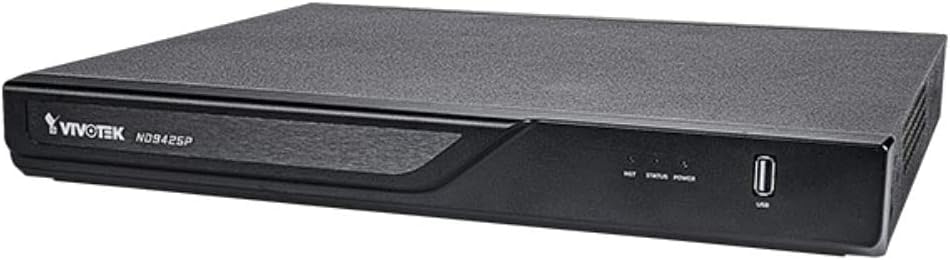
Whakaahua 4.1: Vivotek ND9425P NVR Front Panel
The image displays the Vivotek ND9425P NVR unit, a compact black rectangular device. The front panel features the "VIVOTEK ND9425P" logo on the left, followed by three small indicator lights labeled "NET", "STATUS", and "POWER". On the far right of the front panel, there is a USB port, labeled "USB" below it. The top surface of the NVR has a textured finish.
4.1 Front Panel Indicators and Ports
- NET LED: Tohu mahi whatunga.
- KAUPAPA KAUPAPA: Indicates system status (e.g., recording, error).
- Arahina mana: Ka tohu i te mana mana.
- Tauranga USB: For connecting a USB mouse, keyboard, or external storage devices for backup.
4.2 Tauranga Paewhiri Whakamuri
The rear panel typically includes ports for power input, Ethernet (LAN), HDMI/VGA video output, audio input/output, and additional USB ports for peripheral connections.
5. Tatūnga
5.1 Tāuta Pūmārō
- Tāutanga Puku Mārō (mēnā kāore anō kia tāutahia i mua):
Unscrew the NVR cover. Carefully slide the hard drive into the bay and secure it with the provided screws. Reattach the cover.
- Tūhono Kāmera:
Connect your IP cameras to the NVR's PoE ports (if available) or to your network switch. Ensure all cameras are powered on and accessible on the network.
- Hono atu ki te Whatunga:
Honoa he taura Ethernet mai i te tauranga LAN o te NVR ki tō pouara, ki tō pana whatunga rānei.
- Tuhono Whakaatu:
Honoa he mata tirotiro ki te tauranga putanga HDMI, VGA rānei o te NVR.
- Tūhono Pikitia:
Honoa te kiore USB ki te tauranga USB i runga i te NVR.
- Whakahiko:
Honoa te urutau hiko ki te tāuru hiko o te NVR, kātahi ka mono ki te putanga hiko. Ka whakakā aunoa te NVR.
5.2 Initial Configuration Wizard
Upon the first boot, the NVR will typically launch an initial configuration wizard. Follow the on-screen prompts to:
- Tautuhia te kupuhipa kaiwhakahaere.
- Configure network settings (DHCP or Static IP).
- Rapua me te tāpiri i ngā kāmera IP hono.
- Tautuhia te ra me te wa.
- Whakaaratia te puku mārō mō te tuhi.
6. Te whakahaere i te NVR
6.1 Ora View
I muri i te whakatūnga tuatahi, ka whakaatuhia e te NVR te ataata ora view o ngā kāmera hono. Ka taea e koe te whakawhiti i waenga i te kāmera kotahi view me te matiti kamera-maha views.
6.2 Whirihoranga Hopu
Access the recording settings through the main menu to configure recording schedules and modes:
- Te tuhi Tonu: Ngā tuhinga 24/7.
- Hukuhono Hukinga Huringa: Ka hopu whakaahua anake ina kitea he nekehanga e te kāmera.
- Hopu Tono: Records during specific times of the day or week.
- Hopu Takahanga: Records based on specific events (e.g., alarm input).
6.3 Purei Anō me te Tārua
Ki te review tuhia footage:
- Navigate to the "Playback" section from the main menu.
- Tīpakohia te kāmera (ngā kāmera) e hiahiatia ana me te awhe rā/wā.
- Whakamahia te rārangi wā hei whakatere i roto i ngā rekoata.
- Hei tārua i te footage, insert a USB drive into the NVR's USB port and follow the on-screen instructions for export.
6.4 Uru Mamao
The Vivotek ND9425P NVR supports remote access via a web browser or dedicated mobile applications (e.g., VIVOCloud). Refer to the full user manual on the Resource CD for detailed instructions on setting up remote access, including port forwarding or P2P cloud services.
7. Tiaki
7.1 Whakahoutanga Firmware
Regularly check for and install firmware updates to ensure optimal performance, security, and access to new features. Firmware updates can typically be performed via the NVR's web interface or through a USB drive.
7.2 Whakahaere Puku Maama
The NVR will automatically overwrite the oldest recordings when the hard drive is full. You can configure storage settings, check HDD health, and format the drive through the system settings.
7.3 Te horoi
Keep the NVR unit clean by gently wiping its exterior with a dry, soft cloth. Ensure ventilation openings are free from dust and obstructions.
8. Te Raru
| Raruraru | Take pea | Rongoā |
|---|---|---|
| Karekau he Mana | Power cable disconnected; faulty power adapter; power outlet issue. | Check power cable connection; try a different power outlet; contact support if adapter is faulty. |
| Kaore he Putanga Ataata | HDMI/VGA cable loose; incorrect display input selected; NVR not booted. | Ensure display cable is secure; select correct input on monitor; wait for NVR to boot up. |
| Kāore e Whakaatuhia ana ngā Kāmera | Network issue; camera not powered; incorrect camera IP address; camera not added to NVR. | Check network cables; ensure cameras are powered; verify camera IP settings; add cameras via NVR interface. |
| Karekau he tuhi | Hard drive not initialized; recording schedule not set; HDD full. | Initialize HDD in settings; configure recording schedule; check HDD status. |
| Remote Access Fails | Network configuration issue; port forwarding not set up; firewall blocking. | Verify network settings; configure port forwarding on router; check firewall rules. |
For more detailed troubleshooting, refer to the comprehensive user manual provided on the Resource CD or visit the VIVOTEK support webpae.
9. Whakatakotoranga
| Āhuahira | Taipitopito |
|---|---|
| Tau tauira | ND9425P |
| Kaihanga | Vivotek USA |
| Hunga Hua | 19.69 x 19.69 x 11.02 inihi |
| Taumaha Tūemi | 8.62 pauna |
| Hangarau Hononga | Itarangi |
| Pūrere Hototahi | Kāmera |
| Te Rokiroki Mahara | 64 GB (referring to internal flash/RAM, not HDD capacity) |
| Te maha o nga hongere | 16 |
| Kotēkē Ataata | H.265, H.264, MJPEG |
| Tautoko Max Resolution | 4K UHD (as per product title) |
10. Pūtāhui me te Tautoko
For warranty information, please refer to the warranty card included with your product or visit the official VIVOTEK website. VIVOTEK provides technical support for its products. If you encounter issues that cannot be resolved using this manual or the troubleshooting section, please contact VIVOTEK customer support through their official webpae tukutuku, ngā hongere tautoko rānei kua tohua.
Official VIVOTEK Webpae: www.vivotek.com