
Kupu Whakataki
The Poly DA75 is a versatile USB-A/USB-C digital adapter designed to connect Poly Quick Disconnect (QD) headsets to computers. It ensures clear audio quality for call center environments, supporting both USB-A and USB-C connections for compatibility with various systems. This adapter is engineered to work seamlessly with platforms such as Avaya, Genesys, and Cisco, providing a reliable audio solution for professionals.
Ko nga ahuatanga matua ko:
- Hononga Ao: Equipped with both USB-A and USB-C connectors on the cable for broad compatibility with new and legacy equipment.
- Intelligent Headset Recognition: Automatically adjusts audio performance to the specific Poly Quick Disconnect headset for optimized call quality.
- Acoustic Protection: Incorporates features to manage safe volume levels, protecting user hearing.
- Platform Integration: Fully compatible with leading call center platforms including Avaya, Genesys, and Cisco.
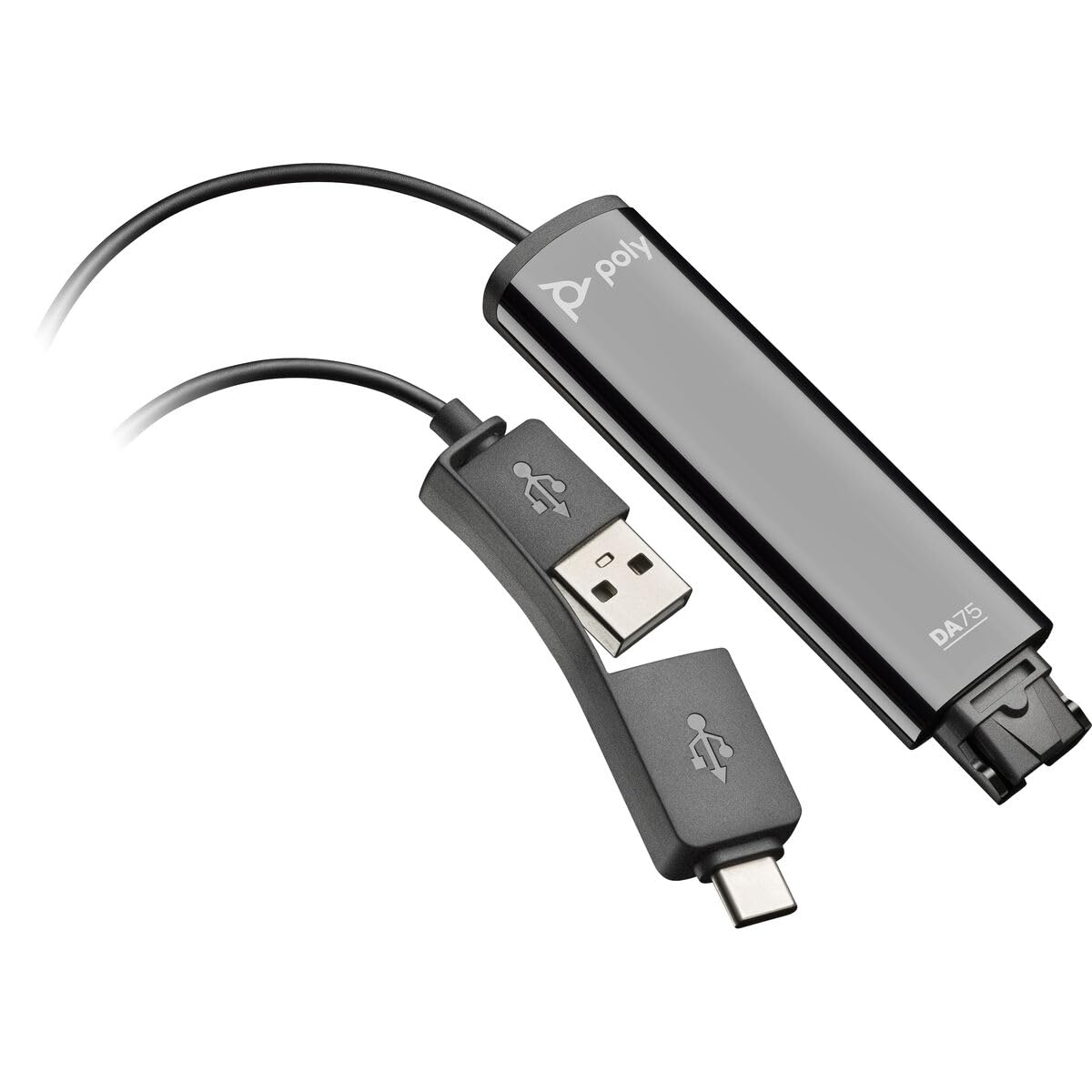
Image: The Poly DA75 USB-A/USB-C Digital Adapter, showing its dual USB-A and USB-C connectors and the Quick Disconnect port for headsets.
He aha kei roto i te Pouaka
The Poly DA75 package typically includes the following items:
- Poly DA75 USB-A/USB-C Digital Adapter
- Tuhinga (Arahi Timata Tere, Moohiohio Haumaru)
Note: Headsets are sold separately and are not included with the DA75 adapter.
Tatūnga
Follow these steps to set up your Poly DA75 Digital Adapter:
- Honoa te Paneoro: Connect your Poly Quick Disconnect (QD) headset to the QD port on the Poly DA75 adapter. Ensure the connection is secure.
- Hono ki Rorohiko:
- If your computer has a USB-A port, use the USB-A connector on the DA75 cable.
- If your computer has a USB-C port, use the USB-C connector on the DA75 cable.
Plug the appropriate USB connector into an available USB port on your computer.
- Tāuta Atekōkiri: The DA75 is a plug-and-play device. Your operating system (Windows, macOS) should automatically detect the device and install the necessary drivers. This process may take a few moments.
- Manatokohia te Whakaaetanga Pūrere:
- Matapihi: Haere ki Tautuhinga> Pūnaha> Oro or Paewhiri Mana > Oro. The Poly DA75 should appear as an audio input and output device.
- macOS: Haere ki System Settings > Sound. The Poly DA75 should appear as an input and output device.
Select the Poly DA75 as your default communication device for both playback and recording.
- Whirihoranga Pūmanawa: If you are using communication software (e.g., Avaya, Genesys, Cisco, Microsoft Teams, Zoom), ensure that the Poly DA75 is selected as the audio device within the application's settings.
Nga Tohutohu Whakahaere
The Poly DA75 adapter facilitates audio communication through your connected Poly QD headset. Its operation is primarily managed through your computer's operating system and communication software.
- Te waea/te whiwhi waea: Use your communication software to initiate or answer calls. The audio will be routed through your connected Poly QD headset via the DA75 adapter.
- Mana Rōrahi: Adjust the listening volume using your computer's system volume controls or the volume controls within your communication application.
- Wahangu hopuoro: Mute and unmute your microphone using the controls provided by your communication software.
- Audio Optimization: The DA75 automatically optimizes audio for your specific Poly QD headset. No manual adjustments are typically required for audio profiles.
Te tiaki
To ensure the longevity and optimal performance of your Poly DA75 Digital Adapter, follow these maintenance guidelines:
- Te horoi: Gently wipe the adapter with a soft, dry, anti-static cloth. Do not use liquid cleaners or abrasive materials.
- Rokiroki: Whakaorangia te urutau ki te waahi makariri, maroke atu i te ra tika me te wera nui.
- Te whakahaere: Avoid bending or twisting the cable excessively, especially near the connectors, to prevent internal damage.
- Hononga: Ensure the Quick Disconnect (QD) connection and USB connections are clean and free of debris before connecting.
Raparongoā
If you encounter issues with your Poly DA75 Digital Adapter, refer to the following troubleshooting steps:
| Raruraru | Take pea | Rongoā |
|---|---|---|
| Kaore he ororongo mai i te pane |
|
|
| Kaore e mahi ana te hopuoro |
|
|
| Adapter not recognized by computer |
|
|
Whakatakotoranga
| Āhuahira | Taipitopito |
|---|---|
| Tau tauira | 218266-01 |
| Waitohu | POLY |
| Momo Tuhono | USB-A, USB-C (dual connector) |
| Pūrere Hototahi | Poly Quick Disconnect (QD) Headsets |
| Whakamahinga Tauwhāiti | PC, Call Center Platforms (Avaya, Genesys, Cisco) |
| Tae | Pango |
| Rahi Tūemi (L x W x H) | 0.98 x 0.39 x 2.95 inihi |
| Taumaha Tūemi | 30 Karamu |
| Te maha o nga Tauranga | 2 (USB-A/USB-C to QD) |
| UPC | 197029650054, 017229175112 |
Pūtāhui me te Tautoko
Mōhiohio Pūtāhui: The Poly DA75 Digital Adapter comes with a Pūtāhui iti 2-tau a te kaihanga. Ka kapi tenei raihana i nga hapa o nga rawa me nga mahi i raro i te whakamahinga noa. Tena koa pupurihia to tohu mo te hoko mo nga kereme whakamana.
Tautoko Hangarau: For technical assistance, product inquiries, or warranty service, please contact Poly customer support. Visit the official Poly website for the most up-to-date support contact information, FAQs, and additional resources.
Rauemi ipurangi: Tautoko Poly Webpae