
1. Hua Neke Atuview

Mua-runga view of the SUNMI 80mm Kitchen Cloud Receipt Printer, showcasing its compact black design with orange accents and control panel.
The SUNMI 80mm Kitchen Cloud Receipt Printer (Model C04000069) is a compact and efficient thermal printer designed for various environments, particularly suited for kitchen and point-of-sale applications. It offers reliable, high-speed printing for receipts and orders.
Āhuatanga matua:
- Compact 130mm square design for space-saving installation.
- High-performance Seiko thermal print head.
- Fast printing speed of 165mm/s for 80mm receipts.
- Easy internet connectivity via LAN cable.
- Supports 80mm paper format.
2. Ihirangi mokete
Tena koa tirohia te pouaka mo nga mea e whai ake nei:
- SUNMI 80mm Kitchen Cloud Receipt Printer (Model C04000069)
- Pūurutau Hiko
- Thermal Paper Roll (for initial setup)
- Pukapuka Kaiwhakamahi (tenei tuhinga)
3. Aratohu Tatūnga
3.1 Hononga Hiko
- Ensure the printer is placed on a stable, flat surface.
- Honoa te urutau hiko ki te tauranga whakauru hiko o te pūreretā.
- Monohia te urutau hiko ki tetahi putanga hiko tika.
- Press the power button to turn on the printer. The power indicator light will illuminate.
3.2 Te Whakaritenga Huri Pepa

He tuwhera view of the SUNMI printer's interior, revealing the paper roll compartment and the high-performance Seiko thermal print head, capable of 165mm/s printing speed.
- Open the printer's top cover by pressing the release latch.
- Insert the 80mm thermal paper roll into the compartment, ensuring the paper feeds from the bottom and the leading edge is straight.
- Tōia he iti o te pepa ki tua atu i te taputapu tapahi.
- Katia te taupoki o runga kia mau rawa kia pāwhiritia rā anō ki tōna wāhi tika.

Two sequential images: one showing a hand inserting a receipt into the printer's output slot, and another showing a hand replacing the thermal paper roll inside the printer's open compartment.
3.3 Hononga Whatunga
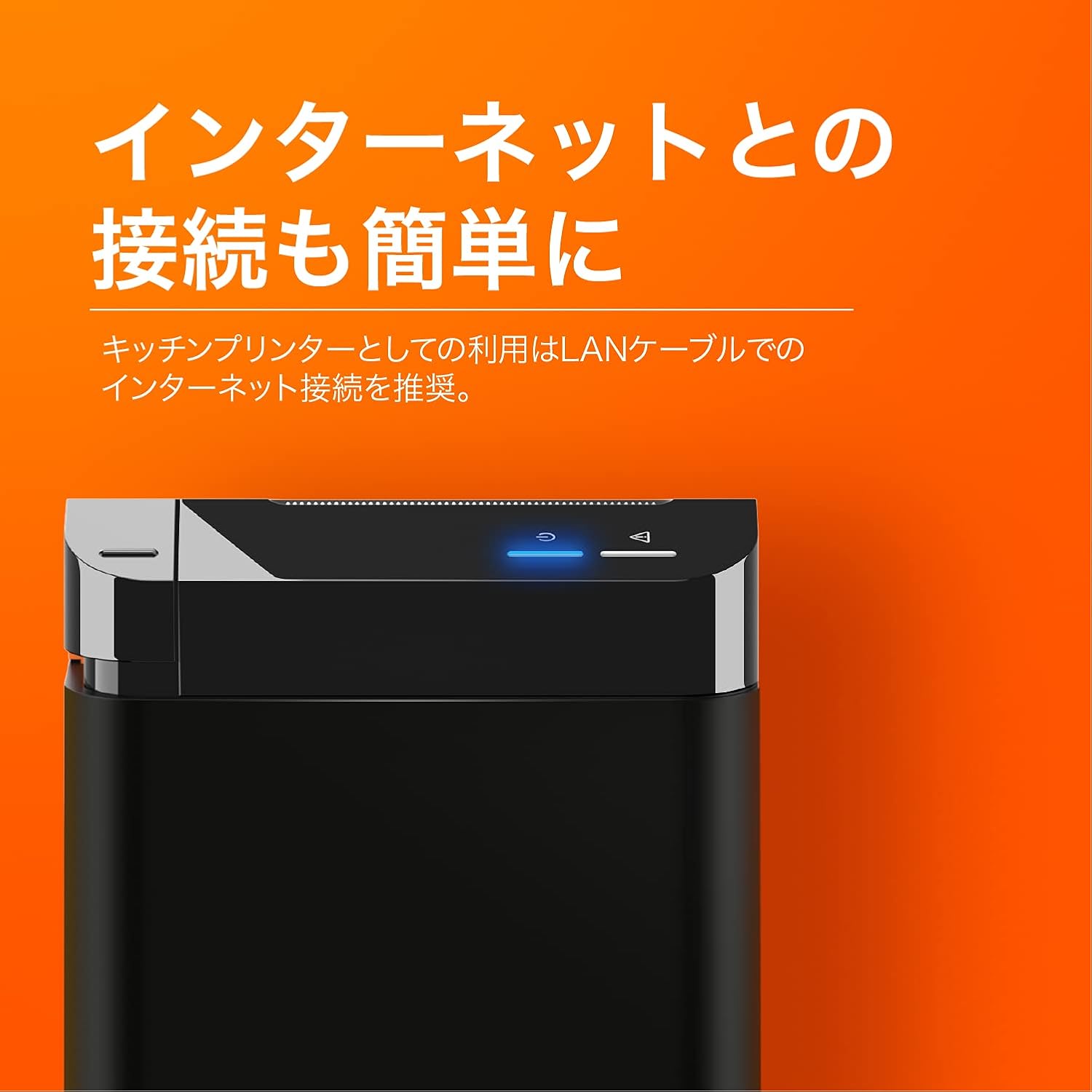
The SUNMI printer with a blue illuminated status light, highlighting its easy internet connectivity via LAN cable, recommended for kitchen printer use.
For optimal performance, especially in kitchen environments, a wired LAN connection is recommended.
- Connect one end of an Ethernet (LAN) cable to the printer's LAN port.
- Honoa te pito o te taura Ethernet ki to pouara whatunga, whakawhiti ranei.
- The network indicator light on the printer will show connection status (e.g., solid blue for connected).
4. Nga Tohutohu Whakahaere
4.1 Tuhinga Taketake
Once the printer is powered on and connected to your network, it is ready to receive print commands from compatible software or systems (e.g., POS software, kitchen display systems).
- Ensure your printing application is configured to use the SUNMI 80mm Kitchen Cloud Printer.
- Initiate a print job from your application.
- The printer will automatically feed and cut the receipt after printing.

A view of two SUNMI 80mm Kitchen Cloud Printers side-by-side, with one actively printing a receipt, demonstrating its operational use.
4.2 Tohu Whakaaturanga
The printer features indicator lights on its control panel to provide status information:
- Tohu Hiko: Solid light indicates the printer is on.
- Tohu Hapa: Flashing or solid light indicates an error (e.g., paper out, cover open). Refer to the Troubleshooting section.
- Tohu Whatunga: Indicates network connectivity status.
5. Tiaki
5.1 Te horoi i te Pūreretā
Mā te horoi auau ka mau tonu te kounga o te tānga, ka roa ake hoki te roa o te ora o te pūreretā.
- Whakawetohia, momotuhia te pūreretā i mua i te horoinga.
- Whakamahia he kakahu ngohengohe, karekau he ngongo paku dampened with water or isopropyl alcohol to wipe the exterior.
- Gently clean the thermal print head with a cotton swab dipped in isopropyl alcohol. Allow it to dry completely before use.
- Remove any paper dust or debris from the paper path.
5.2 Te Whakakapi i te Rōra Pepa
When the paper roll is nearing its end, the printer may indicate a paper-low error or print faint lines. Follow the steps in Section 3.2 to replace the paper roll.
6. Te Raru
If you encounter issues with your SUNMI printer, refer to the table below for common problems and solutions.
| Raruraru | Take pea | Rongoā |
|---|---|---|
| Kāore te pūreretā e whakakā | No power, faulty adapter | Check power cable connection; ensure outlet is working; try a different adapter if available. |
| No printing / Error light on | Paper out, cover open, paper jammed | Replace paper roll; ensure cover is closed properly; clear any paper jams. |
| Faint or blank prints | Incorrect paper type, dirty print head, paper loaded incorrectly | Ensure thermal paper is used; clean the print head (Section 5.1); check paper orientation. |
| Kaore e taea te hono atu ki te whatunga | Loose LAN cable, network configuration issue | Check LAN cable connection; verify network settings on your router/system. |
7. Whakatakotoranga Hangarau

The SUNMI 80mm Kitchen Cloud Printer, demonstrating its compact 130mm square footprint, ideal for space-saving installations.
| Āhuahira | Whakatakotoranga |
|---|---|
| Tau tauira | C04000069 |
| Waitohu | SUNMI |
| Momo Pūreretā | Weariki Receipt Printer |
| Tere Tā | 165 mm/s |
| Whanui Pepa | 80 mm |
| Hangarau Hononga | USB, LAN (Ethernet) |
| Tae | Multicolor (primarily black with orange accents) |
| Hunga Hua | 13 x 13 x 13 cm (tata ki te 5.1 x 5.1 x 5.1 inihi) |
| Taumaha Tūemi | 1.32 Kirokaramu (tata ki te 2.91 lbs) |
| Maximum Sheet Input Capacity | 100 sheets (referring to paper roll length equivalent) |
| Tā Matarua | No (single-sided receipt printing) |
| Media Tautoko | Thermal Labels/Receipt Paper |
8. Pūtāhui me te Tautoko
This product is covered by the standard manufacturer's warranty. For specific warranty terms and conditions, please refer to the documentation provided at the time of purchase or contact your retailer.
For technical support, troubleshooting assistance beyond this manual, or service inquiries, please contact SUNMI customer support or your authorized dealer. Keep your purchase receipt and product model number (C04000069) ready when contacting support.