
1. Kupu Whakataki
This manual provides detailed instructions for the installation, operation, and maintenance of your DIHOOM BC13 3MP WiFi Outdoor Security Camera. This camera is designed to provide reliable surveillance with features such as 3-megapixel resolution, full-color night vision, AI-powered human and face detection, two-way audio, and IP65 weather resistance. Please read this manual thoroughly before using the product to ensure proper setup and functionality.
2. Ihirangi mokete
Manatokohia ko nga mea katoa kei raro nei kei roto i to kete:
- 1 x DIHOOM BC13 3MP WiFi Outdoor Security Camera (with 10400 mAh battery)
- 1 x Pukapuka Kaiwhakamahi
- 1 x Mounting Bracket with Screw Set
- 1 x USB Momo-C Utaura Whakatau
- 1 x Kaari Rarangi
3. Hua Neke Atuview
Kia mōhio koe ki ngā wāhanga o te kāmera.

The DIHOOM BC13 camera features a cylindrical design with dual antennas for enhanced Wi-Fi connectivity. It is designed for outdoor installation.
- Arotahi kāmera: Ka hopu ataata footage.
- Nga rama rama: Provide illumination for color night vision and act as a deterrent.
- Nga LED Infrared: Enable black and white night vision.
- hopuoro: Hopukia te oro mō te whakawhitiwhiti kōrero me te tuhi oro.
- Kaikōrero: Outputs audio for two-way communication and alarms.
- Antenna 5dBi Taarua: Enhance Wi-Fi signal reception for stable connectivity.
- Turanga Whakapiki: For secure installation on walls or ceilings.
- Tauranga Momo-C USB: Mo te utu i te pākahiko o roto.
- Kāniwha SD Kāri SD: Mo te rokiroki ataata o te rohe (tautoko ki te 128GB).
- Patene Tautuhi Anō: Hei tautuhi anō i te kāmera ki ngā tautuhinga wheketere.
4. Tatūnga
4.1 Tikiake Taupānga me te Rehitatanga Pūkete
- Download the "Eseecloud" app from your smartphone's app store (iOS App Store or Google Play Store).
- Whakatuwheratia te taupānga ka whai i ngā tohutohu kei te mata hei rēhita i tētahi pūkete hou.
- Log in to your newly created account.
4.2 Initial Camera Pairing (Wi-Fi Connection)
- Ensure the camera is fully charged using the provided USB Type-C cable.
- Te hiko i runga i te kamera.
- In the Eseecloud app, tap the "+" icon to add a new device.
- Select the appropriate camera type (e.g., "Wireless Camera" or scan the QR code on the camera).
- Whāia ngā tohutohu a te taupānga hei hono i te kāmera ki tō whatunga Wi-Fi 2.4GHz. Me whakarite kei te tika tō kupuhipa Wi-Fi.
- Ina hono ana, ka taea e koe te whakaingoa i to kamera ka timata te ora viewing.
4.3 Nga Tohutohu Whakaeke

Featuring a 120-degree wide-angle lens, the camera provides broad coverage. The dual 5dBi antennas ensure a stable and extended Wi-Fi connection.
- Choose a suitable outdoor location for mounting, ensuring good Wi-Fi signal strength and a clear view o te waahi e hiahia ana koe ki te aroturuki.
- Use the mounting bracket as a template to mark the drill holes on the wall or ceiling.
- Drill holes and insert the provided wall anchors.
- Whakamaua te taiapa whakapuru ki te pakitara ma te whakamahi i nga hiu.
- Tāpirihia te kāmera ki te anga whakairi, ka whakarerekē i tōna koki kia pai ai te taupoki.
- Ensure the camera is positioned to avoid direct sunlight or strong light sources that could affect image quality.
5. Nga Tohutohu Whakahaere
5.1 Ora View
Open the Eseecloud app on your smartphone. Tap on the camera's name to access the live video feed. You can switch between Standard Definition (SD) and High Definition (HD) for optimal viewing based on your network conditions.
5.2 Ororongo Waa-rua

The integrated microphone and speaker enable two-way audio communication, allowing you to speak with visitors or deter intruders directly through the Eseecloud app.
I te wa e ora ana view, tap the microphone icon in the app to activate two-way audio. Speak into your phone to communicate with anyone near the camera. Tap the icon again to end the conversation.
5.3 Motion Detection & AI Features

The camera's AI features can distinguish between general motion, human figures, and faces, sending specific alerts to your smartphone via the Eseecloud app. This helps reduce false alarms.
The camera is equipped with advanced AI algorithms that can differentiate between general motion, human shapes, and faces. This significantly reduces false alarms caused by pets, insects, or swaying branches. When motion, a person, or a face is detected, the camera will automatically record a video clip and send a push notification to your smartphone via the Eseecloud app. You can customize detection sensitivity and alert types within the app settings.
5.4 Aratau Matakitenga Po
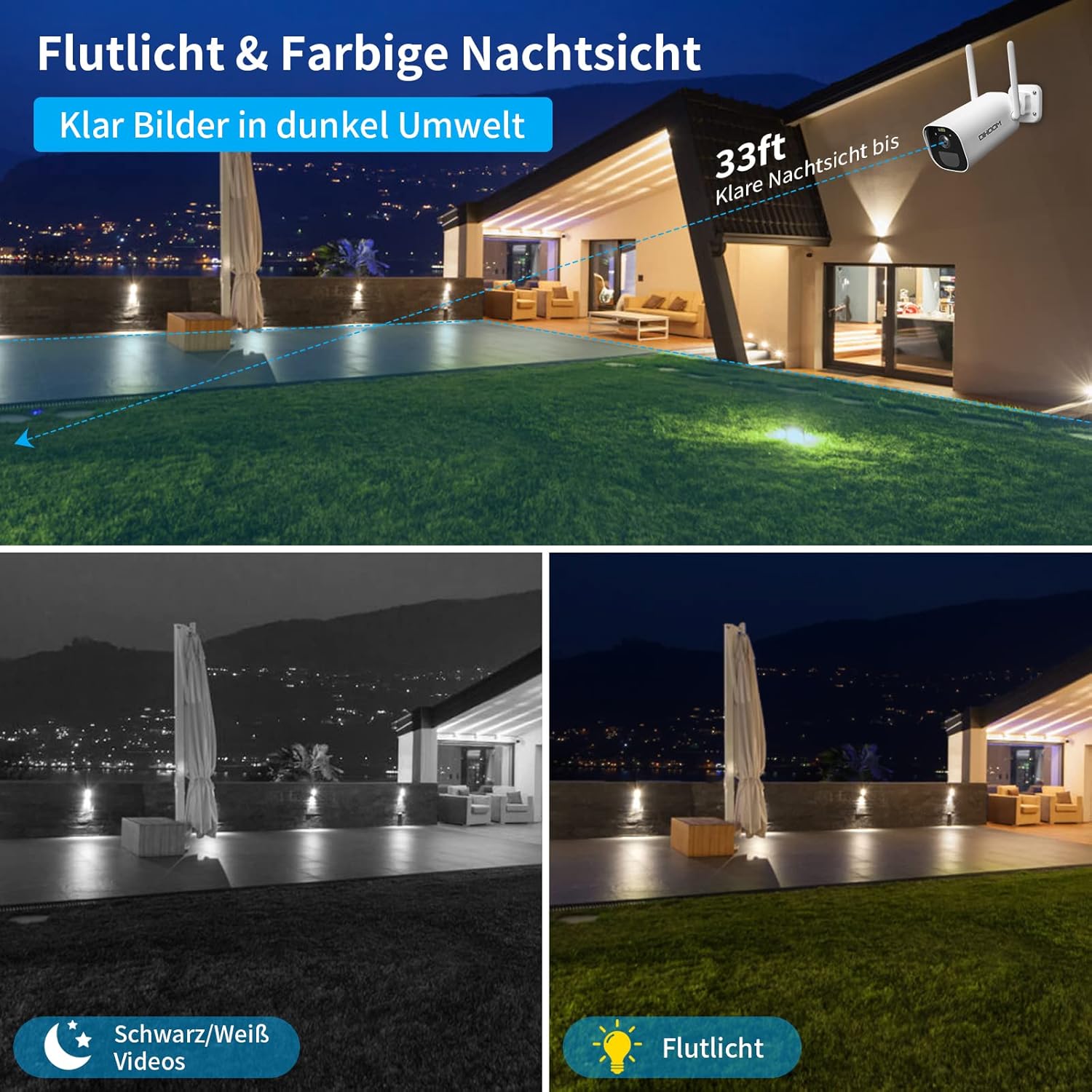
This image illustrates the camera's night vision capabilities, showing both standard black and white infrared mode and the enhanced full-color night vision activated by the integrated spotlight.
E rua ngā momo tirohanga pō e tukuna ana e te kāmera:
- Tirohanga Pō Whero (IR): Provides clear black and white video footage in complete darkness, with a range of up to 25 meters.
- Tirohanga Po Tae Katoa: When motion is detected, the integrated spotlights activate, providing full-color video even in low-light conditions. This mode can also act as a visual deterrent.
You can configure the night vision mode preferences within the Eseecloud app.
5.5 Hopu & Rokiroki
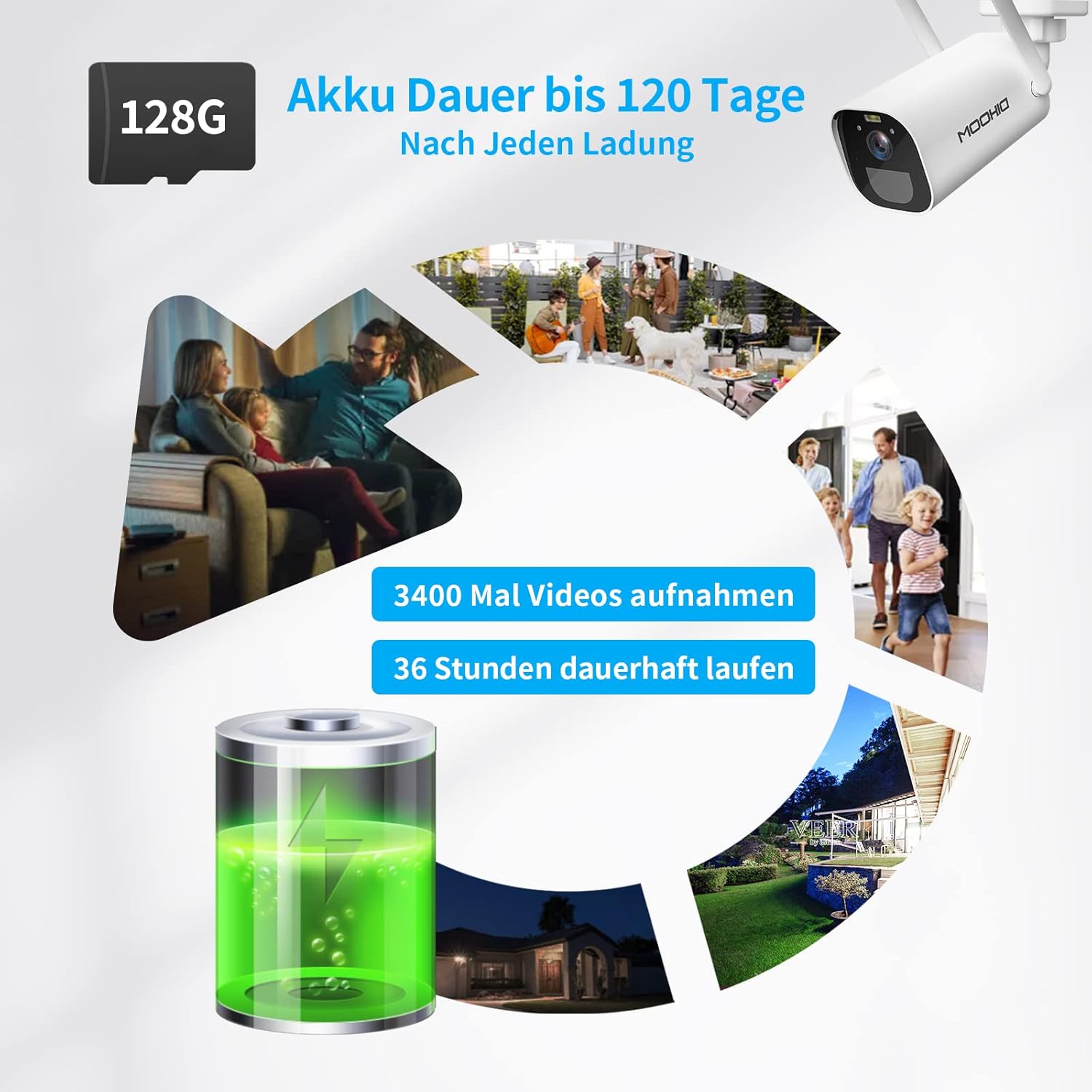
The camera is equipped with a 10400 mAh rechargeable battery, providing extended operation. It supports local storage via a Micro SD card up to 128GB for recording events.
The camera supports two storage options for recorded video clips:
- Kaari SD Micro: Insert a Micro SD card (up to 128GB, not included) into the designated slot on the camera. The camera will automatically record motion-triggered events to the card.
- Rokiroki Kapua: The camera supports AWS Cloud storage services. Refer to the Eseecloud app for subscription details and activation.
Recorded videos can be reviewed and downloaded directly from the Eseecloud app.
5.6 Whakahaere Pūhiko
The DIHOOM BC13 camera is powered by a 10400 mAh rechargeable lithium-ion battery. A full charge can provide up to 120 days of standby time or approximately 3400 motion-triggered recordings. For continuous operation, especially in areas with frequent activity, consider connecting a compatible solar panel (sold separately). Note that solar panel efficiency may be reduced in winter conditions.
To charge the camera, connect the provided USB Type-C cable to the camera's charging port and a standard 5V/2A USB power adapter (not included).
6. Tiaki
- Te horoi: Gently wipe the camera lens and body with a soft, dry cloth to remove dust and dirt. Avoid using harsh chemicals or abrasive materials.
- Tiaki Pūhiko: For optimal battery life, avoid fully discharging the battery frequently. Charge the camera regularly, especially if it's not connected to a solar panel.
- Whakahōu Firmware: Periodically check the Eseecloud app for available firmware updates to ensure your camera has the latest features and security enhancements.
7. Te Raru
- Karekau te kamera e hono ana ki te Wi-Fi:
- Me whakarite he 2.4GHz to whatunga Wi-Fi. Kaore te kamera e tautoko i te Wi-Fi 5GHz.
- Tirohia kei te tika te kupuhipa Wi-Fi.
- Place the camera closer to your Wi-Fi router during initial setup.
- Reset the camera using the reset button and try pairing again.
- Pūoho teka auau:
- Adjust the motion detection sensitivity in the Eseecloud app.
- Ensure AI human/face detection is enabled to filter out non-human movements.
- Avoid pointing the camera at areas with constant movement (e.g., busy roads, swaying trees).
- Te kounga o te tirohanga pō kino:
- Me mohio kei te ma te arotahi kamera me te kore e aukati.
- Check if the IR LEDs or spotlights are blocked.
- Verify that the night vision mode is set correctly in the app.
- Karekau te pākahiko e utu ana:
- Ensure the USB Type-C cable is securely connected to both the camera and the power adapter.
- Try a different USB power adapter (5V/2A recommended).
- Tirohia mēnā he ma te tauranga utu, ā, kāore he paru.
- Karekau he ororongo, he kino te kounga ororongo:
- Ensure the microphone and speaker are not blocked.
- Check the audio settings in the Eseecloud app.
- Verify your smartphone's volume is turned up.
8. Whakatakotoranga
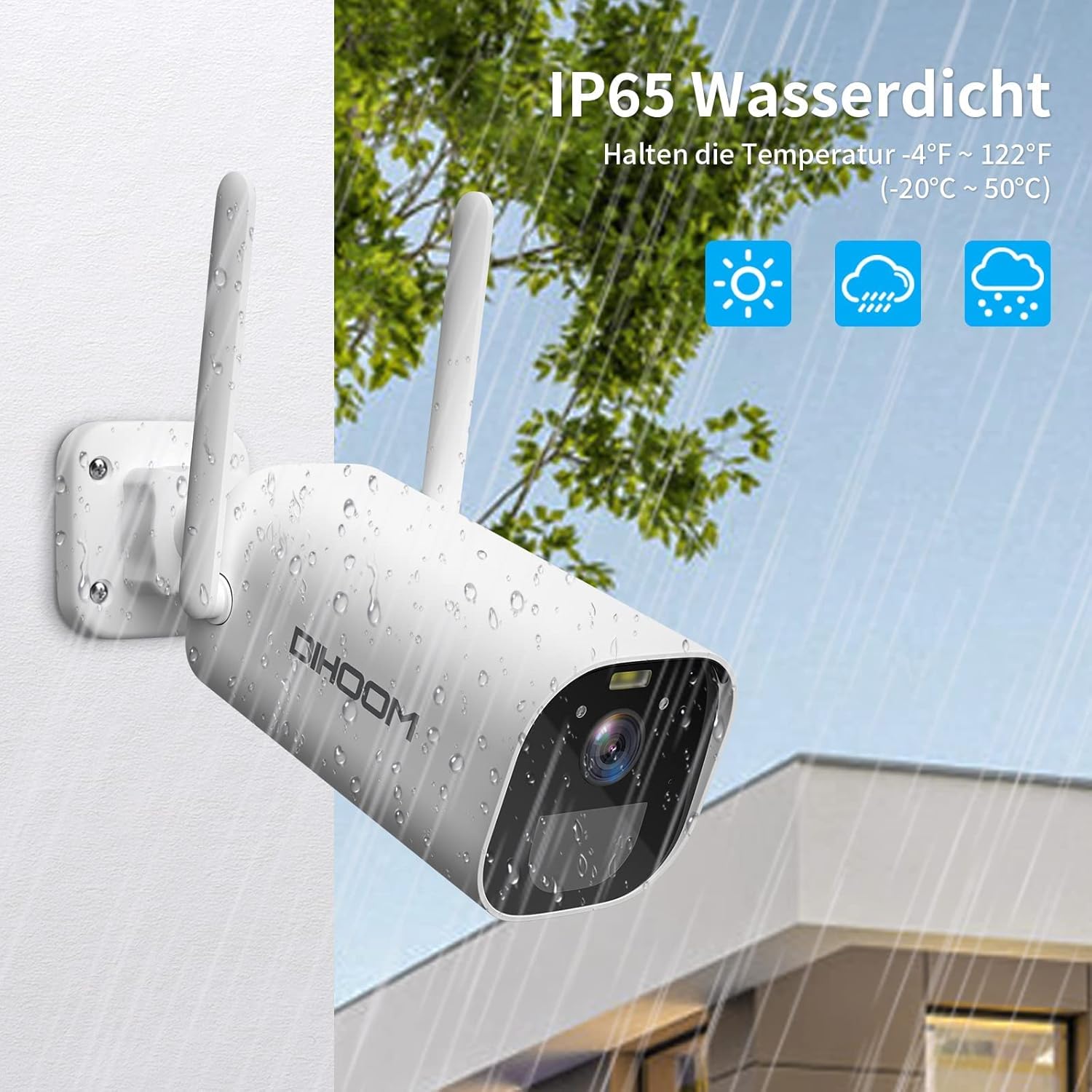
The camera boasts an IP65 weather-resistant rating, ensuring reliable operation in various outdoor conditions, including rain and extreme temperatures ranging from -10°C to 50°C.
| Āhuahira | Whakatakotoranga |
|---|---|
| Tau tauira | BC13 |
| Whakatau Ataata | 3 MP (2304 x 1296) |
| Auau anga | 1080P/30FPS, 1296P/25fps |
| Viewing Koki | 120 Waeine |
| Hononga Ahokore | Wi-Fi (2.4GHz anake) |
| Antenna | Dual 5dBi |
| Matakitenga Po | Infrared (B&W) & Full-Color (with spotlight) |
| Te Motini | PIR, AI Human/Face Detection |
| Ororongo | Ororongo Rua-Wai (Mic Hanga-roto me te Tukuoro) |
| Kōwhiringa Rokiroki | Micro SD Card (up to 128GB), AWS Cloud Storage |
| Pūhiko Raukaha | 10400 mAh Lithium-ion |
| Whakauru Mana | USB Type-C (5V/2A recommended) |
| Ātete Huarere | IP65 |
| Te Waahi Mahi | -10°C ki te 50°C (14°F ki te 122°F) |
| Rauemi | ABS Kirihou |
| Ahu (L x W x H) | 19 x 7 x 7 cm |
| Taumaha | 820 karamu |
9. Pūtāhui me te Tautoko
9.1 Nga Korero Whakaputanga
Your DIHOOM BC13 camera comes with a limited warranty. Please refer to the included warranty card in your package for specific terms, conditions, and duration of the warranty coverage.
9.2 Tautoko Hangarau
For technical assistance, troubleshooting, or any questions regarding your DIHOOM BC13 camera, please refer to the support section within the Eseecloud app. You may also find contact information for customer support on the warranty card or the official DIHOOM webpae.