
1. Kupu Whakataki
Thank you for choosing the NETVUE Birdfy Smart Bird Feeder with Camera. This device combines a traditional bird feeder with advanced smart technology, allowing you to observe and identify various bird species visiting your backyard. Equipped with AI recognition, night vision, and app alerts, it provides an immersive birdwatching experience. This manual will guide you through the setup, operation, and maintenance of your new smart bird feeder.
2. Hua Neke Atuview
The NETVUE Birdfy Smart Bird Feeder is designed for outdoor use, offering durability and smart features to enhance your birdwatching hobby.
Āhuatanga matua:
- Tautuhi Manu AI: Automatically identifies over 6000 bird species with lifetime free AI.
- Kāmera 1080P HD me te Tirohanga Pō: Captures clear daytime and color night vision footage of birds.
- Real-time App Alerts: Receive instant notifications on your smartphone when birds visit.
- 2.4GHz Wi-Fi Hononga: Ensures stable outdoor connection for live streaming and alerts.
- IP65 Hoahoa Taurangi: Built to withstand various outdoor conditions, ensuring year-round operation.
- Whakahikohia te Ra: Includes a solar panel for continuous charging, reducing the need for manual battery recharges.
- Live Video & Recap: Watch live feeds and enjoy automatically generated recap videos of bird activities.

3. Ihirangi mokete
Me mohio kei roto katoa nga mea kei roto i to kete:
- Birdfy Smart Bird Feeder Unit
- Removable Camera Module
- Solar Panel with Adjustable Arm
- Mounting Accessories (Tree strap, wall mount bracket, screws, hose clamps)
- USB-C Uira Whakatau
- Pukapuka Kaiwhakamahi (tenei tuhinga)

4. Tatūnga
Follow these steps to set up your Birdfy Smart Bird Feeder:
- Utuhia te kamera: Before initial use, fully charge the camera module using the provided USB-C cable. The charging port is located on the back of the camera.
- Download the Birdfy App: Rapua "Birdfy" in your smartphone's app store (iOS or Android) and download the application.
- Create an Account & Pair Device: Open the Birdfy app, create an account, and follow the on-screen instructions to add your new device. You will typically scan a QR code on the camera module to pair it.
- Assemble the Feeder: Attach the perch to the main feeder unit. Ensure it is securely fastened.
- Tāutahia te Whāngai: Choose a suitable location in your backyard. The feeder can be wall-mounted, pole-mounted, or tree-mounted using the provided accessories. Ensure the camera has a clear view of the feeding area and the solar panel receives adequate sunlight.
- Tāuta Paewhiri Solar: If using the solar panel, attach it to the feeder or a nearby surface where it can get maximum direct sunlight. Connect the solar panel cable to the camera's charging port.
- Fill with Bird Seed: Open the roof of the feeder and fill the seed compartment with your preferred bird seed. The feeder has a 1.5-liter capacity.


5. Nga Tohutohu Whakahaere
Once your Birdfy feeder is set up and connected, you can begin enjoying its smart features:
- Ora View: Open the Birdfy app and select your feeder to access a live video stream. You can watch birds in real-time from anywhere.
- Whiwhi matohi: The camera's motion sensor will detect bird visits and send instant notifications to your phone. Tap on the notification to view the recorded event.
- Tautuhi Manu AI: The built-in AI will automatically identify the species of visiting birds and provide information within the app.
- Whakaritea Koki Kamera: The camera module is adjustable, allowing you to fine-tune the viewing angle for optimal bird capture.
6. Taupānga Āhuatanga
The Birdfy app offers a range of features to enhance your birdwatching experience:
- Moments & Collections: View and organize all captured photos and video clips of bird visits.
- Recap & Highlights: The app automatically generates daily or weekly recaps and highlights of the most interesting bird activities.
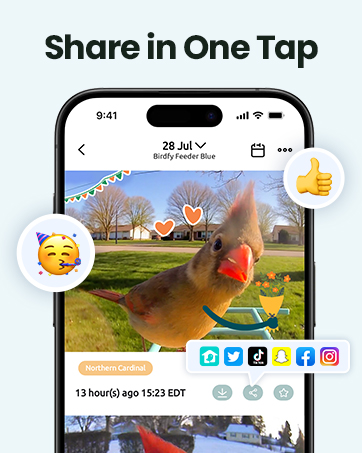
- Community Sharing: Share your favorite bird moments with friends, family, or the wider Birdfy community.
- Birdpedia: Access detailed information about identified bird species directly within the app.

7. Tiaki
Regular maintenance ensures optimal performance and longevity of your Birdfy feeder:
- Te horoi: Periodically clean the feeder to prevent mold and bacterial growth. Remove the camera module before cleaning. Use a soft brush and mild soap with water. Ensure all parts are dry before reassembling.
- Refilling Seed: Monitor the seed level and refill as needed. The roof opens easily for convenient refilling.
- Whakahaere Pūhiko: The solar panel helps maintain battery charge. If the feeder is in a shaded area or during prolonged cloudy weather, you may need to manually charge the camera module via USB-C.
- Arotahi kāmera: Gently wipe the camera lens with a soft, clean cloth to ensure clear image quality, especially after refilling or adverse weather.
8. Te Raru
If you encounter issues with your Birdfy Smart Bird Feeder, refer to the following common solutions:
- Karekau he Hiko/Kamera Kaore i te Whakaka: Ensure the camera module is fully charged. Check the solar panel connection and its exposure to sunlight.
- Nga Take Hononga Wi-Fi: Verify your Wi-Fi network is 2.4GHz. Ensure the feeder is within range of your Wi-Fi router. Restart your router and the camera module.
- No Motion Detection/Alerts: Check the motion detection settings in the app. Ensure the camera lens is clean and unobstructed. Adjust sensitivity if necessary.
- Kounga Whakaahua/Ataata Kino: Clean the camera lens. Check your Wi-Fi signal strength. Ensure there's adequate lighting (daytime) or that night vision is active (nighttime).
- AI Misidentification: The AI is constantly learning. You can provide feedback within the app to improve accuracy.
9. Whakatakotoranga
| Āhuahira | Taipitopito |
|---|---|
| Waitohu | NETVUE |
| Tauira | N12 |
| Hunga Hua | 8"L x 7"W x 11"H |
| Taumaha Tūemi | 5.39 pauna (2.45 Kirokaramu) |
| Rauemi | Ngā Kirihou Hou me ngā Kirihou Whai muri i te Kaihoko |
| Puna Mana | Solar Powered (1 Lithium Polymer battery included) |
| Hononga | 2.4Ghz Wi-Fi |
| Whakataunga kamera | 1080P HD |
| Nga waahanga motuhake | Motion Sensor, Night Vision, AI Bird Identification |
| Te kaha | 1.5 rita |
10. Pūtāhui me te Tautoko
For warranty information, technical support, or any inquiries not covered in this manual, please visit the official NETVUE website or contact their customer service directly. Refer to the product packaging or official webpae mo nga taipitopito whakapā motuhake.
11. Nga Korero Haumaru Nui
- Ensure proper installation to prevent hazards to wildlife or the environment.
- Follow local regulations regarding wildlife feeding.
- Tiakina te taputapu mai i nga mura ahi tuwhera, i nga puna wera nui ranei.
- Kaua e ngana ki te wetewete, ki te whakatika ranei i te taputapu. Whakapa atu ki te tautoko a nga kaihoko mo te awhina.