Kupu Whakataki
This manual provides detailed instructions for the installation, operation, and maintenance of your Everycom EC-901 80mm Thermal POS Receipt Printer. Please read this manual thoroughly before using the printer to ensure proper functionality and to prevent damage.
Nga korero haumaru
- Ensure the printer is connected to a power source with the correct voltage.
- Do not expose the printer to water or high humidity.
- A ape i te whakatakoto i te kaituhi ki te ra tika, ki te tata ranei ki nga puna wera.
- Use only specified thermal paper for optimal performance and to prevent damage to the print head.
- Kaua e ngana ki te wetewete, ki te whakatika rānei i te pūreretā māu ake. Whakapā atu ki ngā kaimahi ratonga whai tohu.
Ihirangi mokete
Manatokona kei roto katoa nga mea kei roto i te kete:
- Everycom EC-901 Thermal POS Receipt Printer
- Roll paper × 1 Roll (for initial testing)
- CD-ROM (containing Drivers, Utility Software, Manuals)
- Aratohu Pepa
- Paper Bearing
- Tauira USB
- Taura Uru Mana
Ka mutu te huaview
The Everycom EC-901 is a compact 80mm (3-inch) thermal POS receipt printer designed for efficient and reliable printing. It features a USB and LAN interface for versatile connectivity.

Whakaahua 1: Mua view of the Everycom EC-901 Thermal POS Receipt Printer.
Āhuatanga matua:
- Tere Tā Tere: Up to 160mm per second for quick receipt output.
- Te Uta Pepa ngawari: Drop-in paper loading mechanism for quick and easy media changes.
- Hoahoa Kiato: Low space requirement with an integrated power supply.
- Variable Paper Width: Supports 80mm paper width.
- Hononga: USB and LAN interface options.
- Taumira teitei: 203 x 203 DPI for clear print quality.
- Taumata Haruru: Operates quietly, suitable for various work environments.

Figure 2: Top-open design for easy paper roll installation.
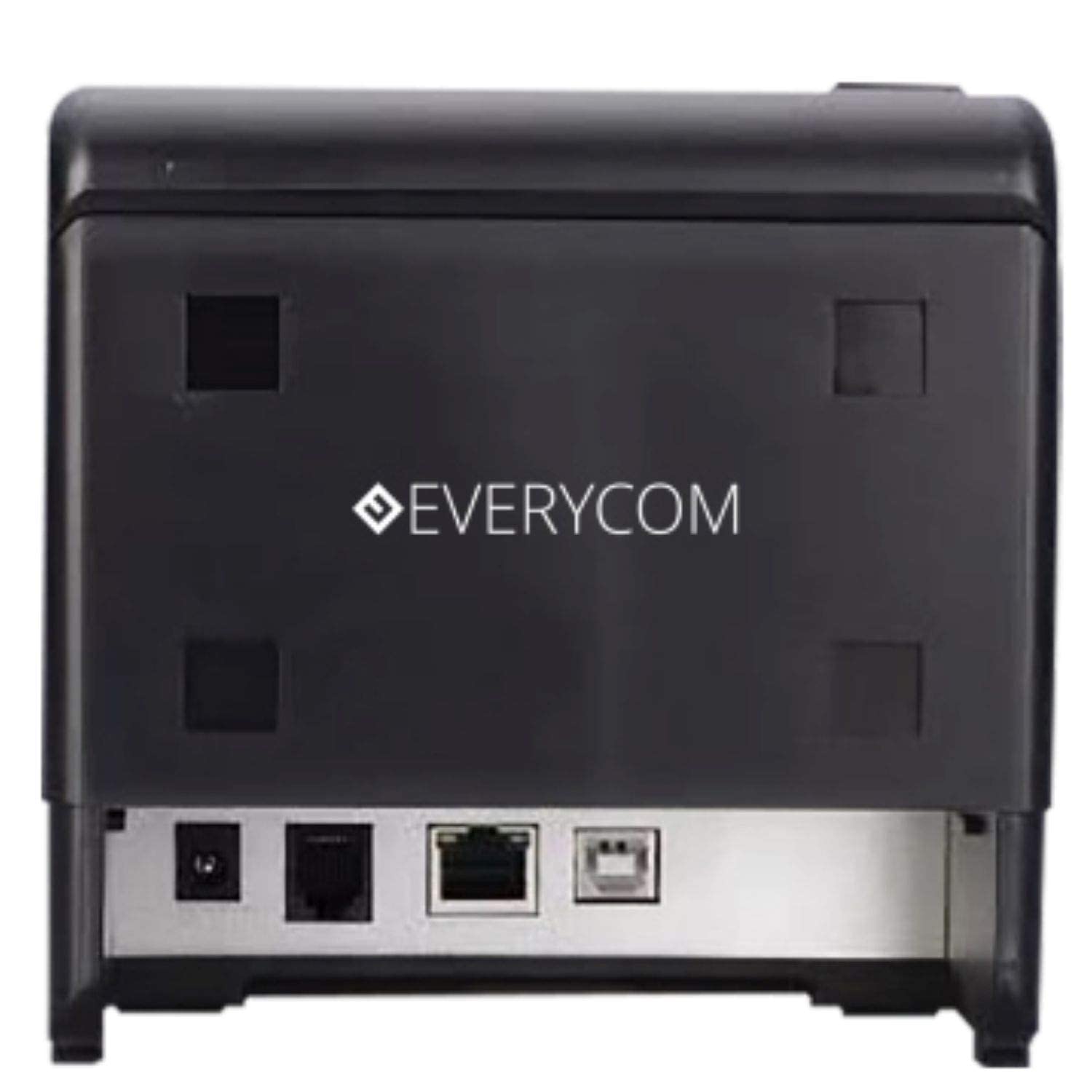
Whakaahua 3: Whakamuri view showing USB and LAN connectivity ports.

Figure 4: The EC-901 printer is designed for low noise operation.

Figure 5: The EC-901 printer features an easy-to-use design for paper installation.
Tatūnga
1. Te Hononga i te Pūreretā
- Connect the power adapter cable to the printer's power port and then plug it into a suitable electrical outlet.
- Mō te hononga USB: Honoa tetahi pito o te taura USB ki te tauranga USB o te pūreretā, me tetahi pito ki tō rorohiko.
- For LAN connection: Connect an Ethernet cable to the printer's LAN port and the other end to your network router or switch.
- Turn on the printer using the power switch located on the front or side of the device.
2. Te Tāuta i te Rōra Pepa
- Open the printer cover by pressing the release button or lifting the cover.
- Insert the thermal paper roll into the compartment with the paper feeding from the bottom and exiting towards the front.
- Tōia he iti o te pepa ki tua atu i te taputapu tapahi.
- Katia te taupoki o te pūreretā kia mau rā anō tōna pāwhiri ki tōna tūranga.
3. Tāuta Atekōkiri
Insert the provided CD-ROM into your computer's CD/DVD drive. Follow the on-screen instructions to install the printer drivers and utility software. Drivers are typically compatible with Windows operating systems, including Windows 10.
Nga Tohutohu Whakahaere
Rama Tohu:
- MANA: E tohu ana kua whakakāhia te pūreretā.
- HAPA: Lights up or flashes to indicate an error (e.g., print head overheating, cover open).
- KAUPAPA: Indicates low paper or no paper.
Basic Printing:
Once the printer is connected and drivers are installed, you can print receipts from your POS software or any application that supports printing. Ensure the Everycom EC-901 is selected as the default printer or the desired printer in your application's print settings.
Te tiaki
Te horoi i te Pūreretā:
- Turn off the printer and disconnect the power cable before cleaning.
- Whakamahia he kakahu ngohengohe, kore karekau dampened with isopropyl alcohol to gently clean the thermal print head. Allow it to dry completely before use.
- Wipe the exterior of the printer with a soft, dry cloth. Do not use abrasive cleaners.
Te Whakakapi Pepa:
When the PAPER indicator lights up or printing becomes faint, replace the paper roll following the steps outlined in the "Installing the Paper Roll" section.
Raparongoā
| Raruraru | Take pea | Rongoā |
|---|---|---|
| Kāore te pūreretā e whakakā. | Power cable disconnected or power outlet issue. | Tirohia ngā hononga taura hiko. Me whakarite kei te mahi te putanga hiko. |
| Kāore he tānga, he putanga pātea rānei. | No paper, paper loaded incorrectly, or print head issue. | Check paper roll and ensure it's loaded correctly. Clean the print head if necessary. Verify printer drivers are installed. |
| PAPER indicator is on. | Paper roll is empty or low. | Whakakapihia te pukapuka pepa. |
| ERROR indicator is on. | Printer cover open, print head overheating, or other internal error. | Ensure the printer cover is closed properly. Turn off the printer, wait a few minutes for it to cool down, then restart. If the issue persists, contact support. |
| Kāore te rorohiko e mōhio ki te pūreretā. | Driver not installed or USB/LAN cable issue. | Reinstall printer drivers. Check USB/LAN cable connections. Try a different port or cable. |
Whakatakotoranga
| Āhuahira | Taipitopito |
|---|---|
| Ingoa Tauira | EC-901 |
| Hangarau Tā | Ngawha |
| Papapāho tā | Pepa (pāmahana noa) |
| Morahi Rahi Media | 3 inihi (80mm) |
| Tere Tā mōrahi | 160 mm/hekona |
| Whakatau | 203 x 203 DPI |
| Hangarau Hononga | USB, LAN Interface |
| Putanga Pūreretā | Monochrome |
| Pūnaha Mahi | Windows 10 (and compatible with other Windows versions) |
| Rahi Hua (LxWxH) | 19.8 x 14.8 x 14.8 cm |
| Taumaha Tūemi | 1.8 kg |
| Āhuahira Motuhake | Without Auto cutter |
Pūtāhui me te Tautoko
For technical assistance, warranty claims, or any product-related inquiries, please contact Everycom customer support.
- Tau-Waea: 1800 121 4480
- Wā Mahi: Mane - Rāhoroi, 10:00 AM - 6:30 PM (Haunga ngā Hararei Tūmatanui)