
Cuifati Cuifatip0izksa79g3281
Cuifati Wireless Smart Remote Control User Manual
Model: Cuifatip0izksa79g3281
Kupu Whakataki
This manual provides comprehensive instructions for the Cuifati Wireless Smart Remote Control. It covers setup, operation, maintenance, and troubleshooting to ensure optimal performance and longevity of your device. This remote control features 2.4G and Bluetooth 5.0 connectivity, voice control, and IR learning capabilities, making it compatible with a wide range of devices such as Nvidia Shield, PCs, Projectors, Smart TVs, and Android TV Boxes.
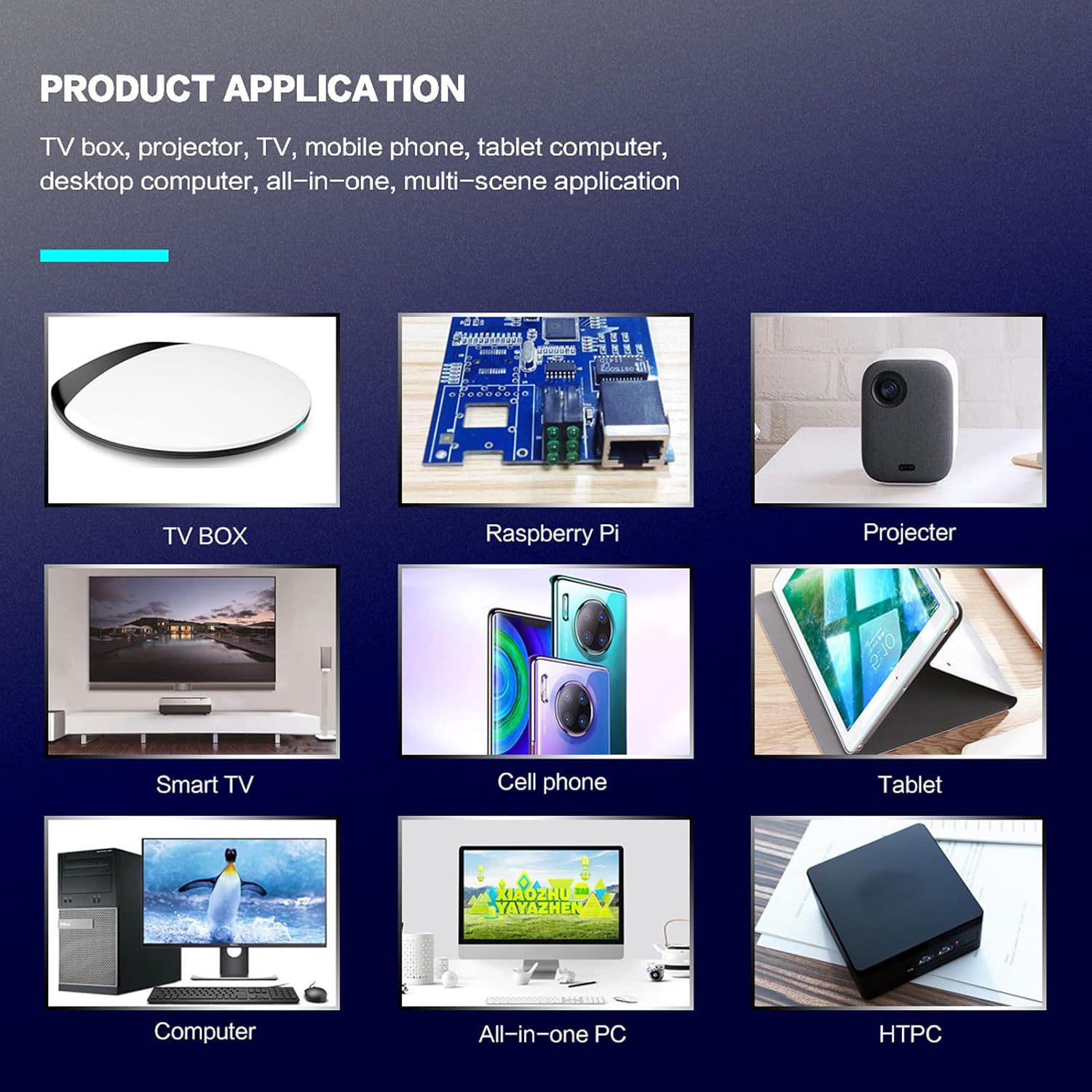
Whakaahua 1: Product application examples.
Ihirangi mokete
Tena koa tirohia kei roto katoa nga taonga kei roto i to kete:
- 1 x Cuifati Wireless Smart Remote Control
- 1 x 2.4G USB Kaiwhiwhi
- 1 x Pukapuka Kaiwhakamahi
Whakatakotoranga
| Āhuahira | Taipitopito |
|---|---|
| Waitohu | Cuifati |
| Tau tauira | Cuifatip0izksa79g3281 |
| Rauemi | ABS |
| Voltage | 3.0 V |
| Aratau Hononga | 2.4G, Nihokikorangi 5.0 |
| Mahi Naianei | <15 mA |
| Tūtatari o nāianei | <20 uA |
| Tawhiti Mahi | >10 meters (32.8 feet) |
| Momo Pūhiko | 2 x AAA pākahiko (kaore i whakauruhia) |
| Te maha o nga Patene | 5 (Control buttons, total buttons are more) |
| Pūrere Hototahi | Streaming devices, Televisions, PCs, Projectors, Smart TVs, Android TV Boxes |
| Āhuahira Motuhake | Universal, Voice Control, IR Learning, Backlit |
Aratohu Tatūnga
1. Tāuta Pūhiko
Ko te mana mamao e hiahia ana kia rua nga pākahiko AAA (kaore i whakauruhia).
- Whakatuwherahia te taupoki wehenga puhiko kei muri o te mana mamao.
- Whakauruhia nga pākahiko AAA e rua, kia tika te polarity (+ me te -).
- Katia kia mau te uhi o te wahanga pākahiko.

Whakaahua 2: Battery compartment with AAA batteries.
2. Connecting the Remote Control
The remote control supports both 2.4G wireless and Bluetooth 5.0 connectivity.
2.1. 2.4G Wireless Connection (via USB Receiver)
- Insert the 2.4G USB receiver into an available USB port on your device (e.g., Smart TV, Android TV Box, PC).
- The device should automatically detect and install the necessary drivers.
- Kua reri te mana mamao mo te whakamahi.
2.2. Hononga Nihokikorangi 5.0
For Bluetooth connection, ensure your device supports Bluetooth 5.0 or higher.
- I runga i te mana mamao, pehia me te pupuri i te OK pātene me te Hoki mai button simultaneously for 3 seconds. The indicator light on the remote will flash rapidly, indicating it is in pairing mode.
- On your device, navigate to the Bluetooth settings and search for available devices.
- Select "G20s Pro" (or similar device name) from the list of found devices to pair.
- Once paired, the indicator light on the remote will stop flashing.

Whakaahua 3: Nga tohutohu takirua Nihokikorangi.
Nga Tohutohu Whakahaere
1. Ka Mahi te Pateneview
Familiarize yourself with the layout and functions of the remote control buttons.

Whakaahua 4: Remote control button layout and functions.
- Power (IR Learning Key): Turns the device on/off. Can be programmed via IR learning.
- Mic: Activates voice input.
- Maama Tohu: Shows status (pairing, IR learning).
- Mute (IR Learning Key): Mutes/unmutes audio. Can be programmed via IR learning.
- Pg+ / Pg-: Page Up / Page Down.
- Navigation Keys (Up/Down/Left/Right)Mō te whakatere tahua.
- OK / Enter / Mouse Left: Confirms selection or acts as left mouse click.
- Return / Mouse Right: Goes back or acts as right mouse click.
- Kainga: Returns to the home screen.
- Open Google Voice Assistant: Dedicated button for voice assistant.
- Volume - / Volume +: Adjusts volume.
- Purei/Tatari: Whakahaere i te purei anō o ngā pāpāho.
- Tuhinga o mua / Panuku: Skips to previous or next media track.
- Mokowāmuri: Deletes characters.
- Tahua: Press and hold to turn on/off the backlight.
2. Mana Reo
The remote control supports voice commands for compatible devices. Press the Mic button and speak clearly into the remote to issue commands or search content.
3. Mahi Ako IR
The Power and Mute buttons can learn infrared signals from your existing TV remote control, allowing you to control basic TV functions with this remote.

Whakaahua 5: IR Learning process for the Power button.
- Patohia me te pupuri i te Mana pātene (ranei Wahangu button) on the Cuifati remote for 3 seconds. The red indicator light will flash slowly, entering IR learning mode.
- Point the infrared emitter of your original TV remote control directly at the infrared receiver of the Cuifati remote (approximately 2-3 cm apart).
- Press the desired button on your original TV remote (e.g., Power button). The Cuifati remote's red indicator light will flash rapidly and then turn off, indicating successful learning.
- Repeat the process for other buttons if desired.
4. Motion Sensing (Air Mouse)
The remote control features a gyroscope core compensation algorithm for motion sensing, allowing it to function as an air mouse. Move the remote in the air to control the cursor on your screen.

Whakaahua 6: Motion sensing in action.
Te tiaki
- Puritia te mana mamao kia maroke. Āta tirohia kia kore e pāngia e te makuku, e ngā wai rānei.
- Clean the remote control with a soft, dry cloth. Do not use abrasive cleaners or solvents.
- Ki te kore e whakamahia te mana mamao mō te wā roa, tangohia ngā pākahiko hei ārai i te turuturu.
- A ape i te tuku i te mana mamao, te tuku ranei ki nga paanga kaha.
Raparongoā
- Ko te mana mamao kaore i te whakautu:
- Me whakarite kia tika te whakauru o nga pākahiko me te kore e pau. Whakakapihia mehemea e tika ana.
- Check if the 2.4G USB receiver is properly inserted into the device's USB port.
- For Bluetooth connection, ensure the remote is paired correctly. Re-pair if connection is lost.
- Ensure there are no obstructions between the remote and the device (for 2.4G) or within Bluetooth range.
- Voice control is not working:
- Ensure the remote is properly connected via 2.4G or Bluetooth.
- Verify that your device supports voice input and that the microphone is enabled.
- Speak clearly and close to the remote's microphone.
- I rahua te ako IR:
- Ensure the original remote's IR emitter is pointed directly at the Cuifati remote's IR receiver, within 2-3 cm.
- Make sure the original remote has sufficient battery power.
- Repeat the learning steps carefully.
Pūtāhui me te Tautoko
Specific warranty information is not provided in this manual. For warranty details, technical support, or service inquiries, please refer to the product packaging or contact the manufacturer directly through their official webpae, hongere ratonga kiritaki ranei.
Ask a question about this manual
Ask about setup, troubleshooting, compatibility, parts, safety, or missing instructions. Manuals+ will review the question and use this page’s manual context to help answer it.