
Kupu Whakataki
This manual provides detailed instructions for the installation, operation, and maintenance of your SONOFF iFan04-L WiFi Ceiling Fan Light Controller. This device allows you to convert your traditional ceiling fan with lights into a smart device, controllable via a mobile application, a 433MHz RF remote, and voice commands through Amazon Alexa or Google Home.
Ka mutu te huaview
The SONOFF iFan04-L is designed to integrate seamlessly with your existing ceiling fan and light fixture. It offers convenient control options and smart features to enhance your home environment.
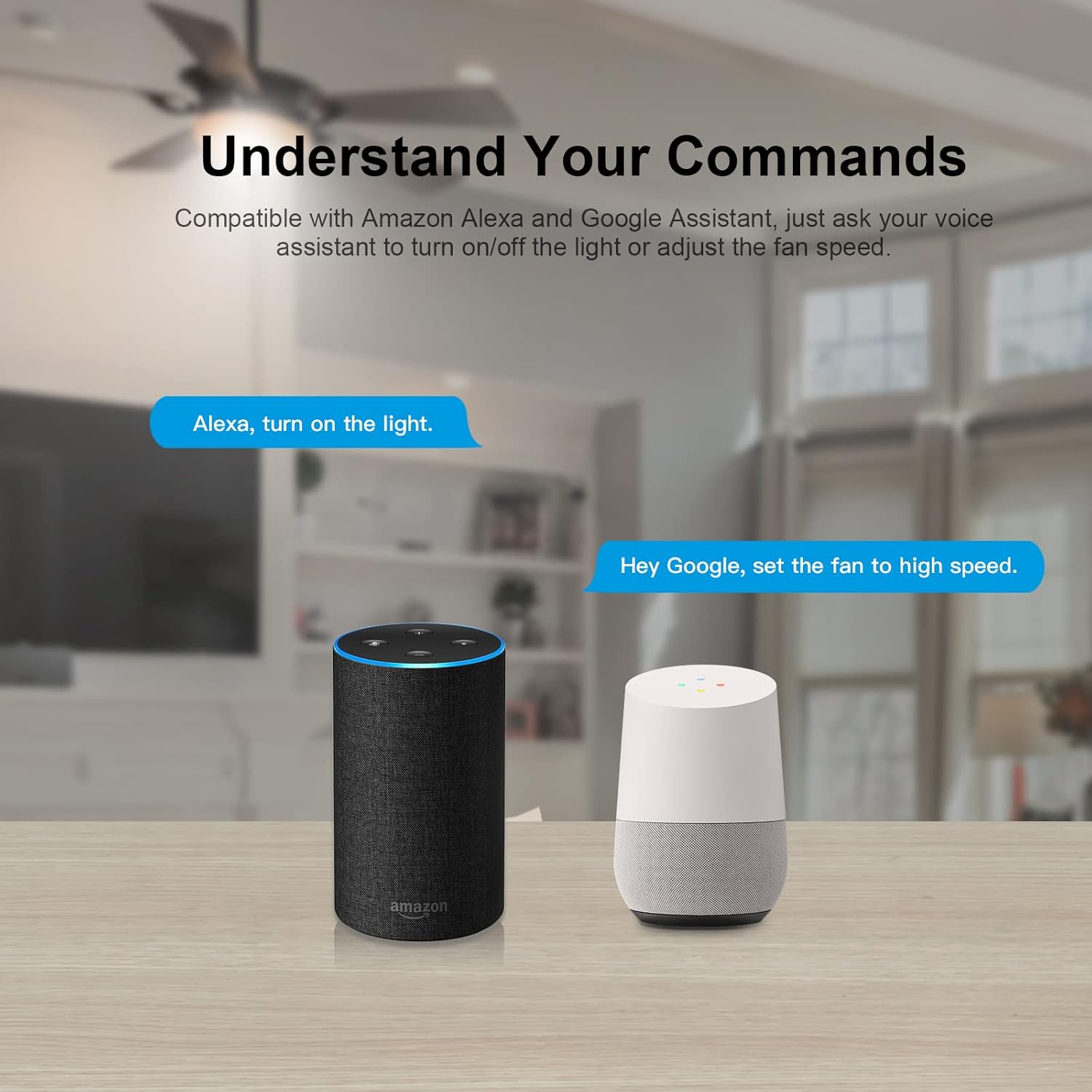
Image: The SONOFF iFan04-L controller unit and its accompanying 433MHz RF remote control.
Āhuatanga matua:
- Whakakapinga Tika: Easily replaces existing ceiling fan and light controllers.
- Tikanga Mana Maha: Control via eWeLink App, 433MHz RF remote (included), and voice commands.
- Nga Tere Kiriata Whakaritea: Select from low, medium, and high fan speeds.
- Whakahōtaka Ataata: Set timers and schedules for automatic on/off operations.
- Whakauru Mana Reo: Hototahi ki a Amazon Alexa me Google Home mo te mahi kore-ringa.
Whakatakotoranga
| Tawhā | Uara |
|---|---|
| Tauira | iFan04-L |
| Waitohu | NGA TOHI |
| Mahinga Mahi Voltage | 120 Volts |
| Whakatauranga o naianei | 2 Amps |
| Wattage | 720 watts |
| Kawa Hononga | Wi-Fi (2.4G) |
| Tikanga Mana | Remote, App, Voice |
| Momo Kaiwhakahaere | Amazon Alexa, Android, Kaiawhina a Google, iOS |
| Ahu (L x W x H) | 2.05 x 4.92 x 5.24 inihi |
| Rauemi | Plastic, Stainless Steel (Contact Material) |
| Whakatauranga Tiaki o te Ao | IP00 |
| Tiwhikete | CE, FCC, RoHS |
Nga korero haumaru
WARNING: Risk of Electric Shock. Installation should be performed by a qualified electrician or service personnel.
- Ensure power is OFF at the circuit breaker before installation or maintenance.
- Do not exceed the maximum load ratings for the fan (2A) and light (2A).
- Use only indoors in dry locations.
- Whaia nga ture hiko katoa me nga ture.
- Tiakina te taputapu mai i te wai me nga taiao makuku nui.
Tatūnga me te Tāuta
1. Tohutohu Waea
Before proceeding, ensure the power supply to the ceiling fan circuit is turned off at the main circuit breaker. This device is designed to be installed within the canopy of your ceiling fan.
- Momotu Mana: Turn off the power at the circuit breaker to avoid electrical shock.
- Remove Existing Controller: If an existing controller is present, carefully disconnect its wiring.
- Tūhono Waea:
- Connect the Live (L) wire from your household wiring to the 'L IN' terminal on the iFan04-L.
- Connect the Neutral (N) wire from your household wiring to the 'N IN' terminal on the iFan04-L.
- Connect the fan's Live (L) wire to the 'FAN OUT' terminal on the iFan04-L.
- Connect the light's Live (L) wire to the 'LIGHT OUT' terminal on the iFan04-L.
- Connect the fan's and light's Neutral (N) wires to the 'N OUT' terminal on the iFan04-L.
Note: Ensure all connections are secure and insulated with wire nuts or electrical tape.
- Pūwhakahaere Maunga: Carefully place the iFan04-L controller inside the ceiling fan canopy, ensuring it does not interfere with fan operation.
- Whakaora i te Mana: Whakahokia ano te hiko i te ara iahiko.
2. eWeLink App Pairing
The eWeLink app allows you to control your fan and light from your smartphone.

Image: Screenshot of the eWeLink app displaying controls for fan speed and light.
- Tikiake App: Tikiake i te taupānga eWeLink mai i te Toa Taupānga (iOS) i te Toa Play Google rānei (Android).
- Rēhita/Takiuru: Create an account or log in to your existing eWeLink account.
- Whakauruhia te Aratau takirua: Power on the iFan04-L. Press and hold the pairing button on the controller (or the Wi-Fi pairing button on the remote, if applicable) for 5 seconds until the Wi-Fi indicator flashes rapidly.
- Tāpiri Pūrere: In the eWeLink app, tap the "+" icon to add a device. Select "Quick Pairing Mode" or follow the on-screen instructions for your specific device.
- Tūhono ki Wi-Fi: Enter your 2.4GHz Wi-Fi network name and password. The device will connect to your network.
- Ingoa Pūrere: Once successfully added, name your device for easy identification.
3. 433MHz RF Remote Control Pairing
The included RM433 remote control provides an alternative way to control your fan and light.

Image: Diagram showing the functions of each button on the RM433 remote control, including light on/off, fan speed adjustments, and pairing options.
- Whakahiko: Ensure the iFan04-L controller has power.
- Whakauruhia te Aratau takirua: Within 5 seconds of powering on the iFan04-L, press any button on the RM433 remote control. The fan or light will respond, indicating successful pairing.
- Clear RF Pairing (Optional): To clear existing RF pairings, long-press the "RF clearing" button on the remote for 5 seconds.
Nga Tohutohu Whakahaere
1. Using the eWeLink App
After successful pairing, open the eWeLink app and select your iFan04-L device. You will see controls for:
- Rama / Weto: Toggle the light connected to the controller.
- Tere Kiri: Select Low, Medium, or High fan speeds.
- Whakahōtaka: Set single, repeating, or countdown timers for automated operation.

Image: A visual representation of a ceiling fan with indicators for low, medium, and high fan speeds, demonstrating the adjustable coolness levels.

Image: A smartphone screen showing the eWeLink app's scheduling feature, allowing users to set specific times for the ceiling fan and light to turn on or off.
2. Using the 433MHz RF Remote Control
The RM433 remote control provides direct physical control:
- Rama / Weto: Press the light button to toggle the light.
- Fan I / Weto: Press the fan button to toggle the fan.
- Tere Kiri: Use the dedicated buttons for Low, Medium, and High fan speeds.
- Pao Ka Ka/Weto: Control the device's audible feedback.
3. Mana Reo (Alexa me Google Home)
Integrate your iFan04-L with Amazon Alexa or Google Home for hands-free control.

Image: An Amazon Echo and a Google Home device shown with speech bubbles indicating voice commands like "Alexa, turn on the light" and "Hey Google, set the fan to high speed."
- Link eWeLink Account: In your Alexa or Google Home app, enable the "eWeLink Smart Home" skill/service and link your eWeLink account.
- Tirohia nga Pūrere: Ask Alexa or Google Home to discover new devices.
- Tono Reo: Whakamahia ngā whakahau pēnei i:
- "Alexa, turn on/off [Device Name] light."
- "Hey Google, set [Device Name] fan to high."
- "Alexa, turn off [Device Name] fan."
Te tiaki
- Te horoi: Horoia te taputapu ki te kakahu ngohengohe, maroke. Kaua e whakamahi i ngā wai horoi, i ngā waipara rānei.
- Whakahōu Firmware: Periodically check the eWeLink app for available firmware updates to ensure optimal performance and security.
- Pūhiko Mamao: Replace the battery in the RM433 remote control when its performance degrades.
Raparongoā
- Device not pairing with eWeLink app:
- Ensure your Wi-Fi network is 2.4GHz. The iFan04-L does not support 5GHz Wi-Fi.
- Check if the Wi-Fi indicator on the device is flashing rapidly, indicating pairing mode.
- Tirohia kei te tika to kupuhipa Wi-Fi.
- Move the device closer to your Wi-Fi router during pairing.
- Restart the device and try pairing again.
- Mana mamao kaore e mahi:
- Ensure the remote control is paired with the iFan04-L. Refer to the "433MHz RF Remote Control Pairing" section.
- Tirohia te pākahiko i roto i te mana mamao, ā, whakakapia mēnā e tika ana.
- Ensure there are no obstructions between the remote and the controller.
- Kāore te mana reo e whakautu mai:
- Verify that your eWeLink account is correctly linked to Amazon Alexa or Google Home.
- Ensure the device name used in voice commands matches the name in the eWeLink app and Alexa/Google Home app.
- Tirohia to hononga ipurangi.
- Ngana ki te kimi whakaaro ano i roto i to Alexa, Google Home taupānga ranei.
- Fan or light not responding after installation:
- Double-check all wiring connections as per the "Wiring Instructions" section. Ensure wires are securely connected and insulated.
- Confirm that power is restored at the circuit breaker.
- Ensure the fan and light are in good working order independently of the controller.
Nga korero Whakaputanga
He iti noa te wā whakamana o ngā hua SONOFF. Tirohia te kāri whakamana kei roto i tō hua, tirohia rānei te paetukutuku mana o SONOFF. website for the most current warranty terms and conditions. Keep your purchase receipt as proof of purchase for warranty claims.
Tautoko Kiritaki
For technical support, troubleshooting assistance, or further inquiries, please visit the official SONOFF support website or contact their customer service team. You can usually find contact information on the SONOFF website or within the eWeLink app.
Whaimana Webpae: www.sonoff.com
eWeLink App: Check the "Help & Feedback" section within the app.