
1. Kupu Whakataki
Thank you for choosing the ASHATA 95 Keys Wired Mechanical Gaming Keyboard. This compact and versatile keyboard is designed for both gaming and office use, offering a comfortable typing experience with its durable mechanical switches and plug-and-play functionality. This manual provides essential information for setting up, operating, and maintaining your new keyboard.
2. Nga Hua o te Hua
- Tahora 95-Kī: Compact design with a full set of essential keys, available with English and Arabic keycaps.
- Hononga Waea: Reliable USB-A connection for stable performance.
- Whakawhiti Hangarau: Provides tactile feedback and durability for an enhanced typing and gaming experience.
- Mono me te Purei: No complex driver installation required; simply connect and use.
- Hoahoa Roa: Features legible, fade-resistant key printing for long-lasting use.
- He pai te patopato: Ergonomically designed for extended use in office or home environments.
- Hoahoa Tino-kikī: Approximately 60% size of a standard keyboard, saving desk space.
- Mauroa Teitei: Rated for over 10 million keystrokes life.
- Angiangi me te Kawe: With a thickness of approximately 1 cm, it is easy to transport.
- Hoahoa Wahangu: Equipped with quality silicone keys for a quiet typing environment.
- Independent Multimedia Buttons: Dedicated buttons for quick access to media controls.

Whakaahua: Ka mutuview of the ASHATA Wired Keyboard highlighting its features.

Whakaahua: Kati-ake view of the comfortable 95-key layout.

Whakaahua: taha profile illustrating the thin and portable design.

Image: Detail of a keycap, demonstrating the silent design feature.
3. Ihirangi mokete
Me mohio kei roto katoa nga mea kei roto i te kete:
- 1 x Papapātuhi Waea
4. Tohutohu Tatūnga
The ASHATA 95 Keys Wired Mechanical Gaming Keyboard is designed for simple plug-and-play operation.
- Wewetehia te Papapātuhi: Kia ata tangohia te papapātuhi mai i tana tākai.
- Tūhono ki tō Pūrere: Locate an available USB-A port on your computer (desktop, laptop, etc.). Insert the USB connector of the keyboard cable into the USB-A port.
- Āhukahuka Aunoa: Your operating system (e.g., Windows) will automatically detect and install the necessary drivers. This process usually takes a few seconds.
- Tīmata Whakamahi: Once recognized, the keyboard is ready for immediate use.

Image: The keyboard with its integrated USB cable, approximately 1.5m long.

Image: USB interface for plug and play functionality, with cable length of 1.5m.

Image: Keyboard connected and ready for use with a desktop computer.
5. Nga Tohutohu Whakahaere
This keyboard functions like a standard QWERTY keyboard with additional multimedia controls.
5.1 Pato Taketake
Simply press the desired keys to input characters. The keyboard supports both English and Arabic characters, depending on the specific model and your operating system's language settings.
5.2 Pātuhi Rongorau
The keyboard features dedicated multimedia buttons located above the function keys (F1-F12) for quick access to media controls. These buttons allow you to:
- Adjust Volume (Volume Up, Volume Down, Mute)
- Control Media Playback (Play/Pause, Previous Track, Next Track)
- Open Default Media Player
- Open Default Web Pūtirotiro
- Whakatuwherahia te Kiritaki Īmēra
- Mahi Rapu

Image: Detail of the independent multimedia buttons for quick access to functions.
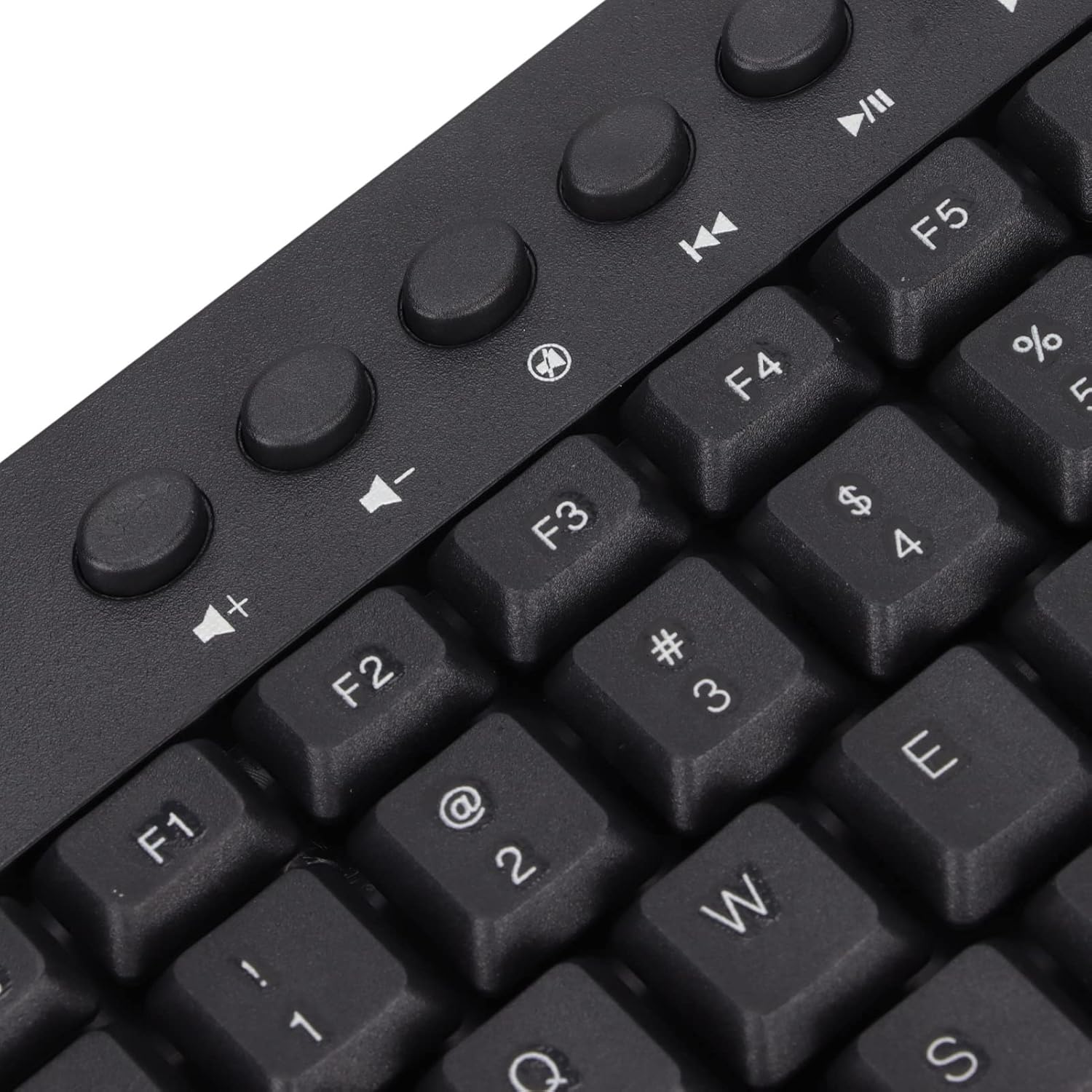
Whakaahua: Kati-ake view of the dedicated multimedia control keys.

Image: Detail of the right-side keys, including navigation and control keys.
6. Tiaki
To ensure the longevity and optimal performance of your ASHATA keyboard, follow these maintenance guidelines:
- Te horoi: Use a soft, dry cloth to wipe the surface of the keyboard. For deeper cleaning, you may use a slightly damp cloth with a mild cleaning solution, ensuring no liquid enters the key switches or internal components.
- Tango Puehu: Whakamahia te hau kōpeke ki te tango i te puehu me te para i waenganui i nga taapu matua.
- A ape i te Wai: Kaua e ringihia he wai ki runga i te papapātuhi. Mēnā ka maringi, momotu tonu te papapātuhi mai i tō rorohiko, ā, tukua kia maroke rawa i mua i te hono anō.
- Rokiroki: Whakaorangia te papapātuhi ki te waahi hauhautanga, maroke atu i te ra tika me te wera nui.
7. Te Raru
Mena ka pāngia koe e ngā raruraru me tō papapātuhi, tirohia ngā raruraru me ngā otinga e whai ake nei:
7.1 Papapātuhi Kaore i te Whakautu
- Tirohia te Hononga USB: Ensure the USB cable is securely plugged into a working USB-A port on your computer. Try a different USB port.
- Tīmata anō Rorohiko: Sometimes, a simple computer restart can resolve connectivity issues.
- Whakamātautau ki tētahi atu Pūrere: Connect the keyboard to another computer to determine if the issue is with the keyboard or your original device.
7.2 Kī kore e Mahi Tika
- Maama Kī: Check for any debris or foreign objects lodged under the non-functioning keys. Use compressed air to clear them.
- Taupatupatu Pūmanawa: Ensure no conflicting software or drivers are installed that might interfere with keyboard input.
7.3 Kāore e Mahi ana ngā Kī Pāpāho
- Ngā Tautuhinga Pūnaha Whakahaere: Verify that your operating system's media key settings are configured correctly.
- Taupānga Hototahi: Some applications may not fully support universal multimedia keys.
Ki te kore enei mahi e whakatau i te take, tena koa whakapā atu ki te tautoko a te kaihoko mo etahi atu awhina.
8. Whakatakotoranga
| Āhuahira | Taipitopito |
|---|---|
| Waitohu | AWHATA |
| Tau tauira | ASHATA8x4ni917wp552-12 |
| Hangarau Hononga | USB-A (Waea) |
| Te maha o nga Kī | 95 |
| Momo Whakawhiti | Hangaia |
| Rauemi | Kirihou |
| Tae | Black (Arabic layout) |
| Pūrere Hototahi | PC (Desktop, Laptop) |
| Whānau Pūnaha Whakahaere Hototahi | Matapihi |
| Te roa o te taura | Approx. 1.5m / 1.6yd |
| Āhuahira Motuhake | Pātene Rongorau Motuhake |

Whakaahua: Raro view of the keyboard, displaying regulatory information and adjustable feet.
9. Pūtāhui me te Tautoko
For warranty information and customer support, please refer to the documentation included with your purchase or contact the retailer/manufacturer directly. Keep your proof of purchase for any warranty claims.