
Geekee CG6
Geekee CG6 Wireless Outdoor Security Camera User Manual
Tauira: CG6
Kupu Whakataki
This manual provides detailed instructions for the installation, operation, and maintenance of your Geekee CG6 Wireless Outdoor Security Camera. Please read this manual thoroughly before using the product to ensure proper function and safety. Keep this manual for future reference.

The Geekee CG6 camera, designed for outdoor use, featuring a robust, weatherproof casing.
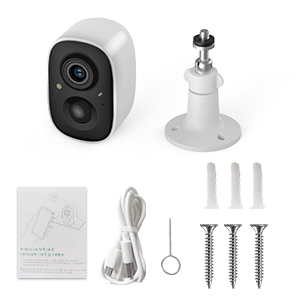
He aha kei roto i te Pouaka
- Geekee CG6 Wireless Security Camera
- Maunga Paetahi
- Tauira Whakatau USB
- Nga Tiu Whakapiri me nga Punga Taiepa
- Tautuhi Pene
- Pukapuka Kaiwhakamahi (tenei tuhinga)
A visual guide detailing the simple setup process: downloading the VicoHome app, fully charging the device, and connecting the camera to your phone.
Ka mutu te huaview
The Geekee CG6 is a 100% wireless, battery-powered security camera designed for both indoor and outdoor surveillance. It features 2K HD video, full-color night vision, AI motion detection, two-way audio, and an IP65 weatherproof rating.
Āhuatanga matua:
- Ataata 2K HD: Captures clear, high-resolution footage.
- Tirohanga Po Tae Katoa: Provides detailed color images even in low-light conditions.
- Te Kitenga Nekehanga AI: Intelligently identifies humans, pets, packages, and vehicles.
- Korero Rua-Waahi: Kōrero ki ngā manuhiri, ārai rānei i ngā kaipahua mai i tawhiti.
- Rama me te Whakaoho Hine: Active deterrence features.
- IP65 parerangi: He hoahoa pakari mō te whakamahi i waho i ngā āhuatanga huarere rerekē.
- 5200mAh Pūhiko Rechargeable: Long-lasting power for wireless operation.

He taipitopito view of the camera's internal battery, emphasizing its wireless operation and long-lasting power.

This image showcases the camera's versatility, suitable for monitoring both outdoor areas like driveways and indoor spaces such as living rooms.
Tohutohu Tatūnga
1. Whakatakina te Kamera
Before initial use, fully charge the camera using the provided USB cable. Connect the cable to the camera's charging port and a standard 5V/1A USB power adapter (not included). The indicator light will show charging status.
2. Download the VicoHome App
Rapua 'VicoHome' in the Apple App Store (for iOS devices) or Google Play Store (for Android devices) and download the application. Register for a new account or log in if you already have one.
3. Hono ki Wi-Fi
- Open the VicoHome app and tap 'Add Device' or the '+' icon.
- Follow the on-screen prompts to select your camera model.
- Me mohio kei te hono to waea atamai ki a 2.4GHz whatunga Wi-FiKāore tēnei kāmera e tautoko i te Wi-Fi 5GHz.
- The app will generate a QR code. Position your camera approximately 6-8 inches (15-20 cm) in front of your phone screen so the camera can scan the QR code.
- Once connected, the camera will indicate successful pairing, and you can name your device in the app.
4. Whakapiki i te Kamera
Whiriwhiria he waahi e tika ana mo to kaamera, me whai waahi marama view and good Wi-Fi signal strength. Use the provided mounting bracket, screws, and wall anchors to securely attach the camera to a wall or ceiling. Adjust the camera angle as needed.

The camera is shown functioning reliably in various weather conditions, including rain and snow, confirming its IP65 weatherproof construction.
Nga Tohutohu Whakahaere
1. Ataata Ora Viewing
Open the VicoHome app and select your camera from the device list to view live 2K HD video. You can switch between day and night vision modes, and zoom in for more detail.

This image illustrates the superior clarity and full-color detail provided by the camera's 2K HD night vision, compared to traditional black and white infrared.
2. Korero-rua
Ahakoa viewkei te ora footage, tap the microphone icon in the app to activate two-way audio. You can speak through the camera's built-in speaker and hear audio from the camera's microphone.
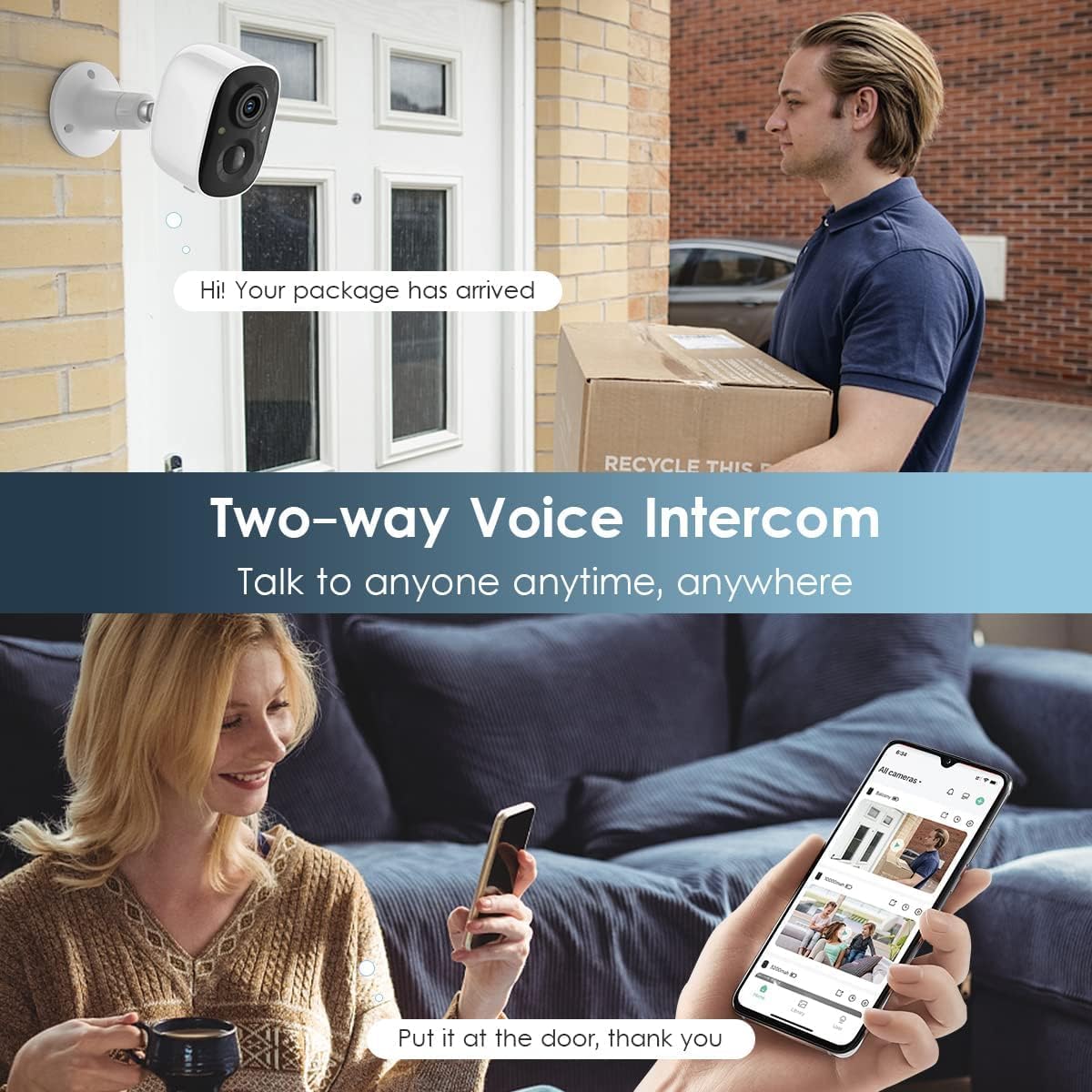
The image depicts the two-way audio function, allowing users to speak with visitors or delivery personnel remotely through the camera.
3. Te Motini me nga Matohi
The camera features a PIR motion sensor for accurate detection. When motion is detected, you will receive instant notifications on your smartphone via the VicoHome app. You can customize the monitoring range and sensitivity settings within the app.

This graphic demonstrates how the camera detects motion, activates a flashlight, and sounds a siren to deter intruders, providing comprehensive coverage.
4. Spotlight and Siren Alarm
In response to detected motion, the camera can automatically activate its built-in spotlight and siren alarm to deter unwanted visitors. These features can also be manually triggered through the VicoHome app.
5. Kōwhiringa Rokiroki
The camera supports dual storage modes:
- Rokiroki Kari SD: Insert a Micro SD card (up to 128GB, not included) into the camera's SD card slot to store recorded video locally.
- Rokiroki Kapua: Enjoy free rolling 3-day cloud storage for video history. Advanced cloud memory and AI recognition features are available with a subscription after a 30-day free trial.
6. AI Intelligent Recognition and Activity Zones
Utilize the VicoHome app to define custom activity zones, focusing motion detection on specific areas. The camera's AI can differentiate between humans, pets, packages, and vehicles, reducing false alerts.

This image highlights the advanced AI capabilities of the camera, which can differentiate between various objects and events for more precise alerts and playback.
Te tiaki
1. Tohutohii Pakihi
Monitor the battery level through the VicoHome app. When the battery is low, remove the camera and recharge it using the USB cable. Battery life varies based on usage and environmental factors.
2. Te horoi i te Arotahi
Periodically clean the camera lens with a soft, dry cloth to ensure optimal image clarity. Avoid using abrasive cleaners or solvents.
3. Te Ārai i te Huarere
While the camera is IP65 weatherproof, ensure all ports and covers are securely closed to maintain its water and dust resistance, especially after charging or accessing the SD card slot.
Raparongoā
- Karekau te kamera e hono ana ki te Wi-Fi: Ensure your router is broadcasting a 2.4GHz Wi-Fi signal. Check Wi-Fi signal strength at the camera's location. Restart your router and the camera.
- Te kounga ataata kino: Ensure the lens is clean. Check your Wi-Fi connection speed. Adjust video resolution settings in the app if necessary.
- Motion detection not working or too sensitive: Adjust PIR sensitivity settings in the VicoHome app. Define custom activity zones to reduce unwanted alerts. Ensure there are no obstructions blocking the sensor.
- Ora pūhiko poto: He maha nga huihuinga kitenga nekehanga, ora viewing, or use of spotlight/siren will consume more battery. Reduce sensitivity, limit live viewing, or consider a solar panel accessory (if available for your model).
- Ngā raruraru oro-rua: Ensure your phone's microphone and speaker are enabled for the VicoHome app. Check camera's microphone and speaker for obstructions.
Whakatakotoranga
| Āhuahira | Whakatakotoranga |
|---|---|
| Tau tauira | CG6 |
| Whakataunga Hopu Ataata | 2K |
| Whakatau Ataata Whaihua | 1080 Pika |
| Viewing Koki | 110 Waeine |
| Hangarau Hononga | Ahokore (Wi-Fi 2.4GHz anake) |
| Puna Mana | Pūhiko Powered |
| Pūhiko Raukaha | 5200 mAh Lithium Polymer |
| Mahinga o roto/waho | Roto, Waho |
| Whakatauranga Tiaki o te Ao | IP65 |
| Nga waahanga motuhake | Motion Sensor, Night Vision (Full Color/Infrared), Two-Way Talk, Spotlight, Siren Alarm |
| Pūrere Hototahi | Waea atamai (Android, iOS) |
| Ahu (L x W x H) | 5.9 x 3.9 x 4.72 inihi |
| Taumaha Tūemi | 11.2 hekere |
Nga korero Whakaputanga
Geekee products are designed for reliability and performance. For specific warranty terms and conditions, please refer to the warranty card included with your product or visit the official Geekee webpae. Puritia to tohu hoko mo nga kereme whakamana.
Tautoko
For technical assistance, troubleshooting, or any product-related inquiries, please contact Geekee customer support:
- Īmēra: support@getgeekee.com
- Our support team aims to reply within 24 hours.

Details about the available technical support, emphasizing professional assistance and a direct email contact for inquiries.
Ask a question about this manual
Ask about setup, troubleshooting, compatibility, parts, safety, or missing instructions. Manuals+ will review the question and use this page’s manual context to help answer it.