
1. Kupu Whakataki
This manual provides essential information for the proper installation, operation, and maintenance of your SUNMI T2s Lite 15.6-inch Android Point of Sale (POS) system. Please read this manual thoroughly before using the device to ensure optimal performance and safety. Keep this manual for future reference.
2. Nga korero haumaru
- Kaua e tukuna te taputapu ki te wera nui, te makuku, te ra tika ranei.
- A ape i te tuku, te tuku ranei i te taputapu ki nga paanga kaha.
- Whakamahia anake te urutau hiko e tukuna ana me te taputapu. Mēnā ka hē te urutau, ka kino pea, ka mura rānei.
- Kaua e ngana ki te wetewete, ki te whakatika ranei i te taputapu. Tirohia nga kaimahi ratonga whai tohu.
- Tiakina te taputapu mai i te wai, i etahi atu wai ranei.
- Me whakarite kia tika te hau huri noa i te taputapu i te wa e mahi ana.
3. Ihirangi mokete
Manatokona kei roto katoa nga mea kei roto i te kete:
- SUNMI T2s Lite POS Terminal
- Pūurutau Hiko
- Waea Hiko
- Aratohu Timata Tere (mehemea e tika ana)
- Kāri Pūtāhui (mehemea e hāngai ana)
Mena kua ngaro, kua pakaru rānei tētahi o ngā taonga, tena koa whakapā atu ki tō kaihoko tonu atu.
4. Hua Neke Atuview
The SUNMI T2s Lite is an integrated Android-based POS system designed for retail environments. It features a 15.6-inch capacitive touchscreen display and various connectivity options.
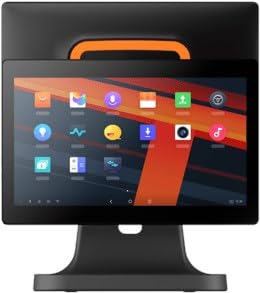
Whakaahua 4.1: Mua view of the SUNMI T2s Lite POS system. This image displays the main 15.6-inch touchscreen, which is the primary interface for operating the device. The design is compact and suitable for various retail settings.
4.1 Waenga Matua
- 15.6-inihi Whakaatu Mata Paa: High-resolution (1920x1080) capacitive touch interface.
- Pātene Hiko: Located typically on the side or rear for turning the device on/off.
- Tauranga USB: For connecting peripherals such as barcode scanners, external printers, or cash drawers.
- Tauranga Itarangi: Mo te hononga whatunga waea.
- Whakauru Hiko: Mo te hono i te urutau hiko.
- Kāmera Mua: For specific applications requiring image capture.
5. Tatūnga
5.1 Te Wetewete me te Whakanoho
- Tangohia marietia te taputapu me ngā taputapu katoa i roto i te takai.
- Place the POS terminal on a stable, flat surface in a well-ventilated area.
- Ensure there is sufficient space around the device for cable connections and heat dissipation.
5.2 Te Mana Hononga
- Honoa te taura hiko ki te urutau hiko.
- Plug the power adapter into the power input port on the back of the SUNMI T2s Lite.
- Monohia tetahi pito o te taura hiko ki tetahi putanga hiko kua oti te whenua.
5.3 Initial Boot and Network Connection
- Press and hold the power button until the screen lights up. The device will boot into the Android operating system.
- Whāia ngā tohutohu kei runga i te mata mō te tatūnga tuatahi, tae atu ki te kōwhiringa reo me te rohe wā.
- Hononga Wi-Fi: Haere ki Tautuhinga> Whatunga me te ipurangi> Wi-Fi, tohua to whatunga, ka uru ki te kupuhipa.
- Hononga Itarangi: Connect an Ethernet cable from your router/switch to the Ethernet port on the device. The device should automatically connect to the wired network.
5.4 Hononga Pikitia
- Pūrere USB: Plug USB peripherals (e.g., barcode scanner, external printer, cash drawer) into the available USB ports. The system will typically recognize them automatically.
- Pūrere Nihokikorangi: Haere ki Tautuhinga> Nga taputapu hono> Nihokikorangi, enable Bluetooth, and pair with your desired device.
6. Nga Tohutohu Whakahaere
6.1 Kei te Hiko / Weto
- Hei Whakahiko: Patohia me te pupuri i te paatene kia pa ra ano te mura o te mata.
- Hei Whakaweto: Press and hold the power button until a power menu appears. Select "Power off" and confirm. Alternatively, a short press of the power button will put the device to sleep.
6.2 Te Whakamahinga o te Mata Pa
- Tap: To select an item or activate a button.
- Paoa ka Mau: To open context menus or drag items.
- Swipe: To scroll through lists or navigate between screens.
- Whakawiri-ki-Topa: Hei whakanui, hei whakaiti rānei i ngā whakaahua, web wharangi.
6.3 Android OS Navigation
- Mata Kāinga: The central hub for your applications and widgets.
- Kaituhi Taupānga: Uru atu ki ngā taupānga katoa kua tāutahia.
- Paepae Whakamōhiotanga: Swipe whakararo mai i runga o te mata ki te view whakamohiotanga me nga tautuhinga tere.
- Tautuhinga: Configure Wi-Fi, Bluetooth, display, sound, and other system options.
6.4 Basic POS Functions
The specific POS functions will depend on the software application installed on your device. Refer to the documentation provided with your POS software for detailed instructions. Generally, you will:
- Launch your POS application from the home screen or app drawer.
- Takiuru me o tohu tohu kaiwhakamahi.
- Process transactions using the touchscreen and connected peripherals (e.g., scanning items, accepting payments).
- Print receipts if an external or integrated printer is configured.
7. Tiaki
7.1 Te horoi i te taputapu
- Whakawetohia te mana, ka momotu hoki i te taputapu i mua i te horoinga.
- Whakamahia he kakahu ngohengohe, karekau he ngongo paku dampened with water or a mild, non-abrasive cleaner to wipe the screen and exterior surfaces.
- Kaua e rehu wai ki runga i te taputapu.
- A ape i te whakamahi i nga matū kino, nga whakarewa, me nga mea awhiowhio.
7.2 Whakahōu Pūmanawa
Regularly check for and install system and application updates to ensure optimal performance, security, and access to new features. You can usually find system updates in Tautuhinga> Pūnaha> Whakahou Pūnaha.
7.3 Rokiroki
When not in use for extended periods, store the device in a cool, dry place, away from direct sunlight and extreme temperatures. If storing for a long time, ensure the battery is charged to about 50% to prolong its lifespan.
8. Te Raru
Ko tenei waahanga e aro ana ki nga take noa ka pa ki a koe. Mo nga raruraru uaua ake, whakapā atu ki te tautoko a te kaihoko.
- Kāore te pūrere e whakakā:
- Me whakarite kei te hono tika te urutau hiko ki te pūrere me te putanga hiko e mahi ana.
- Manatokohia kei te mahi te putanga hiko.
- Try holding the power button for 10-15 seconds to force a restart.
- Touchscreen is unresponsive:
- Tīmataria anō te pūrere.
- Ensure the screen is clean and free of debris or liquids.
- Network connection issues (Wi-Fi/Ethernet):
- Check if the Wi-Fi is enabled and you are connected to the correct network with the right password.
- For Ethernet, ensure the cable is properly connected and your router/switch is working.
- Tīmata anō i tō pouara/modem.
- Peripherals (e.g., printer, scanner) not working:
- Ensure the peripheral is properly connected to the correct port.
- Check if the peripheral has its own power supply and is turned on.
- Verify that the necessary drivers or software for the peripheral are installed and configured within your POS application.
9. Whakatakotoranga
The following are key technical specifications for the SUNMI T2s Lite:
| Āhuahira | Whakatakotoranga |
|---|---|
| Waitohu | SUNMI |
| Kaihanga | Ko Sunmi |
| Whakatau Whakaaturanga Maori | 1920x1080 pika |
| Hangarau Hononga | Bluetooth, Ethernet, USB, WLAN |
| Whakaahuatanga kamera | Tuhinga o mua |
| ASIN | B0B53FLFT8 |
10. Pūtāhui me te Tautoko
The SUNMI T2s Lite POS system comes with a standard manufacturer's warranty. Please refer to the warranty card included in your package for specific terms and conditions, including warranty period and coverage details.
For technical support, service, or warranty claims, please contact your authorized SUNMI dealer or the customer support channel specified in your purchase documentation. Ensure you have your product model number (T2s Lite) and ASIN (B0B53FLFT8) ready when contacting support.