
Kupu Whakataki
This manual provides detailed instructions for the setup, operation, maintenance, and troubleshooting of your Pokitter Go Pro Mini Portable Projector. Please read this manual thoroughly before using the product to ensure proper functionality and to extend the lifespan of your device.
The Pokitter Go Pro is a compact and powerful portable projector featuring integrated Android TV 10.0, Google Assistant, 200 ANSI lumens brightness, 1080p Full HD resolution with 4K support, dual-band 2.4G/5G WiFi, and a maximum projection size of 120 inches. It is designed for versatile entertainment, offering a cinematic experience on the go.
Ihirangi mokete
Tena koa tirohia kei roto nga taonga katoa kei roto i te kete:
- Pokitter Go Pro Mini Portable Projector
- Mana Mamao
- Pūurutau Hiko
- Pukapuka Kaiwhakamahi (tenei tuhinga)
- Haru Kawe

Image: The Pokitter Go Pro Mini Portable Projector, highlighting its compact design and integrated handle for easy portability.
Ka mutu te huaview
Mua View
The front of the projector features the projection lens and ventilation grilles.
Whakamuri View
The rear panel typically includes various ports for connectivity.
- Paerewa HDMI: For connecting external devices like laptops, gaming consoles, or Blu-ray players.
- Tauranga USB: For connecting USB drives for media playback or external peripherals.
- Putanga Oro (Hononga 3.5mm): Mo te hono i nga kaikorero o waho, i nga taringa ranei.
- DC I: Tauranga urunga hiko.
Runga View
The top surface may include control buttons or indicators.
Te taha View
The sides often feature additional ventilation and a carrying handle.
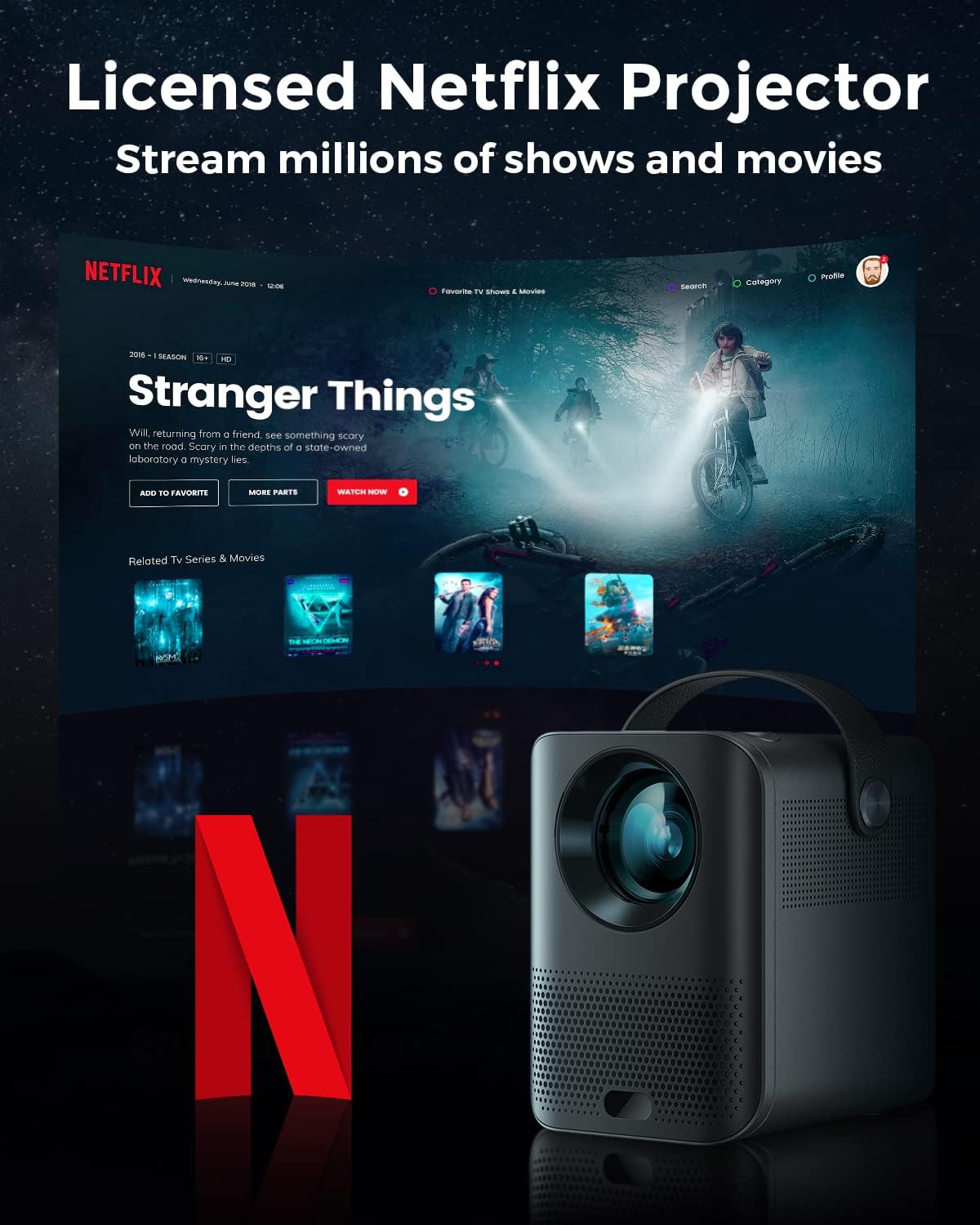
Image: The Pokitter Go Pro projector showcasing its integrated Netflix license and streaming capabilities.

Image: A size comparison of the Pokitter Go Pro projector with a smartphone, illustrating its mini and portable form factor.
Tatūnga
1. Hononga Mana
- Connect the power adapter to the DC In port on the projector.
- Monohia te urutau hiko ki te putanga pakitara.
- Ka marama te rama tohu hiko.
2. Hia Tuatahi
- Pēhia te pātene hiko i te pūwhiti, te mana mamao rānei hei whakakā i te taputapu.
- Allow a few moments for the Android TV system to boot up.
3. Whakatikatika Arotahi
Use the focus ring (if mechanical) or the remote control's focus buttons to achieve a clear image. The Pokitter Go Pro features automatic vertical keystone correction up to 40 degrees.

Image: Illustration of the automatic keystone correction feature, which adjusts the image for optimal viewing even when the projector is not perfectly aligned.
4. Screen Size Adjustment
Adjust the distance between the projector and the projection surface to achieve the desired screen size. The projector supports a screen size up to 120 inches.

Image: Guide for optimal projection distances to achieve screen sizes of 40, 80, and 120 inches.
5. Hononga Whatunga (Wi-Fi)
- Navigate to the Wi-Fi settings in the Android TV interface.
- Tīpakohia te whatunga Wi-Fi e hiahiatia ana mai i te rarangi.
- Whakauruhia te kupuhipa mena ka akiakihia.
- The projector supports dual-band 2.4G and 5G Wi-Fi for stable and fast transmission.

Image: The Pokitter Go Pro projector demonstrating its 2.4/5GHz WiFi capabilities for seamless wireless screen casting from various devices.
Nga Tohutohu Whakahaere
Te whakamahi i te Mana Mamao
The included remote control allows full navigation and control of the Android TV interface. Key functions include:
- Pātene Hiko: Ka whakakā/whakaweto i te pūwhiti.
- Papa Whakatere: For moving through menus.
- Pene OK: Ka whakamana i nga whiringa.
- Pātene Whakamuri: Ka hoki ki te mata o mua.
- Pātene Kāinga: Ka hoki ki te mata o te TV Android.
- Pātene Rōrahi: Whakaritea te reo ororongo.
- Patene Kaiawhina a Google: Whakahohehia nga whakahau reo.
Atanga TV Android
The Pokitter Go Pro runs on Android TV 10.0, providing access to a wide range of streaming applications such as Netflix, YouTube, Amazon Prime Video, and Disney+.
- Whakaterenga Taupānga: Use the remote's navigation pad to select and open applications.
- Rererenga Ihirangi: Log in to your streaming accounts to access content.
- Kaiāwhina Google: Press the Google Assistant button on the remote and speak your commands to search for content, control playback, or get information.

Whakaahua: Kua mutuview of the Pokitter Go Pro's key features, including its Android TV operating system, Google Assistant integration, and display capabilities.
Screen Mirroring (Chromecast Built-in)
The projector features built-in Chromecast for easy screen mirroring from compatible devices (smartphones, tablets, laptops).
- Ensure your device and the projector are connected to the same Wi-Fi network.
- Open a Chromecast-enabled app on your device (e.g., YouTube, Netflix).
- Patohia te ata Maka (te nuinga he tapawhā me te tohu Wi-Fi) i roto i te taupānga.
- Select your Pokitter Go Pro projector from the list of available devices.
- The content from your device will be mirrored or cast to the projector.

Image: Demonstrating the Chromecast built-in feature, allowing users to stream content from their smartphone to the projector's large display.
Connecting External Devices (HDMI/USB)
- HDMI: Connect an HDMI cable from your external device (e.g., laptop, game console) to the HDMI port on the projector. The projector will automatically switch to the HDMI input or you may need to select it from the input source menu.
- USB: Insert a USB flash drive into the USB port. The Android TV system will typically prompt you to open a file browser to access media files i runga i te puku.
Te tiaki
Te horoi i te Arotahi
Whakamahia he kakahu ngohengohe, kore-miro i hangaia mō ngā karāhe whatu hei muru mārire i te karāhe pūwhakaata. Kaua e whakamahi i ngā kaihoroi whakakoi, kaua hoki e whakamahi i te kaha nui rawa, nā te mea ka rakuraku pea te karāhe.
Te Horoi i te Tinana o te Pūwhakaata
Wipe the exterior of the projector with a soft, dry cloth. For stubborn stains, a slightly damp ka taea te whakamahi i te kakahu, ā, muri iho ka whakamahia he kakahu maroke. Āta tirohia kia kore e uru te wai ki roto i te pūwhakaata.
Whakahau
Ensure that the ventilation grilles are not blocked during operation to prevent overheating. The Pokitter Go Pro features a dust-proof design to maintain picture quality.

Image: An internal diagram of the Pokitter Go Pro, illustrating its dust-proof design for long-lasting, flawless picture quality.
Rokiroki
Ki te kore e whakamahia mō te wā roa, rongoatia te pūwhakaata ki te wāhi hauhautanga, maroke, kia matara atu i te rā tika me te pāmahana tino kino. E taunakihia ana kia whakamahia te takai taketake, te pouaka tiaki rānei.
Raparongoā
| Raruraru | Take pea | Rongoā |
|---|---|---|
| Karekau he Mana | Ko te taura hiko kaore i te hono; He he te putanga hiko. | Me whakarite kia honoa te taura hiko. Whakamātauria he putanga hiko rerekē. |
| No Image / Blurry Image | Lens out of focus; Incorrect input source; Obstruction in projection path. | Adjust focus using the remote or focus ring. Select correct input source. Remove any obstructions. |
| Kore Oro | Volume too low; Muted; External speakers not connected properly. | Increase volume. Unmute the projector. Check external speaker connections. |
| Nga Take Hononga Wi-Fi | Kupuhipa hē; He tawhiti rawa te pouara; He pokanoa ki te whatunga. | Manatokohia te kupuhipa Wi-Fi. Nekehia te pūwhakaata kia tata ki te pouara. Tīmata anō te pouara me te pūwhakaata. |
| Mana Mamao Kaore i te Mahi | Nga pākahiko mate; Te aukati i waenga i te mamao me te kaupapa. | Whakakapia ngā pākahiko. Kia mārama te tirohanga ki te kaiwhiwhi IR o te pūwhakaata. |
Whakatakotoranga
- Tauira: F1A
- Waitohu: Pokiter
- Hangarau Whakaatu: LED
- Whakatau Maori: 1920 x 1080 (Katoa HD)
- Taumira Tautoko Max: 3840 x 2160 (4K)
- Tirohanga: Tae atu ki te 200 ANSI Lumens
- Rahi Kaupapa: Tae atu ki te 120 inihi
- Pūnaha Mahi: TV Android 10.0
- Kaiawhina Reo: Kaiāwhina a Google i roto
- Hononga Ahokore: 2.4G/5G Dual-band Wi-Fi, Bluetooth 5.1
- Utu honohono: HDMI, USB, 3.5mm Audio Out, DC In
- Kaikōrero: Integrated (2x5W as per infographic)
- Average Lifespan (Light Source): 50,000 haora
- Tauwehe Puka: Kawe
- Momo Whakapuru: Maunga Ripanga

Image: An illustration of the projector's internal speaker system, designed to provide true-to-life sound for a cinematic viewte wheako.
Pūtāhui me te Tautoko
The Pokitter Go Pro Mini Portable Projector comes with a 2-tau pūtāhui. For any questions or professional assistance regarding this product, please contact Pokitter customer support. We are committed to supporting our customers.
For the latest support information, FAQs, and contact details, please visit the official Pokitter webpaetukutuku tirohia ranei ki nga korero whakapiri kua whakaratohia me to hoko.