
1. Kupu Whakataki
This manual provides instructions for the installation, operation, and maintenance of your NETGEAR GS305P 5-Port PoE Gigabit Ethernet Unmanaged Switch. This device is designed to expand your network connectivity with both standard Gigabit Ethernet and Power over Ethernet (PoE+) capabilities, ideal for small office or home network environments.
2. Ihirangi mokete
Manatokohia kei roto i to kete nga mea e whai ake nei:
- NETGEAR GS305P 5-Port PoE Gigabit Ethernet Unmanaged Switch (GS305Pv3)
- Pūurutau hiko
- Kete Wallmount
- He aratohu tāuta tere

Image: The NETGEAR GS305P switch, power adapter, and power cord as typically found in the package.
3. Hua Neke Atuview
The NETGEAR GS305P is an unmanaged switch featuring 5 Gigabit Ethernet ports, with 4 of these ports supporting PoE+ (Power over Ethernet Plus). It provides a total power budget of 63W for connected PoE devices. The switch is designed for plug-and-play operation, requiring no software installation or configuration.
Ataata: Kua mutuview of the NETGEAR 5-Port PoE Switch, demonstrating its features and ease of use.
Paepae Mua

Image: Front panel of the GS305P switch, highlighting the 5 Gigabit Ethernet ports and LED indicators for power, PoE Max, link/activity, and PoE fault.
- Arahina hiko: Ka tohu i te mana mana.
- PoE Max LED: Illuminates when PoE power consumption is near maximum capacity.
- Link/Activity LEDs (Ports 1-5): Green for 1000Mbps link, Yellow for 10/100Mbps link. Blinks to indicate activity.
- Nga LED Tūnga PoE (Tauranga 1-4): Green for PoE powered, Yellow for PoE fault.
- Tauranga Itarangi (1-5): RJ-45 ports for network connections. Ports 1-4 support PoE+.
4. Tatūnga me te Tāuta
The NETGEAR GS305P switch is designed for simple plug-and-play installation. No software configuration is required.
4.1 Te hono i te Whakawhiti
- Connect the power adapter to the switch's power input and then plug the power adapter into an electrical outlet. The Power LED on the switch will illuminate.
- Connect your router or modem to any of the 5 Gigabit Ethernet ports on the switch using an Ethernet cable.
- Connect your network devices (computers, printers, network storage) to the remaining Gigabit Ethernet ports. For PoE-powered devices (e.g., IP cameras, wireless access points), connect them to ports 1-4.

Image: A diagram illustrating the plug-and-play nature of the unmanaged switch, connecting various devices like WiFi Access Points, IP Cameras, Computers, and NAS.
4.2 Kōwhiringa Whakaeke
The GS305P switch can be placed on a desktop or mounted on a wall. A wallmount kit is included for secure installation.
- Turanga Papamahi: Ensure the switch is placed on a flat, stable surface with adequate ventilation.
- Maunga Maunga: Use the provided wallmount kit to secure the switch to a wall. Refer to the quick installation guide for detailed steps on wall mounting.
5. Te whakahaere i te Whakawhiti
Once connected, the switch operates automatically. The LEDs provide visual feedback on the network status.
- Whakahiko: The Power LED will be green when the switch is receiving power.
- Network Activity: The Link/Activity LEDs will light up when a device is connected and blink to indicate data transmission.
- Mana PoE: For PoE-powered devices, the PoE Status LED will be green when power is being supplied. If a PoE fault occurs, the LED will turn yellow.
- Mahi Wahangu: The fanless design ensures quiet operation, making it suitable for noise-sensitive environments.
6. Tiaki
To ensure optimal performance and longevity of your switch, follow these maintenance guidelines:
- Te horoi: Whakamahia he kakahu ngohengohe, maroke hei horoi i waho o te whakawhiti. Kaua e whakamahi i te wai, i te horoi aerosol ranei.
- Whakahau: Me whakarite kia kaua e araia nga kohao hau kia kore e wera rawa.
- Taiao: Operate the switch within its specified temperature and humidity ranges. Avoid direct sunlight or extreme temperatures.
- Whakaha Uepu: Keep network cables organized to prevent strain on ports and improve airflow.
7. Te Raru
If you encounter issues with your NETGEAR GS305P switch, refer to the following common troubleshooting steps:
- Kore Mana: Ensure the power adapter is securely connected to the switch and a working electrical outlet. Check the Power LED.
- Karekau he Hononga/Mahi: Verify that Ethernet cables are properly connected to both the switch and the connected device. Try a different cable or port. Check the Link/Activity LED.
- Kāore te Pūrere PoE e Whakakā ana: Ensure the device is PoE-compatible and connected to one of the PoE+ ports (1-4). Check the PoE Status LED for the port; a yellow light indicates a fault. Verify the total power budget (63W) is not exceeded by all connected PoE devices.
- Tere Whatunga Puturi: Ensure all connected devices and cables support Gigabit Ethernet for optimal performance. Check for excessive network traffic.
8. Whakatakotoranga
Key technical specifications for the NETGEAR GS305P switch:
| Āhuahira | Whakaahuatanga |
|---|---|
| Tauira | GS305P (GS305Pv3) |
| Te maha o nga Tauranga | 5 tauranga Gigabit Ethernet |
| PoE+ Tauranga | 4 (Ngā Tauranga 1-4) |
| Tapeke PoE Power Budget | 63W |
| Rere Whakawhiti Raraunga | 1000 Mbps (Gigabit) |
| Momo Whakawhiti | Kaore i te whakahaeretia |
| Rauemi Take | Te whakarewa |
| Ahu (L x W x H) | 9.5" x 6.7" x 3.4" (approximate, from product data) |
| Voltage | 240 Volts (Power adapter input) |
| Taiao Mahi | Designed for indoor use in U.S. & CA. |
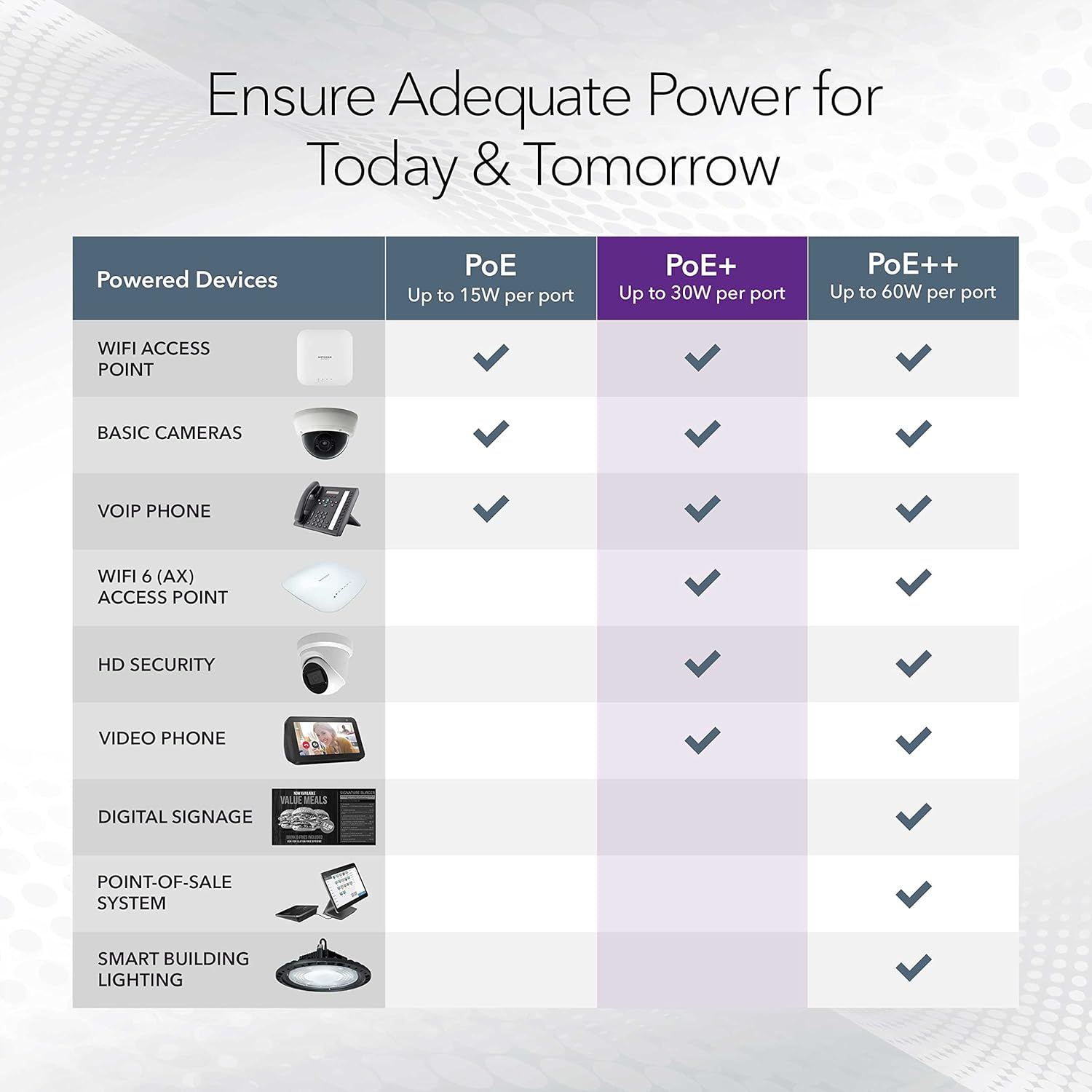
Image: A table illustrating the power capabilities of PoE, PoE+, and PoE++ for different powered devices.
9. Pūtāhui me te Tautoko
9.1 Nga Korero Whakaputanga
The NETGEAR GS305P switch comes with an industry-leading 3-tau iti pūtāhui pūmārō. Please retain your proof of purchase for warranty claims. For full warranty terms and conditions, refer to the official NETGEAR webpae, nga tuhinga ranei kei roto i to hua.
9.2 Tautoko Hangarau
For technical assistance, product registration, or to access additional resources, visit the official NETGEAR support website. You can find FAQs, firmware updates, and community forums there.
Tautoko NETGEAR Webpae: www.netgear.com/support