
1. Kupu Whakataki
Thank you for choosing the Goshyda Portable Multimedia 1080P Projector. This compact and versatile device is designed to provide a personal cinema experience, supporting various multimedia inputs for entertainment, presentations, and more. Please read this manual carefully before using the projector to ensure proper operation and to maximize its lifespan.

Image 1.1: The Goshyda YG300 Mini Portable Projector in a home entertainment setting.
2. Nga korero haumaru
- Tuku Hiko: Use only the specified 5V 2A power adapter or a compatible power bank. Incorrect voltagKa kino pea te taputapu.
- Whakahau: Kaua e āraia ngā pūaha hau. Me whakarite kia tika te rere o te hau huri noa i te pūwhakaata hei ārai i te wera nui.
- Taiao: Avoid exposing the projector to water, moisture, dust, or extreme temperatures. Operate in a clean, dry environment.
- Te horoi: Momotuhia te hiko i mua i te horoi. Whakamahia he kakahu ngohengohe, maroke. Kaua e whakamahi i te wai, i te horoi aerosol ranei.
- Whakakorea: Kaua e ngana ki te wetewete, ki te whakatika ranei i te kaupapa. Tukuna atu nga ratonga katoa ki nga kaimahi whai tohu.
- Parenga kanohi: Kaua e titiro tika ki roto i te arotahi pūwhiti ina te lamp kei runga.
3. Ihirangi mokete
Tena koa tirohia nga mea kei roto i te kete ina wetewetehia. Mena kei te ngaro, kua pakaru ranei etahi mea, whakapaa atu ki to kaihoko.
- Goshyda Portable Projector
- Mana Mamao
- AV Pūrere
- Pūurutau Hiko
- Pukapuka Kaiwhakamahi (tenei tuhinga)

Image 3.1: Included accessories with the Goshyda Portable Projector.
4. Hua Neke Atuview
4.1. Āhuatanga Pūwhiti
- 1080P Resolution Support: Ka whakarato i ngā whakaahua mārama, taipitopito hoki.
- Hoahoa Kiato me te Kawe: Weighing approximately 290g, it is easy to carry.
- Hononga Maha-Pūranga: Includes USB, HDMI, AV, memory card slot, and audio output.
- Nga Kaikōrero Roa-roto: Provides integrated audio for convenience.
- Mana Hangore: Can be powered by a 5V 2A wall charger or power bank.

Image 4.1: Visual representation of the projector's main features.
4.2. Projector Ports and Controls
Familiarize yourself with the various ports and controls on your projector.
- Arotahi: Front-facing projection lens.
- Mowhiti Arotahi: Whakaritea te marama o te ahua.
- Tāuru Mana (DC IN): E hono ana ki te urutau hiko 5V 2A.
- Paerewa HDMI: For connecting devices via HDMI cable.
- Tauranga USB: Mo te hono i nga taputapu rokiroki USB.
- Tauranga AV: For connecting devices via AV cable.
- Miihini Kaari MicroSD: For inserting a memory card.
- Putanga Ororongo: Mo te hono i nga kaikorero o waho, i nga taringa ranei.
- Patene Mana: On the top panel for basic navigation and selection.

Whakaahua 4.2: Taha view of the projector highlighting its connectivity ports.

Image 4.3: Close-up of the projector lens.
5. Tatūnga
5.1. Hononga Mana
- Connect the provided power adapter to the DC IN port on the projector.
- Monohia te urutau hiko ki te putanga hiko paerewa.
- Alternatively, for portable use, connect a 5V 2A power bank to the DC IN port.

Image 5.1: Powering the projector via wall adapter or power bank.
5.2. Te Whakatakoto me te Whakaata
Place the projector on a stable, flat surface. The optimal projection distance is between 1 to 2.5 meters, allowing for a screen size of up to 60 inches.
- For a 24-inch screen, place the projector approximately 0.8 meters away.
- For a 47-inch screen, place the projector approximately 1.2 meters away.
- For a 60-inch screen, place the projector approximately 1.6 meters away.
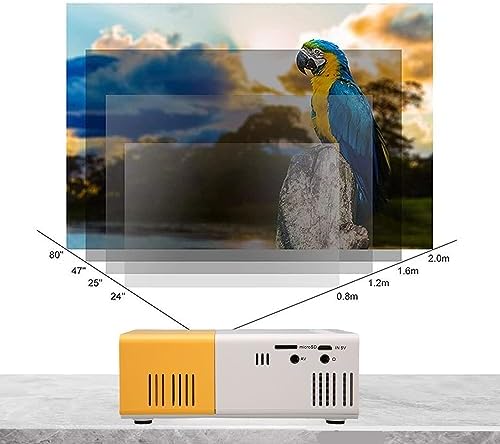
Image 5.2: Projection distance guidelines for various screen sizes. Note: Maximum recommended projection size is 60 inches.
5.3. Whakatikatika Arotahi
After placing the projector and powering it on, rotate the focus ring located around the lens until the projected image appears clear and sharp.
6. Nga Tohutohu Whakahaere
6.1. Te Hiko / Whakaweto
- Whakahiko: Pēhia te pātene hiko i runga i te pūwhiti, te mana mamao ranei.
- Weto Whakakore: Pēhia anō te pātene mana. Ka kati te pūwhakaata.
6.2. Kōwhiringa Pūtake Tāuru
Use the 'Source' button on the remote control or the projector's control panel to cycle through available input sources (HDMI, USB, AV, MicroSD).
6.3. Tahua Whakaterenga
Use the arrow buttons on the remote control or projector to navigate through menus. Press 'OK' or 'Enter' to confirm selections. Use the 'Return' or 'Back' button to go back to the previous menu.
7. Hononga
The projector offers multiple connectivity options for various devices.

Image 7.1: Connectivity options for the Goshyda projector.
7.1. Hononga HDMI
Connect devices such as laptops, TV Sticks, game consoles (e.g., for Xbox One), or Blu-ray players using an HDMI cable. Select 'HDMI' as the input source.
7.2. Hononga USB
Whakauruhia he puku kohiko USB ki te tauranga USB hei purei i ngā pāpāho files directly. Select 'USB' as the input source and navigate through your files.
7.3. AV Connection
Use the provided AV cable to connect older devices like DVD players. Select 'AV' as the input source.
7.4. Smartphone/Tablet Connection
To connect directly to your smartphone or tablet, you will need an appropriate adapter (e.g., Micro USB to HDMI, Type-C to HDMI, or a dedicated HD multimedia interface device), depending on your device's operating system (OS X or Android) and available ports. These adapters are sold separately.
7.5. Putanga Ororongo
Connect external speakers or headphones to the audio output port for enhanced sound.
8. Tiaki
- Whakapai Arotahi: Use a soft, lint-free cloth specifically designed for optical lenses to gently wipe the projector lens. Do not use abrasive materials or harsh chemicals.
- Horoi o waho: Horoia te taha waho o te pūwhakaata ki te kakahu ngohengohe, maroke.
- Rokiroki: When not in use for extended periods, store the projector in a cool, dry place, away from direct sunlight and dust.
9. Te Raru
| Raruraru | Take pea | Rongoā |
|---|---|---|
| Karekau he kaha | Power adapter not connected or faulty; insufficient power supply. | Ensure the 5V 2A power adapter is securely connected and plugged into a working outlet. Try a different power source or power bank. |
| Karekau he ahua | Incorrect input source selected; cable not connected properly; device not outputting signal. | Select the correct input source (HDMI, USB, AV). Check all cable connections. Ensure the connected device is powered on and outputting a signal. |
| He koretake te whakaahua | Kāore i whakaritea te arotahi; he tata rawa/he tawhiti rawa te pūwhakaata i te mata. | Rotate the focus ring to sharpen the image. Adjust the projection distance within the recommended range (1-2.5m). |
| Karekau he tangi | Volume too low or muted; external speakers not connected; audio format not supported. | Increase the volume on the projector and the source device. Check if external speakers are properly connected. Ensure the audio format is supported. |
10. Whakatakotoranga
| Āhuahira | Taipitopito |
|---|---|
| Waitohu | Goshyda |
| Tau tauira | Goshyda89pkbg17g0 |
| Whakaatu Whakatau | 1920 x 1080 (Tautoko 1080P) |
| Tirohanga | 200 Lumens |
| Aspect Ratio | 4:3 |
| Tawhiti Matapae | 1 - 2.5 mita |
| Rahi Kaupapa | Tae atu ki te 60 inihi |
| Hangarau Hononga | HDMI, USB, AV, MicroSD, Audio Out |
| Whakauru Mana | 5V 2A |
| Momo Whakaatu | LCD |
| Hunga Hua | 12L x 8.5W x 4.6H cm (Approx. 4.7 x 3.3 x 1.8 inches) |
| Tauwehe Puka | Kawe |
| Momo Whakaeke | Maunga Ripanga |
11. Pūtāhui me te Tautoko
For warranty information and customer support, please refer to the documentation provided with your purchase or contact your retailer directly. Keep your proof of purchase for warranty claims.