
Kupu Whakataki
This manual provides essential information for the safe and efficient use of your ONN 42-Inch Full HD LED Smart TV, Model 100018254. Please read these instructions thoroughly before operating your television and retain them for future reference.
He aha kei roto i te Pouaka
Manatokohia kei te noho nga waahanga katoa i mua i te haere ki te tatūnga.
- ONN 42-Inch Full HD LED Smart TV
- Mana Mamao
- Pouaka Whakaata (2 nga waahanga)
- Nga Tiu mo te Tu TV
- Waea hiko
- Aratohu Timata Tere (kaore i roto i tenei pukapuka)

Whakaahua: Mua view of the ONN 42-inch Smart TV displaying the Roku TV home screen with various streaming app icons like Netflix, Disney+, Apple TV, Hulu, Peacock, and Roku Channel. The TV is black with slim bezels and two stand feet.
Tatūnga
1. Te Whakapiri i te Tu TV
- Tuhia te mata-whakararo pouaka whakaata ki runga i te mata ngawari, ma kia kore ai e pakaru.
- Tiaro ia wahi tu ki nga kohao tīwiri e hāngai ana ki raro o te pouaka whakaata.
- Whakamaua ia wahi tu ki nga wiri kua whakaratohia. Me whakarite kia mau tonu.

Image: A diagram illustrating the dimensions of the ONN 42-inch TV, showing its width as 43 inches and height as 37 inches when placed on its stand.
2. Whakapiki Taiepa (Kōwhiringa)
This TV is compatible with VESA standard wall mounts. Refer to your wall mount's instructions for proper installation. Ensure the wall mount can support the weight of the television.

Whakaahua: Rear view of the ONN 42-inch TV, highlighting the VESA mounting screw holes in a square pattern and various input ports on the side and bottom right.
3. Pūrere hono
Connect your external devices such as cable boxes, gaming consoles, or Blu-ray players to the TV's input ports.
- HDMI: For high-definition audio and video. Use an HDMI cable to connect devices like set-top boxes, game consoles, or streaming sticks.
- USB: Mo te hono i nga taputapu rokiroki USB ki te purei pāpāho files.
- Wi-Fi: For internet connectivity to access smart TV features and streaming services.
4. Hiko Tuatahi me te Ruānuku Tatūnga
- Monohia te taura hiko ki roto i te pouaka whakaata, katahi ka uru ki te putanga pakitara.
- Patohia te paatene mana i runga i te mana mamao, i runga ranei i te pouaka whakaata.
- Follow the on-screen instructions to complete the initial setup, including language selection, network connection (Wi-Fi), channel scanning, and linking to your Roku account (if applicable).
Te whakahaere i te pouaka whakaata
1. Mana Mamao Nekeview
The remote control allows you to navigate the TV's interface and control various functions.
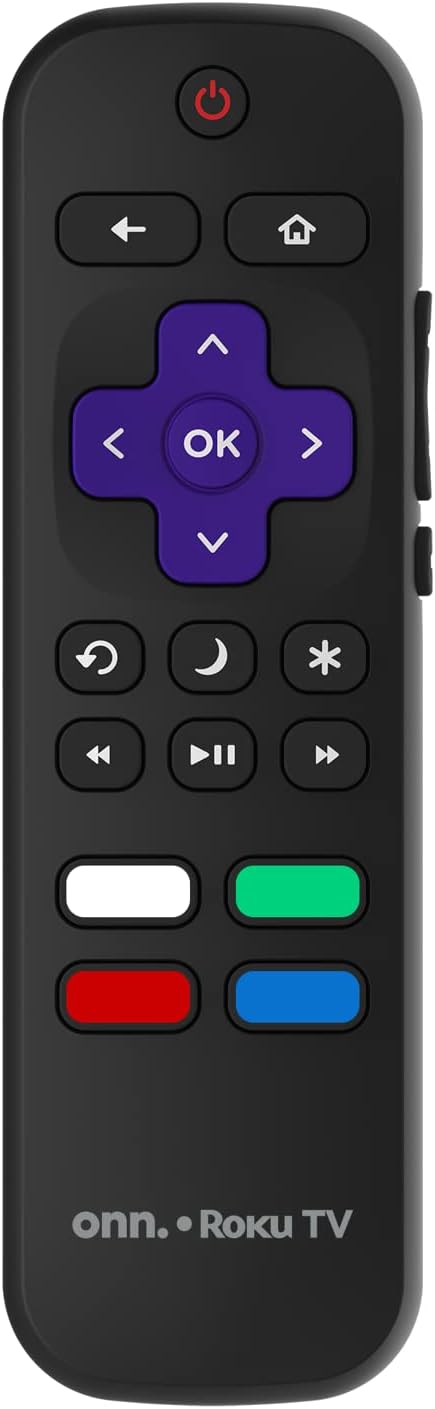
Image: The ONN Roku TV remote control, featuring a power button, directional pad, OK button, home button, back button, volume controls, and dedicated buttons for popular streaming services.
- Pātene Hiko: Ka whakakā, whakaweto rānei i te pouaka whakaata.
- Directional Pad (D-Pad) & OK: Ka whakatere i nga tahua me te whakau i nga whiringa.
- Pātene Kāinga: Ka hoki ki te mata kāinga o te Roku TV.
- Pātene Whakamuri: Ka hoki ki te mata o mua, ki te tahua ranei.
- Rōrahi Whakarunga/Whakararo: Whakaritea te ororongo.
- Patene Whakakore: Wahangu, wetewete ranei te ororongo.
- Hongere Whakarunga/Whakararo: Changes channels (for antenna/cable inputs).
- Pātene Taupānga Motuhake: Quick access to popular streaming services like Netflix, Hulu, etc.
2. Ahuatanga TV Smart
Your ONN Smart TV provides access to a wide range of streaming content and smart functionalities.
- Ratonga Rere: Access pre-installed apps like Netflix, YouTube, and many more through the Roku Channel Store.
- Mana Reo: Compatible with Alexa and Google Assistant for hands-free control (requires a separate compatible voice assistant device).
- Automatic Software Updates: The TV will automatically update its software when connected to the internet, ensuring you have the latest features and security.
3. Tīpakonga Whakauru
To switch between connected devices (e.g., cable box, game console), use the Whakauru button on your remote or select the desired input from the Roku TV home screen.
4. Tautuhinga Pikitia me te Oro
Access the TV's settings menu to customize picture and sound preferences. Navigate to Ngā Tautuhinga > Ngā Tautuhinga Pikitia Pouaka Whakaata or Tautuhinga> Ororongo to adjust options like brightness, contrast, color, sound mode, and equalizer settings.
Te tiaki
1. Te horoi i te Mata
- Whakawetohia te pouaka whakaata, ka momotu i te hiko i mua i te horoinga.
- Whakamahia he kakahu ngohengohe, karekau he kiri, he paku dampi whakakoia ki te wai, ki tetahi kai horoi mata motuhake ranei.
- Kaua e rehu tika te kai horoi ki te mata. Hoatu ki te kakahu i te tuatahi.
- Āta karohia te whakamahi i ngā kaihoroi whakakoi, te waipiro, te benzene, ngā mea whakarewa rānei, nā te mea ka kino pea te mata.
2. Whakahōu Pūmanawa
Ensure your TV is connected to the internet to receive automatic software updates. These updates improve performance, add features, and enhance security. You can manually check for updates in the Tautuhinga> Pūnaha> Whakahou Pūnaha tahua.
Raparongoā
Mena ka raru koe ki to pouaka whakaata, tirohia nga rongoa e whai ake nei:
Karekau he Mana
- Tirohia mēnā kua mau te mono o te taura hiko ki te pouaka whakaata me te putanga hiko ki te pakitara.
- Manatokohia kei te mahi te putanga pakitara mā te mono i tētahi atu pūrere.
- Whakamātauria te pēhi i te pātene hiko i runga i te pouaka whakaata, kaua ko te mamao anake.
Kore Pikitia / Pikitia Pohehe
- Me mohio kua tohua te puna whakauru tika (hei tauira, HDMI 1, HDMI 2).
- Tirohia nga hononga taura katoa i waenga i te pouaka whakaata me nga taputapu o waho.
- Whakamātauria he taura HDMI rereke mena ka taea.
- Adjust picture settings (brightness, contrast) in the TV menu.
Karekau he Oro / Oro iti
- Check if the TV is muted or if the volume is turned down.
- Ensure external audio devices (soundbars, receivers) are properly connected and powered on.
- Tirohia nga tautuhinga ororongo i te tahua TV.
Nga Take Hononga Whatunga
- Verify your Wi-Fi router is powered on and functioning.
- Tīmataria anō tō pouara me te pouwhanga.
- Haere ki Tautuhinga > Whatunga > Tirohia te hononga i runga i tō pouaka whakaata hei tātaritanga i te raruraru.
- Me whakarite kei te whakauru koe i te kupuhipa Wi-Fi tika.
Whakatakotoranga
| Āhuahira | Taipitopito |
|---|---|
| Tau tauira | 100018254 |
| Rahi Mata | 42 Inihi |
| Hangarau Whakaatu | LED |
| Whakatau | 1080p (Katoa HD) |
| Rere tāmata | 60 Hz |
| Hononga | USB, Wi-Fi |
| Ratonga Ipurangi Tautoko | Netflix, YouTube (and others via Roku platform) |
| Tikanga Mana | Voice (via Alexa & Google Assistant compatible devices), Remote Control |
| Momo Whakaeke | Maunga Pakitara (hototahi ki te VESA) |
| Tae | Pango |
| UPC | 671227025567 |

Image: Energy Guide label for Television Model 100018254, indicating an estimated yearly energy cost of $11 based on 12 cents per kWh and 5 hours use per day.
Pūtāhui me te Tautoko
For warranty information and technical support, please refer to the documentation included with your purchase or visit the official ONN support webpae. Puritia to rihiti hoko mo nga kereme whakamana.