
1. Hua Neke Atuview
The TP-Link ER707-M2 is an Omada Multi-Gigabit VPN Router designed for high-performance networking environments. It features dual 2.5 Gigabit WAN ports, a Gigabit SFP WAN/LAN port, and multiple Gigabit RJ45 WAN/LAN ports, providing flexible connectivity and high-bandwidth aggregation. This router integrates seamlessly with the Omada SDN Controller for centralized management and offers robust security features including an SPI Firewall and various VPN protocols.
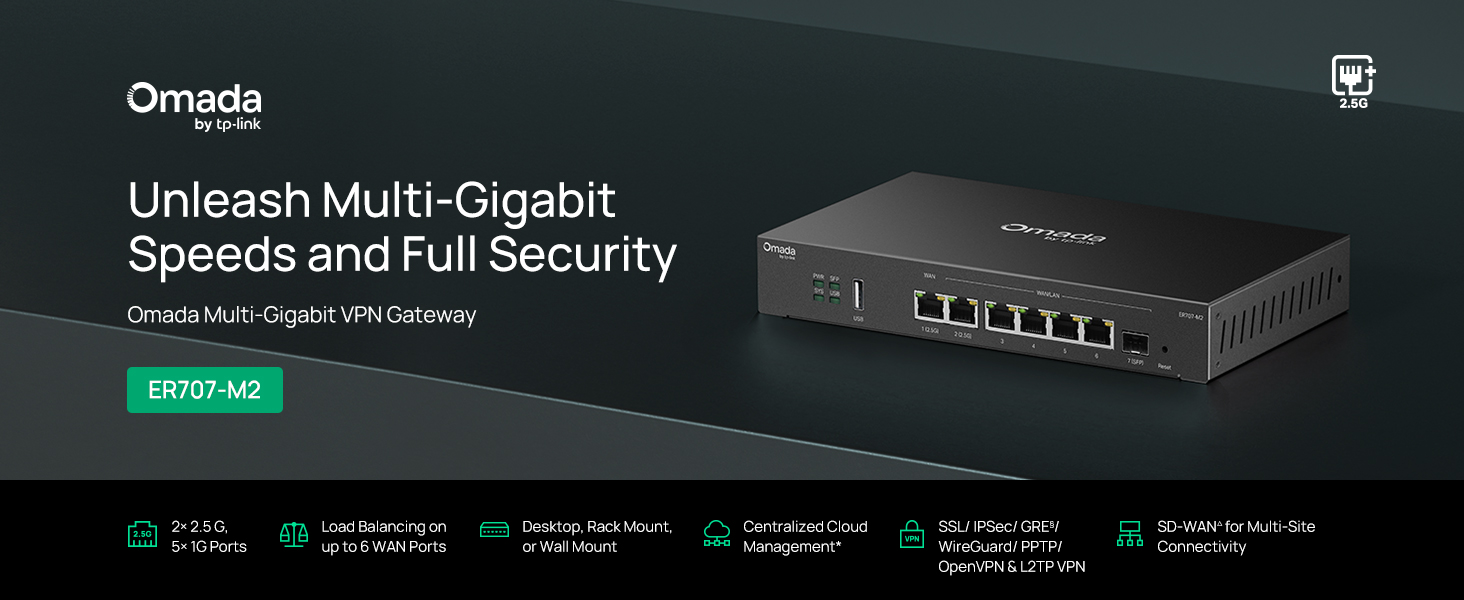
Whakaahua 1: Mua view of the ER707-M2 router, highlighting its ports and indicators.
Āhuatanga matua:
- Whirihoranga Tauranga Hangore: Includes 1x 2.5Gigabit WAN Port, 1x 2.5Gigabit WAN/LAN Port, 4x Gigabit WAN/LAN Ports, 1x Gigabit SFP WAN/LAN Port, and 1x USB 2.0 Port.
- Raukaha Whatunga Mahinga Nui: Supports up to 500,000 concurrent sessions and over 1000 clients.
- Urunga Kapua: Centralized cloud management via Omada app and web atanga.
- Highly Secure VPN: Supports up to 100 LAN-to-LAN IPsec, 66 OpenVPN, 60 L2TP, and 60 PPTP VPN connections.
- Haumarutanga Arā Atu Anō: Features SPI Firewall, Policy-based Firewall, Static Routing, Policy Routing, Multi-net DHCP, Guest Portal, and VLAN support.
- Load Balance & Link Backup: Optimizes multi-line broadband efficiency and reliability.
- Tauranga USB 2.0: Supports USB storage and LTE backup with a compatible LTE dongle.
2. Ihirangi mokete
Manatokohia kei roto i to kete nga mea e whai ake nei:
- TP-Link ER707-M2 Omada Multi-Gigabit VPN Router
- Pūurutau Hiko
- Aratohu Tāuta Tere
If any item is missing or damaged, please contact your reseller or TP-Link support.
3. Tatūnga
3.1 Tāuta Pūmārō
- Hononga Hiko: Connect the provided power adapter to the router's power input and then to a power outlet.
- Hononga WAN: Connect your modem or internet service provider's device to one of the WAN ports (e.g., WAN1 2.5G or WAN/LAN2 2.5G) using an Ethernet cable. For fiber connections, use the SFP port with a compatible SFP module.
- Hononga LAN: Connect your local network devices (e.g., computers, switches, Omada Access Points) to the LAN ports (WAN/LAN2-6) using Ethernet cables.
- Pūrere USB (Whiringa): If using a USB storage device or an LTE dongle for backup, insert it into the USB 2.0 port.
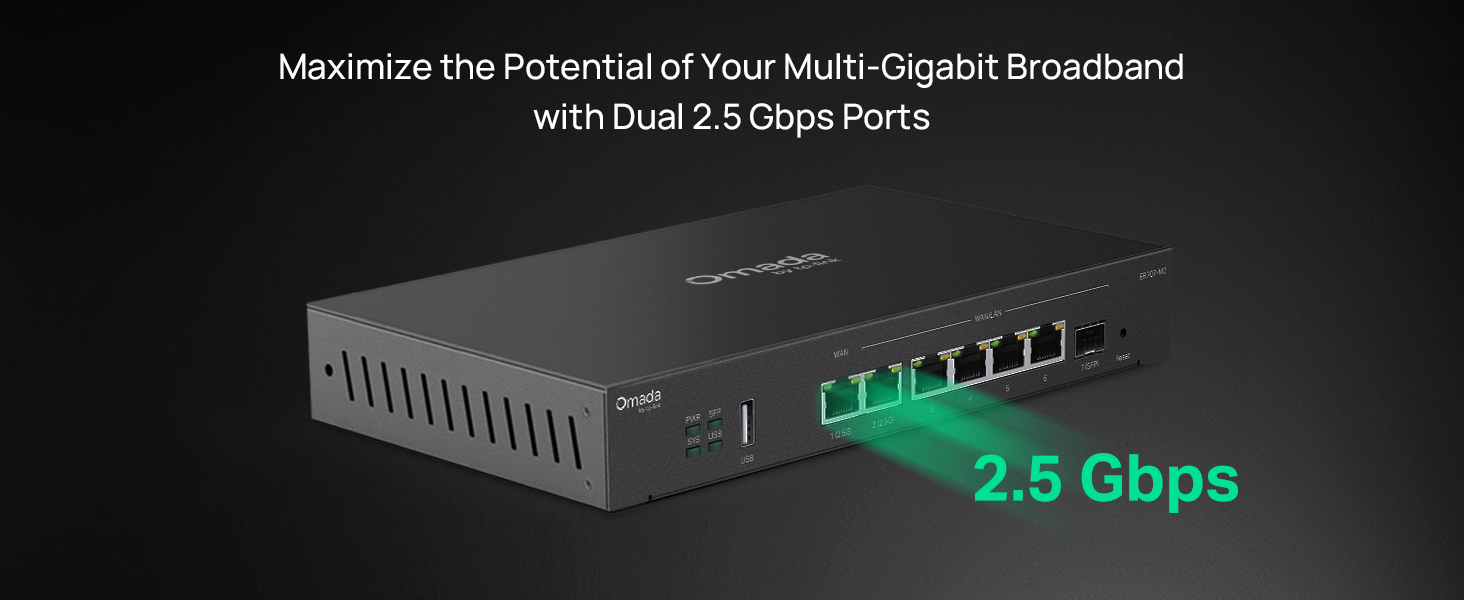
Figure 2: Illustration of the router's 2.5 Gbps ports for high-speed connectivity.
3.2 Whirihoranga Tuatahi
The ER707-M2 can be managed via the Omada SDN Controller or through its local web atanga.
- Hono ki te Pouara: Me mohio kei te hono to rorohiko ki tetahi o nga tauranga LAN o te pouara.
- Urunga Web Atanga: Tuwhera a web pūtirotiro me te tomo i te wāhitau IP taunoa (te tikanga
192.168.0.1or192.168.1.1) in the address bar. Refer to the Quick Installation Guide for the exact default IP and login credentials. - Whāia te Ruānuku Tatūnga: The first time you log in, a setup wizard will guide you through basic internet connection settings, changing the default password, and configuring Wi-Fi (if applicable).
- Whakaurunga SDN Omada (Whiringa): For centralized management, adopt the router into your Omada SDN Controller. This allows for remote management and unified control of your network devices.
4. Nga Tohutohu Whakahaere
4.1 Whirihoranga Whatunga
The router offers extensive configuration options for your network:
- Tautuhinga WAN: Configure WAN ports for different connection types (Dynamic IP, Static IP, PPPoE).
- Tautuhinga LAN: Manage IP addresses, DHCP server, and VLANs for your local network segments.
- Taurite Uta Maha-WAN: Distribute internet traffic across multiple WAN connections to optimize bandwidth and provide redundancy.
- Hononga Pūrua: Configure a secondary WAN connection (e.g., via LTE dongle) to automatically take over if the primary connection fails.
4.2 Ngā Mahi VPN
The ER707-M2 supports various VPN protocols for secure remote access and site-to-site connectivity.
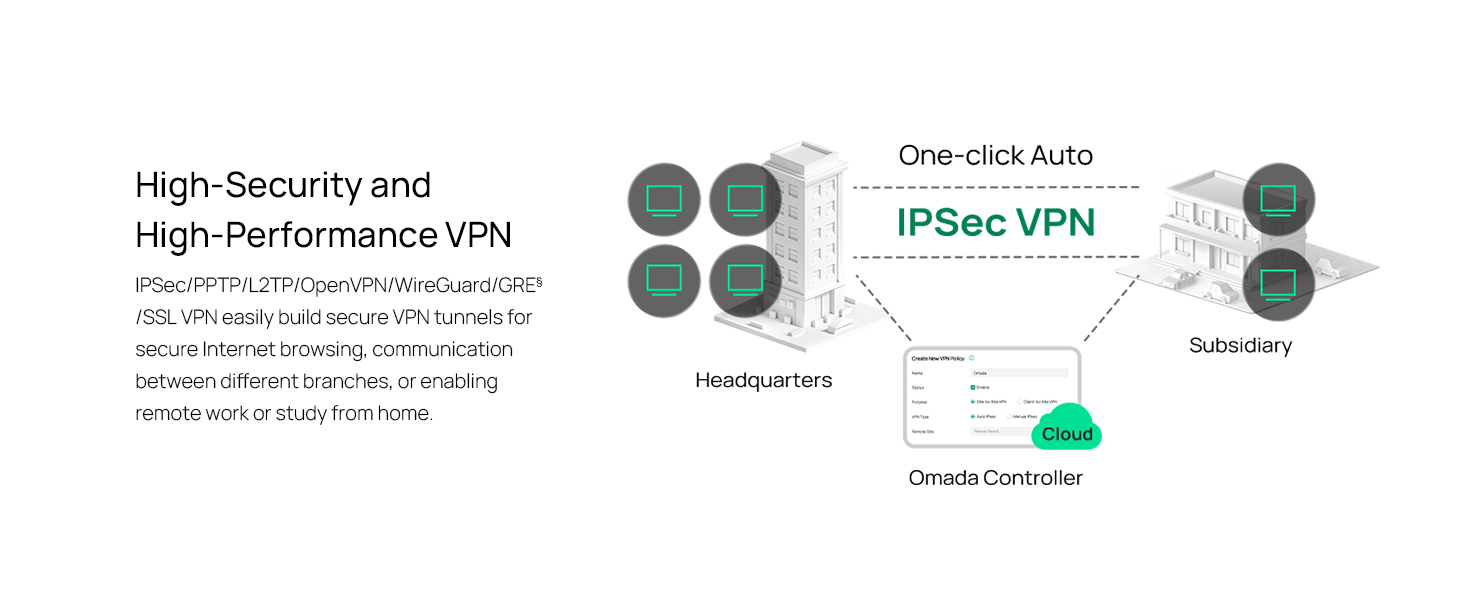
Figure 3: Visual representation of a secure VPN tunnel setup.
- IPsec VPN: Establish secure tunnels between networks (e.g., office to branch office).
- OpenVPN/SSL VPN: Provide secure remote access for individual users.
- PPTP/L2TP VPN: Legacy VPN protocols for various client connections.
4.3 Āhuahira Haumarutanga
The router includes advanced security measures to protect your network:
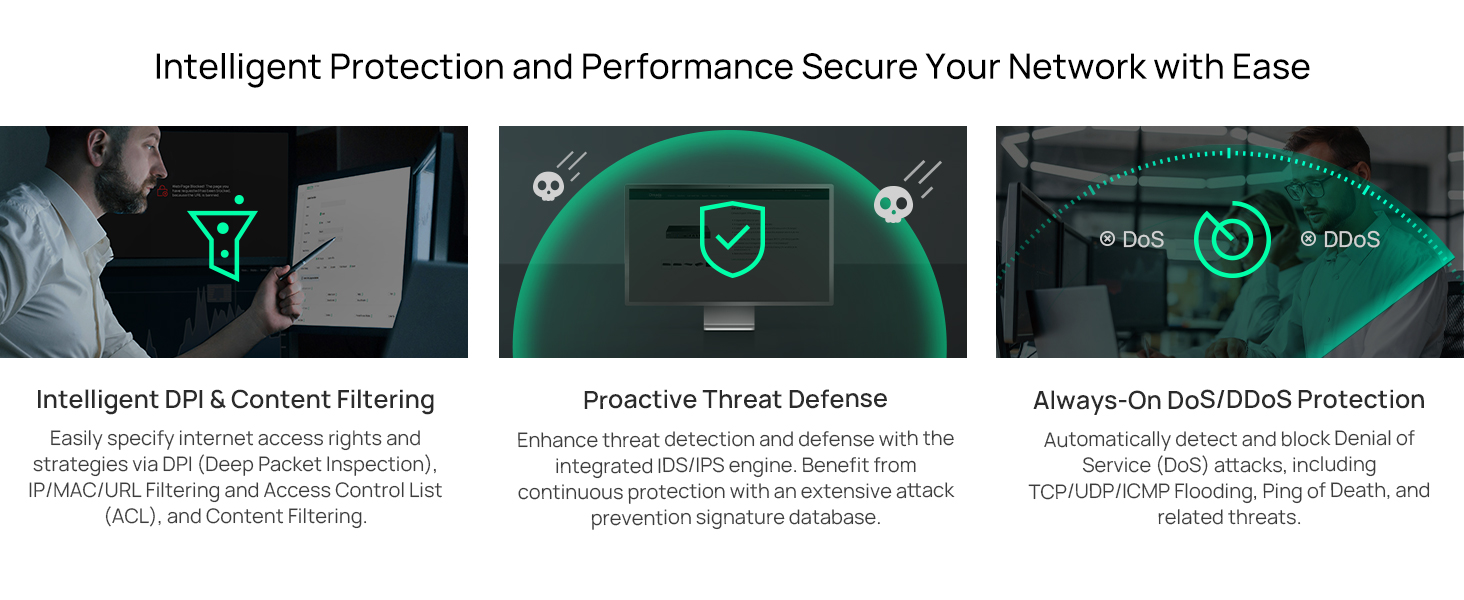
Whakaatu 4: Neke Atuview of intelligent protection and performance features.
- SPI Pātūahi: Stateful Packet Inspection firewall for network protection.
- Policy-based Firewall: Define rules to control network traffic based on specific criteria.
- DoS/DDoS Protection: Defend against Denial of Service and Distributed Denial of Service attacks.
- Rārangi Mana Uru (ACL): Manage network access for specific devices or users.
4.4 Omada SDN Whakauru
The ER707-M2 is part of the Omada Software-Defined Networking (SDN) solution, allowing for centralized management of your entire network.

Figure 5: How the ER707-M2 integrates into an Omada SDN network.
- Whakahaerenga Pokapū: Manage the router, access points, and switches from a single interface via the Omada Controller (hardware or software).
- Uru Mamao: Access and manage your network from anywhere using the Omada app or cloud portal.
- Seamless Scalability: Easily expand your network by adding more Omada devices.
5. Tiaki
To ensure optimal performance and security of your ER707-M2 router, regular maintenance is recommended:
- Whakahōu Firmware: Tirohia i ia wa te rangatira TP-Link webpae mo nga putanga firmware hou. Ko te whakahou i te firmware ka taea te whakapai ake i nga mahi, te taapiri i nga ahuatanga hou, me te whakatika i nga whakaraeraetanga haumarutanga.
- Pūrua Whirihoranga: Regularly back up your router's configuration settings. This allows for quick restoration in case of accidental changes or system issues.
- Tirotiro tinana: Ensure the router is placed in a well-ventilated area, free from dust and obstructions. Check cable connections for secure fit.
- Haumarutanga Review: Ia wā anōview your firewall rules, VPN settings, and access control lists to ensure they meet your current security requirements.
6. Te Raru
If you encounter issues with your ER707-M2 router, consider the following troubleshooting steps:
- Kaore he Urunga Ipurangi:
- Check all cable connections (WAN, LAN, Power).
- Verify your modem or ISP device is working correctly.
- Confirm WAN settings in the router's web he tika te atanga.
- Restart the modem, then the router, and then your connected devices.
- Kaore e taea te uru Web Whārangi Whakahaere:
- Me mohio kei te hono to rorohiko ki tetahi tauranga LAN o te pouara.
- Verify your computer's IP address is in the same subnet as the router (e.g., if router is 192.168.0.1, computer should be 192.168.0.x).
- Whakamātauria te whakawātea i te keteroki o tō pūtirotiro me te whakamahi i tētahi atu pūtirotiro.
- If the issue persists, perform a factory reset (see below).
- Tere Whatunga Puturi:
- Tirohia te tere o to kaiwhakarato ratonga ipurangi.
- Ensure all cables are Cat5e or higher for Gigabit/2.5Gig connections.
- Monitor network usage to identify bandwidth-intensive applications or devices.
- Verify duplex settings on connected devices and router ports.
- Tautuhi wheketere: If all else fails, you can restore the router to its factory default settings. Locate the Reset button on the router (often a small pinhole button), press and hold it for about 5-10 seconds until the system LED blinks, then release. This will erase all custom configurations.
7. Whakatakotoranga
| Āhuahira | Taipitopito |
|---|---|
| Waitohu | TP-Hono |
| Ingoa Tauira | ER707-M2 |
| Hangarau Hononga | Itarangi |
| Te maha o nga Tauranga | 6 (1x 2.5G WAN, 1x 2.5G WAN/LAN, 4x Gigabit WAN/LAN, 1x Gigabit SFP WAN/LAN, 1x USB 2.0) |
| Whānuitanga o te Tauranga LAN | 10/100/1000/2500Mbps |
| Rere Whakawhiti Raraunga | 2500 Megabits ia Hekona |
| Maximum Upstream Data Transfer Rate | 5000 Megabits ia Hekona |
| Kawa Haumaru | SSL, IPSec, GRE, SSH, IKEv1/v2, PPTP, L2TP, OpenVPN |
| Tikanga Mana | Taupānga, Web Atanga |
| Pūnaha Mahi | ZyNOS (TP-Link Omada) |
| Taumaha Tūemi | 1.1 Kirokaramu |
| Rahi Tūemi (L x W x H) | 12.9"L x 9.5"W x 3.1"H |
8. Nga Korero Whakaputanga
The TP-Link ER707-M2 Omada Multi-Gigabit VPN Router is backed by an industry-leading 5 tau te whakamana a te kaiwhakanao. Ka kapi tenei raihana i nga hapa o nga rawa me nga mahi i raro i te whakamahinga noa. Tena koa pupurihia to tohu mo te hoko mo nga kereme whakamana.
9. Tautoko
For technical assistance, product information, or warranty inquiries, please contact TP-Link support:
- Tautoko Waea: (866) 225-8139 (Available Monday to Friday, 6am to 6pm PST)
- Hua Webpae: myproducts.tp-link.com/us
- Tautoko Īmēra: tautoko.USA@tp-link.com