
JAIOT A013A-W-PRO-EN
JAIOT 2K Dual Lens Indoor Security Camera User Manual
Model: A013A-W-PRO-EN
1. Aratohu Tatūnga
1.1 He aha kei roto i te Pouaka
- 1 x JAIOT 2K 4MP Indoor Security Camera
- Pūurutau Hiko
- Whakapuru Taonga
- Pukapuka Kaiwhakamahi
1.2 Whakamana i te Kaamera
Connect the provided power adapter to the camera's power input port and then plug it into a wall outlet. The camera will initiate its startup sequence.
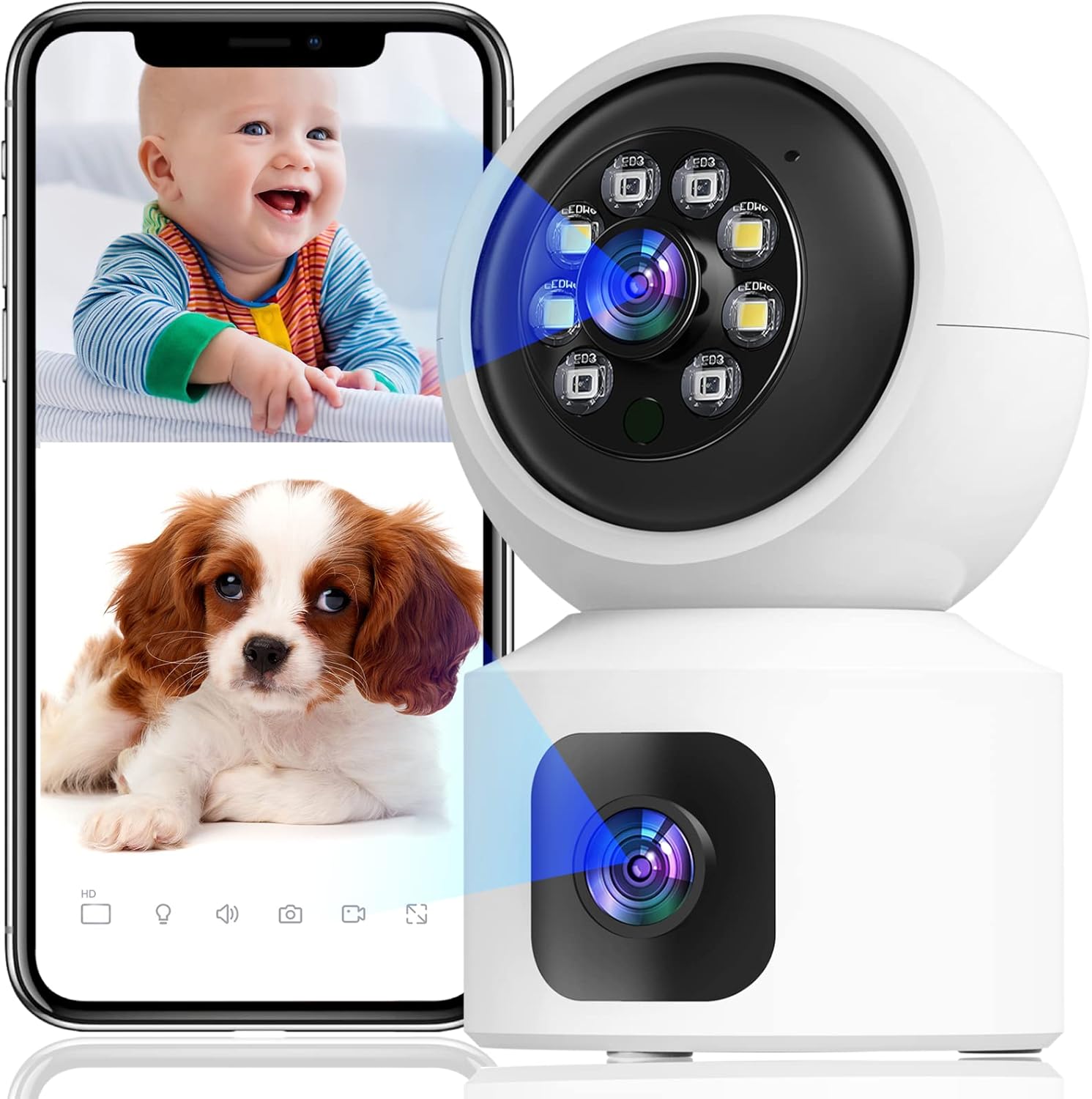
Image: The JAIOT 2K Dual Lens Indoor Security Camera, a white device with a spherical top housing the main lens and a square base with a secondary lens. A smartphone displays a split screen showing live feeds of a baby and a puppy, demonstrating the camera's monitoring capabilities.
1.3 App Installation and Network Configuration
To set up your JAIOT camera, download the "iSee Home" app from your device's app store (available on App Store or Google Play). Follow these steps for network configuration:
- Plug in the power to the camera.
- After the camera emits light to automatically identify the network, open the iSee Home APP for network configuration.
- Click the '+' icon on the Home page of the app.
- Ensure your phone's Wi-Fi is connected to a 2.4GHz network (5GHz networks are not supported) and Bluetooth is turned on.
- Select the correct device within the app based on the Product ID and then tap "Add".
- Once the network configuration is successful, the device name can be added successfully.
Video: This video demonstrates the initial setup process for the JAIOT 2K 4MP Dual Lens Security Camera, including plugging in the power, the camera's self-identification process, and connecting it to the iSee Home mobile application via Wi-Fi and Bluetooth.

Image: A close-up of a smartphone screen displaying the iSee Home application interface, guiding the user through the camera setup process. The screen shows options for adding a new device and configuring network settings.
2. Te Whakahaere i te Kaamera
2.1 Dual Lens and Pan/Tilt Functionality
The JAIOT camera features a unique dual-lens design, allowing it to monitor two different areas simultaneously. One lens is fixed to cover a primary area, while the other is a Pan/Tilt/Zoom (PTZ) camera that can rotate 355° horizontally and 114° vertically, providing 360° surveillance coverage without blind spots.

Image: A side-by-side comparison illustrating the JAIOT Dual Lens 4MP camera versus a generic single lens 2MP camera, highlighting the advantage of dual lenses for broader coverage and higher resolution.

Image: A diagram contrasting the monitoring capabilities of the JAIOT Dual Lens Camera, which simultaneously covers two distinct areas (one with PTZ, one fixed), against a normal single-lens camera that leaves a significant blind spot.

Image: The JAIOT 2K 4MP HD Security Camera mounted on a wall, with arrows indicating its 355-degree horizontal pan and 114-degree vertical tilt capabilities, demonstrating its extensive coverage.
Video: This video highlights the dual-lens functionality, motion detection, and two-way audio features of the JAIOT 4MP Indoor Security Camera, showcasing its ability to monitor multiple areas and interact with subjects.
2.2 2K 4MP Full HD and Color Night Vision
The camera delivers a 2K 4MP Super HD live stream, capturing clear and detailed video. It supports infrared, full-color, and auto night vision modes, ensuring visibility even in low-light conditions.

Image: A visual comparison demonstrating the superior clarity and detail of a 4MP image captured by the JAIOT camera compared to a 1080P image from another device, focusing on a dog's fur.
2.3 Ororongo Waa-rua
Equipped with a built-in microphone and speaker, the camera enables two-way communication. You can speak to and hear from individuals near the camera through the iSee Home app.

Image: A mother and child are shown playing, with a smartphone displaying a live feed of the mother. Speech bubbles indicate a two-way conversation, illustrating the camera's two-way audio capability.
2.4 Te Motini me nga Matohi
The camera features built-in motion detection sensors. Upon detecting human or general motion, it automatically tracks the movement and sends instant alerts to your phone. A 90dB siren can also be activated via the iSee Home app to deter intruders.

Image: A security camera is depicted detecting a burglar in a home setting, with icons representing human detection, real-time alerts, sound alarms, and customized alarm notifications, highlighting the camera's security features.

Image: Two children are shown playing, with a smartphone displaying a notification from the iSee Home app indicating motion detection. This illustrates the camera's PIR motion detection and siren alarm capabilities.
2.5 Storage Options: SD Card and Cloud
The camera supports 24/7 continuous recording. Video footage can be stored locally on a Micro SD card (not included, up to 256GB) or via optional cloud storage. Cloud data is stored at local base stations in the U.S. for privacy and security.
Image: A visual representation of the camera's 24/7 recording and playback features, showing options for both SD card storage (not included, for continuous record) and cloud storage (optional, for event record), with a smartphone displaying playback footage.
3. Tiaki
To ensure optimal performance and longevity of your JAIOT security camera, regular maintenance is recommended:
- Te horoi: Me ata horoia te arotahi me te tinana ki te kakahu ngohengohe, maroke hei tango i te puehu me te para. A ape i te whakamahi i nga matū kino, i nga taonga abrasive ranei.
- Whakahōu Firmware: Periodically check the iSee Home app for available firmware updates. Keeping your camera's firmware up-to-date ensures you have the latest features, security enhancements, and bug fixes.
- Turanga: Ensure the camera is placed in a stable location, away from direct sunlight, extreme temperatures, and high humidity, which can affect its performance and lifespan.
4. Te Raru
If you encounter issues with your JAIOT security camera, refer to the following common problems and solutions:
| Raruraru | Take pea | Rongoā |
|---|---|---|
| Camera won't connect to Wi-Fi / Frequent disconnections | Incorrect Wi-Fi password, 5GHz Wi-Fi network, weak signal, network congestion. | Ensure you are connecting to a 2.4GHz Wi-Fi network. Verify Wi-Fi password. Move camera closer to router. Restart camera and router. |
| Live video not showing / Black screen in app | He raruraru whatunga, kāmera tuimotu, hapa taupānga. | Check camera's power and network connection. Restart the iSee Home app. Re-add the device in the app if necessary. Ensure stable internet connection. |
| Ko te ororongo rua-ara kaore e mahi | Microphone/speaker muted in app, app permissions, network latency. | Check audio settings in the iSee Home app. Ensure app has microphone permissions. Verify stable network connection. |
| Motion detection not triggering alerts | Detection sensitivity too low, alert settings disabled. | Adjust motion detection sensitivity in the app. Ensure alert notifications are enabled in both the app and your phone's settings. |
| Pan/Tilt movement is slow or unresponsive | Network latency, app issue. | Ensure a strong and stable Wi-Fi connection. Restart the iSee Home app. |
Mena kei te haere tonu te raru, tirohia te waahanga Whakaputanga me te Tautoko mo etahi atu awhina.
5. Whakatakotoranga
| Āhuahira | Taipitopito |
|---|---|
| Tau tauira | A013A-W-PRO-EN |
| Mahinga o roto/waho | Roo-roto |
| Whakataunga Hopu Ataata | 2K (4MP Whai Whakataunga Tonu) |
| Kawa Hononga | Wi-Fi (2.4GHz anake) |
| Puna Mana | Hiko Waea (5 Volts, 3.1 watts) |
| Momo Whakaeke | Maunga Taiepa |
| Tae | Mā |
| Te maha o nga hongere | 2 (Dual Lens) |
| Hangarau Maama iti | Tae Po |
| Momo Matohi | Ororongo me te Motini |
| Kōwhiringa Rokiroki | Kaari Micro SD (tae atu ki te 256GB, kaore i whakauruhia), Kapua Pupuri |
| Tikanga Mana | App (iSee Home) |
| Taumaha Tūemi | 12 hekere |
| Ahu mōkihi | 6.54 x 5.67 x 3.66 inihi |
| UPC | 734730519630 |
6. Pūtāhui me te Tautoko
JAIOT is committed to providing high-quality products and customer satisfaction. For any warranty claims, technical assistance, or product-related inquiries, please contact JAIOT customer support directly. Refer to the product packaging or the official JAIOT webpae mo nga korero whakapā o naianei.
Tena koa pupurihia to tohu hoko mo nga kaupapa whakamana.
Ask a question about this manual
Ask about setup, troubleshooting, compatibility, parts, safety, or missing instructions. Manuals+ will review the question and use this page’s manual context to help answer it.