
Kupu Whakataki
The Geeni Scope Smart WiFi Indoor Security Camera provides comprehensive indoor monitoring with advanced features such as motion tracking, two-way audio, and night vision. This manual provides detailed instructions for setting up, operating, and maintaining your camera to ensure optimal performance.
Ihirangi mokete
- Geeni Scope Smart WiFi Indoor Security Camera
- Mutu Kit
- AC Adapter with Charging Cable
- Pukapuka Tohutohu (tenei tuhinga)
Ka mutu te huaview
Familiarize yourself with the components and features of your Geeni Scope camera.
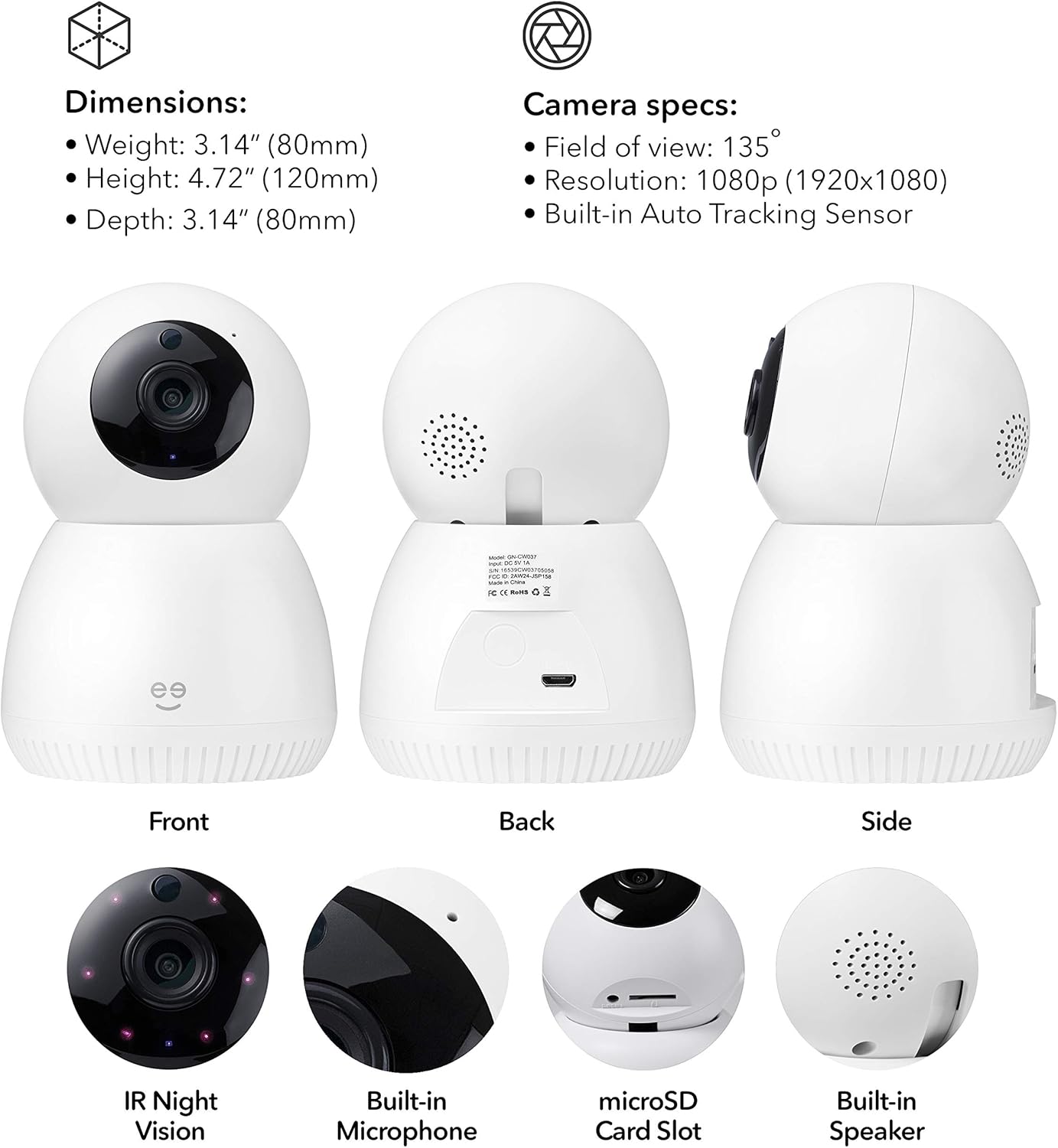
Atahanga: Mua, muri, taha views of the Geeni Scope camera, highlighting its dimensions (Weight: 3.14 oz (80mm), Height: 4.72" (120mm), Depth: 3.14" (80mm)) and key components such as IR Night Vision, Built-in Microphone, microSD Card Slot, and Built-in Speaker. Camera specifications include a 135° field of view, 1080p resolution, and a built-in auto-tracking sensor.
Nga waahanga matua
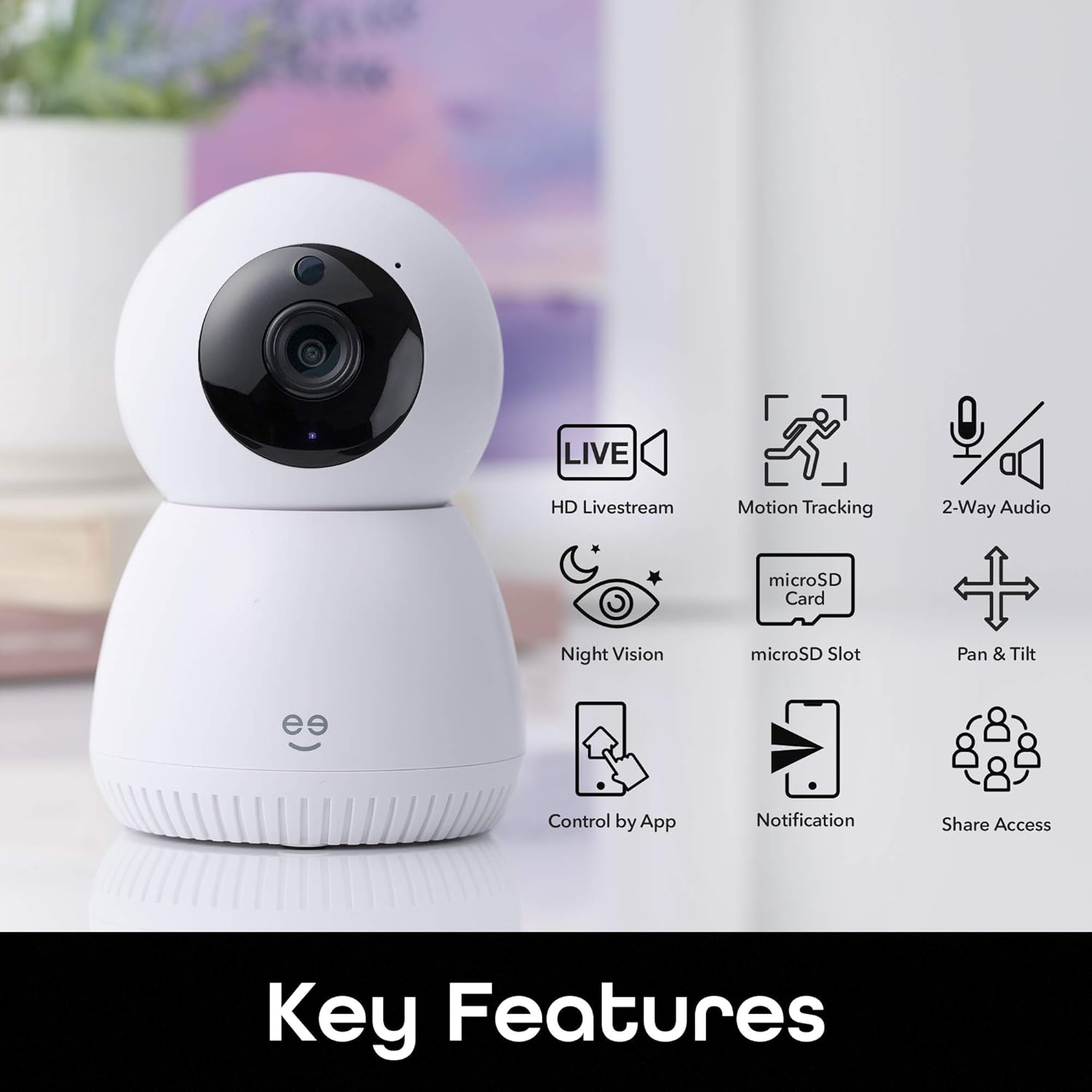
Atahanga: A visual representation of the Geeni Scope camera's main functionalities, including HD Livestream, Motion Tracking, 2-Way Audio, Night Vision, microSD Slot for storage, Pan & Tilt capabilities, Control by App, Notification alerts, and Share Access options.
- HD Livestream: View ora footage in high definition from anywhere.
- Moving Aroturuki: Automatically detects and follows movement within its field of view.
- Ororongo Ara-rua: Kōrero ki ngā tāngata e tata ana ki te kāmera mā te whakamahi i te hopuoro me te kaikorero kua hangaia ki roto.
- Matakitenga po: Clear visibility up to 16 feet in low-light conditions.
- Mokamoka MicroSD: Supports local storage of footage up to 128GB (microSD card not included).
- Pan & Honga: Whakatikatika mamao i te kāmera viewkoki.
- Mana Taupānga: Manage all camera functions via the Geeni smart home app.
- Whakamōhiotanga wā-tūturu: Receive instant alerts on your smartphone for detected motion.
- Mana Reo: Hototahi ki a Amazon Alexa me Google Home mo te mahi kore-ringa.
Aratohu Tatūnga
1. Tikiake i te Taupānga Geeni
Download the Geeni smart home app from the Apple App Store or Google Play Store. Create an account or log in if you already have one.
2. Hiahia i runga i te kamera
Connect the provided AC adapter to the camera's Micro USB port and plug it into a power outlet. The camera will power on and indicate readiness for pairing (refer to the app for specific indicator light behavior).
3. Hono ki Wi-Fi
- Open the Geeni app and tap '+' to add a new device.
- Select your Geeni Scope camera from the list of available devices.
- Follow the on-screen instructions to connect the camera to your home's 2.4GHz Wi-Fi network. Tuhipoka: The Geeni Scope camera is only compatible with 2.4GHz Wi-Fi networks.
- Ina hono ana, ka huri te rama tohu o te kamera, ka whiwhi koe i te whakau i roto i te taupānga.
4. Mounting (Optional)
Use the included mounting kit to securely place your camera on a wall or ceiling. Ensure the camera has a clear line of sight to the area you wish to monitor. If mounting upside down, use the app settings to flip the video feed.
Nga Tohutohu Whakahaere
Live Streaming and Remote Access
Access your camera's live feed from anywhere using the Geeni app on your smartphone or tablet, or through a web browser on your desktop.

Atahanga: Two individuals viewing a live camera feed on a smartphone, demonstrating the ability to check on your home remotely.

Atahanga: A laptop displaying multiple camera views, illustrating how users can access Geeni camera feeds from various devices including smartphones, desktops, or tablets.
Motion Tracking and Alerts
The camera automatically detects and tracks motion, providing enhanced monitoring. You will receive real-time motion alerts on your phone.

Atahanga: A visual representation of the camera's auto-tracking function, showing arrows indicating its ability to pan and tilt to follow detected motion across a room.

Atahanga: A smartphone screen displaying multiple 'Movement detected' alerts with small preview images, indicating real-time notifications sent to the user's phone.
Ororongo Waa-rua
Use the two-way audio feature to listen to your surroundings and speak through the camera's built-in speaker.

Atahanga: A scene with a dog on a couch, and a smartphone displaying the camera feed with a 'Press & Hold to speak' button, illustrating the two-way audio feature for live conversations.
Matakitenga Po
The camera is equipped with night vision, providing clear video footage even in complete darkness up to 16 feet.
Rokiroki rohe
Insert a standard microSD card (up to 128GB, not included) into the camera's slot for continuous recording or event-triggered footage storage. You can review kai kua rongoatiatagmai i te taupānga Geeni.
Whakakotahitanga Mana Reo
Integrate your Geeni Scope camera with Amazon Alexa or Google Home for convenient voice commands, such as displaying the camera feed on compatible smart displays.

Atahanga: A tablet displaying a baby's room camera feed, with the text "Alexa, show me the baby room camera" and logos for 'Works with Alexa' and 'works with Hey Google', demonstrating voice control capabilities.
Te tiaki
Te horoi i te kamera
To maintain optimal image quality, periodically clean the camera lens with a soft, dry, lint-free cloth. Do not use harsh chemicals or abrasive cleaners. Ensure the camera is powered off before cleaning.
Ngā Whakahōu Firmware
The Geeni app will notify you of any available firmware updates for your camera. It is recommended to keep the camera's firmware updated to ensure the latest features and security enhancements.
Raparongoā
Nga Take Hononga
- Karekau te kamera e hono ana ki te Wi-Fi: Ensure your Wi-Fi network is 2.4GHz. Check your Wi-Fi password. Move the camera closer to your router. Restart your router and the camera.
- Kaamera tuimotu: Verify the camera is powered on and connected to a stable Wi-Fi network. Check your internet connection. Restart the camera.
Video Quality Problems
- Blurry or unclear image: Clean the camera lens. Ensure adequate lighting for optimal performance, especially during the day.
- Kāore te tirohanga pō e mahi ana: Ensure the area is dark enough for night vision to activate. Check for any obstructions blocking the IR sensors.
Nga Take Motini
- Kāore he whakatūpato nekehanga: Check the motion detection settings in the Geeni app. Ensure notifications are enabled on your smartphone.
- Matohi teka: Adjust the motion detection sensitivity in the app. Position the camera to avoid areas with frequent, non-critical movement (e.g., tree branches swaying).
Whakatakotoranga
| Āhuahira | Whakatakotoranga |
|---|---|
| Tau tauira | GN-CW037-199 |
| Whakamahi Manakohia | Haumarutanga o roto |
| Hangarau Hononga | Ahokore (Wi-Fi) |
| Kawa Hononga | Wi-Fi (2.4GHz anake) |
| Whakataunga Hopu Ataata | 1080p Katoa HD |
| Marae o View | 135° |
| Nga waahanga motuhake | Motion Sensor, Night Vision, Two-Way Audio, Auto-Tracking |
| Awhe Tirohanga Po | Tae atu ki te 16 Puawai |
| Pūrere Hototahi | Smartphone, Tablet, Amazon Alexa, Google Home |
| Rokiroki rohe | Kāri MicroSD tae atu ki te 128GB (kāore i roto) |
| Puna Mana | Hiko Hiko |
| Rauemi | Kirihou |
| Ahu (Ahua) | Height: 4.72" (120mm), Depth: 3.14" (80mm) |
| Taumaha (Ahua.) | 3.14 hāora (80g) |
Nga korero Whakaputanga
Geeni products typically come with a limited manufacturer's warranty. Please refer to the warranty card included in your product packaging or visit the official Geeni webte waahi mo nga tikanga me nga tikanga whakamanatanga o naianei me te tino taipitopito.
Tautoko Kiritaki
For further assistance, technical support, or to report any issues, please contact Geeni customer support through the Geeni app or visit their official website. You can often find FAQs and troubleshooting guides online.
Geeni Webpae: Visit the Geeni Store on Amazon