Kupu Whakataki
Thank you for choosing the AVMTON Wireless Gaming Mouse. This manual provides detailed instructions on how to set up, operate, and maintain your new mouse, ensuring optimal performance and an enhanced gaming and work experience. Designed for comfort and precision, this ergonomic wireless mouse features adjustable DPI, customizable buttons, and vibrant RGB lighting.
Ka mutu te huaview
The AVMTON Wireless Gaming Mouse is engineered for both gaming and office use, offering a comfortable ergonomic design and responsive control. It features a honeycomb hollow design with RGB backlighting, providing both aesthetic appeal and lightweight performance.
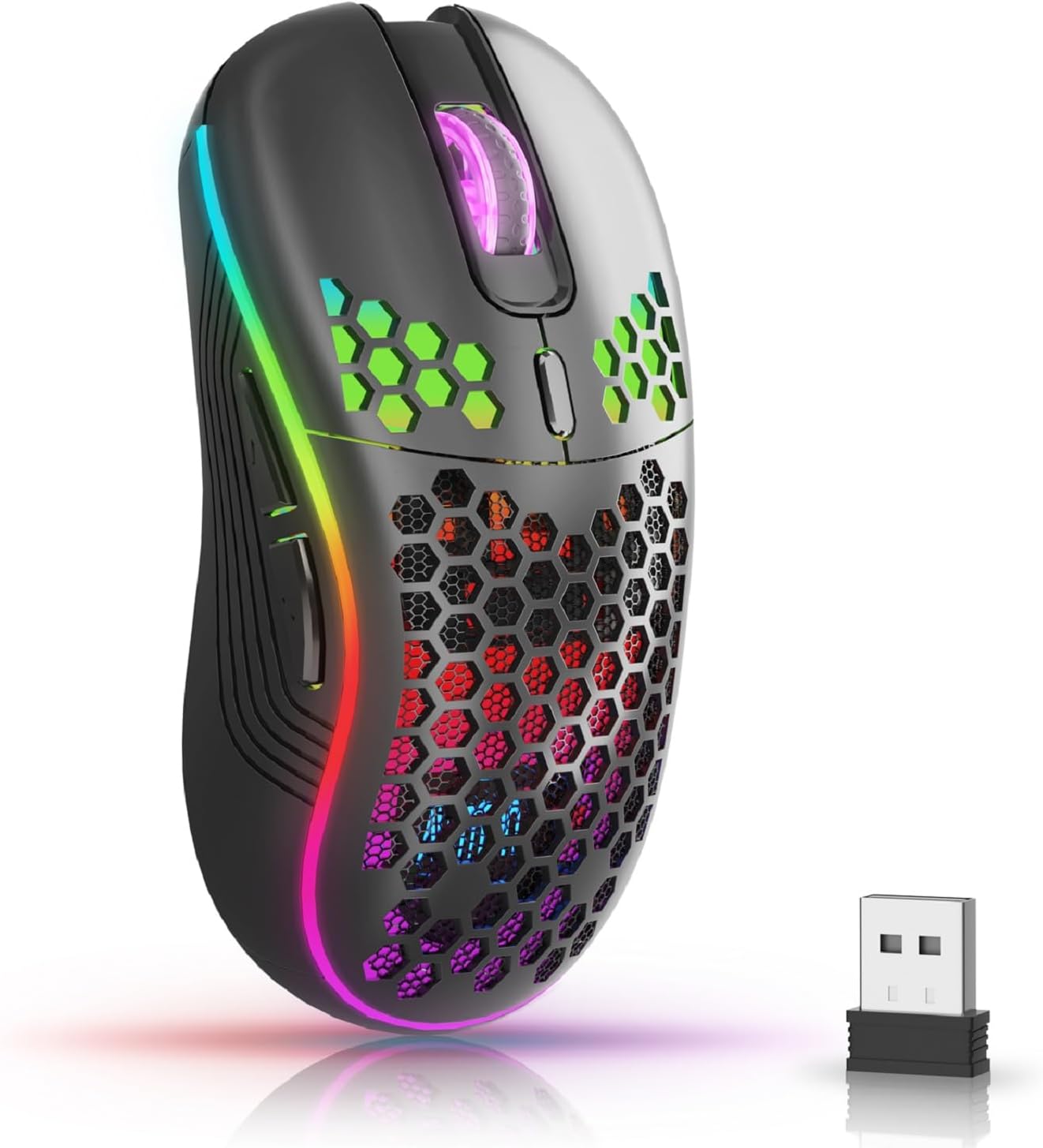
The AVMTON Wireless Gaming Mouse in black, featuring RGB lighting and a honeycomb design, shown alongside its compact USB receiver.

Illustration of the mouse's connectivity modes, including Type-C charging, 2.4G wireless receiver, and a 10m sensing range, suitable for home, gaming, and office environments.
Āhuatanga matua:
- Hoahoa Ergonomic: Shaped to fit the hand comfortably, reducing strain during extended use.
- DPI taea te whakarite: Easily switch between 800/1200/1600/2400/4800 DPI settings for precise control.
- 6 Pātene Whakahōtaka: Includes forward/backward, left/right click, scroll wheel, and DPI adjustment button.
- Pūhiko Rechargeable: Built-in lithium battery with USB-C charging, offering 15-20 days of use on a single charge.
- Hoahoa Pāwhiri Mārire: Ideal for quiet environments like libraries or offices.
- Hototahi Whānui: Supports Windows 2000/ME/XP/7/8/10/Vista/98, Mac OS, Linux, and compatible with laptops, PCs, desktops, and Macbooks.
- Hanga Roa: Tested for over 5 million clicks, ensuring long-lasting performance.
Aratohu Tatūnga
Follow these steps to set up your AVMTON Wireless Gaming Mouse:
- Whakatakina te Kiore: Before first use, fully charge the mouse using the provided USB-C charging cable. Connect the cable to the mouse's Type-C port and a USB power source (e.g., computer USB port, USB wall adapter). The charging indicator will show the charging status.
- Kimihia te Kaiwhiwhi USB: The compact USB 2.4G wireless receiver is typically stored in a compartment on the underside of the mouse for safe keeping during transport.
- Honoa te Kaiwhiwhi: Insert the USB receiver into an available USB port on your computer (laptop, PC, desktop, Macbook).
- Whakahiko: Whakakāhia te kiore mā te whakamahi i te pana hiko kei raro i te kiore.
- Hononga Aunoa: The mouse should automatically connect to your computer. No additional drivers are usually required for basic functionality.
Nga Tohutohu Whakahaere
Understanding the functions of your mouse buttons and settings will enhance your experience.
Nga Mahi Patene:
- Pātene Pātene Mauī: Paerewa mahi pāwhiri tuatahi.
- Pātene Pāwhiri Matau: Paerewa pawhiri tuarua mahi.
- Panuku Wira: Panuku ki runga, ki raro ranei i roto i nga tuhinga me te web wharangi. Ka taea hoki te pehi mo te mahinga-waenganui.
- Patene Whakatikatika DPI: Located near the scroll wheel. Press this button to cycle through available DPI settings (800/1200/1600/2400/4800). Each press changes the cursor speed and sensitivity.
- Pātene Whakamua: Typically located on the side of the mouse. Used for navigating forward in web kaitirotiro ranei file kaihōpara.
- Pātene Whakamuri: Typically located on the side of the mouse. Used for navigating backward in web kaitirotiro ranei file kaihōpara.
Mana Whakamuri RGB:
The mouse features dynamic RGB backlighting. If you prefer to turn off the backlight, refer to the specific instructions provided with your mouse or check the manufacturer's website for software utilities, if available. Some models allow toggling RGB with a combination of buttons (e.g., DPI button + another button).
Te tiaki
Mā te tiaki tika ka roa te ora me te mahi a tō kiore.
- Kei te utu: Recharge the mouse when the battery indicator shows low power. A full charge provides approximately 15-20 days of use. It is recommended to fully charge the mouse before extensive use.
- Te horoi: Whakamahia he kakahu ngohengohe, maroke hei horoi i te mata o te kiore. Mō te paru uaua, he iti noa te paru.amp cloth can be used, but ensure no moisture enters the internal components. Avoid harsh chemicals or abrasive materials.
- Rokiroki: Ki te kore e whakamahia mo nga wa roa, whakawetohia te kiore kia ora ai te pākahiko. Whakaorangia ki te waahi makariri, maroke.
Raparongoā
If you encounter issues with your AVMTON Wireless Gaming Mouse, try the following solutions:
- Kaore te Kiore i te whakautu:
- Me mohio kei te kaha te kiore.
- Check if the USB receiver is securely plugged into a working USB port on your computer.
- Recharge the mouse. A low battery can cause unresponsiveness.
- Whakamātauria te mono i te kaiwhiwhi USB ki tetahi tauranga USB rereke.
- Tīmataria anō tō rorohiko.
- Hononga takamuri, mokowhiti ranei:
- Ensure the mouse is within the 10-meter sensing range of the USB receiver.
- Remove any large metallic objects or other wireless devices that might be causing interference between the mouse and the receiver.
- Try moving the USB receiver to a port closer to the mouse.
- DPI Adjustment Not Working:
- Ensure you are pressing the dedicated DPI adjustment button.
- If the issue persists, try restarting the mouse and your computer.
- Raiti RGB Kare e Mahi:
- Check if the RGB backlight has been intentionally turned off (refer to "RGB Backlight Control" in Operating Instructions).
- Me whakarite kei te rawaka te pākahiko o te kiore.
If these steps do not resolve the issue, please contact AVMTON customer support for further assistance.
Whakatakotoranga
| Āhuahira | Taipitopito |
|---|---|
| Waitohu | AVMTON |
| Tau tauira | AV-DDMB-1 |
| Tae | Pango |
| Hangarau Hononga | 2.4G Ahokore (Kaiwhiwhi USB) |
| Tautuhinga DPI | 800 / 1200 / 1600 / 2400 / 4800 |
| Te maha o nga Patene | 6 |
| Takotoranga-ringa | Matau |
| Ora Pūhiko | Approx. 15-20 days (on a single charge) |
| Tauranga Whakatau | USB Momo-C |
| Pūnaha Whakahaere Hototahi | Windows 2000/ME/XP/7/8/10/Vista/98, Mac OS, Linux |
| Pūrere Hototahi | Rorohiko Whaiaro, Pona |
| Nga waahanga motuhake | Portable, Ergonomic, Rechargeable, RGB Backlight, Silent Click |
Pūtāhui me te Tautoko
AVMTON offers a 12-month worry-free after-sales service for this product. If you encounter any problems with your wireless mouse, please do not hesitate to contact us. Our customer support team is ready to assist you.
For support, please visit the official AVMTON webpae, whakapā atu ranei ki to kaihoko.


