
1. Kupu Whakataki
Thank you for choosing the Jeecoo A30 Wired Computer Speaker Bar. This manual provides essential information for setting up, operating, and maintaining your speaker bar to ensure optimal performance and longevity. Please read these instructions carefully before use.
He aha kei roto i te Pouaka
- Jeecoo A30 PC Speaker Bar (with integrated USB power cable and 3.5mm AUX audio cable)
2. Nga ahuatanga
- Hoahoa Kiato: The Jeecoo A30 features a simple and modern design, ideal for desktop setups. Dimensions: 13.78 x 2.56 x 2.56 inches.
- Ūkui Ororongo: Equipped with two 5W powerful driver units, providing clear and loud audio with well-balanced highs, mids, and enhanced bass.
- Mana Oro Ngāwari: A large dial allows for convenient volume adjustment and power on/off.
- Hototahi whanui: Connects via 3.5mm AUX for audio input and USB for power, compatible with various PCs, laptops, desktops, tablets, and smartphones. (Note: Not compatible with Xbox).
- Te kawe: Weighing 1.2 lbs (560 grams), it is suitable for both office/home use and portable outdoor activities.

Image: The Jeecoo A30 Wired Computer Speaker Bar, showcasing its sleek black design and integrated cables.

Whakaahua: He pahū view of the Jeecoo A30 speaker bar, highlighting its two 5W powerful driver units for clear and balanced audio with enhanced bass.
3. Tatūnga
Follow these steps to connect your Jeecoo A30 speaker bar to your device:
- Tūhono USB Power: Plug the USB-A cable from the speaker bar into an available USB port on your computer, laptop, or a certified 5V/1A USB power adapter. This provides power to the speaker.
- Connect 3.5mm AUX Audio: Plug the 3.5mm AUX cable from the speaker bar into the headphone jack or audio output port of your device (PC, laptop, tablet, smartphone).
- Whakahiko: Rotate the large volume dial clockwise until you hear a click or see an indicator light, turning the speaker on.
- Whakaritea Rōrahi: Me huri tonu te mata ki te taha matau hei whakanui ake i te oro.
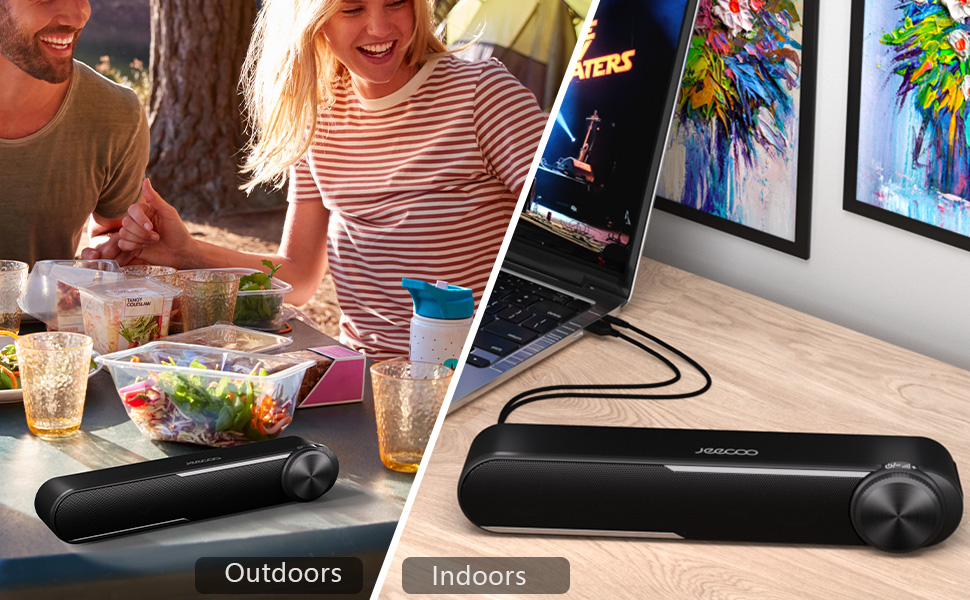
Image: Diagram showing how to connect the USB cable for power and the 3.5mm AUX cable for audio input to a laptop.
Video: Official Jeecoo video demonstrating the connection of the A30 Computer Speaker Bar with 3.5mm AUX input to a laptop.
4. Mahi
Volume Control and Power
The Jeecoo A30 features a large, integrated dial for convenient control:
- Power On/Increase Volume: Rotate the dial clockwise. The speaker will power on with a click, and continued rotation will increase the volume.
- Decrease Volume/Power Off: Rotate the dial anti-clockwise. The volume will decrease, and continued rotation past the minimum volume will power off the speaker with a click.

Image: A close-up of the large volume dial on the Jeecoo A30, illustrating how to rotate it clockwise to increase volume and anti-clockwise to decrease volume or power off.
5. Whakatakotoranga
| Āhuahira | Taipitopito |
|---|---|
| Ingoa Tauira | Jeecoo A30 |
| Momo Kaikorero | Paorooro |
| Hangarau Hononga | Āwhina (Hononga 3.5mm) |
| Puna Mana | USB (Waea Hiko) |
| Whakauru Voltage | 5 Volts |
| Kaikorero Te Mana Putanga Morahi | 10 Watts (5W x 2) |
| Aratau Putanga Ororongo | Tirooro |
| Whirihoranga Hongere oro a tawhio noa | 2.0 |
| Rahi Kaioro | 2 Inihi (Woofer Diameter) |
| Momo Atekōkiri Ororongo | Atekōkiri Hihiko |
| Tohu Waitohu-ki-Toi | 65 dB |
| Frequency Response (Max) | 18 KHz |
| Te aukati | 4 Ohm |
| Rahi Hua (D x W x H) | 2.56" x 13.78" x 2.56" |
| Taumaha Tūemi | 1.2 Pounds (560 grams) |
| Rauemi | Kirihou |
| Tae | Pango |
| Momo Whakaeke | Maunga Ripanga |
| Pūrere Hototahi | PC Laptops, Desktop Computers, Macbook Air/Pro, iMac, iPad, Smartphones, Tablets |
| Āhuahira Motuhake | PC Speaker Bar with Clear Audio & Enhanced Bass |
6. Te Raru
If you encounter any issues with your Jeecoo A30 speaker bar, please refer to the following common troubleshooting steps:
- Kore Mana:
- Ensure the USB power cable is securely connected to a powered USB port or a 5V/1A USB adapter.
- Rotate the volume dial clockwise to ensure the speaker is powered on.
- Kore Oro:
- Verify that the 3.5mm AUX audio cable is fully inserted into both the speaker bar and your device's audio output jack.
- Check the volume level on both the speaker bar (using the dial) and your connected device.
- Ensure your device's audio output is set to the correct output (e.g., "Headphones" or "External Speakers").
- Test the speaker with a different audio source or device to rule out device-specific issues.
- Distorted Sound / Static:
- Reduce the volume on both the speaker bar and your connected device. High volume levels can sometimes cause distortion.
- Me whakarite kia mau nga hononga taura katoa.
- Avoid placing the speaker near sources of electromagnetic interference (e.g., Wi-Fi routers, power adapters).
- Whakamātauria ki tētahi atu pūtake oro, ki tētahi atu taura rānei mēnā ka taea.
7. Tiaki
To maintain the performance and appearance of your speaker bar:
- Horoia te kaikorero ki te kakahu ngohengohe, maroke. Kaua e whakamahi i ngā wai horoi, i ngā wai rānei hei horoi.
- Avoid exposing the speaker to excessive moisture, heat, or direct sunlight.
- Kaua e ngana ki te wetewete, ki te whakatika rānei i te kaikorero māu ake, nā te mea ka whakakorea te pūtāhui.
8. Pūtāhui me te Tautoko
The Jeecoo A30 Wired Computer Speaker Bar comes with a limited warranty. For detailed warranty information, product support, or technical assistance, please contact Jeecoo customer service through the retailer where you purchased the product or visit the official Jeecoo webpae.
Tena koa pupurihia to tohu mo te hoko mo nga kereme whakamana.