
1. Kupu Whakataki
The NUFEBS Mini 1080P Security Camera Q26 is a compact, plug-in wired security camera designed for indoor use. It offers 1080p high-definition video, 2.4G WiFi connectivity, night vision capabilities, two-way audio communication, and motion detection with tracking. This manual provides detailed instructions for setting up, operating, and maintaining your camera to ensure optimal performance and home security.

Image 1.1: The NUFEBS Mini 1080P Security Camera Q26, a compact device for home monitoring.
2. Ihirangi mokete
Tena koa tirohia te kete mo nga mea e whai ake nei:
- NUFEBS Mini 1080P Security Camera (Q26)
- Pukapuka Tohutohu
- Te Pata Kaha
- Paetukutuku Matua
3. Nga Hua o te Hua
The NUFEBS Q26 camera offers a range of features to enhance your home security:
- 1080P HD Taumira: Ka whakarato i te ataata marama me te taipitopito footage.
- 2.4G WiFi Hononga: Easy connection to your home network for remote access.
- Matakitenga po: Equipped with color night vision for monitoring in low-light conditions.
- Ororongo Ara-rua: Ka taea te whakawhitiwhiti kōrero i te wā tūturu mā te kāmera.
- Te Kitenga me te Aroturuki Nekehanga: Automatically detects movement, tracks subjects, and sends alerts.
- Rokiroki Paetata & Kapua: Supports Micro SD cards (16-128GB) and cloud storage services for recording playback.
- IP65 Whakatauranga parewai: While primarily designed for indoor use, the IP65 rating provides protection against dust and low-pressure water jets, enhancing durability.
- Papa aukume: Offers flexible mounting options on various surfaces.
- Hoahoa Kiato: Small footprint (4x4x2 CM) allows for discreet placement.
- Amazon Alexa Hototahi: Integrates with Amazon Alexa for smart home control.

Image 3.1: Key features of the NUFEBS Q26 security camera.

Whakaahua 3.2: Example of 1080P HD video quality from the camera.

Image 3.3: The camera's IP65 waterproof design for enhanced durability.
4. Aratohu Tatūnga
4.1. Taupānga Tāuta
To control your NUFEBS Q26 camera, download the 'Tris Home' application:
- Rapua 'Tris Home' in your mobile device's app store (iOS App Store or Google Play Store).
- Tikiake me te tāuta i te tono.
- Rēhita mō tētahi pūkete hōu, takiuru mai rānei mēnā kei a koe tētahi.
4.2. Tautuhi Tautuhi kamera
Before connecting the camera for the first time, or if you are switching to a new mobile device or WiFi network, it is recommended to reset the camera:
- Locate the reset button on the camera (refer to the camera's physical design for exact placement).
- Press and hold the reset button for approximately 5-10 seconds until you hear a prompt or see an indicator light change.
4.3. Connect to 2.4G WiFi
The NUFEBS Q26 camera operates on a 2.4G WiFi network. Follow these steps to connect:
- Ensure your mobile phone is connected to your home's 2.4G WiFi network.
- Open the 'Tris Home' app and select the option to 'Add Device' or 'Add Camera'.
- Follow the on-screen instructions in the app, which typically involve scanning a QR code displayed on your phone with the camera lens.
- Once connected, the camera will indicate successful pairing, and you can begin live viewing.
4.4. Kōwhiringa Whakapuru
The camera comes with a magnetic base, offering versatile placement:
- Mata aukume: Attach the camera directly to any metallic surface using its magnetic base.
- Maunga Taiepa/Tuapapa: The magnetic base can also be affixed to a wall or ceiling using screws (not included) for a more permanent installation.
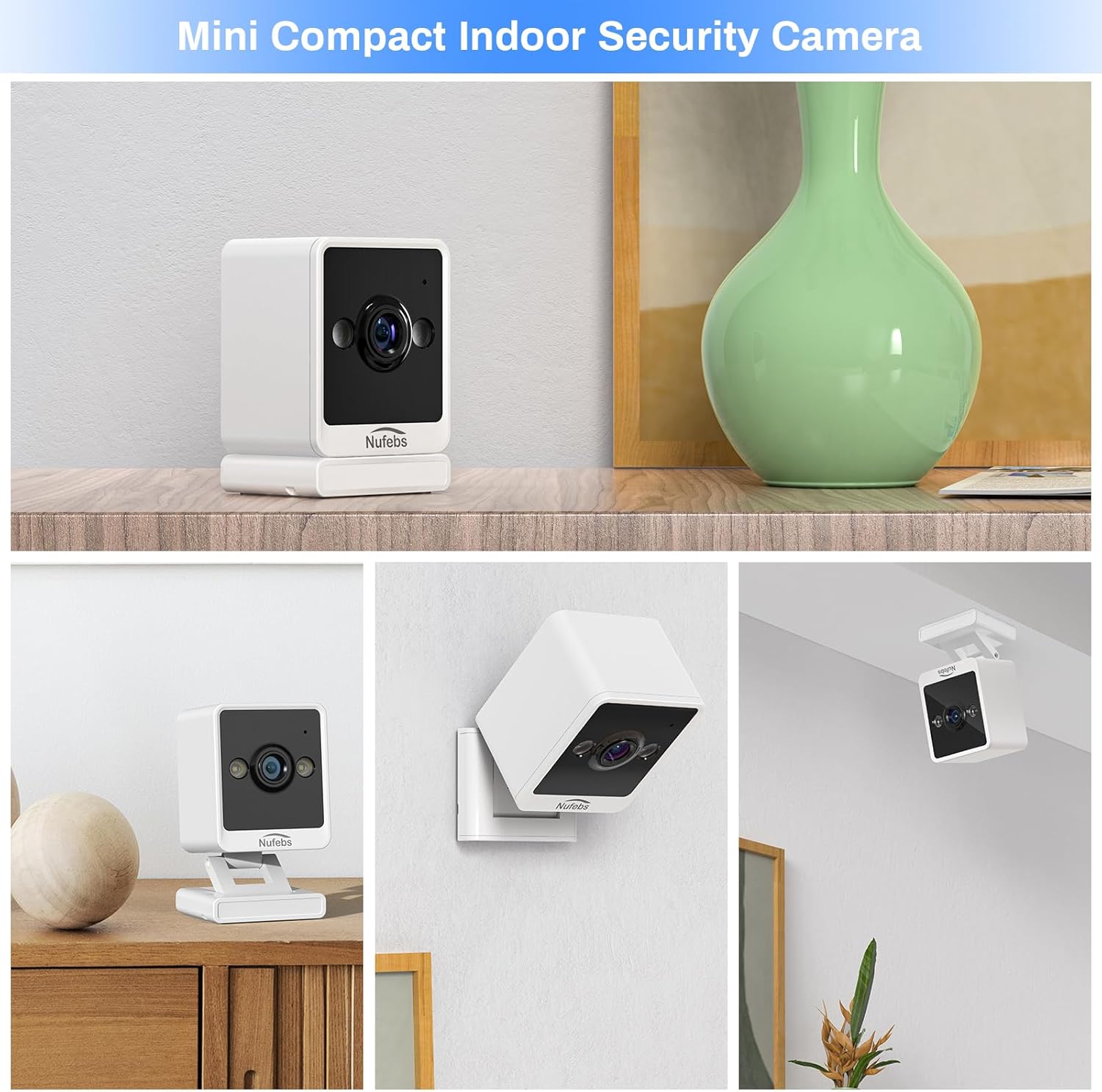
Whakaahua 4.1: Examples of flexible mounting options for the NUFEBS Q26 camera.

Image 4.2: The camera's magnetic base allows for easy attachment to metallic surfaces.
5. Nga Tohutohu Whakahaere
5.1. Ora View
Once connected, open the 'Tris Home' app to access the live video feed from your camera. You can monitor your space in real-time from anywhere.

Image 5.1: Remote live preview of the camera feed on a mobile device.
5.2. Rua-Way Ororongo
The camera features a built-in microphone and speaker. In the 'Tris Home' app, tap the microphone icon to speak through the camera and the speaker icon to listen to audio from the camera's location.
5.3. Te Motini me nga Matohi
Enable motion detection in the app settings to receive instant notifications on your phone when movement is detected. The camera can also activate a spotlight and an alarm sound to deter intruders.

Image 5.2: The camera's intelligent alarm system with motion detection and spotlight.
5.4. Te Tuhi me te Rokiroki
The camera supports two primary storage methods for recorded footage:
- Kaari SD Micro: Insert a Micro SD card (16GB to 128GB, not included) into the camera's designated slot for local storage. Recordings are typically triggered by motion events.
- Kapua Ratonga: Subscribe to the optional cloud storage service through the 'Tris Home' app for secure, off-site storage of your video recordings.

Image 5.3: Continuous recording and storage options via SD card and cloud service.
5.5. Matakitenga po
The NUFEBS Q26 camera automatically switches to color night vision in low-light conditions, providing clear surveillance around the clock.

Image 5.4: The camera's spotlight feature for enhanced night vision.
5.6. Smart Home Integration (Amazon Alexa)
The camera is compatible with Amazon Alexa. You can integrate it into your smart home system to view ka whāngai ora i runga i ngā taputapu hototahi kua whakahohea e Alexa mā te whakamahi i ngā whakahau reo.

Image 5.5: Integration with Amazon Alexa for smart home control.
6. Tiaki
6.1. Te horoi
To maintain optimal image quality, regularly clean the camera lens and body:
- Gently wipe the lens with a soft, lint-free cloth. Avoid abrasive materials.
- Horoia te tinana o te kāmera ki te wai maroke, ki te wai paku rāneiamp cloth. Do not use harsh chemicals or liquid cleaners directly on the camera.
6.2. Whakahoutanga Firmware
Periodically check the 'Tris Home' app for available firmware updates. Keeping your camera's firmware updated ensures access to the latest features, security enhancements, and performance improvements.
7. Te Raru
If you encounter issues with your NUFEBS Q26 camera, refer to the following common solutions:
- Kāore te Kāmera e Hono Ana ki te WiFi:
- Ensure your router is broadcasting a 2.4G WiFi signal. The camera does not support 5G WiFi.
- Verify that your mobile phone is connected to the same 2.4G WiFi network during setup.
- Double-check the WiFi password entered in the app.
- Try resetting the camera and repeating the connection process.
- Ensure the camera is within range of your WiFi router.
- Kounga Ataata Kino:
- Tirohia te tere o tō hononga ipurangi. Me whai hononga pumau, tere hoki mō te rere pai o te ipurangi.
- Horoia te arotahi o te kāmera kia tangohia te puehu, ngā paru rānei.
- Ensure there are no obstructions directly in front of the camera lens.
- Karekau he Matohi Kite Motini:
- Confirm that motion detection is enabled in the 'Tris Home' app settings.
- Adjust the motion detection sensitivity settings in the app.
- Me whakarite te mara o te kamera view covers the area you wish to monitor for motion.
- Camera Overheating:
- Ensure the camera has adequate ventilation and is not placed in an enclosed space or direct sunlight.
- If the camera feels excessively warm, disconnect it from power and allow it to cool down. If the issue persists, contact customer support.
8. Whakatakotoranga
| Waitohu | NUFEBS |
| Tauira | Q26 |
| Whakataunga Hopu Ataata | 1080p |
| Hangarau Hononga | Wireless (Wi-Fi 2.4G) |
| Puna Mana | Hiko Hiko |
| Mahinga o roto/waho | Indoor (IP65 rated for durability) |
| Āhuahira Motuhake | Easy to Install, Night Vision, 2-Way Talk, Motion Tracking |
| Tautoko Rokiroki | 16-128GB Micro SD card, Cloud Service |
| Te Hototahi Whare Ataata | Amazon Alexa |
| Rahi Tūemi (L x W x H) | 2.7 x 2.4 x 2.1 inches (approx. 4 x 4 x 2 CM) |
| Taumaha Tūemi | 5.9 hekere |
9. Nga korero haumaru
- Use only the provided power adapter to prevent damage or fire.
- Do not expose the camera to extreme temperatures, humidity, or direct water immersion.
- Puritia te kāmera me ōna taputapu kia kore e taea e ngā tamariki me ngā mōkai te toro atu.
- Avoid placing the camera near heat sources or in areas with poor ventilation.
- Kaua e ngana ki te wetewete, ki te whakarerekē rānei i te kāmera, nā te mea ka whakakorea te pūtāhui, ā, ka pāngia pea.
10. Pūtāhui me te Tautoko
For warranty information, technical support, or any questions not covered in this manual, please refer to the contact information provided with your purchase or visit the official NUFEBS webpae. Tena koa pupurihia to tohu mo te hoko mo nga kereme whakamana.
Ataata 10.1: Kua mutuview video demonstrating the features and functionality of the NUFEBS Mini 1080P Security Camera Q26.