
Kupu Whakataki
This manual provides instructions for the setup, operation, and maintenance of your OttLite Wake Up Light with White Noise Sound Machine. This device combines a sunrise simulation alarm clock, a white noise sound machine, and a versatile color-changing light to enhance your daily routine.
Nga korero haumaru
- Panuihia nga tohutohu katoa i mua i te whakamahi.
- I hangaia tenei hua mo te whakamahi o roto anake.
- Whakamahia anake te urutau hiko kua whakaratohia.
- Kaua e tukuna te taputapu ki te wai, ki te makuku nui ranei.
- Kaua e taea e nga tamariki.
- Kaua e ngana ki te wetewete, ki te whakatika rānei i te waeine māu ake. Whakapā atu ki ngā kaimahi ratonga whai tohu.
Ihirangi mokete
- OttLite Wake Up Light with White Noise Sound Machine
- USB Itini taura
- Pukapuka Kaiwhakamahi
Ka mutu te huaview
Familiarize yourself with the components of your OttLite Wake Up Light.

Whakaahua: Mua view of the OttLite Wake Up Light, displaying the time and connected to a USB charging pad.

Whakaahua: Taha view of the OttLite Wake Up Light, showing the various control buttons and the USB port.
Mana Matua:
- Whakaatu Wā: Whakaaturanga karaka mamati.
- Paewhiri Maama: Provides white and color-changing illumination.
- Patene Mana: Located on the side for setting time, alarms, light modes, and sounds.
- Tauranga Kaihoko USB: Mo te utu i nga taputapu o waho.
Tatūnga
- Wewete: Kia ata tangohia nga waahanga katoa mai i te kete.
- Hononga Hiko: Connect the provided USB power cable to the device and plug the adapter into a standard wall outlet. The device will power on and the time display will activate.
- Turanga: Place the Wake Up Light on a stable, flat surface, such as a bedside table, ensuring it is within reach of a power outlet.
Nga Tohutohu Whakahaere
1. Te whakatu i te Karaka
- Press the 'Time Set' button (often indicated by a clock icon).
- Whakamahia ngā pātene '+' me '-' hei whakarerekē i te hāora me te meneti.
- Press 'Time Set' again to confirm each setting.
- Toggle between 12-hour and 24-hour format using the dedicated button or by cycling through time settings.
2. Wake-Up Light & Alarm Function
The sunrise simulation gradually increases light intensity before your set alarm time.

Image: A user interacting with the Wake Up Light as it emits a warm, sunrise-like glow.
- Tautuhi oho: Press the 'Alarm Set' button (bell icon). Use '+' and '-' to set the desired wake-up time.
- Hangahanga o te Ra: The light will begin to brighten 30 minutes before the set alarm time, gradually increasing to full brightness.
- Wake-Up Sounds: Choose from 7 pre-set sounds (nature sounds, FM radio, traditional alarm) by pressing the 'Sound' button. Adjust volume with '+' and '-'.
- Mahinga Tohu: Press the 'Snooze' button (often a large button on top or front) to temporarily pause the alarm for a few minutes.
3. Sleep Aid & Sunset Simulation
Utilize the white noise and sunset simulation for a calming environment.
- Haruru Ma: Activate the white noise sound machine by pressing the 'White Noise' button. Adjust volume as needed.
- Hangahanga o te Ra: Set the light to gradually dim over 15, 30, or 60 minutes. Refer to the specific button for 'Sunset' or 'Sleep Timer' and cycle through options.
4. Ngā Mahi Whakamārama
The device offers various lighting options for ambiance and utility.
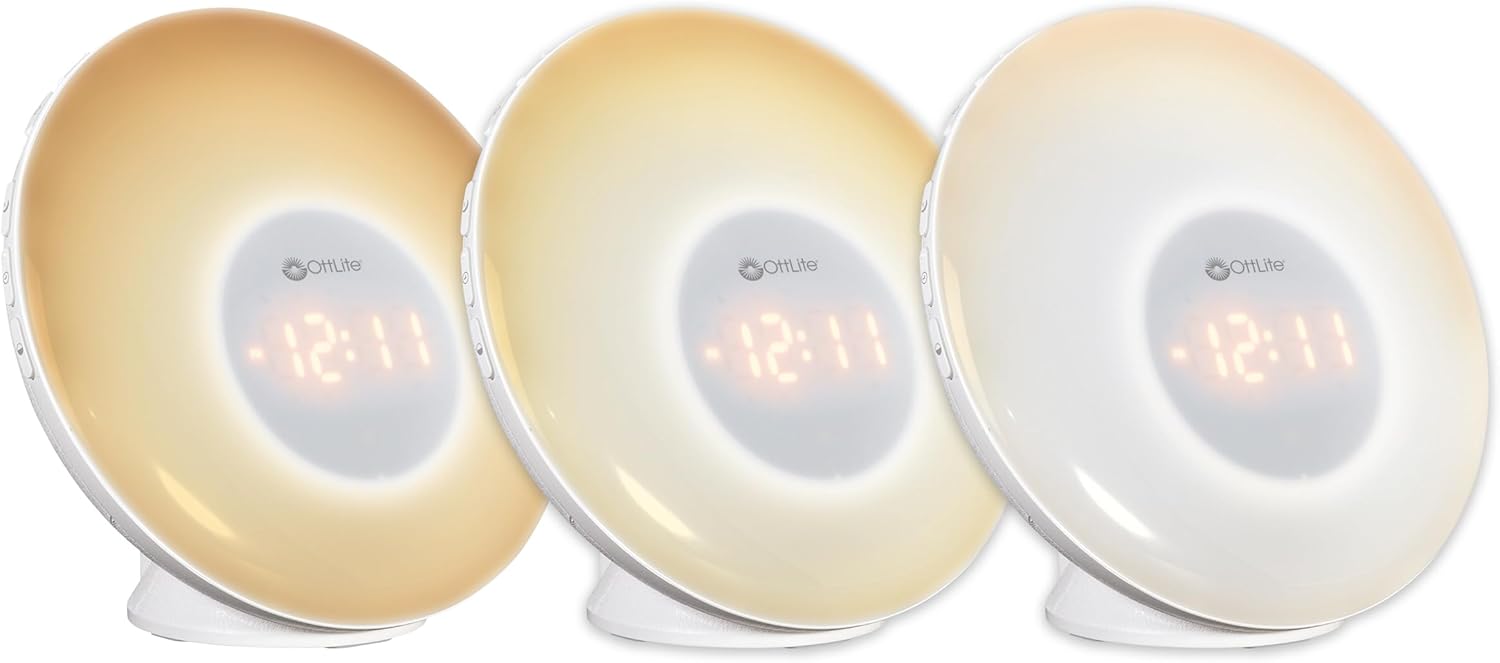
Image: Three units demonstrating the adjustable white light temperatures.

Image: Multiple units showcasing the range of color-changing options.
- Maama Maama: Press the 'Light' button to activate soft white light. Adjust brightness using '+' and '-' buttons (three brightness levels available).
- Huri Tae: Press the 'RGB' button to cycle through a spectrum of colors.
- Tae Pūmau: While in color-changing mode, press the 'RGB' button again to pause on your desired color.
5. Tauranga Whakapaa USB
A convenient USB port is integrated for charging your devices.

Image: A smartphone being charged via the USB port on the Wake Up Light.
- Locate the USB port (5V, 1A output) on the side or back of the unit.
- Honoa te taura USB o to taputapu ki tenei tauranga.
- Ensure the Wake Up Light is powered on for the USB port to function.
Te tiaki
- Te horoi: Disconnect the power before cleaning. Wipe the device with a soft, dry cloth. Do not use abrasive cleaners or solvents.
- Rokiroki: Ki te kore e whakamahia mō te wā roa, rongoatia te taputapu ki te wāhi hauhautanga, maroke, kia matara atu i te rā tika.
Raparongoā
| Raruraru | Take pea | Rongoā |
|---|---|---|
| Kaore te taputapu i te hiko. | Power cable not connected properly or power outlet is not active. | Ensure the power cable is securely connected to the device and the wall outlet. Test the outlet with another device. |
| Alarm does not sound or light does not activate. | Kāore i whakatakotoria te whakaoho, he iti rawa rānei te oro. | Verify alarm settings and ensure the alarm is activated. Increase alarm volume. |
| High-pitched buzzing sound when light is on. | Potential internal component noise at certain brightness levels. | Try adjusting the brightness level. If the issue persists and is disruptive, contact customer support. |
| Difficulty setting the alarm or other functions. | Unfamiliarity with button layout or sequence. | Refer to the 'Operating Instructions' section carefully. Practice setting functions when not under time pressure. |
| Ko te tauranga utu USB kaore e mahi. | Device not powered on or cable issue. | Ensure the Wake Up Light is powered on. Try a different USB cable or device to rule out cable/device issues. |
Whakatakotoranga
| Āhuahira | Taipitopito |
|---|---|
| Tau tauira | WU300Z-SHPR |
| Hunga Hua | 4"D x 6.75"W x 6.7"H |
| Taumaha Tūemi | 1.23 pauna |
| Puna Mana | Waea Hiko (120 Volts AC) |
| Momo Puna Maama | LED |
| Nga waahanga motuhake | Color Changing, Dimmable, Sunrise Simulation, Sunset Simulation, White Noise, USB Charging Port |
| Putanga USB | 5V, 1A |
| Rauemi | Kirihou |
| Mahinga o roto/waho | Te whakamahi o roto anake |
Pūtāhui me te Tautoko
OttLite products are designed for quality and durability. For warranty information or technical support, please refer to the warranty card included with your purchase or visit the official OttLite webpae. Puritia to rihiti hoko mo nga kereme whakamana.
For further assistance, please contact OttLite customer service.