
Kupu Whakataki
This manual provides detailed instructions for setting up, operating, maintaining, and troubleshooting your Amazon Kindle Paperwhite Signature Edition 32GB. Please read this guide thoroughly to ensure optimal use of your device.
1. Tatūnga
1.1 Wetewete pouaka me te utu tuatahi
Upon unboxing, locate the Kindle Paperwhite Signature Edition device and the included USB-C charging cable. It is recommended to fully charge your device before first use.
- Kei roto i te Pouaka: Kindle Paperwhite Signature Edition, USB-C charging cable, Quick Start Guide.
- Kei te utu: Connect the USB-C cable to the Kindle and a compatible USB power adapter (9W adapter recommended, sold separately). A full charge takes less than 2.5 hours.
- Whakataunga Ahokore: The Signature Edition supports wireless charging. Place the device on a compatible wireless charging dock (sold separately).

Image: Kindle Paperwhite Signature Edition charging wirelessly on a dock. The device can be charged via USB-C or wirelessly for extended battery life.
1.2 Hiko / Whakaweto
- Hei Whakahiko: Press and hold the power button located on the bottom edge of the device until the screen lights up.
- Hei Whakaweto: Press and hold the power button until a power dialog appears, then select 'Power Off'. A short press will put the device to sleep.
1.3 Hononga Wi-Fi
To access the Kindle Store and download content, connect your device to a Wi-Fi network.
- Mai i te mata Kāinga, patohia te Tautuhinga icon (gear icon) or swipe down from the top of the screen and tap Tautuhinga Katoa.
- Tīpakohia Wi-Fi & Nihokikorangi, katahi Whatunga Wi-Fi.
- Kōwhiria te whatunga e hiahiatia ana e koe mai i te rārangi, ā, tomohia te kupuhipa mēnā ka akiakihia.
The device supports 2.4 GHz and 5.0 GHz networks with WEP, WPA, WPA2, WPA3, and OWE security.
1.4 Tatūnga Pūkete
Register your Kindle to your Amazon account to access your content library and the Kindle Store.
- After connecting to Wi-Fi, follow the on-screen prompts to sign in with your Amazon account credentials.
- If you do not have an Amazon account, you can create one during this process.
2. Te whakahaere i to Kindle
2.1 Basic Navigation and Page Turns
The Kindle Paperwhite Signature Edition features a 7-inch glare-free display designed for comfortable reading.
- Ngā Hurihanga Whārangi: Tap the right side of the screen to turn to the next page, or the left side to go back. Swiping left or right also turns pages.
- Mata Kāinga: Tap the top of the screen to reveal the navigation bar, then tap the Kainga icon to return to your library.

Image: A hand holding the Kindle Paperwhite, displaying a book page. The 7-inch Paperwhite display offers fast page turns for an enhanced reading experience.
2.2 Nga waahanga panui
Customize your reading experience with various display and font settings.
- Adjusting Front Light: The Signature Edition features an auto-adjusting front light. You can also manually adjust the brightness by tapping the top of the screen while reading and using the brightness slider.
- Maama Mahana: Adjust the warmth of the screen light for comfortable reading in different environments.
- Aratau pouri: Invert screen colors for white text on a black background, ideal for low-light conditions. Access this from the quick settings menu.
- Tautuhinga Momotuhi: While reading, tap the top of the screen, then select the Aa icon to adjust font size, font face, line spacing, and margins.
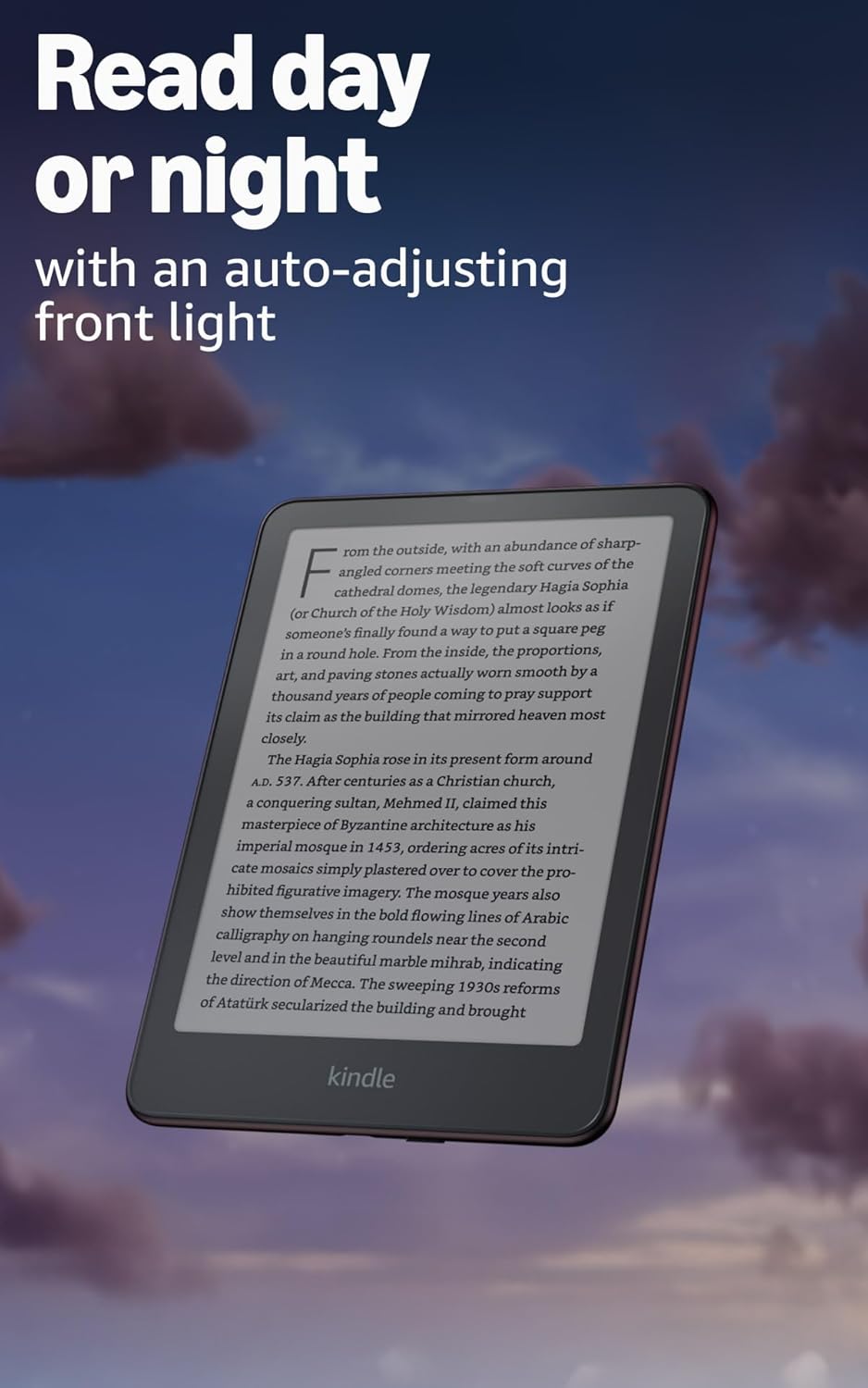
Image: Kindle Paperwhite screen illuminated in a dark room. The auto-adjusting front light allows for comfortable reading day or night.

Image: Close-up of the Kindle Paperwhite screen displaying text. Enjoy a glare-free display without distracting notifications.
2.3 Whakahaere Ihirangi
Your Kindle provides access to a vast library of content.
- Toa Kindle: Mai i te mata Kāinga, patohia te Toa icon to browse and purchase books.
- Whare Pukapuka: All purchased content is stored in your library and can be downloaded to your device.
- Rokiroki Kapua: All Amazon content is stored for free in the cloud, allowing you to access it from any compatible device.
- Ngā Hōputu Tautoko: Hōputu Kindle 8 (AZW3), Kindle (AZW), TXT, PDF, MOBI kore tiaki, PRC taketake; PDF, DOCX, DOC, HTML, EPUB, TXT, RTF, JPEG, GIF, PNG, BMP ma te hurihanga; Hōputu ororongo rongo (AAX).

Image: A collage of various book covers. The Kindle Store offers access to over 15 million titles worldwide.
2.4 Pukarongo
Listen to Audible audiobooks on your Kindle Paperwhite Signature Edition.
- Nihokikorangi: Connect Bluetooth headphones or speakers to your Kindle via the Wi-Fi & Nihokikorangi tautuhinga.
- Playing Audiobooks: Download Audible audiobooks from the Kindle Store and play them through your connected Bluetooth device.
2.5 Parewai
Your Kindle Paperwhite Signature Edition is waterproof (IPX8 rated).
- It is tested to withstand immersion in 2 meters of fresh water for 60 minutes.
- This makes it suitable for reading by the pool, in the bath, or at the beach.
- After exposure to water, ensure the USB-C port is dry before charging.
3. Tiaki
3.1 Te horoi i to taputapu
- Use a soft, lint-free cloth to clean the screen and body of your Kindle.
- A ape i te kai horoi, te whakarewa, te rehu aerosol ranei.
- If the device has been exposed to water, gently wipe it dry.
3.2 Tiaki Pūhiko
- To maximize battery life, avoid exposing your Kindle to extreme temperatures.
- A single charge can last up to twelve weeks, based on half an hour of reading per day with wireless off and the light setting at 13. Heavy use, especially with wireless features or audiobook streaming, will reduce battery life.
- Charge the device regularly, but it is not necessary to fully discharge it before recharging.
3.3 Whakahōu Pūmanawa
Your Kindle will periodically receive software updates to improve performance and add new features.
- Ensure your Kindle is connected to Wi-Fi to receive automatic updates.
- You can manually check for updates by going to Tautuhinga > Kōwhiringa Pūrere > Tirohia mo nga Whakahoutanga.
4. Te Raru
4.1 Pūrere Kaore i te Whakautu
- If your Kindle is frozen or unresponsive, press and hold the power button for 40 seconds until the device restarts.
4.2 Nga Take Hononga Wi-Fi
- Ensure your Wi-Fi router is on and within range.
- Try restarting your Kindle and your Wi-Fi router.
- Manatokohia kei te whakauru koe i te kupuhipa Wi-Fi tika.
4.3 Karekau te Pūhiko e Karangatia
- Check that the USB-C cable is securely connected to both the Kindle and the power adapter.
- Ngana ki te whakamahi i tetahi taura USB-C rereke, urutau hiko ranei.
- Ensure the USB-C port on the Kindle is clean and free of debris.
4.4 Content Not Downloading
- Verify your Wi-Fi connection is active and stable.
- Check your Amazon account for any payment issues or content restrictions.
- Ensure your device has sufficient storage space.
5. Whakatakotoranga
| Āhuahira | Whakaahuatanga |
|---|---|
| Whakaatu | 7” Paperwhite display technology with built-in front light, 300 ppi, optimized font technology, 16-level gray scale. |
| Rahi | 5" x 7" x 0.3" (127.6 x 176.7 x 7.8 mm) |
| Taumaha | 7.5 hāora (214g) |
| Rokiroki i runga i te Pūrere | 32 GB; kei te pupuri i nga mano tini pukapuka. |
| Kapua Rokiroki | Pupuri kapua koreutu mo nga ihirangi Amazon katoa. |
| Ora Pūhiko | Up to twelve (12) weeks (based on 30 mins reading/day, wireless off, light setting 13). |
| Wā Utu | I raro iho i te 2.5 hāora me te urutau hiko USB 9W. |
| Hononga Wi-Fi | Supports 2.4 GHz and 5.0 GHz networks with WEP, WPA, WPA2, WPA3, and OWE security. |
| Ngā Āhuatanga Āheitanga | ReoView screen reader (Bluetooth audio, English only), dark mode, adjustable font size, font face, line spacing, and margins. |
| Kei te tautokona nga whakatakotoranga Ihirangi | Hōputu Kindle 8 (AZW3), Kindle (AZW), TXT, PDF, MOBI kore tiaki, PRC taketake; PDF, DOCX, DOC, HTML, EPUB, TXT, RTF, JPEG, GIF, PNG, BMP ma te hurihanga; Hōputu ororongo rongo (AAX). |
| Parewai | IPX8 rated (withstands immersion in 2 meters of fresh water for 60 minutes). |
| Whakatupuranga | 12th Generation (2024 release). |
6. Pūtāhui me te Tautoko
6.1 Nga Korero Whakaputanga
Your Kindle Paperwhite Signature Edition comes with a 1-year limited warranty and service. Extended warranty options may be available for purchase separately in some regions.
6.2 Tautoko Tāpiri
Mō ētahi atu āwhina me ngā kōrero taipitopito, tirohia ngā rauemi e whai ake nei:
- Aratohu Tere Tere: Included in your product packaging.
- Kindle User Guide: Accessible on your device or via the Amazon webpae.
- Accessibility for Kindle: Learn more about accessibility features on the Amazon webpae.
- Manage Your Content and Devices: Visit your Amazon account online to manage your Kindle content and device settings.