
Ctronics CTIPC-640C-Z16
Ctronics 4K 8MP 16X Optical Zoom PTZ WiFi Outdoor Security Camera User Manual
Model: CTIPC-640C-Z16
Kupu Whakataki
This manual provides comprehensive instructions for the installation, operation, and maintenance of your Ctronics 4K 8MP 16X Optical Zoom PTZ WiFi Outdoor Security Camera. This advanced camera offers superior surveillance capabilities with its high-resolution imaging, extensive zoom, and intelligent detection features. Please read this manual thoroughly before using the product to ensure optimal performance and safety.
Ihirangi mokete
Tirohia koa ko nga mea katoa kei raro nei kei roto i to kete:
- 1 x Ctronics 4K 16X Camera
- 1 x 3m Power Cable (with plug)
- 1 x Taura Whiri
- 1 x Accessories Kit (screws, anchors, etc.)
- 1 x Pukapuka Kaiwhakamahi
Ka mutu te huaview me nga waahanga matua
The Ctronics CTIPC-640C-Z16 camera is designed for robust outdoor surveillance, offering a range of advanced features:
4K 8MP Ultra HD & 16X Optical Zoom
Experience crystal-clear imaging with 4K Ultra HD resolution. The 16X optical zoom allows you to magnify distant objects without compromising image quality, enabling clear identification of faces or license plates.

Image: Ctronics 4K 8MP 16X Optical Zoom PTZ WiFi Outdoor Security Camera, showing the camera unit and a smartphone screen displaying 4K 8MP resolution and 16x zoom capability.
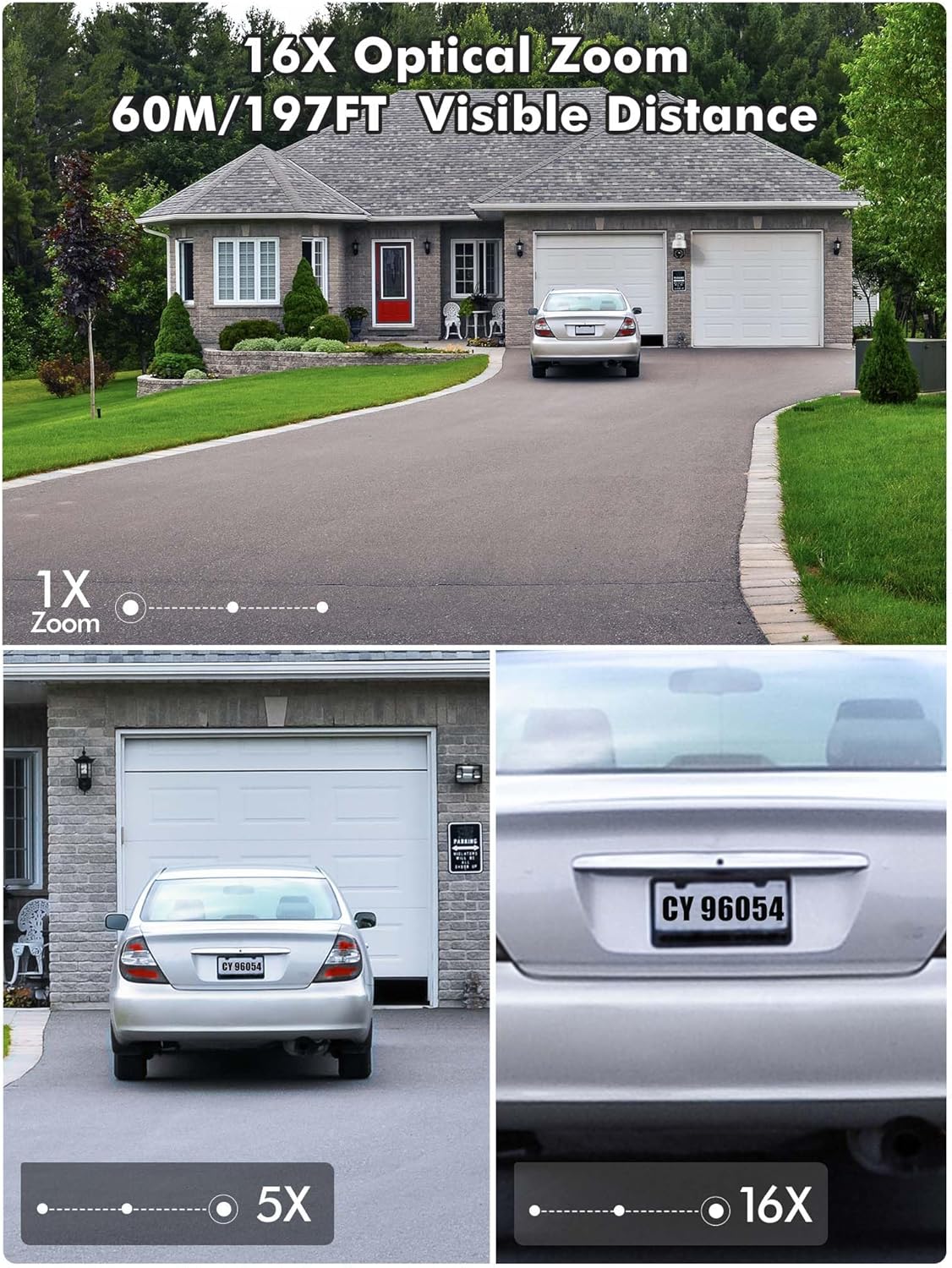
Image: Demonstration of 16X optical zoom, showing a car's license plate clearly visible at 16x magnification compared to 1x and 5x zoom levels. The visible distance is up to 60 meters (197 feet).

Image: Intelligent Optical Zoom feature, demonstrating auto-zoom within 1 second and auto-tracking. A person is shown being zoomed in on as they move, with magnification automatically adjusted based on distance.
Matakite Po Ake
Equipped with a starlight lens and Sony sensors, the camera provides clear night vision up to 60m (infrared) and color night vision up to 45m, ensuring visibility even in complete darkness.
Video: Product presentation highlighting features like full metal housing, 4K UHD video, human/vehicle/pet detection, 360-degree field of view, cruise control, auto-tracking, 60m infrared night vision, 45m color night vision, 2.4GHz & 5GHz WiFi connection, and red/blue light acoustic alarms. Please note that while the video mentions 30X optical zoom, this product features 16X optical zoom. This video is titled "640C-Z16 Product Presentation".
355° Pan & 90° Tilt (PTZ) with Auto Cruise/Tracking
Eliminate blind spots with a full 355° horizontal and 90° vertical coverage. The camera supports automatic cruise control with up to 30 preset points, and automatically tracks and zooms in on moving objects for ultimate convenience.

Image: Automatic Zoom Cruise feature, illustrating the camera's 355° pan and 90° tilt capabilities with multiple preset points around a house.
Video: Demonstration of setting up automatic tracking (Suivi automatique) by saving a preset position. The video shows a person walking and the camera automatically tracking their movement. This video is titled "640C-Z16 Product Presentation".
Intelligent Detection & Two-Way Audio
The camera can distinguish between people, vehicles, and pets, significantly reducing false alarms. With built-in two-way audio, you can listen and speak in real-time to deter intruders or communicate with visitors.
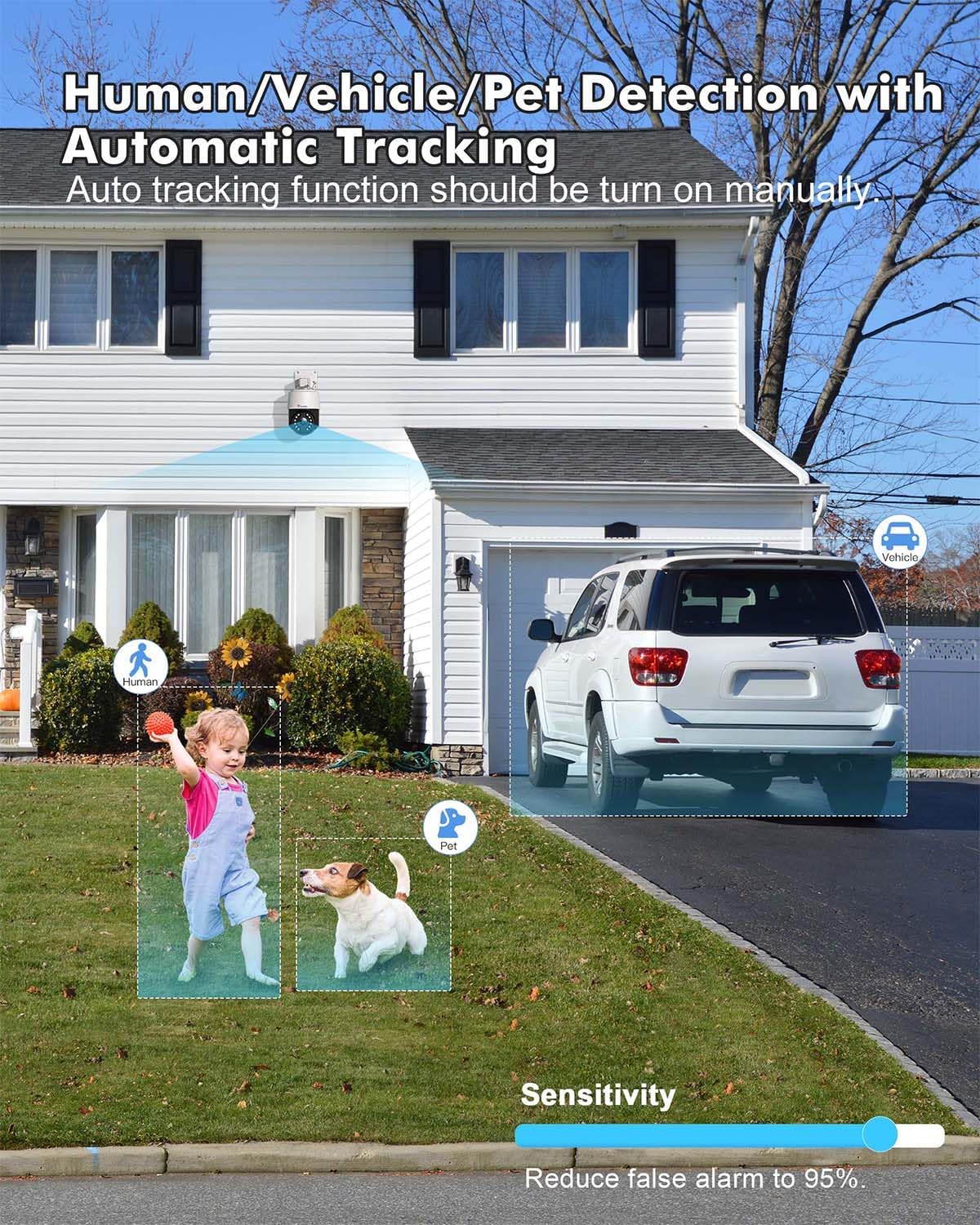
Image: Human/Vehicle/Pet Detection feature, showing the camera identifying a child, a dog, and a vehicle with bounding boxes, and a sensitivity slider to reduce false alarms.

Image: Instant Alarm and 24-Hour Monitoring, showing a person running past the camera at night, triggering sound and light alarms, and a notification on a smartphone.
Multiple Recording Options & IP66 Weather Resistance
Supports 24/7 continuous recording, or scheduled recording, with videos automatically saved to the cloud or a TF card (up to 256GB, not included). Constructed from metal, the camera boasts IP66 weather resistance for durability in various outdoor conditions.

Image: Various storage options available for the camera, including up to 256GB TF card, NVR/NAS 24/7 recording, FTP, and Ctronics Cloud storage.
Dual-Band WiFi & Broad Compatibility
Connects via 2.4GHz for longer transmission range or 5GHz for stronger network connection. Compatible with iOS, Android, Windows, and Mac OS via the Ctronics Pro app and HIP2P Client.

Image: Dual-band WiFi connectivity, showing the camera installed on a house with circles indicating 5GHz for stronger connection and 2.4GHz for longer transmission range.

Image: Broad compatibility of the camera with various operating systems and applications, including iOS, Android, Windows, Mac OS, Ctronics Pro, and HIP2P Client, showing a laptop, tablet, and smartphone displaying camera feeds.
Aratohu Tatūnga
1. Hononga Tuatahi
For the initial setup, it is recommended to connect the camera to your router via an Ethernet cable for a stable connection. Once configured, you can switch to Wi-Fi.
- Connect the camera to a power outlet using the provided power adapter.
- Connect one end of the network cable to the camera's Ethernet port and the other end to your router.
- Wait for the camera to power on and initialize (indicated by a status light, refer to the camera's LED indicator guide for details).
2. Taupānga Tāutanga me te Paihere
Download the Ctronics Pro app on your smartphone or tablet. The app is available for both iOS and Android devices.
- Rapua "Ctronics Pro" in your device's app store (Apple App Store for iOS, Google Play Store for Android).
- Install the app and create an account if you don't have one.
- Open the app and follow the on-screen instructions to add your camera. This typically involves scanning a QR code on the camera or manually entering its UID.
- Once the camera is detected, follow the prompts to connect it to your Wi-Fi network (2.4GHz or 5GHz).
3. Whakapiki i te Kamera
The camera supports wall or ceiling mounting. Choose a location that provides optimal viewing coverage and is within range of your Wi-Fi signal and power source.
- Use the provided mounting template (if included) or mark the drill holes on the desired surface.
- Drill holes and insert the wall anchors.
- Whakamaua te taiapa whakapuru ki te pakitara/tuanui ma te whakamahi i nga wiri kua whakaratohia.
- Tāpirihia te kāmera ki te anga whakairi, kia tino mau te mau.
- Whakatikatikahia te koki o te kāmera kia kapi i te wāhi e hiahiatia ana.
Nga Tohutohu Whakahaere
1. Ora View me te purei hoki
Whakauru atu ki ngā whāngai ataata ora me te whakahou anōview tuhia footage through the Ctronics Pro app or desktop client.
- Ora View: Open the app and select your camera from the device list to view te whāngai wā-tūturu.
- Purei: Navigate to the playback section in the app to access recorded videos from your TF card or cloud storage.
2. PTZ Control and Optical Zoom
Control the camera's pan, tilt, and zoom functions directly from the app.
- Use the directional controls in the app to pan (horizontal movement) and tilt (vertical movement) the camera.
- Use the zoom in/out buttons to activate the 16X optical zoom.
3. Auto Cruise and Preset Points
Set up automated patrol routes for comprehensive area coverage.
- In the app, move the camera to a desired position and save it as a preset point. You can set up to 30 preset points.
- Configure an auto-cruise route by selecting the desired preset points and the order in which the camera should visit them.
- Activate the auto-cruise function to have the camera automatically patrol the defined route.
4. Intelligent Detection Configuration
Customize detection settings to receive accurate alerts.
- Access the detection settings in the app.
- Enable human, vehicle, or pet detection as needed.
- Whakatikatikahia ngā taumata tairongo hei whakaiti i ngā whakaoho teka.
- Enable automatic tracking to have the camera follow detected objects.
5. Rua-Way Ororongo
Communicate through the camera using the two-way audio feature.
- I roto i te ora view, patohia te ata hopuoro hei kōrero mā te kaikorero o te kāmera.
- Patohia te ata korero hei whakarongo ki te ororongo mai i te hopuoro o te kamera.
6. Tautuhinga Hopu
Manage how your footage is recorded and stored.
- Configure 24/7 continuous recording or set specific recording schedules.
- Choose your preferred storage method: TF card, NVR/NAS, or cloud storage.
- Ensure your TF card is properly inserted and formatted if using local storage.
Te tiaki
1. Te horoi
Regularly clean the camera lens and housing to ensure clear image quality and proper operation.
- Whakamahia he ngohengohe, damp cloth to wipe the camera's exterior.
- Mo te arotahi, whakamahia he kakahu horoi mo te arotahi motuhake me te otinga kia kore e pakaru.
- Kaua e whakamahi i nga matū kino, i nga mea awhiowhio ranei.
2. Whakahoutanga Firmware
Keep your camera's firmware updated to benefit from the latest features, security enhancements, and bug fixes.
- Check for firmware updates periodically through the Ctronics Pro app.
- Follow the app's instructions carefully during the update process. Ensure a stable power supply and internet connection during updates.
3. Weather Resistance Care
While the camera is IP66 weather-resistant, proper installation and occasional checks can prolong its lifespan.
- Ensure all cables are properly sealed and protected from moisture.
- Tirohia te pumau o te whakapiringa i ia wā, ina koa i muri i ngā āhuatanga kino o te rangi.
Raparongoā
If you encounter issues with your Ctronics camera, refer to the following common troubleshooting steps:
- Kore Mana: Me mohio kei te hono pai te urutau hiko ki te kamera me te putanga hiko mahi.
- Kore Hononga Whatunga:
- Tirohia kei te tika to kupuhipa Wi-Fi.
- Me whakarite kei roto te kamera i te awhe o to pouara Wi-Fi.
- Whakamātauria anō tō pouara me te kāmera.
- For initial setup, try connecting via Ethernet cable first.
- Kounga Atahanga Kino:
- Horoia te arotahi kamera.
- Check your network speed; a slow connection can affect streaming quality.
- Ensure the camera's resolution setting in the app is set to 4K/HD.
- Pūoho Hehe:
- Whakatikatikahia te aro o te kitenga i roto i te taupānga.
- Ensure human/vehicle/pet detection is enabled if you wish to filter out other movements.
- Nga take hopu:
- Check if the TF card is inserted correctly and is not full.
- Format the TF card if necessary (this will erase all data).
- Verify your cloud storage subscription status if using cloud recording.
For further assistance, please contact Ctronics customer support.
Whakatakotoranga
| Āhuahira | Taipitopito |
|---|---|
| Whakataunga Hopu Ataata | 4K |
| Tae | Mā |
| Te maha o nga mea | 1 |
| Hangarau Whakawhitiwhiti Ahokore | Wi-Fi |
| Viewing Koki | 355 degrees (Pan), 90 degrees (Tilt) |
| Awhe Tirohanga Po | 60 Meters (IR), 45 Meters (Color) |
| Rauemi | Maama, Acrylonitrile Butadiene Styrene (ABS) |
| Voltage | 12 Volts |
| Mana | 24 Watts |
| Rahi Tūemi (L x W x H) | 17 x 15 x 15 henimita |
| Taumata Atete Wai | Parewai (IP66) |
| Topa Optical | 16X Multiplier |
| Nga waahanga motuhake | Auto Cruise/Tracking/Zoom, Night Vision, 4K Ultra HD, Human, Vehicle, Animal Detection |
| Tauira | CTIPC-640C-Z16 |
| Whakataunga Tonu Whaihua | 8 Megapixels |
| Nga Whakamahinga Manakohia | Haumarutanga o waho |
| Hangarau Hononga | WiFi |
| Whakamahi o roto/waho | Waho |
| Pūrere Hototahi | Waea atamai |
| Puna Mana | Hiko Hiko |
| Momo Whakaeke | Maunga Taiepa, Maunga Pouaka |
Pūtāhui me te Tautoko
Ctronics offers a pūtāhui toru tau on this product. For any technical assistance, inquiries, or warranty claims, please contact Ctronics customer support. Many users have reported positive experiences with their support team, specifically mentioning helpful representatives like Eric and Candy.
You can typically find contact information on the official Ctronics website or within the Ctronics Pro application.
Ask a question about this manual
Ask about setup, troubleshooting, compatibility, parts, safety, or missing instructions. Manuals+ will review the question and use this page’s manual context to help answer it.