
1. Kupu Whakataki
Thank you for choosing the ONIKUMA CW908 Wired Gaming Mouse. This manual provides detailed instructions on how to set up, operate, maintain, and troubleshoot your new gaming mouse. Please read this manual carefully before use to ensure optimal performance and longevity of your device.
2. Hua Neke Atuview
The ONIKUMA CW908 is a high-performance wired gaming mouse designed for comfort and precision. It features 7 programmable buttons, adjustable DPI up to 7200, and vibrant RGB lighting. Its ergonomic and lightweight design ensures comfortable use during extended gaming sessions.
2.1 Ngā Wāhanga o te Kiore
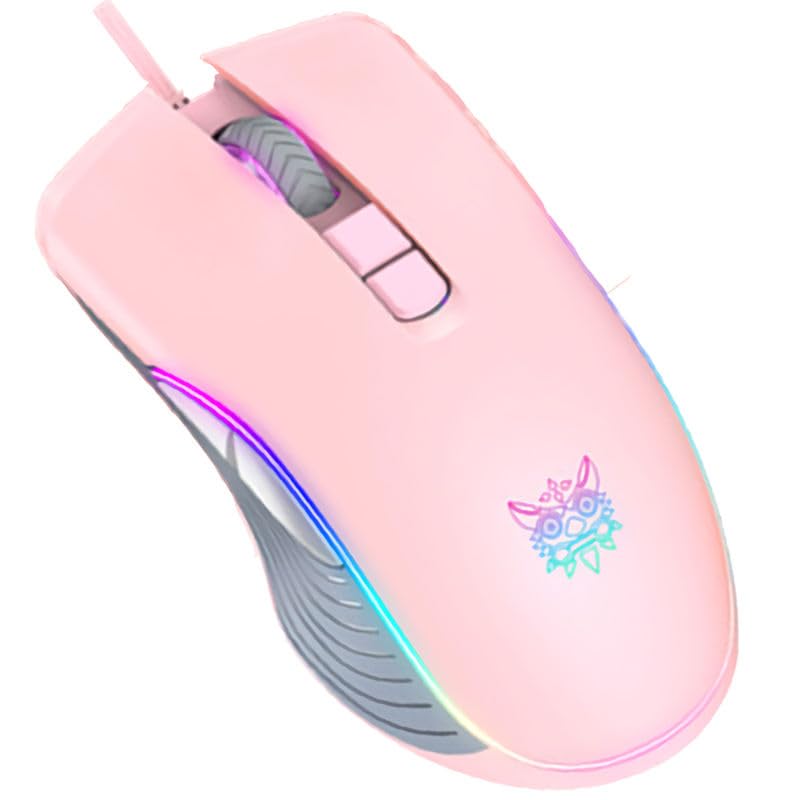
- Pātene Pātene Mauī: Paerewa mahi pāwhiri tuatahi.
- Pātene Pāwhiri Matau: Paerewa pawhiri tuarua mahi.
- Panuku Wira: Mo te mahi panuku me te patene-waenganui.
- Patene Whakatikatika DPI: Ka huri haere i roto i ngā tautuhinga DPI.
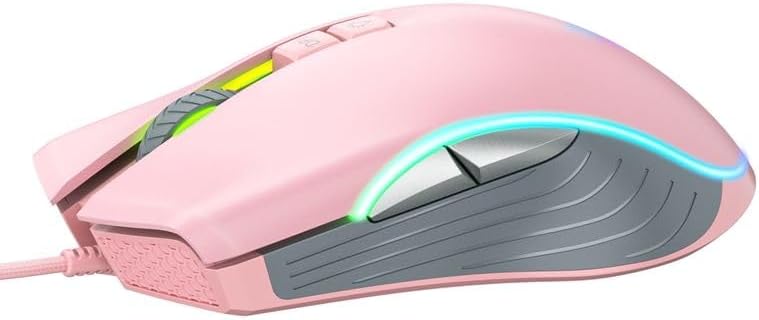
- Pātene Whakamua: Ka whakatere whakamua ki roto web ngā pūtirotiro, ngā taupānga rānei.
- Pātene Whakamuri: Ka whakatere whakamuri ki roto web ngā pūtirotiro, ngā taupānga rānei.
- Rarama RGB: Integrated LED lighting for aesthetic appeal.
- Tūhono USB: For wired connection to your computer.
2.2 Whakaahua Hua
3. Tohutohu Tatūnga
Setting up your ONIKUMA CW908 mouse is a simple plug-and-play process.
- Wewetehia te Kiore: Ata tango i te kiore mai i tana putunga.
- Hono ki Rorohiko: Plug the USB connector of the mouse into an available USB port on your personal computer or laptop.
- Tāuta Atekōkiri: Your operating system (Windows 7, Windows 98, Linux, or newer versions) should automatically detect and install the necessary drivers. This process may take a few moments.
- Kua Reri mo te Whakamahi: Kia tāutahia ngā taraiwa, ka rite te kiore mō te whakamahi tonu. Ka tiaho te rama RGB.
4. Nga Tohutohu Whakahaere
The ONIKUMA CW908 mouse offers intuitive controls for both general use and gaming.
4.1 Mahi Taketake
- Nekehia te kiore ki runga i te mata papatahi hei whakahaere i te kiore i runga i tō mata.
- Use the Left Click Button for primary actions (e.g., selecting items, opening files).
- Use the Right Click Button for secondary actions (e.g., opening context menus).
- Roll the Scroll Wheel up or down to navigate through documents or web pages. Press the Scroll Wheel for its middle-click function.
4.2 Whakatikatika DPI
The mouse features an adjustable DPI (Dots Per Inch) setting, allowing you to change cursor sensitivity on the fly. The CW908 supports up to 7200 DPI.
- Pehia te Patene Whakatikatika DPI (usually located behind the scroll wheel) to cycle through different DPI levels.
- Each press will switch to a predefined DPI setting, indicated by a change in the RGB lighting color or pattern (if applicable).
- Select the DPI level that best suits your task, whether it's precise aiming in games or fast navigation across multiple monitors.
4.3 Pihi Taha
The Forward and Backward buttons on the side of the mouse provide quick navigation.
- Ko te Patene Whakamua typically moves forward in web kaitirotiro ranei file kaihōpara.
- Ko te Pātene Whakamuri typically moves backward in web kaitirotiro ranei file kaihōpara.
5. Whakaritea Tautuhinga
While the ONIKUMA CW908 offers plug-and-play functionality, advanced customization for button remapping or more intricate RGB control may require dedicated software. Please check the official ONIKUMA website for any available software downloads specific to the CW908 model.
- Tautuhinga DPI: As mentioned, the DPI button cycles through preset levels. Software, if available, may allow for custom DPI steps.
- Pātene Papatono: With compatible software, the 7 buttons can often be remapped to perform specific functions, macros, or keyboard shortcuts, enhancing your gaming and productivity.
- Rarama RGB: Software can provide more granular control over RGB effects, colors, and brightness, beyond the default cycling modes.
6. Tiaki
Proper maintenance ensures the longevity and performance of your gaming mouse.
- Te horoi: Whakamahia he kakahu ngohengohe, maroke hei muru i te mata o te kiore. Mo te paru maro, paku dampen te kakahu ki te wai, ki te otinga horoi ngawari ranei. A ape i nga matū kino.
- Horoi Sensor: Occasionally, dust or debris may accumulate around the optical sensor on the underside of the mouse. Use a cotton swab or compressed air to gently clean the sensor area.
- Tiaki taura: Avoid sharply bending or pulling the USB cable. Store the mouse in a way that prevents the cable from being crimped or damaged.
- Rokiroki: Ki te kore e whakamahia, penapenahia te kiore ki roto i te taiao ma, maroke kia matara atu i nga wera nui.
7. Te Raru
If you encounter issues with your ONIKUMA CW908 mouse, refer to the following common problems and solutions:
| Raruraru | Take pea | Rongoā |
|---|---|---|
| Kaore te kiore e whakautu | He hononga USB kore, he tauranga USB he, he take taraiwa. | Me mohio kua honoa te taura USB. Whakamātauria he tauranga USB rereke. Tīmataria anō tō rorohiko. Tirohia te Kaiwhakahaere Pūrere mo te mana taraiwa. |
| He pohehe, he pekepeke ranei te neke o te pehu | He pūoko whatu paru, he mata o te papa kiore kāore i te tika. | Clean the optical sensor on the underside of the mouse. Use a clean, uniform-colored mouse pad. |
| Kāore te pātene DPI e huri i te aro | He hapa te pātene, he pakanga pūmanawa. | Ensure the mouse is properly connected. If using custom software, check its settings. Try on another computer to rule out system issues. |
| Ko te rama RGB kaore e mahi | Power issue, software setting. | Ensure the mouse is receiving power via USB. If using custom software, check lighting settings. |
8. Whakatakotoranga
| Āhuahira | Taipitopito |
|---|---|
| Waitohu | ONIKUMA |
| Tauira | CW908 |
| Hangarau Hononga | Waea USB |
| Huringa Huringa | Optical |
| DPI (Ira mo ia Inihi) | Up to 7200 (Adjustable) |
| Te maha o nga Patene | 7 |
| Nga waahanga motuhake | LED Lighting (RGB), Comfortable Design, Lightweight |
| Whakamahi Manakohia | Te petipeti |
| Pūrere Hototahi | Rorohiko Whaiaro, Pona |
| Hototahitanga Pūnaha Whakahaere | Linux, Windows 7, Windows 98 (and newer Windows versions) |
| Kāhua | Hou |
| Tae | Mawhero |
9. Pūtāhui me te Tautoko
ONIKUMA products are manufactured to high-quality standards. For specific warranty information, please refer to the warranty card included with your product or visit the official ONIKUMA website. If you require technical support or have questions not covered in this manual, please contact ONIKUMA customer service through their official channels.